
CRM automation agent Live
CRM field mapping: how to get AI updates into the right standard and custom fields
How to map your team's standard, methodology and custom opportunity fields so Oliv AI's CRM Manager agent writes each update to the right place, then review and automate it.
On this page
- At a glance
- Before you begin
- Step 1: List the fields you want kept current
- Step 2: Connect your CRM
- Step 3: Create a HubSpot property for Oliv data
- Step 4: Hand your field list to Oliv AI's team
- Step 5: Check the first updates in Ask First
- Step 6: Switch to Auto-Pilot
- Step 7: Backfill old records and watch the digest
- What field mapping in Oliv AI is
- Why field mapping matters
- The Oliv AI approach to field mapping
- How updates get into CRM fields
- How to check CRM field mapping is working
- How to map CRM fields by hand
- How field mapping works with other agents
- Who uses field mapping, and how
- How Oliv AI compares for CRM field mapping
- Limits and things to know
- Common questions
- Further reading
- Related
Before you switch on automated CRM updates, check where each one will land, because one update in the wrong standard or custom field is enough to make people doubt the record. CRM field mapping decides which field each update from Oliv AI's CRM Manager agent lands in. Oliv AI works as a layer on top of your CRM: standard fields are pre-mapped when you connect it, and its team maps your custom fields during onboarding. This guide walks a RevOps admin through preparing the field list, connecting the CRM, checking the first updates and switching to automatic writes.
At a glance
| Who does it | A RevOps admin, with Oliv AI's onboarding team |
| CRMs | Salesforce, HubSpot and Zoho out of the box |
| Pre-mapped | Close date, deal amount, stage, next steps, last activity date |
| Mapped for you | Methodology fields and your custom fields |
| First mode | Ask First, with each suggestion beside the current value on the deal's CRM Updates tab |
| Then | Auto-Pilot, once RevOps confirms accuracy |
Before you begin
- Have your CRM ready to connect. You connect it during onboarding.
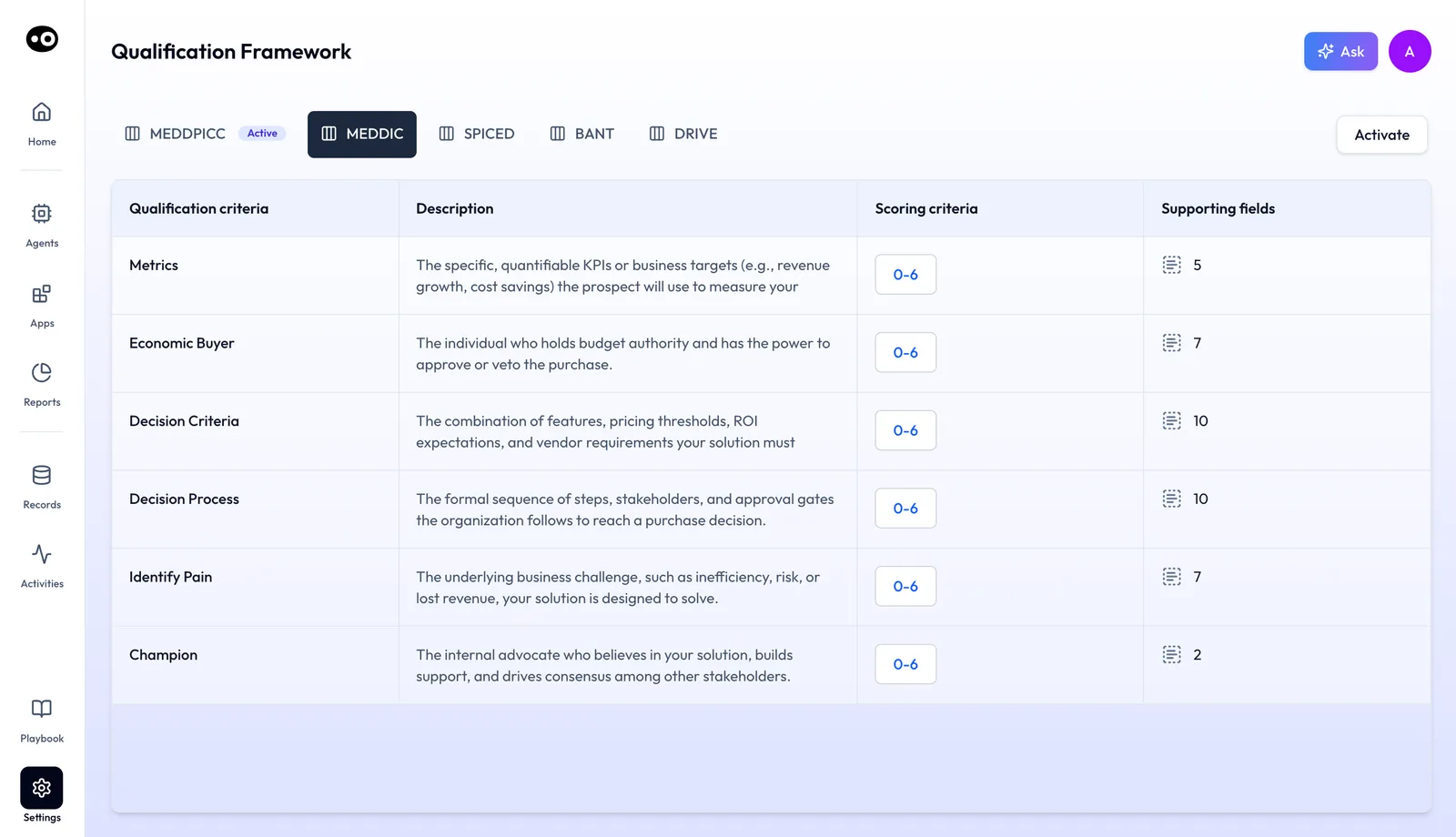
- Know which methodology you run. Settings › Qualification Framework lists MEDDPICC, MEDDIC, SPICED, BANT and DRIVE, with one marked Active.
- List your custom opportunity fields. Note what each one means and which reports read it.
- Plan a short review period. Reps take part while the team checks early updates.
- For HubSpot, have access to HubSpot Settings. You may need to create a custom property for Oliv data.
Step 1: List the fields you want kept current
Start with every field on your opportunity record, and cross out the ones no report, workflow or person reads. Every field you retire is one nobody has to keep current, and one fewer line on the list you hand over.
CRM Manager fills three kinds of field. Sort your list into them before you connect anything.
- Standard fields. Close date, deal amount, stage, next steps and last activity date. These are pre-mapped and fill from day one.
- Methodology fields. The fields your qualification framework uses. Values come from Oliv AI's Deal Insights layer, and CRM Manager writes them and keeps them current.
- Custom fields. Anything unique to your process, such as a deck status, use case, competition or integration type.
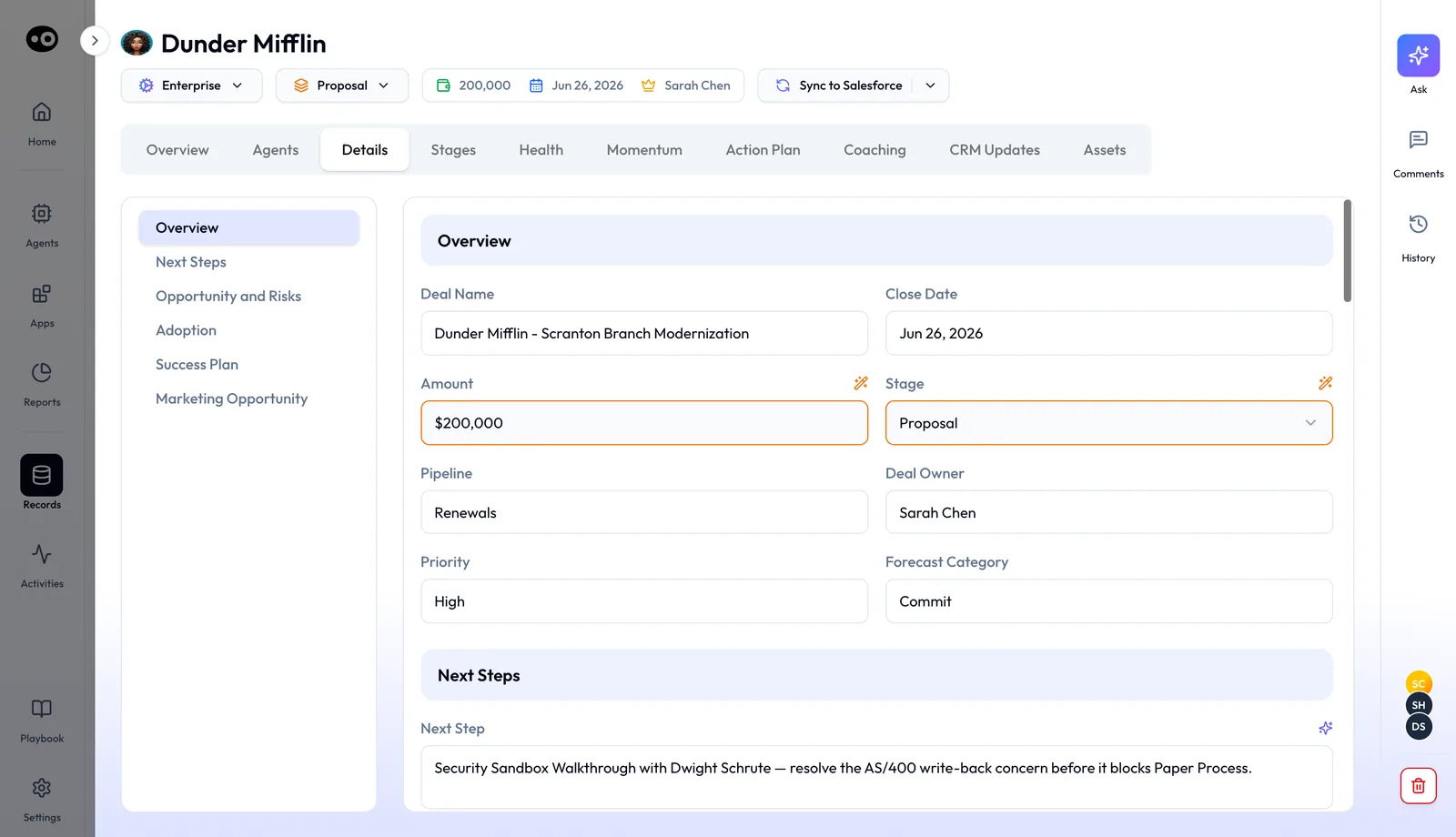
To see the standard fields as reps will, open a deal's Details tab. Its section index runs from Overview and Next Steps to Opportunity and Risks, Adoption, Success Plan and Marketing Opportunity.
For methodology fields, open Settings › Qualification Framework. Each criterion of the previewed framework shows a Supporting fields count, the CRM fields that back it.
The sales methodology overview explains how framework fields fill from calls.
Step 2: Connect your CRM
- Use the one-click integration for Salesforce, HubSpot or Zoho. Your pipeline and fields sync straight away.
- For HubSpot, visit the HubSpot integration in the Oliv AI web app. Share your HubSpot URL with the Oliv AI admin through Intercom in the Oliv AI interface.
- To connect email and phone as well, add those integrations. They widen activity coverage beyond meetings.
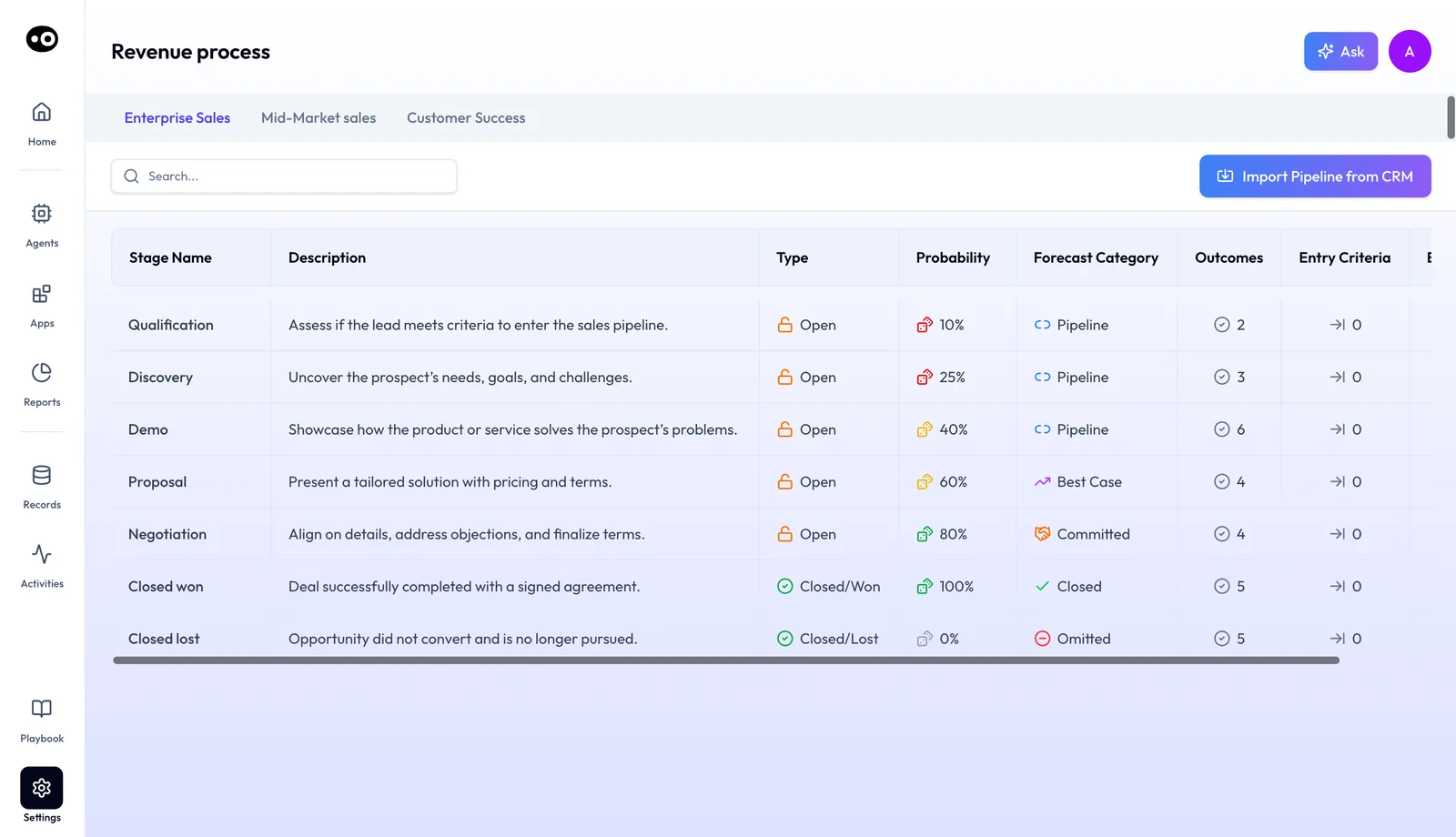
- Open Settings › Revenue Process and check your stages. Each sales motion has its own tab, and Import Pipeline from CRM pulls in the stages from the connected CRM. Every stage carries a Type, a Probability and a Forecast Category.
The integrations directory lists the apps you can connect.
Step 3: Create a HubSpot property for Oliv data
Use this step when you want a piece of Oliv data, such as pain points, in its own HubSpot field.
- In HubSpot, click Settings at the top of the page.
- Under Data Management, select Properties, then click Create Property.
- Name the property, for example Oliv: Pain Points & Needs, and set the object type to Deal.
- Choose Rich Text as the field type, since most Oliv fields work best that way. Click Preview, then Create.
- Back in Settings, go to Objects, then Record Customization, and open the default view.
- Click Add Cards, then Create Card. Name the card, select your new property and click Save and exit.
- Open any deal to check the field shows. Once Oliv captures relevant information, it fills the field automatically.
Step 4: Hand your field list to Oliv AI's team
Oliv AI's team configures custom fields during onboarding, as a service. It isn't a task RevOps does alone. Share the list from Step 1, including any HubSpot properties you created in Step 3.
Once a custom field is mapped, CRM Manager updates it in the same way as standard and methodology fields. The RevOps implementation guide covers the rest of onboarding.
Step 5: Check the first updates in Ask First
- Leave CRM Manager on Ask First. You review each update before it's written.
- Watch for the notification. After every activity, reps get a Slack or preferred-channel message: "I found updates for X fields, review here."
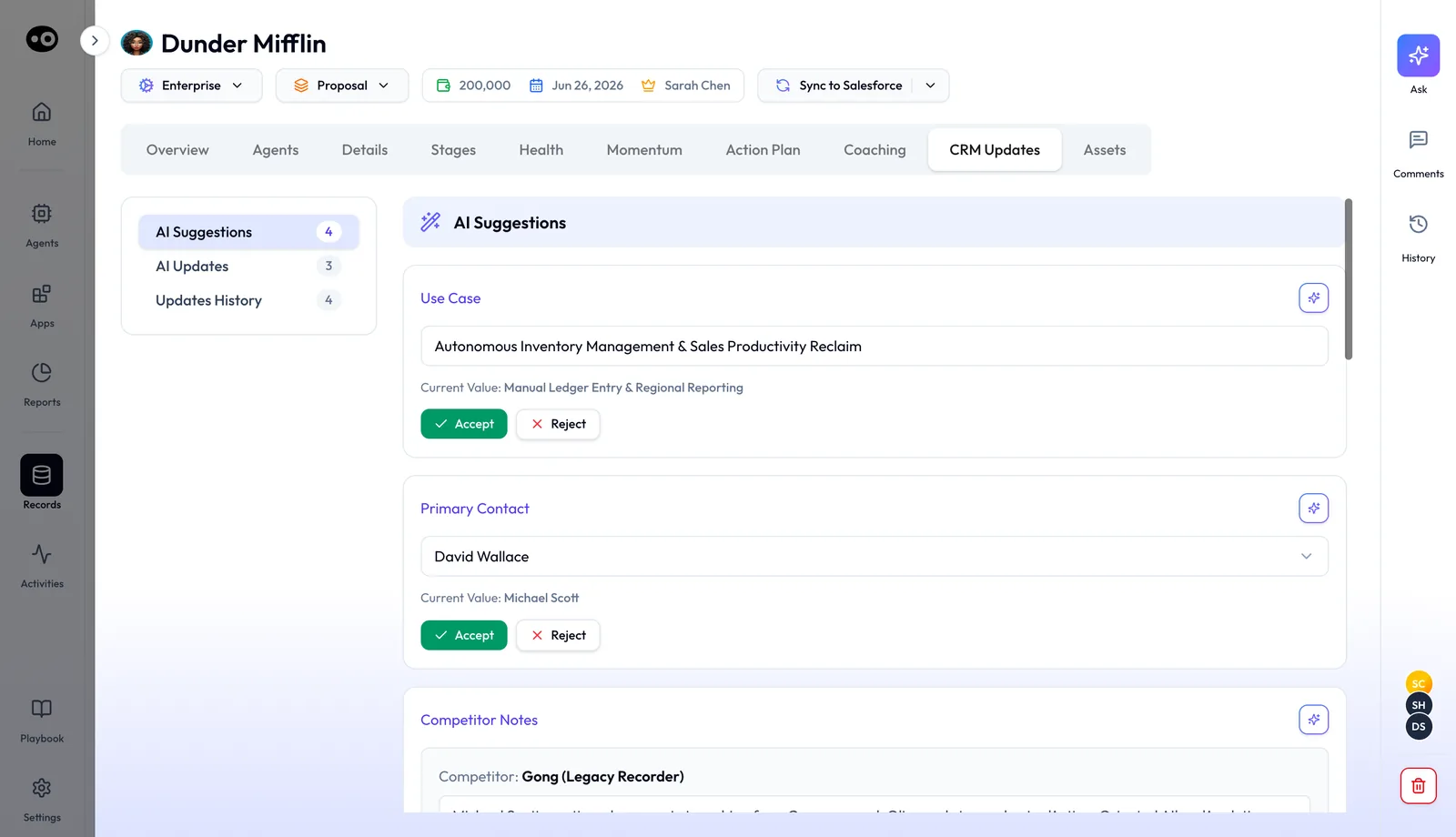
- Open the deal's CRM Updates tab. Under AI Suggestions, each card names the field, holds the suggested value and shows "Current Value" below it.
- Accept or reject. Reps press Accept or Reject on each field.
- Check the counts. The index shows counts for AI Suggestions, AI Updates and Updates History, so you can see what's waiting and what already changed.
The meeting's own CRM Updates tab says what changed and why, for example a stage move held as Pending Update until someone presses Update Deal.
If a field keeps landing in the wrong place, raise it with Oliv AI's team before you move on. Reps see these reviews as part of running their deals.
Step 6: Switch to Auto-Pilot
Once accuracy thresholds are met, RevOps confirms the switch to auto mode. On Auto-Pilot, unreviewed updates apply automatically and the pipeline stays current without anyone acting.
Teams on the weekly cadence get a middle path. Reps receive pending CRM suggestions on Friday morning, and unreviewed ones are accepted automatically on Sunday night. The same approval idea applies to other agents, as described in agent tools and run modes.
Step 7: Backfill old records and watch the digest
- Backfill existing deals. Ask CRM Manager in plain language, for example "Backfill MEDDPICC fields across the pipeline."
- Clean up as needed. It can also find duplicate accounts, rebuild broken account hierarchies and clean unassigned contacts.
- Read the weekly governance summary. It lists suggestions made, fields updated, reverts, time saved, acceptance rate by rep and flags that need review.
What field mapping in Oliv AI is
Field mapping is the link between what Oliv AI learns from a conversation and the CRM field that stores it. Oliv AI's CRM Manager agent writes to Salesforce, HubSpot or Zoho, and every update flows into your existing workflows, reports and dashboards.
Mapping covers more than deal fields. CRM Manager also logs every meeting, call and email against the right account, contact and opportunity.
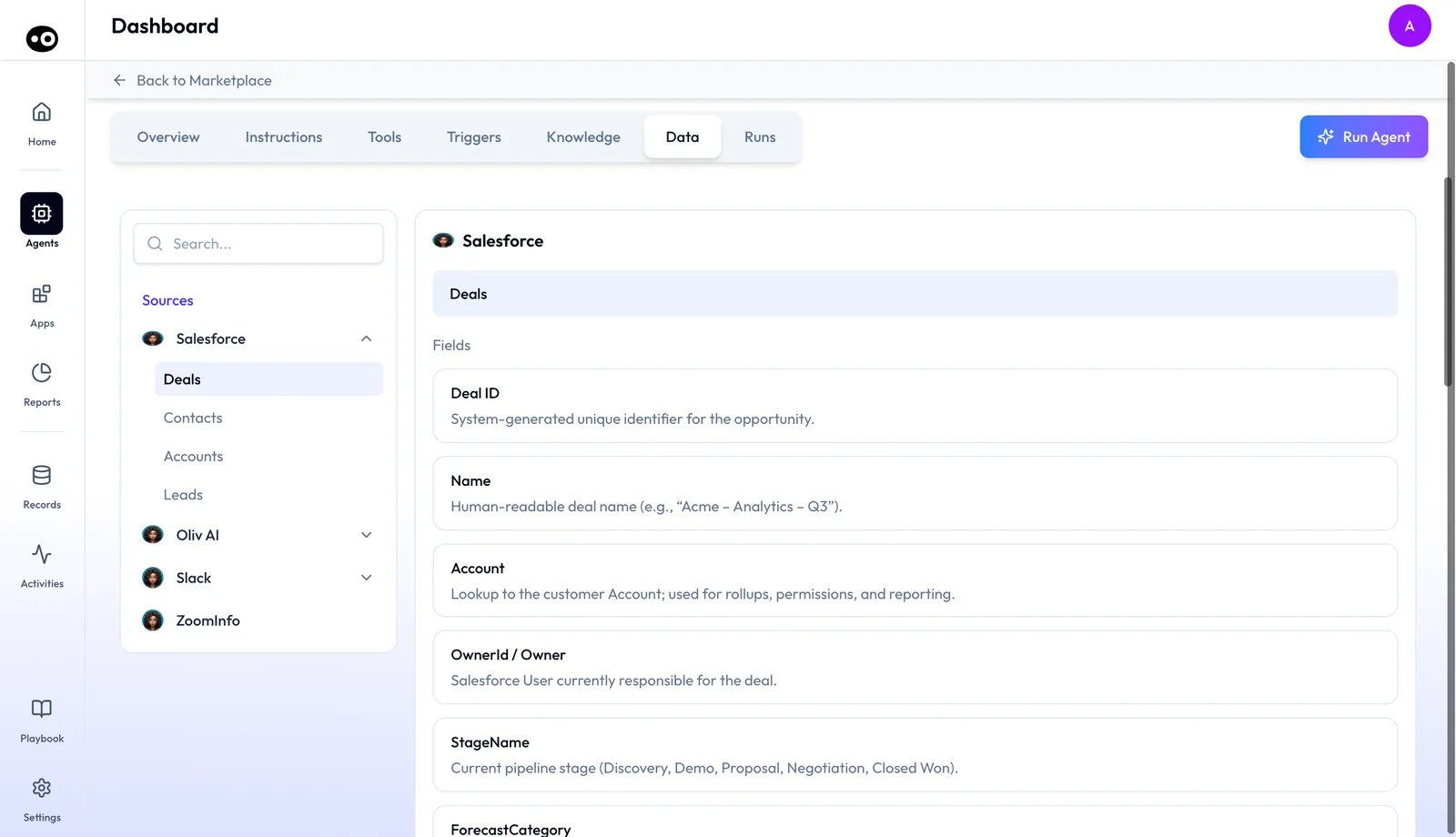
An agent's Data tab shows the other side of the link: the CRM objects and fields an agent can read. Under Sources, Salesforce lists Deals, Contacts, Accounts and Leads, and each field comes with a plain-language description.
For a recorded call, CRM Manager attaches an AI-generated summary and the full call transcript to the Opportunity record. The CRM Manager agent page shows that example in full.
Why field mapping matters
What it's for
Field mapping is for RevOps teams whose reports depend on custom fields that reps rarely fill. It points each piece of call data at the one field where your reports expect it.
How it helps
- Custom fields stay filled. Once mapped, they update like stage and close date.
- No rules to maintain. CRM Manager reasons from context instead of rules someone has to write and update.
- Every value can be checked. Each suggestion sits beside the current value, and the meeting's update says why it changed.
- Methodology stays complete. Framework fields fill from every call, and old deals can be backfilled.
What happens without it
Custom fields stay blank until someone chases them. Reports that rely on use case, competition or deal status show gaps, and leaders stop trusting them. Pipeline reviews fall back on whatever reps remember to type, and methodology fields sit half empty before a forecast call.
Why buyers care
The RevOps lead owns this decision, because the reports they build depend on those fields. It matters most during onboarding, and again whenever the team adds a field for a new process or methodology. Sales leaders feel it later, in the reports they read every week.
The Oliv AI approach to field mapping
Take a RevOps admin whose opportunity record carries a dozen custom fields beyond the standard set. There is a deck status, a use case, a competitor field and an integration type. Each one feeds a report the CRO opens every Monday, and two of them decide how deals are routed to solutions engineers.
Most teams fill fields like these in one of two ways. Either reps remember to type them, or an admin writes rules to fill them. Rules tend to break when the schema changes, and a field nobody fills quietly drops out of the reports.
The information behind those fields is usually spoken on calls already. A buyer names a competitor or describes the integration they need. What's left is pointing each piece of data at the right field once, so every later update lands there.
Oliv AI takes that job on during onboarding. Its team maps your custom fields as a service, and the CRM Manager agent then updates them from every meeting, call and email. It treats them exactly as it treats stage, close date and methodology fields.
While you're on Ask First, every suggestion sits next to the field's present value on the deal's CRM Updates tab. Nothing reaches the CRM until a rep presses Accept. The meeting's own CRM Updates tab says what changed and why, so that rep can check the reason before deciding.
How updates get into CRM fields
A field on your opportunity gets its value in one of four ways. Knowing which way fills which field tells you what belongs on your list. HubSpot's help pages spell out the mechanics, so the examples below use them.
A rep types the value
You get what the rep knows and remembers to enter. HubSpot can prompt them with conditional stage properties, which show chosen fields when a user manually creates a record in a stage or moves one there. It misses whatever was said on a call and never typed, and a prompt can't tell a careful answer from a rushed one.
The CRM calculates it
This works for facts the CRM can see for itself. HubSpot, for example, updates Deal probability automatically when a user moves a deal to a new stage. It can't see anything that lives in a conversation, such as a competitor's name. Mark these fields on your list, so the conversation with the onboarding team starts with the fields a call can actually fill.
A rule sets it
This suits changes you can predict from another field or event. A HubSpot workflow's Edit record action can set, edit, copy or clear property values. It misses anything you didn't write a rule for, and someone has to update the rules every time the CRM or the business changes.
The conversation sets it
Here the value comes from what the buyer actually said: the competitor, the use case, the integration they need. What goes wrong is a correct value in the wrong field, or a value that fits the words but not your definition. That's why this way needs a written meaning for each field and a review period before it writes on its own.
Which of these Oliv AI does
Oliv AI's CRM Manager agent takes the last way. It acts on every activity and updates your mapped fields from what was said, with no rules for you to maintain. On Ask First, reps review each update until RevOps confirms the switch to auto mode.
How to check CRM field mapping is working
Two numbers tell you most of what you need, and each has a weak spot you should check by hand.
Acceptance rate
Divide the suggestions a rep accepted by the suggestions that rep received. A low rate can mean a field's meaning was never written down, or that the rep's deals run differently. A high rate can mean the mapping is right, or that the rep presses Accept without reading. So open a few accepted cards and compare each one with the call.
Reverts
A revert means someone saw a value in a field and changed it back. Several reverts on the same field point to the mapping more than to the rep, so raise that field with the onboarding team. The weak spot is that a revert only counts what someone noticed, and a wrong value nobody opens never shows up.
Where you see these numbers
The weekly governance summary from Oliv AI's CRM Manager agent lists suggestions made, fields updated, reverts and acceptance rate by rep. The agent's weekly report also flags CRM objects with missing or stale data, which helps you find records where a mapped field hasn't filled. On a single deal, the counts on the CRM Updates tab show what's waiting and what already changed.
Your CRM's own dates won't settle this. HubSpot's Last modified date moves when any deal property is updated, regardless of the source, so it proves a record changed and not that the right field got the right value. If your subscription includes it, the Data sources tab on a HubSpot property lists the tools that update that property.
How to map CRM fields by hand
Here is the job if you ran it yourself, with reps and rules filling the fields. It's worth reading even if you never do it this way, because the first four steps are decisions only your team can make.
- Export every field on the opportunity. Note each field's type and who owns it.
- Find out what reads each field. In HubSpot, a property's Usages tab shows where it's used in the CRM, on a Data Hub Professional or Enterprise subscription. Otherwise, walk through your reports and dashboards one by one.
- Retire what nothing reads. Check with the report owner first, because a field one team ignores can still route another team's deals.
- Write one line on what each remaining field means. Add where the answer usually comes up, such as "competitor named on a discovery call."
- Check each field's type. HubSpot's guide says what a property stores decides its field type. A dropdown takes one option from a set list, so write down the options too.
- Choose who fills each field. It's a rep, the CRM, a rule or someone reading the calls.
- Test on a few live deals. Compare each field with what was said on the last call, and fix the definition as well as the value.
- Repeat when your process changes. A new methodology or sales motion usually adds fields and retires others.
The written meaning in step 4 is the one to protect. Skip it, and two reports can read one field with two meanings, and nobody can say which value is right.
The same job with Oliv AI
The first four steps stay with you, because only you know what your reports need. That's the list you build in Step 1 of this guide. Oliv AI's team takes it from there, doing the initial field mapping during onboarding as a service.
Standard fields are pre-mapped when you connect, so nobody touches those. Oliv AI's CRM Manager agent then fills your mapped fields from every meeting, call and email, and it normalizes inconsistent values to match your existing CRM conventions. Ask First replaces the live-deal test, because each suggestion sits beside the current value before it's written.
Book the review period into your deployment plan so reps know it's coming. If you're still working out how other tools connect, integrating sales automation in your CRM covers that. Once the mapping is settled, the daily running of updates moves to keeping the CRM updated.
Worked example: choosing which opportunity fields to map
Say your opportunity has 18 fields. You retire 4 that nothing reads, and all 5 standard fields stay. This is an illustrative calculation with sample figures. It isn't an Oliv AI output, and it claims no saving.
| What you count | Arithmetic | Result |
|---|---|---|
| Fields on the opportunity today | Counted in your CRM | 18 |
| Fields worth keeping current | 18 - 4 retired | 14 |
| Standard fields, pre-mapped on connection | Counted from the 14 | 5 |
| Share working from day one | 5 / 14 | 36% |
| Fields on the list for Oliv AI's team | 14 - 5 | 9 |
So about a third of the fields you care about work the day you connect, and your handover list has 9 lines. Without the retiring step it would have 13 lines (18 - 5), and 4 of them would be fields nobody reads.
How field mapping works with other agents
Oliver
Oliv AI's Oliver agent creates or modifies CRM field mappings when new tracking requirements emerge. When your process adds a field, Oliver works through CRM Manager to add it. An Oliver proposal can add a new Opportunity field that CRM Manager fills from meeting and email activity, with a 90-day backfill.
Meeting Assistant
Oliv AI's Meeting Assistant agent proposes field updates from every call. CRM Manager reviews the same call context and pushes approved changes into the mapped fields. The brief reps read before a call draws on those records, as shown in preparing for a meeting.
Deal Driver
Oliv AI's Deal Driver agent reads CRM field values and stage history for pipeline review and risk flags.
Olivia
Oliv AI's Olivia agent answers reps' questions about deals and accounts from the same records.
Who uses field mapping, and how
Revenue operations admins
The RevOps admin prepares the field list, checks early updates and confirms the switch to auto mode. The weekly governance summary shows each rep's acceptance rate. More on Oliv AI for revenue operations.
Account executives
AEs review proposed updates during the Ask First period, then mostly stop touching the fields. Their opportunity records stay current from their calls. See Oliv AI for account executives.
Sales managers
Managers watch the AI Suggestions count on each deal's CRM Updates tab. Custom fields they use in one-on-ones fill from real activity instead of reminders. Read about Oliv AI for sales managers.
Customer success managers
CS teams can put renewal and account fields on the list too, because CRM Manager covers onboarding, QBRs and renewals. Learn more about Oliv AI for customer success.
How Oliv AI compares for CRM field mapping
Most tools here can fill custom CRM fields from calls once an admin sets up the mapping. Oliv AI's team does the mapping for you during onboarding, and every update says why it was made. Oliv AI is the only platform in this table that does all three.
Field mapping features, from each platform's public documentation:
| Platform | Custom fields filled from calls | Mapping set up for you at onboarding | Reason shown for each update |
|---|---|---|---|
| Oliv AI | Yes | Yes | Yes |
| Outreach | Yes (Deal Agent field updates) | Admin task | Yes (transcript excerpt and timestamp) |
| Gong | Yes (AI data fields mapped to your CRM) | Admin task (Business admin feature) | Partly (evidence snippets on playbook notes) |
| Avoma | Yes (CRM fields mapped to Smart Topics) | Admin task (needs an Avoma admin) | Partly (evidence in deal methodology) |
| Fireflies | Yes (custom fields in Autofill CRM) | Partly (suggested mappings to review) | Not in docs |
| Fathom | Yes (summary sections mapped to fields) | Admin task (set by a team admin) | Not in docs |
Yes: documented and built in. Partly: documented with a limit, shown in brackets. Not in docs: not found in the vendor's public documentation.
Why Oliv AI is the stronger choice for CRM field mapping
- Mapping done with you, not by you. Oliv AI's team configures custom fields during onboarding. Avoma's mapping guide says you must be an Avoma admin and have Smart Topics configured first. Compare Oliv AI vs Avoma.
- Review before anything is overwritten. On Ask First, CRM Manager shows the present value beside each proposal. Gong's extractor notes that when new or better information is found, the previous value is overwritten. See Oliv AI as a Gong alternative.
- No prompts to tune per field. Oliv AI's team sets up each custom field. Outreach advises admins to share exactly what evidence the AI should look for when writing Deal Agent prompts. Read how Gong and Outreach compare.
Competitor details checked against each vendor's public documentation on 21 October 2026. Features and plans change, so confirm with the vendor before you decide.
Limits and things to know
- Custom fields need onboarding. Oliv AI's team maps them, so a new field goes through that team or through Oliver.
- HubSpot properties come first. To store Oliv data in its own HubSpot field, create the property before mapping.
- Auto mode needs a decision. RevOps confirms the switch once accuracy thresholds are met.
- Values come from Deal Insights. CRM Manager writes what that layer produces and doesn't decide values from scratch.
- Other CRMs are by request. Salesforce, HubSpot and Zoho work out of the box.
Common questions
Which fields are mapped automatically?
Standard fields are pre-mapped when you connect your CRM: close date, deal amount, stage, next steps and last activity date. They fill from day one.
Who maps our custom fields?
Oliv AI's team configures custom fields during onboarding as a service. You provide the field list and what each field means.
Do custom fields update differently from standard fields?
No. Once a custom field is mapped, CRM Manager updates it in the same way as standard and methodology fields.
Which methodologies can be mapped?
MEDDPICC, MEDDIC, SPICED, BANT and DRIVE, listed in Settings › Qualification Framework. The guide to MEDDIC explains its fields.
What field type should a HubSpot property for Oliv data use?
Most Oliv fields work best as Rich Text. Set the object type to Deal so the property appears with deal information.
Can I check a value before it's written?
Yes. On Ask First, every suggested update waits on the deal's CRM Updates tab, beside the field's current value.
What if a mapped field gets a wrong value?
Reject the suggestion before it's written. Updates History on the deal's CRM Updates tab keeps the record of changes.
Can we fill fields on old deals?
Yes. Ask CRM Manager to run a batch job, such as backfilling MEDDPICC fields across the pipeline.
Do meeting notes go to the CRM too?
Yes. For a recorded call, an AI-generated summary and the full call transcript are attached to the Opportunity record.
How do I know the mapping is working?
Read the weekly governance summary. It shows fields updated, reverts and acceptance rate by rep.
How do you map custom CRM fields for AI updates?
List your custom fields with what each one means, and hand the list to Oliv AI's team during onboarding. The team configures them as a service, and Oliv AI's CRM Manager agent then updates them from every meeting, call and email.
Which fields should we leave off the list?
Leave off any field that no report, workflow or person reads. Mark any field your CRM calculates on its own, because a call has nothing to add to it.
What happens when we add a new field later?
A new custom field goes through Oliv AI's team or through Oliv AI's Oliver agent. An Oliver proposal can add a new Opportunity field that CRM Manager fills from meeting and email activity, with a 90-day backfill.
Will mapped updates show in our existing reports?
Yes. Every update from Oliv AI's CRM Manager agent flows into your existing CRM workflows, reports and dashboards, so a report that reads a mapped field picks up the new value.
Further reading
Related
Updated 3 November 2026: added how updates reach CRM fields, how to check the mapping, the manual method and a worked example.