
Platform Live
AI quality and accuracy
How Oliv AI keeps agent output reviewable, from approvals and run modes to run records and the reason behind every CRM update.
On this page
- At a glance
- Review before anything changes
- Run modes on agent tools
- The conversation setting on super agents
- Run records
- The reason behind each update
- Speaker attribution
- What the AI reads before it answers
- Feedback that improves results
- A review-first rollout
- Limits and things to know
- Common questions
- Related
Oliv AI's agents read your calls, emails and CRM, then act on what they find. This page explains how you stay in control of that work. It covers where you approve changes before they land, how run modes set an agent's freedom, what each run record shows, and how every CRM update points back to the moment in a conversation that caused it.
At a glance
| Control | Where you set or see it | What it guards |
|---|---|---|
| Ask First and Auto-Pilot | CRM Manager's control mode | Whether CRM updates wait for a person |
| Auto Run, Requires Approval, Agent Decides | Each tool on an agent's Tools tab | Whether one action runs on its own |
| Ask before acting and Act without asking | Beneath the message box with Olivia or Oliver | How freely a super agent acts in one conversation |
| Run history | An agent's Runs tab | Every time the agent worked, and what it changed |
| Reasoning Trace | Above each answer from Olivia or Oliver | The steps the agent took to reach the answer |
| Source moment | Each proposed CRM update | The part of the conversation the update came from |
Review before anything changes
Most agent output that changes a system of record goes through a person first. You decide when that review can stop.
CRM updates
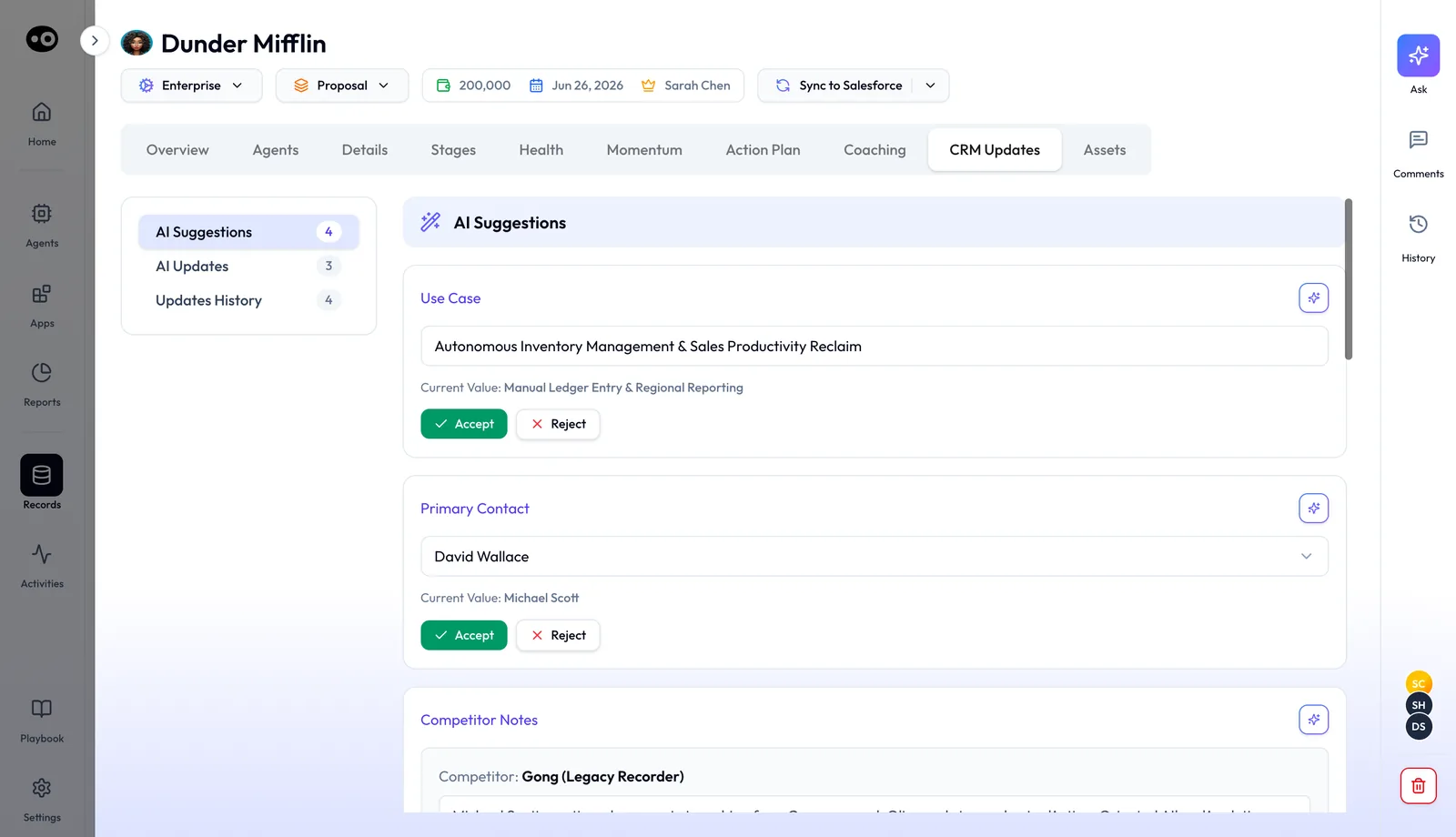
Oliv AI's CRM Manager agent has two control modes. Ask First means you review each update before it's written. Auto-Pilot means unreviewed updates apply automatically, so the pipeline stays current without anyone acting. By default, every suggested update surfaces for review before anything reaches your CRM.
On a deal's CRM Updates tab, AI Suggestions shows each proposed value beside its Current Value, with Accept and Reject. AI Updates lists changes already applied, and Updates History keeps the record. Once accuracy thresholds are met, RevOps confirms the switch to auto mode.
The workflow for keeping the CRM updated walks through that review step by step, and the CRM Manager agent page covers the agent itself.
Oliv AI's Meeting Assistant agent works the same way after a call. It reads the call, finds what changed, and proposes updates for approval. The Meeting Assistant agent then hands approved changes to CRM Manager to write.
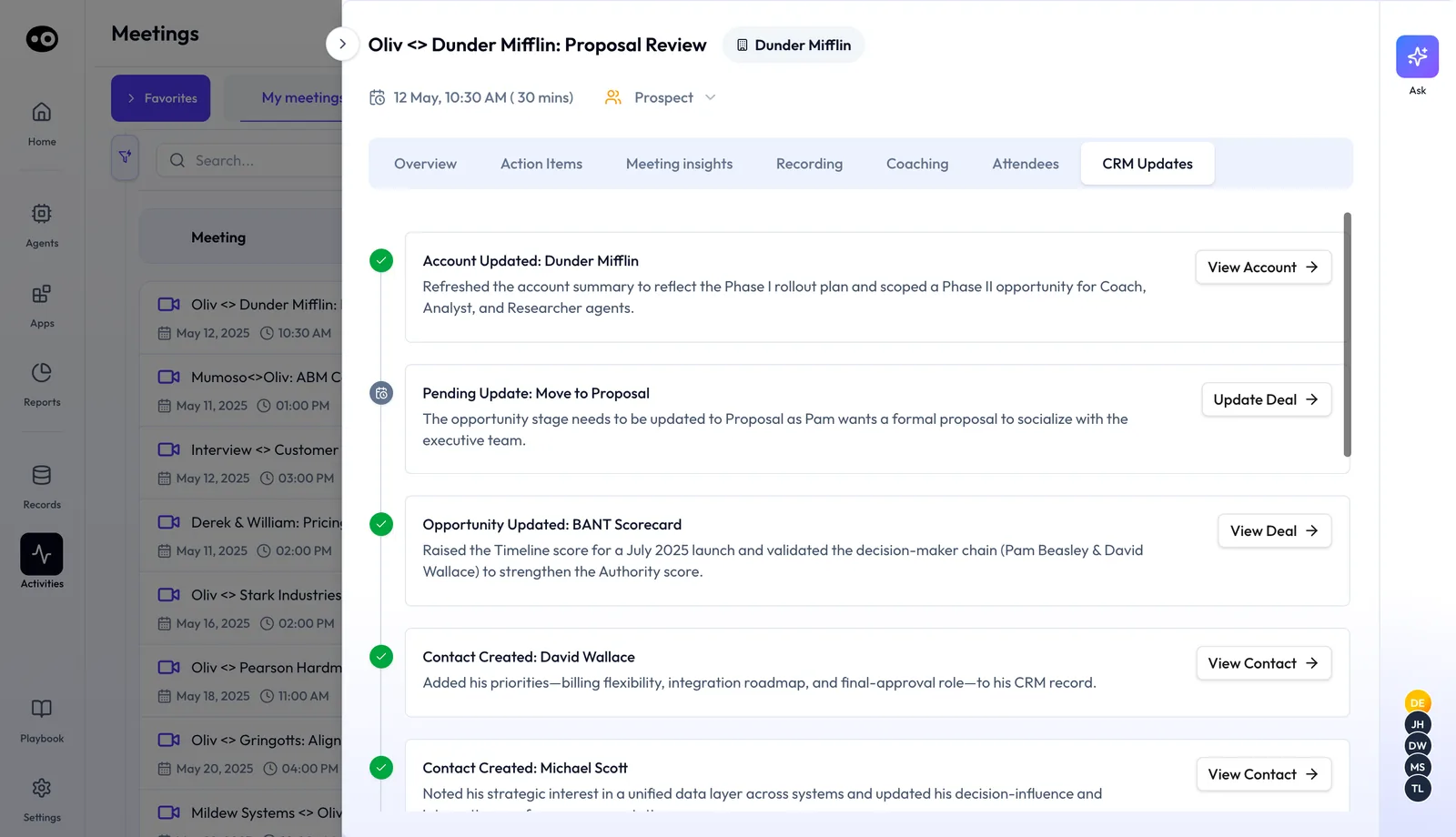
A meeting's own CRM Updates tab lists what was written after the call, such as a refreshed account summary or a new contact. A bigger change, such as a stage move, waits as Pending Update until you press Update Deal.
Process and playbook changes
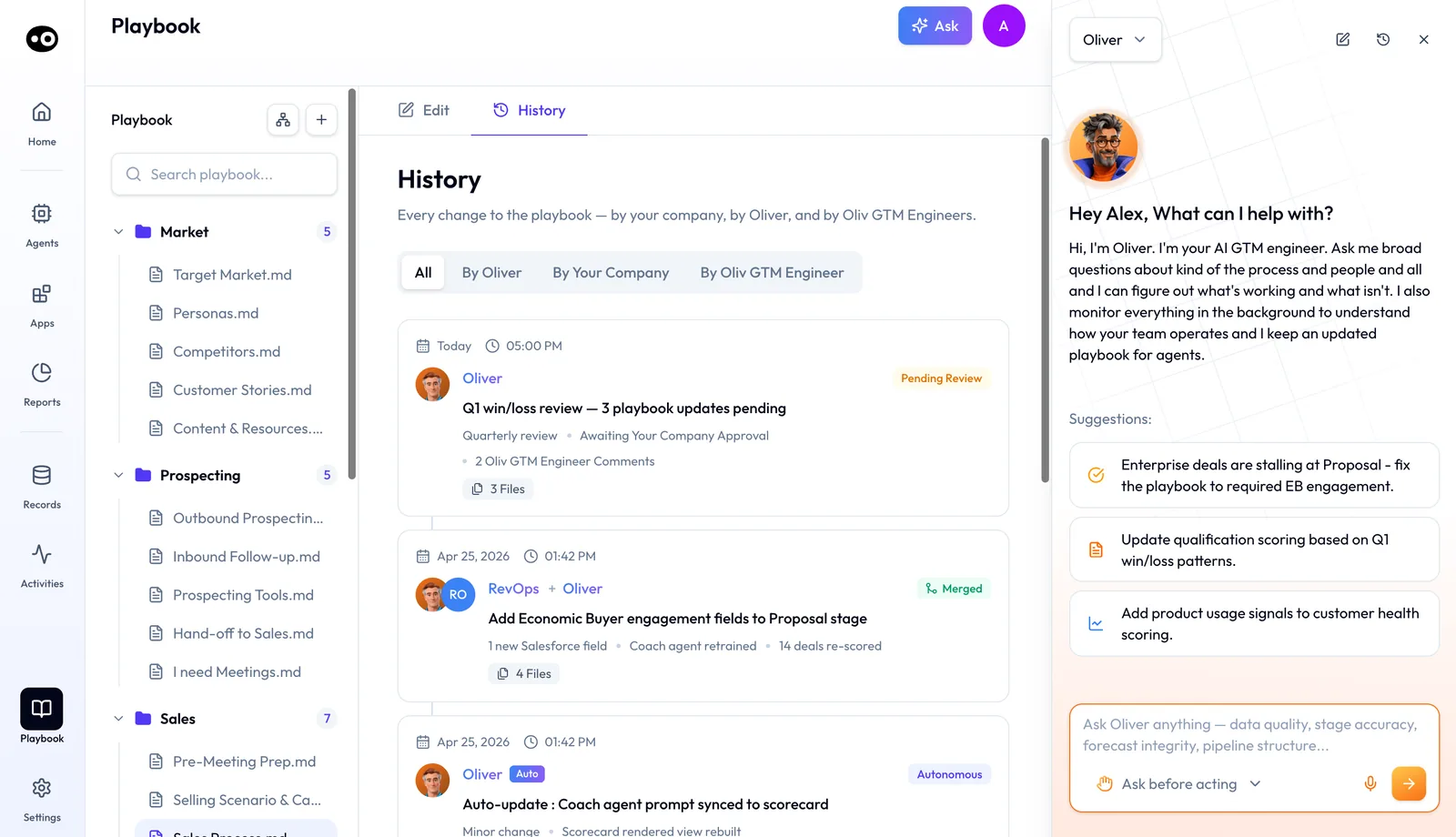
Oliv AI's Oliver agent keeps your process handbook: ICP, personas, methodology and approval rules. It surfaces patterns and drafts recommendations as proposals marked Pending Review.
Review changes shows each affected file as a line-by-line diff, then lists the knock-on effects. You choose Approve & merge, Request edit or Cancel, and an approved change shows as Merged. A minor update, such as syncing an agent prompt to a scorecard, can apply as Autonomous. The History tab logs it as "No human review needed". More on how that works is on the Oliver agent page.
Coaching and forecasts
Oliv AI's Coach agent drafts monthly recommendations for each rep, each with evidence attached. A manager can accept a recommendation as written, edit it or override it. Nothing reaches the rep until the manager has reviewed it. The Coach agent page has the full cycle.
Oliv AI's Forecaster agent shows its signals for rep or manager review. Reps and managers can accept, edit or reject each one, and that feedback trains the agent. The Forecaster agent explains how signals roll up into the forecast.
Run modes on agent tools
A tool is one action an agent is allowed to take, such as updating a CRM record or sending an email. Every tool an agent holds carries one of three settings:
| Run mode | What it does |
|---|---|
| Auto Run | The tool acts without asking |
| Requires Approval | The tool needs a person's confirmation |
| Agent Decides | The agent judges whether to ask |
The mode is set per tool, on each agent, so changing one tool changes nothing else. Auto Run is the default for any tool that doesn't state another mode. That matters most for tools that write: Auto Run on a CRM, mailbox or channel tool means the agent may write to that system without asking.
Check each tool before you switch an agent on.
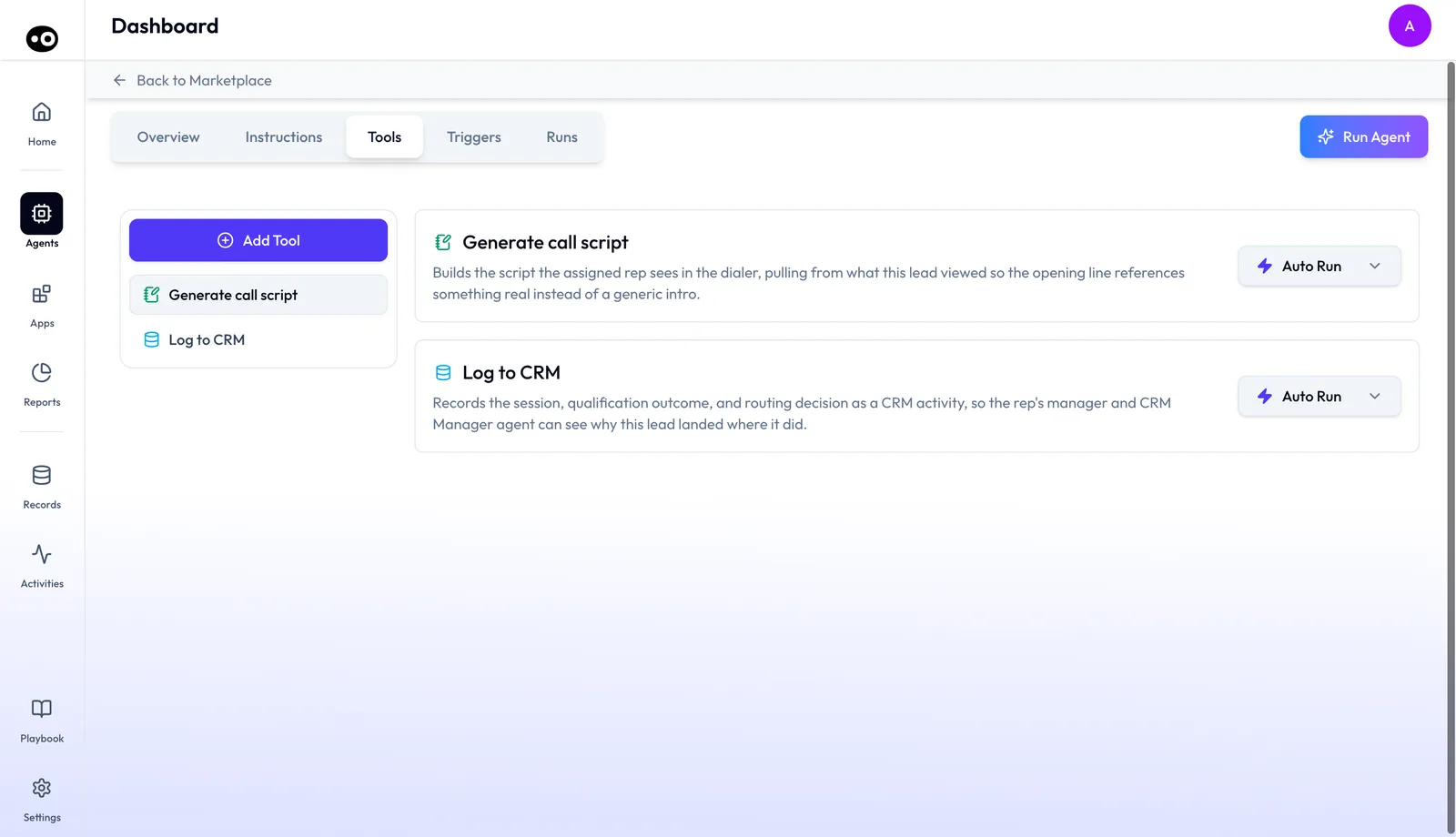
The tools and run modes guide shows where the control sits. The agent builder overview explains how tools fit alongside an agent's instructions and the triggers that start it.
The conversation setting on super agents
Oliv AI's Olivia agent and Oliv AI's Oliver agent carry a second, separate control. It sets how freely the super agent acts for a whole conversation: Ask before acting or Act without asking. It sits beneath the message box and opens on Ask before acting.
With Olivia on Ask before acting, she aligns on her approach before taking actions. Setting Oliver to Act without asking shows a High Risk warning above the message box, because Oliver can then change your settings. The Olivia agent page covers working with her day to day.
Run records
Run history is the record of every time an agent has worked. It's how you check that an agent on auto-pilot has been doing the right thing. The Runs tab holds a Run history table with Time, Type and Status columns, a View link on each row and a search box for previous runs. It also shows whether a run was automatic or manual, so you can see how much the agent did on its own.
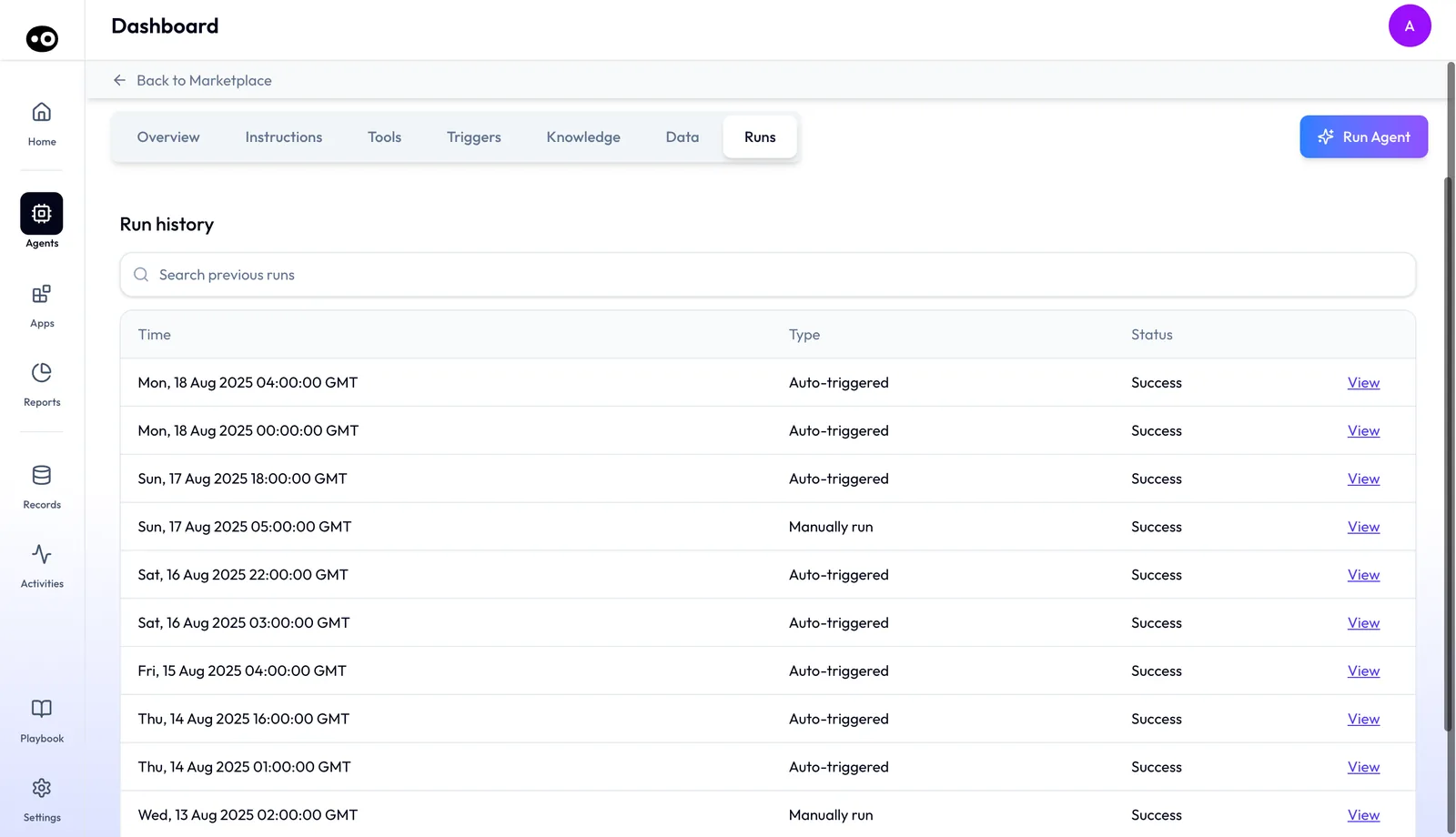
Pressing View on a run opens its full record:
- The people it touched. A Top Identified Contacts panel lists them.
- Every email in full. Each one sits under an Email Sent banner, with recipient, subject and body.
- Meetings it booked. A calendar card shows the date, time and attendees.
- Changes it made elsewhere. Under Auto-actions logged, each change has a timestamp and a description.
- Work that needed a person. An amber alert panel marks what the agent escalated, separate from what it did alone.
When one agent produces work for another, the email carries a Drafted by line naming the agent that wrote it. That matters when Oliv AI's Olivia agent hands a task to a specialist. The run history guide explains each table and the record drawer.
The reason behind each update
Every CRM update comes from a conversation, and it says why. A meeting's CRM Updates tab lists each change that call produced, with the reason: a pending stage move to Proposal, for example, says the opportunity stage needs to be updated because the buyer asked for a formal proposal. The deal's CRM Updates tab shows the field, its Current Value and the suggested value, and Updates History keeps the record of how each field has been updated.
So when a close date moves, you can see what was said before you accept it. The same holds for the custom fields in your CRM field mapping, whether you run Salesforce or HubSpot.
Other agents attach evidence too:
- Expansion signals. When Oliv AI's Gold Digger agent spots one, its notification carries what was said, who said it, which account and the exact moment in the recording.
- Account risk. Every flag from Oliv AI's Portfolio Manager agent comes with the evidence behind it: the signal, the account context and a recommended next action.
- Coaching goals. Oliv AI's Coach agent grounds each goal in the rep's own call data and deal outcomes, so the evidence is there to discuss.
Speaker attribution
The Converse app transcribes and labels every speaker on a recorded call. Oliv AI's context graph then connects each conversation, message and activity to the right people, account and opportunity. Your agents know who said what, and which deal it belongs to.
That attribution is what lets a meeting summary or a proposed field update name the buyer behind a statement. For how transcription tools differ on accuracy, Oliv AI's guide to meeting transcription software compares the field.
What the AI reads before it answers
Oliv AI's answers draw on your own conversations, records and playbook. Three design choices shape how it reads them:
- Whole conversations, not fragments. Every meeting, email and note is read end to end, with no chunking. Signals are precomputed per deal, per account and per contact.
- Your playbook first. Every agent reads the process graph before it acts. An agent working from it understands gaps and proceeds with caution, looping in a person instead of acting on outdated knowledge.
- Conflicts shown, not hidden. When two of your sources disagree, the process graph documents the conflict. It also knows when a question needs routing to a person rather than an answer.
Show the reasoning behind an answer
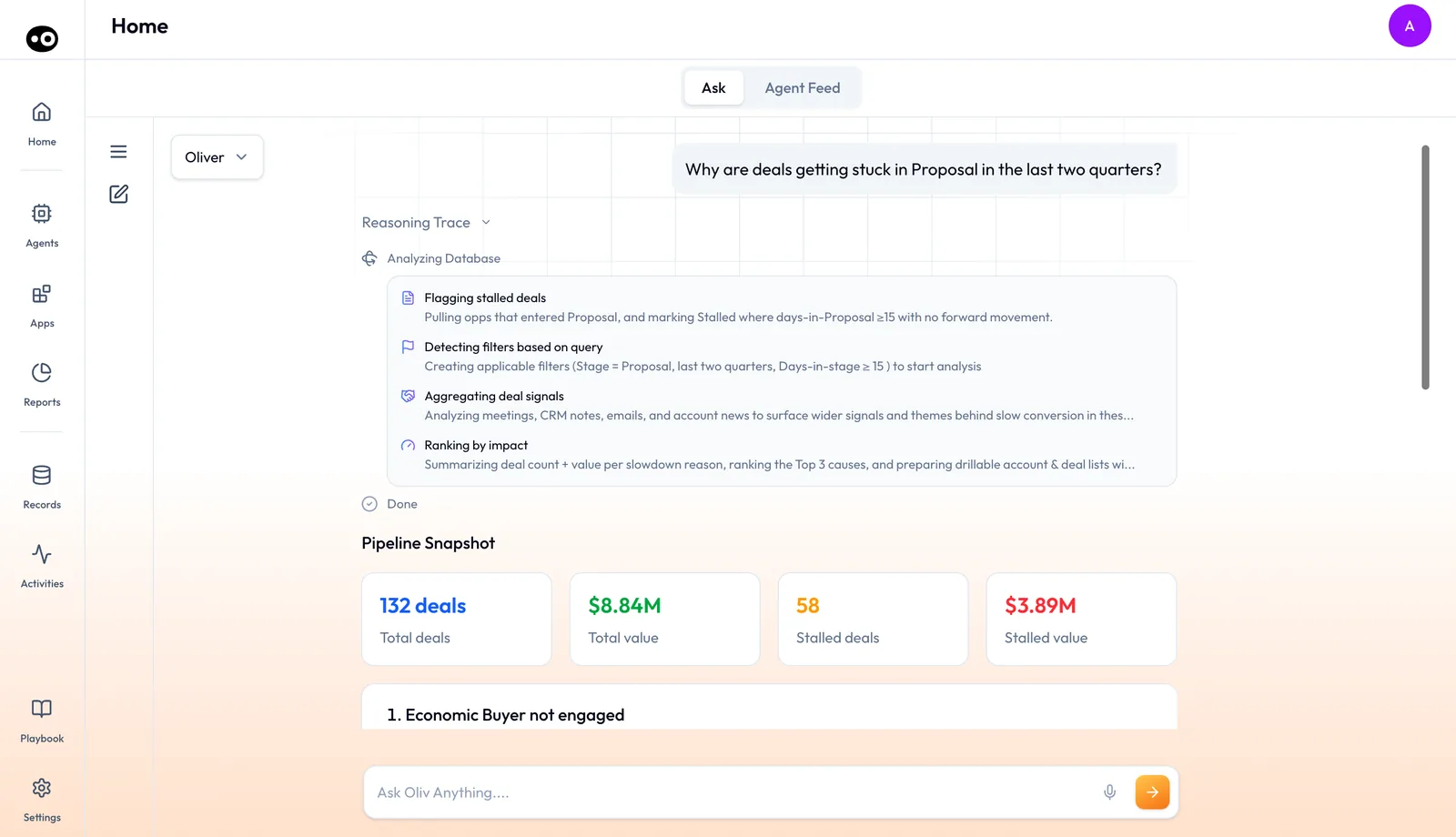
Every answer from Olivia or Oliver carries a Reasoning Trace row. It stays collapsed until you open it. For a question about stalled deals, Oliver's trace lists Flagging stalled deals, Detecting filters based on query, Aggregating deal signals and Ranking by impact, then Done.
Each step says what it did, such as the filters it built from your question. The signals step names the sources it read: meetings, CRM notes, emails and account news. You can check that logic before you act on the answer.
For why this matters to RevOps, Oliv AI's post on autonomous CRM hygiene sets out the data-quality case.
Feedback that improves results
Your reviews do more than gate one change. Oliv AI's Forecaster agent learns from every signal you accept, edit or reject. Oliv AI's Portfolio Manager agent learns when you dismiss a flag that doesn't match your read. Oliv AI's Oliver agent watches what is winning in the field and drafts the next process update for your review.
A review-first rollout
This pattern keeps every write visible until your team trusts the agents:
- Start CRM updates on Ask First. Reps accept or reject each suggestion for the first weeks.
- Set write tools to Requires Approval. Leave read-only lookups on Auto Run.
- Read run history weekly. Open a few records and check the emails and logged changes.
- Watch acceptance by rep. Oliv AI's CRM Manager agent sends a weekly governance summary with acceptance rate by rep and flags requiring review.
- Switch to auto per area. When accuracy thresholds are met, RevOps confirms the move to Auto-Pilot.
The record and follow up workflow shows the post-call review in practice, and Slack notifications tell reps when updates are waiting.
Limits and things to know
- Two controls, two places. Tool run modes are set per tool on each agent. The conversation setting is set per conversation with Olivia or Oliver. Changing one leaves the other as it was.
- Auto Run is the starting point. A tool with no stated mode runs as Auto Run, so review write tools before an agent goes live.
- Auto modes skip review. On Auto-Pilot or Auto Run, changes land without a person in the loop. Run history is where you check them afterward.
- Run records are read-only. A record shows what a run did. Approval happens in the review step, not in the record.
- Minor playbook updates can skip review. History marks them Autonomous, so read it alongside run history.
- Oliver's warning is specific. The High Risk warning appears for Oliver on Act without asking, because Oliver can change settings.
Common questions
Can an agent change my CRM without my approval?
Only if you allow it. By default, every suggested update surfaces for review before anything reaches your CRM. RevOps confirms the switch to auto mode once accuracy thresholds are met.
How do I see why an agent proposed a change?
Each proposed update includes its source, the exact moment in the conversation that triggered it. The CRM Updates tab shows the field, its current value and the suggested value.
Can I see how an agent reached an answer?
Yes. Open the Reasoning Trace row above an answer from Olivia or Oliver. It lists each step, the filters it applied and the sources it read.
What's the difference between Requires Approval and Ask before acting?
Requires Approval is a run mode on one tool of one agent. Ask before acting is a setting for a whole conversation with Olivia or Oliver. They're separate controls.
Which run mode does a new tool use?
Auto Run, unless the tool states another mode. Set write tools to Requires Approval if you want a person to confirm each action.
How do I check what an agent did on its own?
Open the agent's Runs tab. It shows whether each run was automatic or manual, and View opens the full record, including logged changes with timestamps.
Can I see which agent wrote an email?
Yes. When one agent produces work for another, the email carries a Drafted by line naming the agent that wrote it.
Does Oliv AI know who said what on a call?
Yes. Converse transcribes and labels every speaker, and the context graph ties each conversation to the right people, account and opportunity.
Does the AI read whole calls or snippets?
Whole calls. Every meeting, email and note is read end to end, with no chunking, and signals are precomputed per deal, account and contact.
Will Oliver change our process on its own?
Process proposals wait as Pending Review until someone presses Approve & merge, then show as Merged. Minor updates can apply as Autonomous, and History logs each one.
Do agents learn from my corrections?
Some do. Forecaster learns from the signals you accept, edit or reject. Portfolio Manager learns from the flags you dismiss.
What happens when two sources disagree?
The process graph documents the conflict instead of hiding it. An agent facing a gap loops in a person rather than acting on outdated knowledge.