
Workflows Live
Sales workflow automation: four guides for a deal's week, from brief to pipeline review
Sales workflow automation for a deal's week: choose the guide for your moment and role, from the brief before a meeting to the manager's pipeline review.
On this page
- Which steps of a deal's week agents can carry
- Connect these three tools before you open a guide
- Before the meeting: get the brief or ask for prep
- During and after the call: review the draft and send it
- Between meetings: confirm what changes in the CRM
- The weekly review: prepare your 1:1s and the Monday rollup
- What goes wrong if you skip a step
You're mapping sales workflow automation across a deal's week, and you need to know which steps agents can carry and which still need a person. Find your moment and your role in the table below, connect the three tools every guide depends on, then open that one guide. Oliv AI's agents handle the prep, the drafts and the reports on top of your CRM. Each row also shows what stays with you, because reps send their own follow-ups and stage moves wait for confirmation.
Which steps of a deal's week agents can carry
| Your moment | Who it's for | Open this guide | What the agent carries | What stays with you |
|---|---|---|---|---|
| A meeting on an active deal is coming up | The person running the deal | Prepare for a meeting | Oliv AI's Meeting Assistant agent sends a one-screen brief 30 minutes before the call | Read the brief, and ask for prep yourself before a first meeting |
| The call has just ended | The person running the deal | Record a meeting and follow up | The same agent drafts the follow-up email and proposes CRM updates | Review the draft, adjust it and send it |
| Deal fields are falling behind between meetings | The person running the deal | Keep the CRM updated | Oliv AI's CRM Manager agent suggests updates from each meeting, call and email | Accept or reject each suggestion, and confirm stage moves |
| 1:1s or the Monday leadership review are close | Their manager | Run a pipeline review | Oliv AI's Deal Driver agent delivers a report per rep and a Monday pipeline summary | Act on the flagged deals and run the review |
If you run deals, you need the first three guides. If you manage the people running them, go straight to the pipeline review, and remember that it reads what the first three produce. If you're mapping this for a whole team, read the guides in table order. This page only routes you. For the wider case, read the AI sales workflow automation guide or the post on sales process automation.
Connect these three tools before you open a guide
All four guides assume your calendar, a call recorder and your CRM are connected, so check those first. Most teams are connected within a week.
- Calendar. Oliv AI can't work without it. Skip it and no notes get taken during your meetings. Teams and Google Meet need nothing more once it's connected, and Zoom uses the Oliv AI Zoom app.
- Call recorder. Use Gong, Salesloft, Chorus or Oliv AI's native recorder. The follow-up draft comes from the transcript, so a call with no recording leaves nothing to draft from.
- CRM. Connect Salesforce, HubSpot or Zoho. The meeting brief depends on a meeting being linked to an active opportunity in your CRM.
Then check plans and seat roles before you roll out, because seat roles decide which apps each person works in. The integrations page lists the other tools you can connect.
Before the meeting: get the brief or ask for prep
You have a call on the calendar and no time to rebuild the deal from CRM notes, so open Prepare for a meeting. First check that the meeting is linked to an active opportunity, because Oliv AI's Meeting Assistant agent works only on those. The agent then sends the brief 30 minutes before the call. Take about 60 seconds to read the deal's status, your qualification gaps, who's in the meeting and the recommended agenda. The Meeting Assistant agent page has the full detail on the brief.
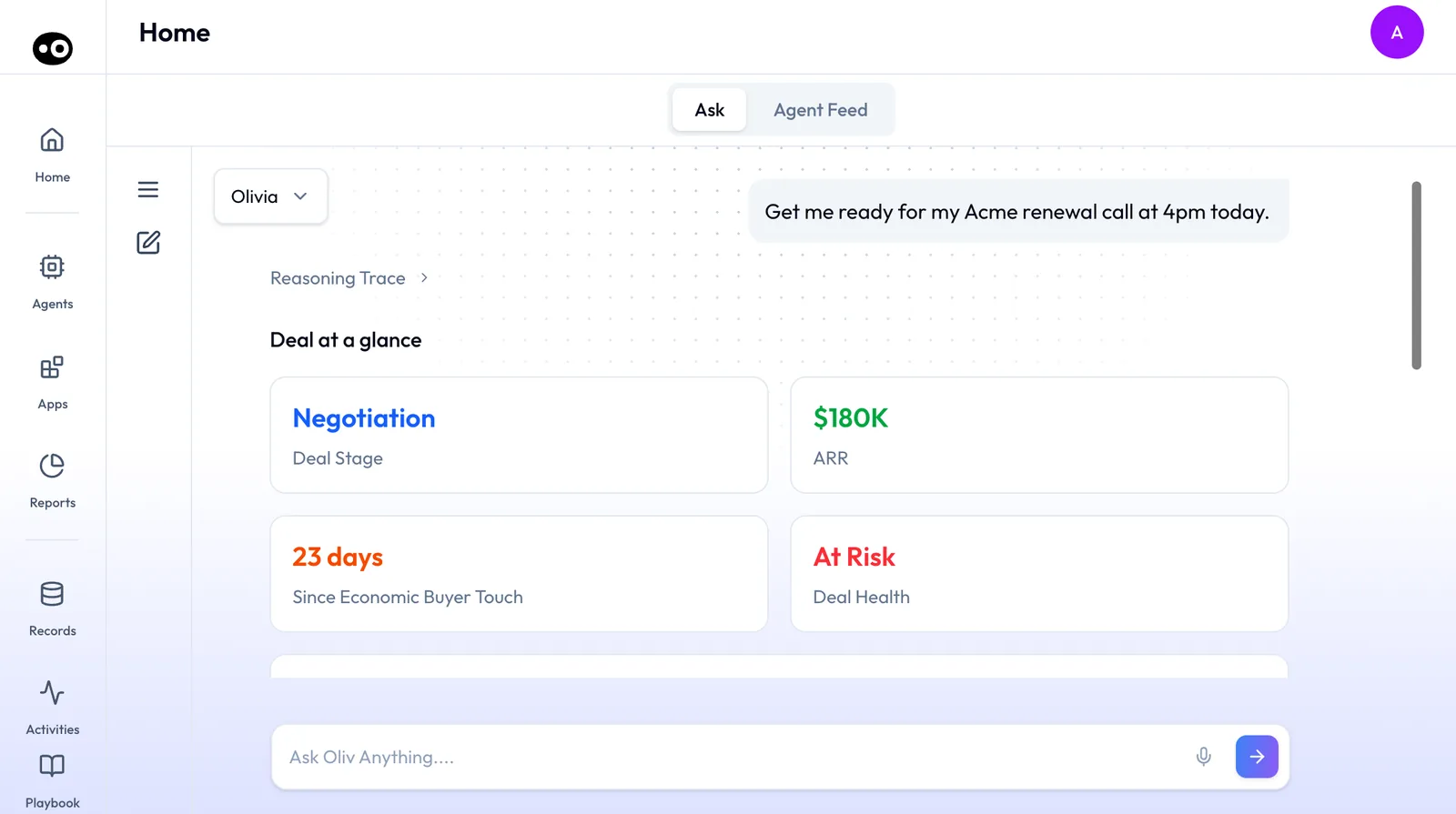
A first meeting with someone new gets no brief, because there's no deal history yet. Ask Oliv AI's Olivia agent to prepare you instead, and she researches the company and the person. You can also ask her for prep at any time on the Home screen's Ask tab. Her answer opens with the deal at a glance, then covers who's joining, the risks and the talking points. For why prep depends on your CRM, read AI meeting preparation tools compared by CRM depth.
During and after the call: review the draft and send it
The call has ended, and the email and field changes are still in your head, so open Record a meeting and follow up. Before the call, know which recording mode applies. When someone from your company organizes the meeting, Oliv AI records botlessly through the meeting platform. When an external organizer owns it, a visible note taker joins. Bot and botless recording explains the choice, and the Zoom integration covers Zoom calls.
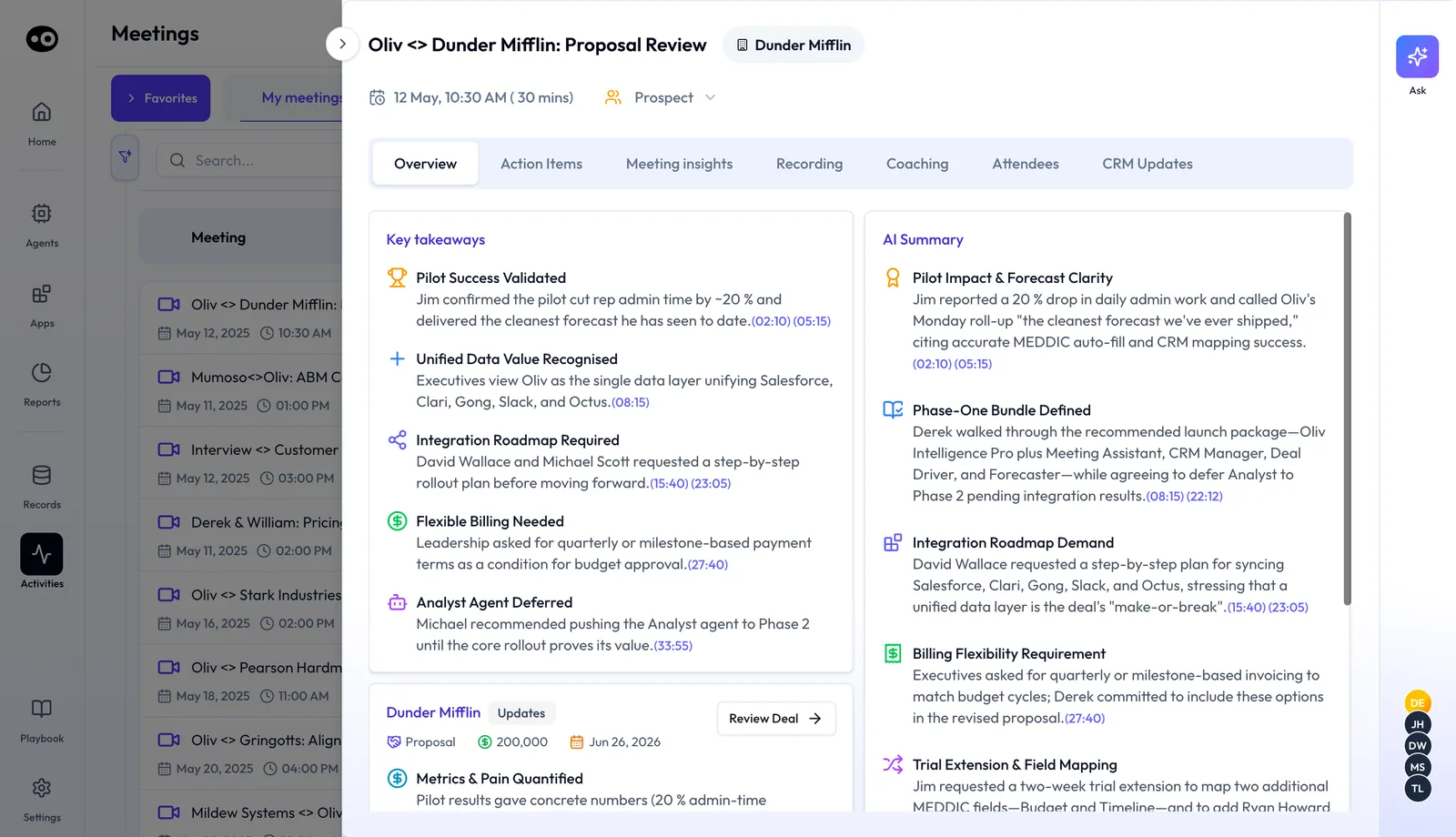
The meeting summary is ready as soon as the call ends. Oliv AI's Meeting Assistant agent then drafts the follow-up from the transcript, with the recap, commitments, owners and next steps written in. Nothing reaches the customer until you've reviewed the draft, adjusted it and sent it yourself. In Activities › Meetings, open the meeting's drawer and work through its tabs, from the overview and action items to the CRM updates. The meeting details page shows the recorded call itself. If your team works in Slack, the summary also arrives there through the Slack integration.
Between meetings: confirm what changes in the CRM
Deal fields keep falling behind what buyers said on calls, so open Keep the CRM updated. Oliv AI's CRM Manager agent reads each meeting, call and email, then suggests updates to accounts, contacts, opportunities, activities and tasks in Salesforce, HubSpot or Zoho. Your CRM stays the system of record, and Oliv AI works on top of it. Use CRM field mapping to decide where each update lands.
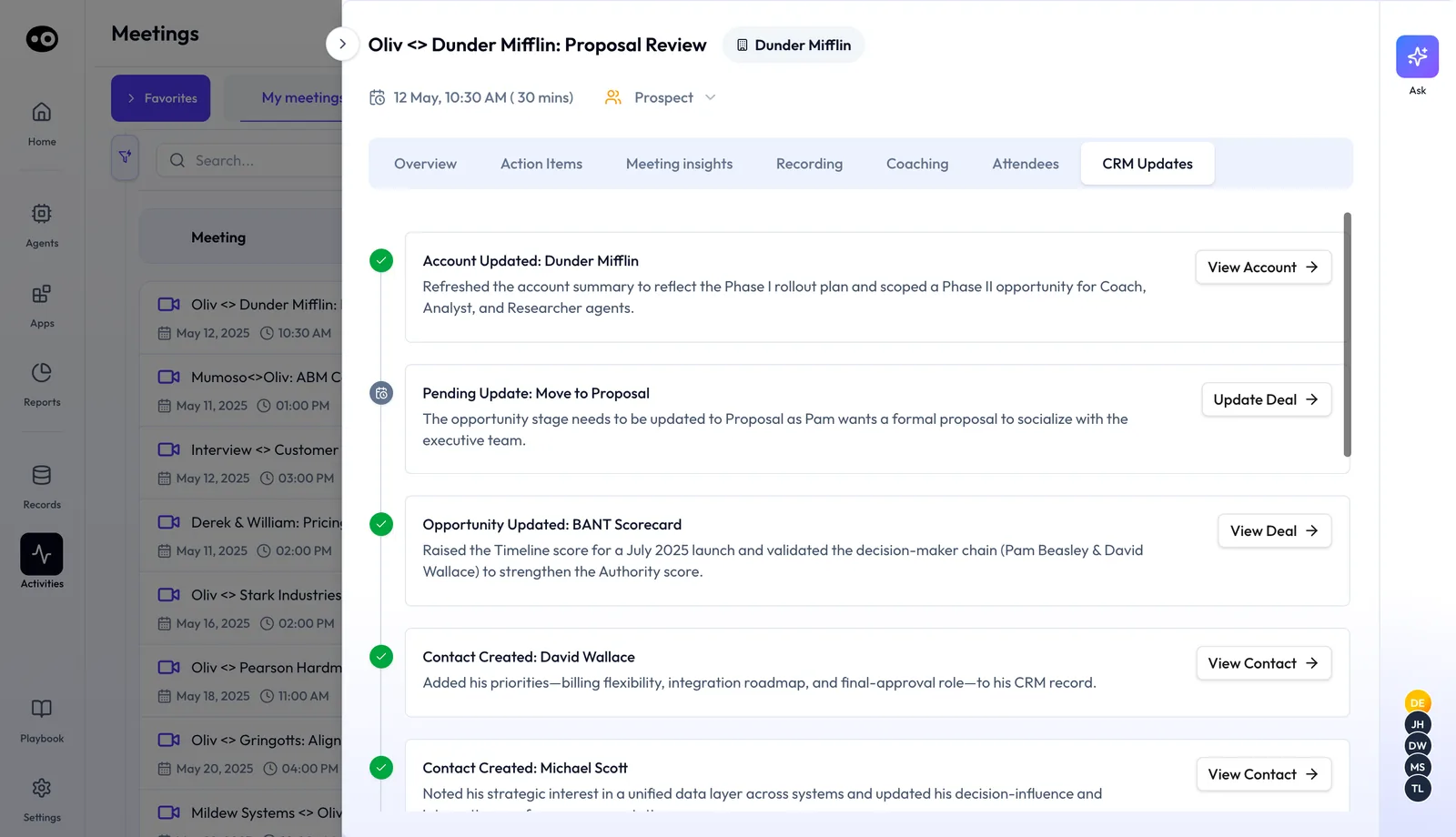
By default, every suggestion waits for your review. Check the field, the current value, the proposed value and the moment in the conversation behind it. Then Accept or Reject it on the deal's CRM Updates tab. A meeting's CRM Updates tab lists what was written after the call and holds a stage move as a Pending Update until you click Update Deal. Switch to auto mode only once your team trusts the suggestions, and keep checking that tab.
For the agent's full job, read the CRM Manager agent page. Connection steps are on the Salesforce and HubSpot pages, and the CRO's guide to CRM data covers why this upkeep matters to the number.
The weekly review: prepare your 1:1s and the Monday rollup
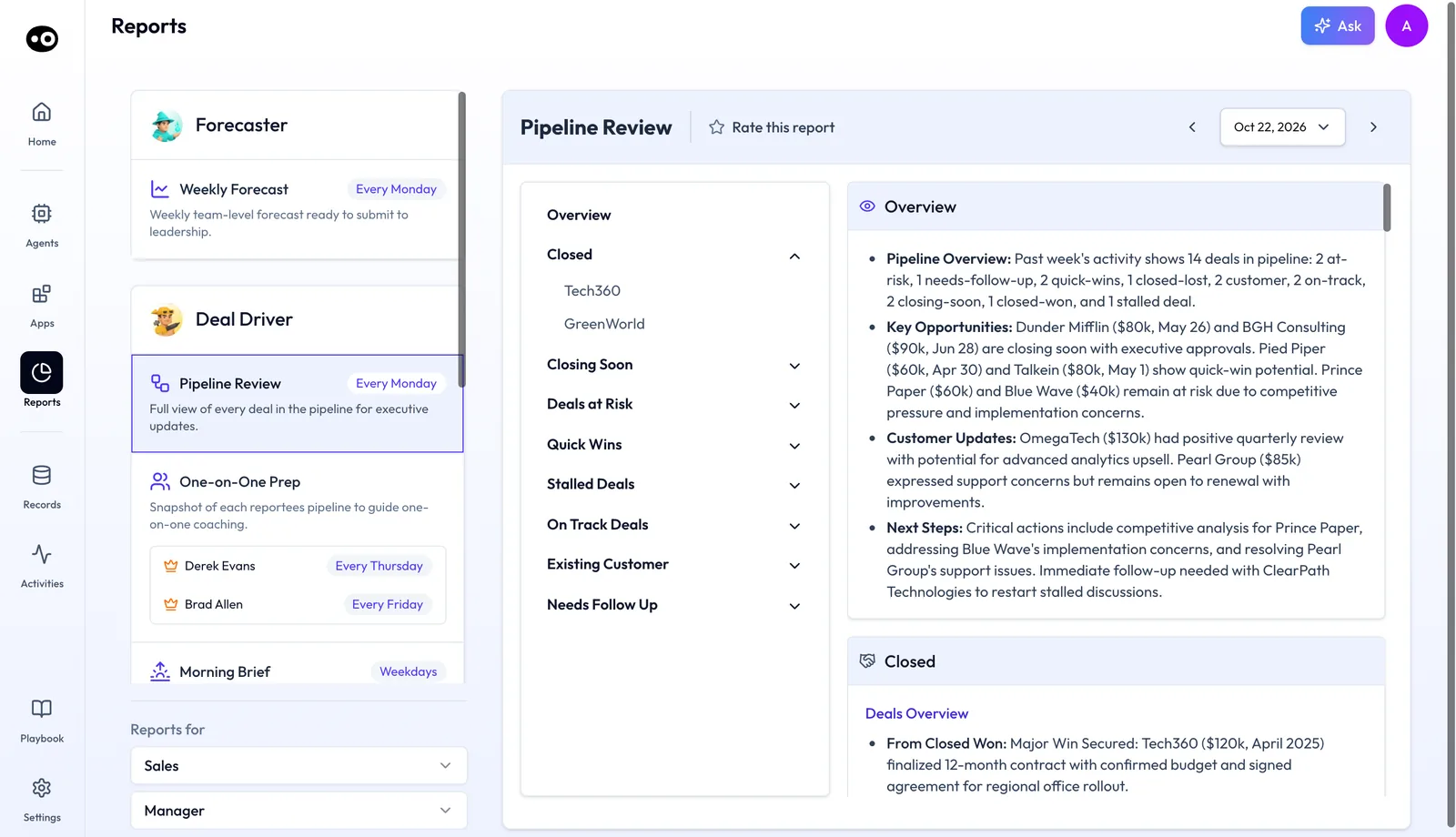
You manage the reps, and your 1:1s or the leadership review are close, so open Run a pipeline review. Start in Reports › My Reports, where Oliv AI's Deal Driver agent delivers its reports. A One-on-One Prep report arrives for each rep on that rep's set day, such as every Thursday or every Friday. A Morning Brief covers the team's meetings every weekday, and a Pipeline Review for leadership is ready each Monday before the first standup.
Through the week the agent flags deals that need attention, each with a suggested action, and nudges reps when next steps go overdue. It surfaces those signals and leaves the action to you, so read the flags and decide what happens to each deal.
Two more agents add to your prep. Oliv AI's Coach agent follows each rep's 1:1 report minutes later with that rep's coaching goal and weekly progress, and Oliv AI's Forecaster agent rolls Deal Driver's signals into the forecast number. For each agent's part, open the Deal Driver, Forecaster and Coach pages.
What goes wrong if you skip a step
Each workflow feeds the next one, so a gap early in the week shows up later. A call with no recording leaves no draft and no suggested field changes. Suggestions nobody reviews leave the deal fields stale, and the review's signals are only as good as the data behind them. If a review keeps stalling on deals that don't add up, check the CRM upkeep guide before you change the review.
You can also ask Oliv AI's Olivia agent to prepare you for a call or draft the follow-up from this afternoon's meeting, and she hands the work to the right specialist. Her rules come from the process handbook that Oliv AI's Oliver agent maintains, and the Olivia agent page shows how to ask her. If you'd rather see the week by role, read running deals as an account executive.