
Agents Live
AI sales agents: which Oliv AI agent owns which job, and which workflow to start with
Which AI sales agent to open for the job in front of you: Olivia to ask for work, Oliver to set the rules, a specialist for one job, and the builder pages to see how any agent is set up.
On this page
AI sales agents only take work off your reps, managers and RevOps once you know which agent owns which job. Pick the job in front of you and open that page. Open Oliv AI's Olivia agent to ask for work and Oliv AI's Oliver agent to set the rules. For one job, such as pipeline alerts, CRM updates, meeting briefs, forecasts or coaching, open the specialist that owns it.
To see how any agent is set up, open the builder pages. Every agent works as a layer on top of the CRM you already use and keeps it updated, so you keep your CRM and add the agents to it.
Which AI sales agent does which job
Find your situation in the table and open that page. You don't need to read the pages in order.
| Your situation | Open | What happens next |
|---|---|---|
| You want help with a deal, a meeting or your pipeline | Olivia | She answers, or hands the task to a specialist and reports back |
| You need to change the ICP, methodology or approval rules | Oliver | It proposes the change and waits for a person to approve it |
| You want one job off your team's plate | The specialist agent that owns it, listed below | It does the job in the background and delivers where you already work |
| You want to see how any agent is set up | The agent builder overview | You get the same tabs on every agent's detail page |
How the agents work together
If a rule you approved isn't showing up in a specialist's work, start with Oliver, because it configures how the agents work. Check Pending Review to confirm a person approved the update. If it was approved, open the specialist's run history and read what its latest run did. Then ask Oliver about the gap in its chat beside the Agents marketplace.
If you don't know which specialist a task needs, ask Olivia. She coordinates tasks across your team and passes focused work to the specialist that owns it.
When you trace an answer back, start from the one record they all share. Oliv AI wires your CRM, calls, email, tickets and product usage into one context graph, and every agent and every rep works from that same graph.
Which AI sales agents you talk to directly
You talk to two agents, and the choice depends on whether you run deals or run the process. Open the agent picker on the Ask tab of Home and choose one.
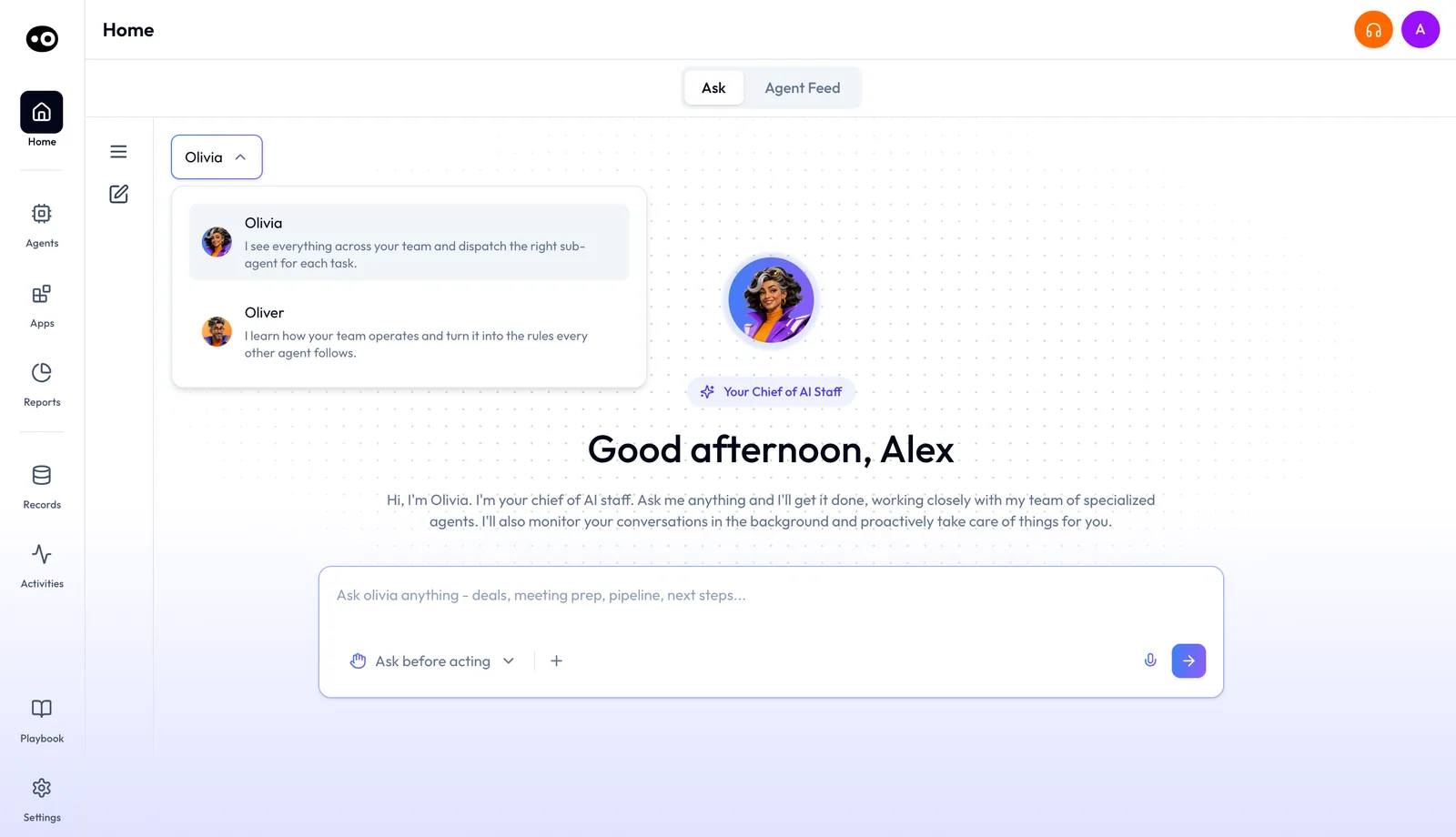
Open Olivia to ask for work
If you're a rep, SDR, CSM or account manager with a question about a deal, a meeting or your pipeline, open Oliv AI's Olivia agent. Ask in plain language, and she answers or hands the task to a specialist agent and reports back. Each conversation is set to Ask before acting, the default, or Act without asking, so check that setting before you hand her a task that changes something.
Open Oliver to set the rules
If you're a RevOps manager or revenue leader and your process has changed, open Oliv AI's Oliver agent. It keeps the process handbook, from your ICP and personas to your methodology and approval rules, and every other agent works inside it. Describe the change in plain language, and Oliver proposes the update as Pending Review. The update reaches the other agents only after a person approves it, so check Pending Review first if an agent still follows the old rule.
What each specialist AI sales agent does
If one job keeps taking your team's time, open the specialist that owns it. Each one does its job in the background and delivers the result where you already work, such as Slack, email or the Oliv AI app.
- Pipeline alerts and 1:1 prep. Oliv AI's Deal Driver agent watches the team's pipeline for sales managers. It sends a morning brief, alerts during the day when a deal needs attention, and a summary at the end of the day. Each week it also prepares a 1:1 report for every rep.
- CRM updates. Oliv AI's CRM Manager agent writes what changed after each meeting, call and email to Salesforce, HubSpot or Zoho. Reps accept or reject each suggested field beside its current value, until RevOps switches the agent to Auto-Pilot. Map your custom CRM fields first, or a correct value can land in the wrong field.
- Meeting briefs and follow-up. Oliv AI's Meeting Assistant agent sends a one-screen brief 30 minutes before each deal meeting. After the call, it drafts the follow-up email, proposes CRM updates and flags qualification gaps. It works only on meetings linked to active opportunities, so check the deal in your CRM if a brief doesn't arrive.
- Forecasts. If reps spend too long building the number, open Oliv AI's Forecaster agent. It drafts each rep's forecast from the pipeline before anyone logs in, flags the deals that don't add up and learns from how your deals actually close. Check the risk reason on each flagged deal before you move it to another category.
- Coaching. If you want to coach each rep on evidence without listening to every recording, open Oliv AI's Coach agent. It scores every recorded call against your scorecards. Each month it recommends three behaviors per rep, the manager picks one goal, and Coach tracks it weekly. Check Evaluations (Last 30 days) in Settings › Coaching Scorecard to see which scorecards are in use.
To see agents grouped by the roles they serve, from SDRs to RevOps, open the public agent marketplace. If you're still comparing vendors rather than choosing a page here, read our roundup of AI sales agents.
Find an agent in the app
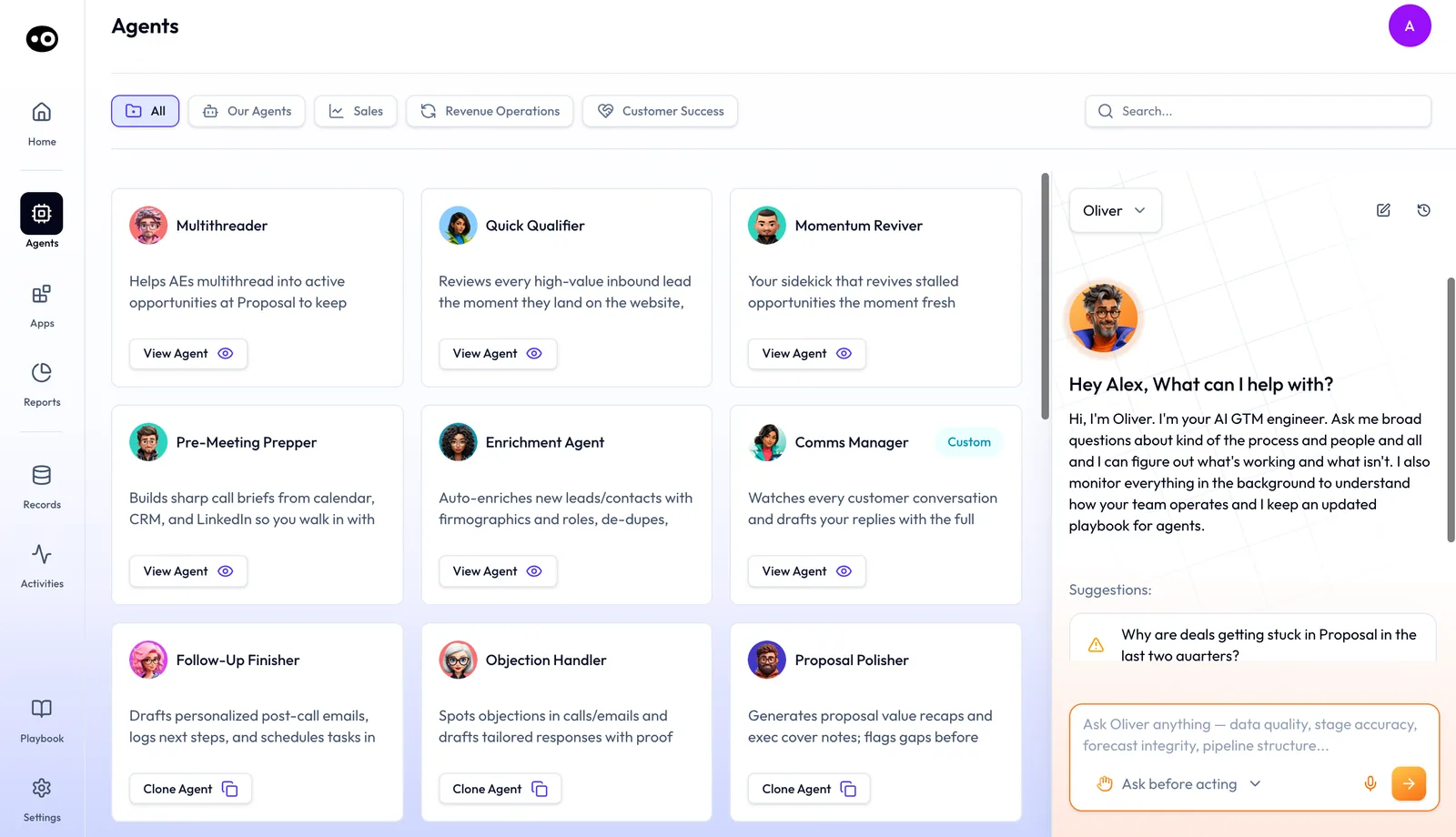
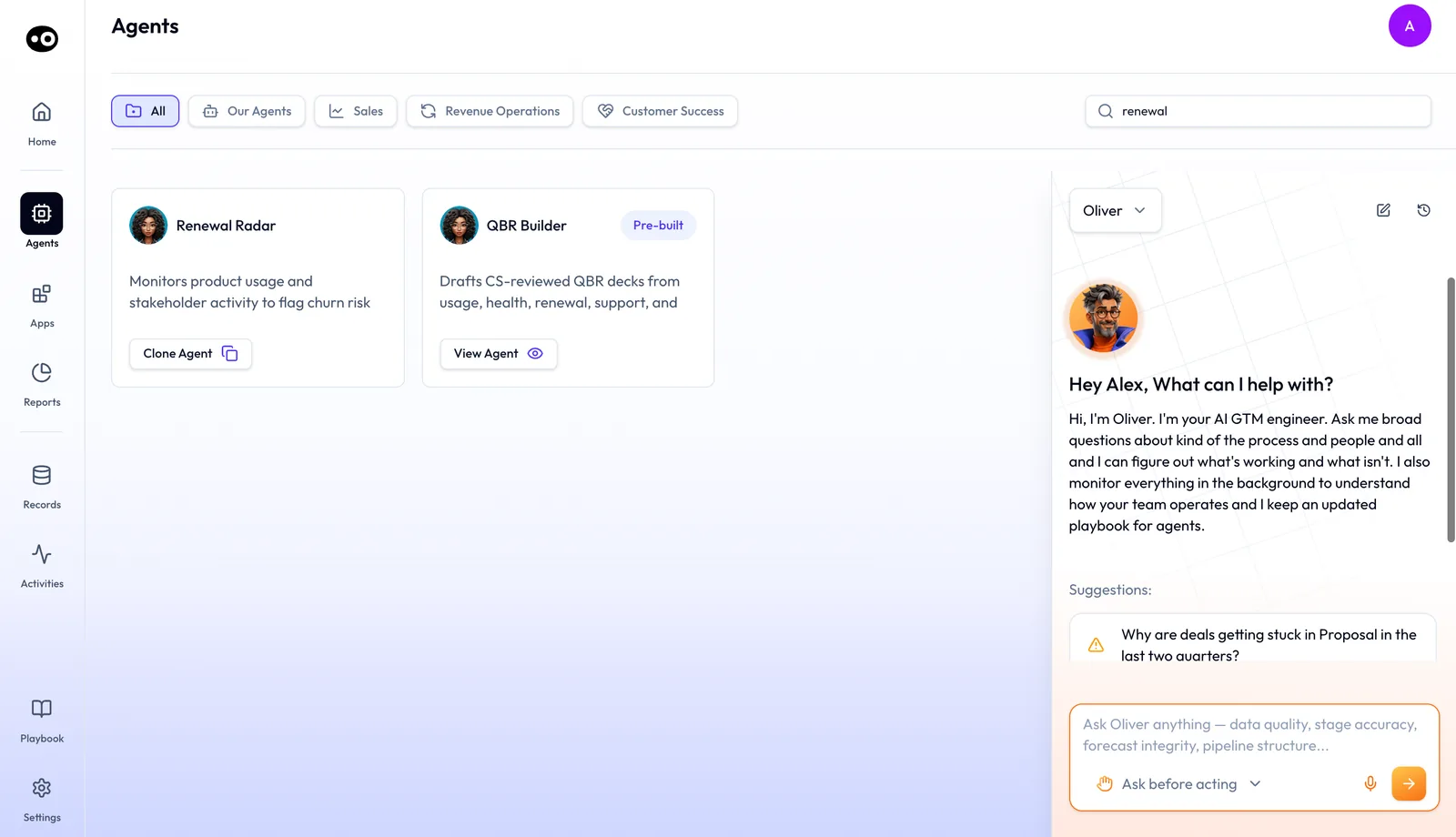
If you know the job but not the agent, open Agents in the sidebar. Narrow the marketplace with the filter pills All, Our Agents, Sales, Revenue Operations or Customer Success, or type the job into Search..., which matches an agent's name or description. Each card carries View Agent or Clone Agent, and some carry a Custom or Pre-built badge.
Where AI sales agents get their context
An agent can only act on what it can read, so if its work looks thin, check these three sources first.
- Conversations. The Converse app captures online meetings, phone calls, email and Slack. Choose bot or botless recording to decide how each meeting is recorded.
- Your CRM. Deals, contacts and fields come from Salesforce or HubSpot, and agents write updates back.
- Your tools. Meetings come in through the Zoom integration, and Slack is where many agents deliver their work.
You don't need a clean CRM to start. Oliv AI's Olivia agent reads what's already there, messy data included.
How any agent is set up
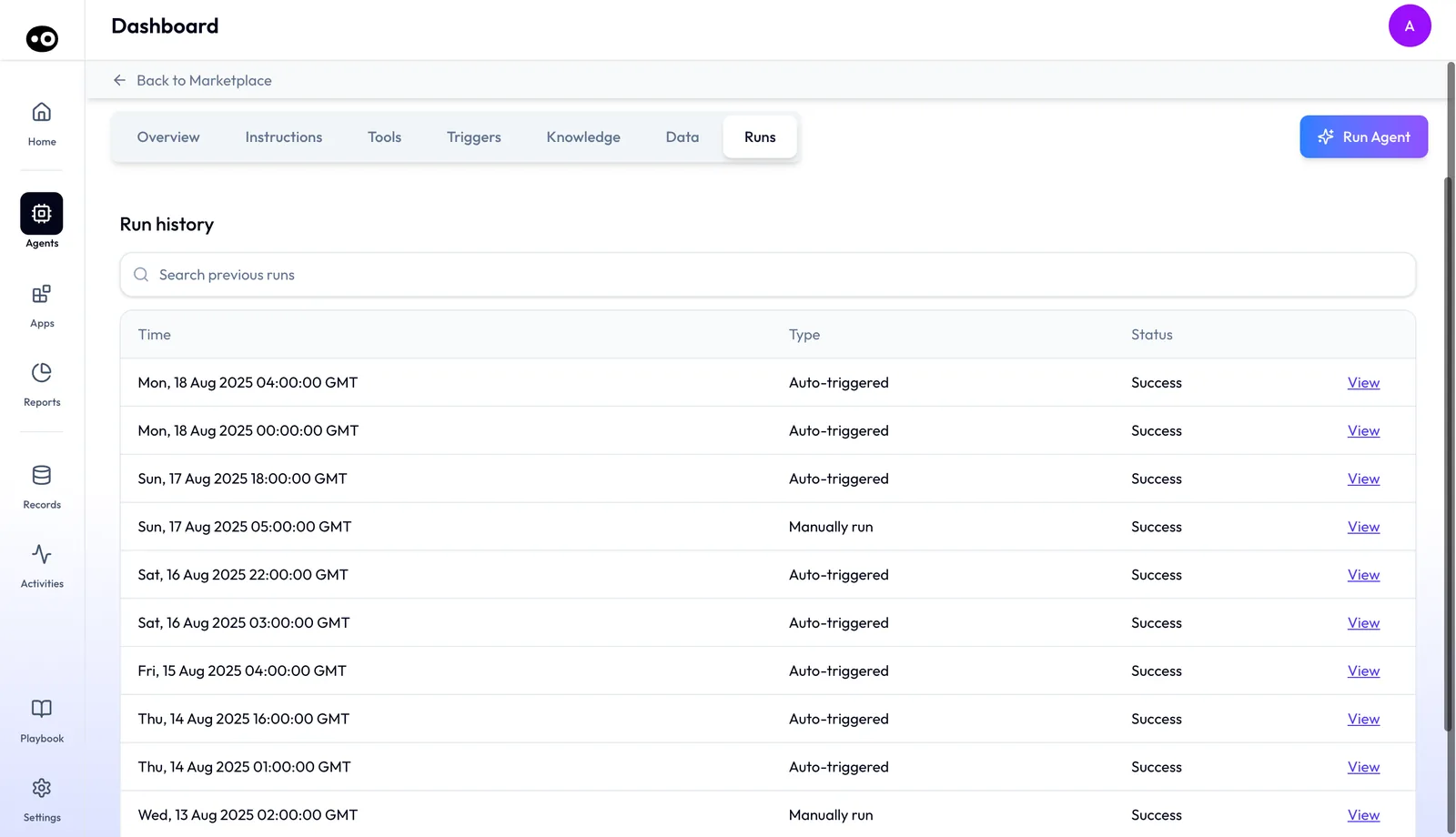
Open an agent's detail page when it does something you didn't expect, or before you rely on it. Every agent with a detail page is built from the same five parts. They sit on tabs: Overview, Instructions, Tools, Triggers, Knowledge, Data and Runs, with Back to Marketplace above.
- To see the agent's objective, its steps and what it produces, open agent instructions.
- To see the actions it may take, open tools and run modes. Each tool is set to Auto Run, Requires Approval or Agent Decides.
- To see the events and fixed times that start it without anyone pressing anything, open triggers and schedules.
- To see the documents it works against, such as an ICP document or a solution deck, open knowledge files.
- To see what it actually did, open run history, which records every run with each email the agent wrote and each change it made.
Where to start
To see the agents do a job from start to finish, open the workflow that matches your week. If your question is who sets the agents up and what to connect first, open the rollout plan at the end of this list.