
Apps Live
Conversation intelligence software: capture customer conversations and find what was said
How to set up conversation intelligence in Oliv AI: what it captures across meetings, phone calls, email and Slack, what you get after a conversation, and which Converse page to open next.
On this page
- At a glance
- What the Converse app gives you
- Why conversation intelligence matters
- The Oliv AI approach to conversation intelligence
- What Oliv AI captures, channel by channel
- What you get after each conversation
- Find and reuse what was said
- What to connect to get conversation intelligence running
- How Converse works with Oliv AI's agents
- Who uses Converse, and how
- How Oliv AI compares for conversation intelligence
- Limits and things to know
- Common questions
- Related
What a customer told your team is scattered across Zoom calls, phone calls, email and Slack. Conversation intelligence software gets those conversations on record so you can find what was said. In Oliv AI, the Converse app does that job. If nothing is being captured yet, start with recording modes, and otherwise use the table below to open the page that matches your job.
At a glance
| Nothing is recording yet | Open Recording modes to see how the meeting organizer decides between botless recording and a visible note taker |
| You need a past meeting | Open the Meetings list and search, for example by the date it was held |
| You need to read one meeting | Open Meeting details and work through its seven tabs |
| You want to reuse a moment | Open the Clip library to keep it for coaching, enablement or product |
| You need a phone call | Go to Activities › Calls in the main navigation |
| What it captures | Online meetings, phone calls, in-person meetings, email and Slack |
| What you get | Key takeaways, AI summary, tasks, transcript with speaker labels, coaching scores and CRM updates |
| Who it's for | Sales leaders, account executives, SDRs, customer success and enablement |
| Which plans | Converse, and the Sell and Grow plans that include it |
What the Converse app gives you
Go to the Converse app when someone asks what a customer actually said. Its product page sums up the core as "call recording, transcription and AI summaries." It's built to read sentiment and intent instead of matching keyword lists.
You only need to capture a conversation once, because Converse feeds the same context graph the rest of Oliv AI runs on. Your CRM, your forecast and every agent read from the same record, so nobody has to copy a call across by hand.
Where Converse lives in the product
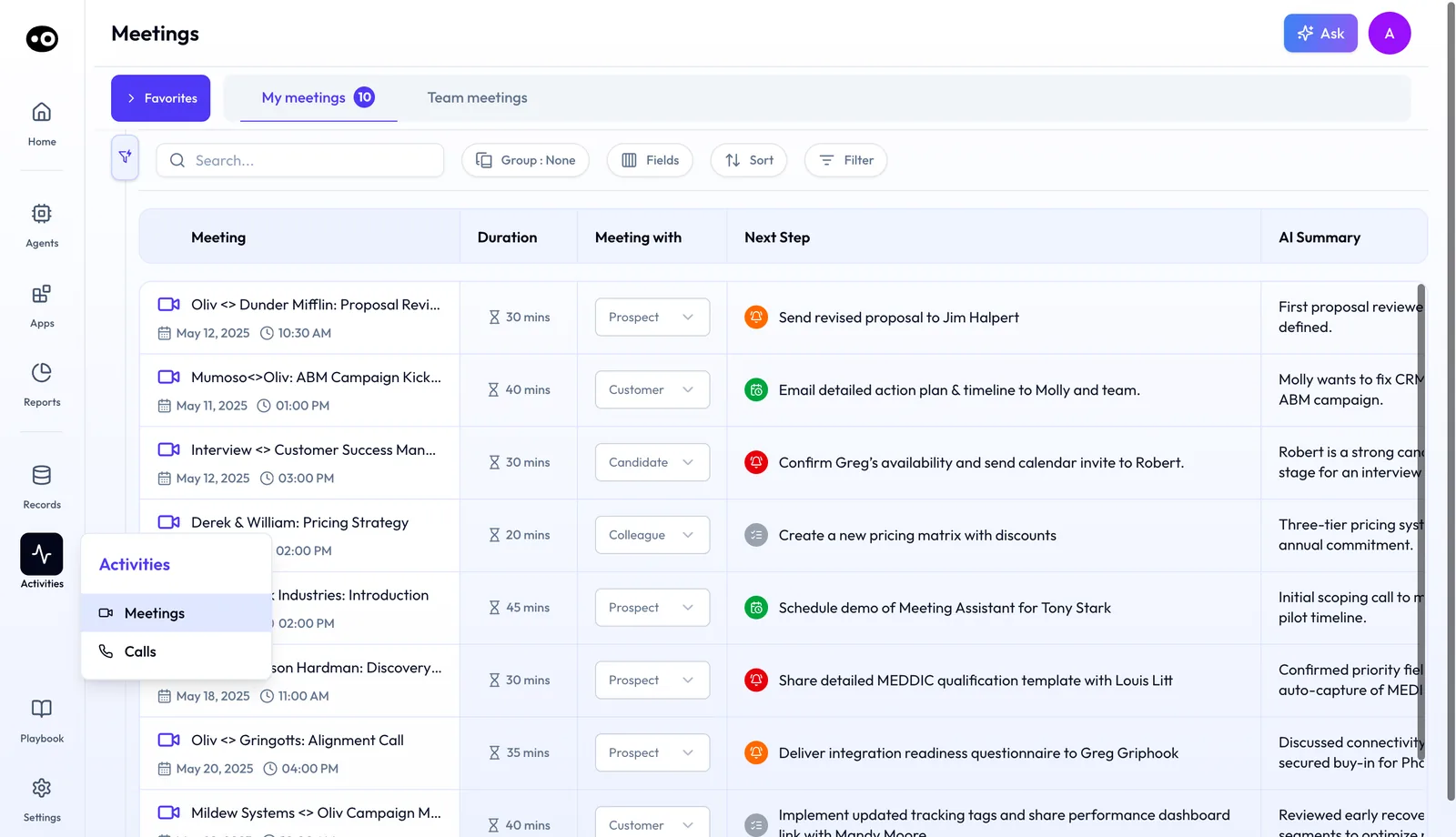
- Activities › Meetings lists the meetings captured in your workspace, with My meetings and Team meetings tabs. Check the next step and AI summary on a row before you open the meeting.
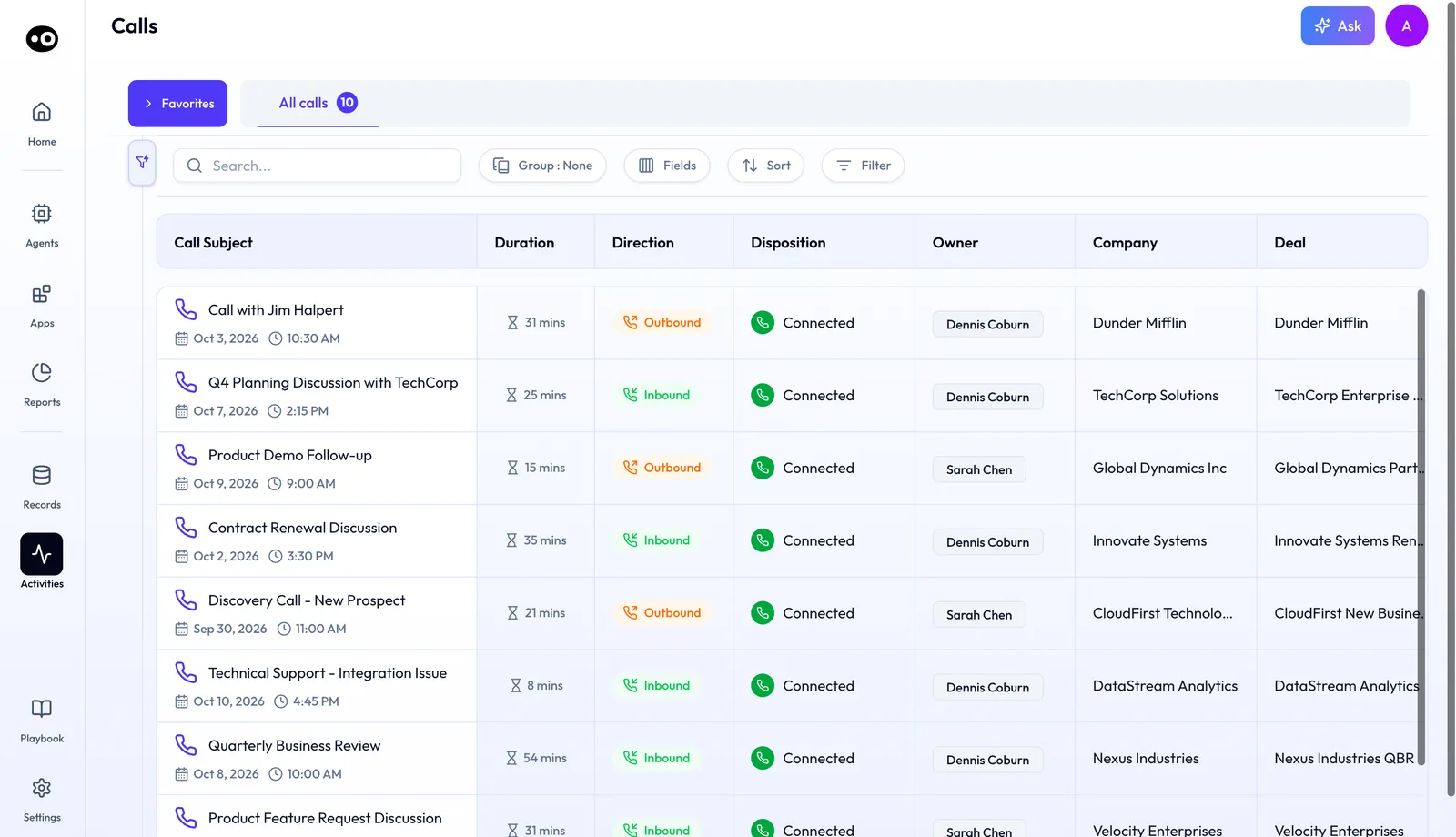
- Activities › Calls lists captured phone calls. Use the direction, disposition, owner, company and deal columns to pick the right one.
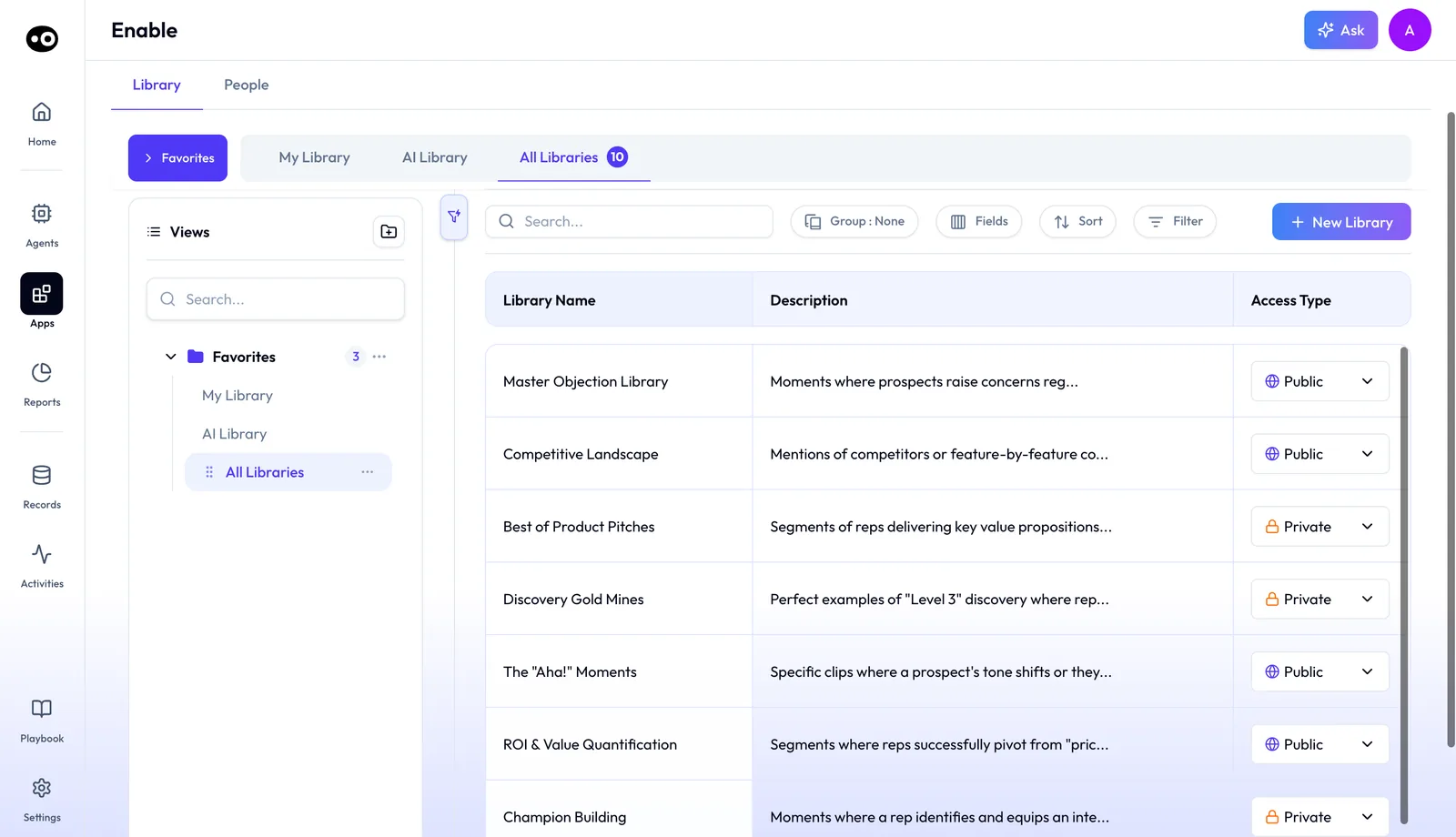
- Clips have no route of their own, so look for them in the Library tab of the Enable app.
Converse the app and Converse the plan
Don't confuse the two, because Converse is also the name of an Oliv AI plan. Plans are cumulative: Sell includes Converse, and Grow includes Sell. Check Oliv AI pricing for what each plan includes.
Why conversation intelligence matters
What it's for
Use conversation intelligence when you need to know what a customer said and you weren't on the call. Get conversations on record across channels first, not only the video calls.
How it helps
- When a call ends, skip the write-up. Open the meeting and check the summary and next steps, which are ready as soon as the call ends.
- When a concern keeps coming up, check one record. Meetings, phone calls, email and Slack all go into it, so start there before you ask each rep.
- When you need a real example, search and clip. Search for the objection or pricing concern, then clip it into a library.
- When you want a follow-up drafted, check the deal link. Oliv AI's Meeting Assistant agent drafts the follow-up and flags CRM updates only on meetings linked to active opportunities.
What happens without it
A deal changes hands or a renewal comes up, and you need the reason the customer bought. Open the Meetings list, find the past meeting and read its summary and key takeaways. If nobody captured that conversation, you depend on whoever was on the call, so set up capture before you need it.
Why buyers care
If your team has grown past the calls you can join yourself, start with the Team meetings tab. If you run RevOps and CRM fields drift from what customers said, open the guide to keeping the CRM updated. If you run enablement and need real examples for onboarding and coaching, go to the Clip library.
The Oliv AI approach to conversation intelligence
Imagine a head of sales with twelve reps across new business and account management. A buyer at a large prospect raises a data concern on a phone call. Two days later they repeat it by email, then again in a shared Slack channel. Before the quarterly review, the head of sales wants to see each place it came up.
The usual answer is a recorder for video calls and nothing else. Phone calls stay in the dialer, emails in each rep's inbox and Slack threads in their channels. Someone then pieces the story together by hand, which can take an afternoon and still misses what nobody recorded.
Buyers talk wherever suits them, so a tool that records only video meetings leaves part of the conversation outside the record. Recording more meetings doesn't close that gap. Before you choose a tool, check that capture follows the customer onto each channel your team uses.
Oliv AI captures video calls, phone lines and email threads the same way, and Slack too. When your company hosts and botless recording is enabled, Oliv AI records through the meeting platform. When someone outside hosts, a visible note taker joins under your company's name. The head of sales can then search for the exact concern instead of asking each rep.
You can check the channels yourself on the pricing page, which lists each one by name: botless meeting capture, phone call capture, email capture and Slack capture. Those four channels are the columns covered in How Oliv AI compares for conversation intelligence, below.
What Oliv AI captures, channel by channel
Match this list against where your team actually talks to customers, then set up the channels you need.
- Online meetings. Oliv AI joins Zoom, Meet and Teams automatically. If your company organized the meeting and botless recording is enabled, recording happens inside the meeting app. If someone outside organized it, the note taker joins as a visible participant.
- Phone calls. Phone call capture puts calls in the Calls list next to your meetings.
- In-person meetings. Capture these with the mobile app. The Sell and Grow plans also support Plaud, a wearable recorder that travels with your reps.
- Email. Email capture adds email threads to the same record as your calls.
- Slack. Slack capture brings Slack conversations into that record too.
Tell your reps that capture is intentional. With in-person capture, the rep decides when and what to record, and capture is participant-aware rather than covert.
What you get after each conversation
Check for these when a conversation ends. The follow-up draft is the one with a condition, so read that line before you promise it to your team.
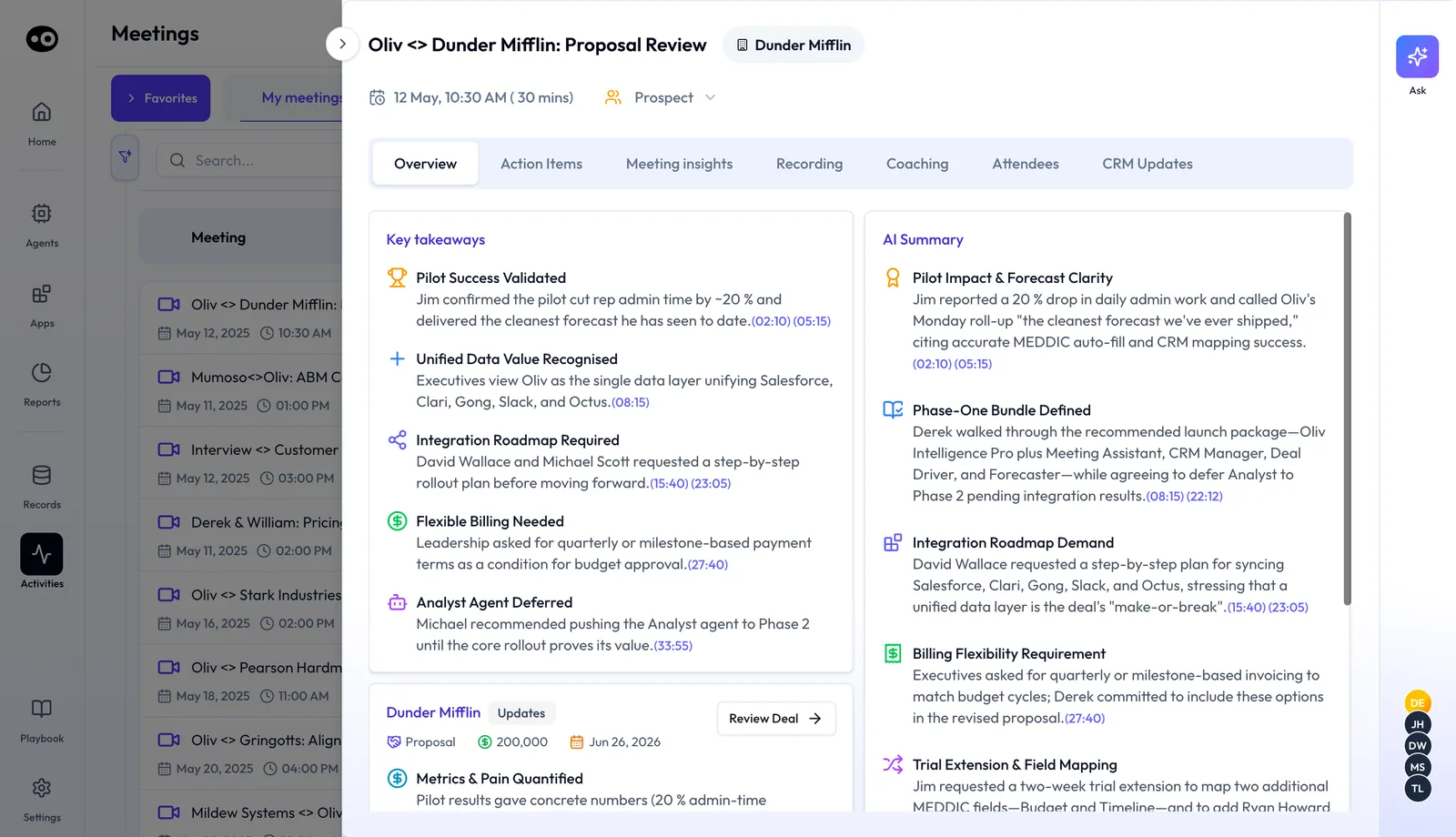
- A transcript. Oliv AI transcribes the conversation and labels every speaker.
- An AI summary and next steps. Both are ready as soon as the call ends, with key takeaways that link back to the recording.
- A meeting record in seven tabs. Meeting details splits each meeting into Overview, Action Items, Meeting insights, Recording, Coaching, Attendees and CRM Updates.
- A call record in four tabs. A phone call opens with Overview, Action Items, Recording and Contact.
- A follow-up draft on meetings linked to active opportunities. Oliv AI's Meeting Assistant agent works only on those meetings. On them, the draft is ready within minutes.
- Meeting notes in your CRM. The AI summary and full transcript are attached to the opportunity record.
- Messages in Slack. Once Slack is connected, Oliv AI sends a meeting summary as soon as each meeting ends, and a copy goes to your email by default.
For the craft side of this, read how to take meeting notes during sales calls.
Find and reuse what was said
When you need the moment a customer raised an objection, search for it. The same works for a competitor mention or a pricing concern. Then press Clip on the recording to save it to a clip library for coaching, enablement or product.
- Find the meeting. Open Activities › Meetings and use search, for example by the date the meeting was held.
- Jump in from Slack. If you have a Slack message about the meeting, press Open Meeting to go straight to it.
- Share part of a transcript. Find the minute marker, tick the box for the segment and copy it. Open it in a new tab to start playback from that minute.
To have clips built for you, describe the moments you care about to Oliv AI's Content Curator agent in plain language. The agent clips matching moments when each meeting is completed. Before you rely on it, check that Oliv Notetaker recordings are flowing.
What to connect to get conversation intelligence running
Work through these in order.
- Connect your calendar and video conferencing. Do this first, because Oliv AI relies on your calendar for the meetings it captures. Pick yours from the integrations Oliv AI works with.
- Turn on botless recording. If it isn't set up for your organization, contact Oliv Support and connect your video conferencing admin with them. Recording modes shows what attendees see in each mode.
- Connect your CRM. Salesforce, HubSpot or Zoho syncs pipeline, fields, owners, close dates and stages. If you skip this, Meeting Assistant has no active opportunity to link a meeting to, so you won't get its follow-up drafts.
- Connect Slack. The meeting messages start automatically, with no setup of their own. To stop them, turn them off on your Profile Settings page.
Moving recordings across from another tool? Follow the migration guide.
How Converse works with Oliv AI's agents
Meeting Assistant
When you want follow-ups drafted after deal meetings, start with Oliv AI's Meeting Assistant agent. Check that the deal exists in your CRM and the meeting is on your calendar, because the agent works only on meetings linked to active opportunities. Then check that Oliv Notetaker is recording, since the agent runs on its recordings and transcripts.
After the meeting, review the follow-up draft and what the agent flags for the CRM. If there's no draft, check the opportunity link first. For its brief before the call, open the prepare for a meeting guide.
Content Curator and Coach
When you want clips built from moments you describe, check that recordings are flowing in from Oliv Notetaker first, because Oliv AI's Content Curator agent can't clip without them. Then describe the moments you care about in plain language, and read more on the agent's page.
When a rep needs to improve, get their calls recorded, then open Oliv AI's Coach agent. It works on recordings after the fact, so it has nothing to work on until capture is running.
Olivia and Deal Driver
When you want a follow-up on request, ask Oliv AI's Olivia agent to draft it from the call. She pulls from the meeting transcript, so check that the meeting was captured. Meeting Assistant's own draft stays limited to meetings linked to active opportunities.
When you need to check a deal for risk, open Oliv AI's Deal Driver agent. It reads from the same record when it flags risk, so get that deal's conversations captured first.
CRM Manager
When opportunity records fall behind what customers said, connect your CRM and start with Oliv AI's CRM Manager agent. After a call, open the opportunity record and check that the AI summary and full call transcript are attached. Then follow the guide to keeping deal fields current from call history, as a layer on top of your CRM.
Who uses Converse, and how
Sales leaders
If you lead sales, start by getting your team's conversations on record, including phone calls and Slack. Then search for the exact objection or pricing concern instead of asking each rep. Read more on Oliv AI for sales managers.
Account executives
If you're an AE, expect a summary and next steps after a call. On a meeting linked to an active opportunity, Oliv AI's Meeting Assistant agent adds a follow-up draft. Before the next meeting, search for the last conversation, and learn how AEs run deals with Oliv AI.
Customer success and account management
If you're taking over an account as a CSM, read what sales promised in the customer's own words. Find the past meetings first, then open each one and read Transcripts on the Recording tab. In-person visits land in the same account timeline as your calls. More on Oliv AI for customer success teams.
Enablement
If you run enablement, clip real objection handles and talk tracks into clip libraries for onboarding and coaching. More on sales enablement software.
How Oliv AI compares for conversation intelligence
When you compare conversation intelligence software, check what each tool captures beyond video meetings. The Converse app also captures phone calls, email and Slack into the same record, and records botlessly when your company hosts and botless recording is enabled. Oliv AI is the only platform in this table that does all four. For a wider shortlist, read this comparison of conversational intelligence software.
Conversation intelligence features, from each platform's public documentation:
| Platform | Botless meeting capture | Phone call capture | Email capture | Slack capture |
|---|---|---|---|---|
| Oliv AI | Yes | Yes | Yes | Yes |
| Gong | Not in docs | Yes (telephony calls imported) | Yes (email capture settings) | Not in docs |
| Avoma | Yes (Microsoft Cloud Recording, no bot) | Yes (dialer integrations such as Aircall) | Yes (Gmail email sync) | Not in docs |
| Fireflies | Yes (recording without a bot) | Yes (phone calls via the desktop app) | Partly (email assistant for your inbox) | Partly (Slack insights in Daily Brief) |
| Fathom | Yes (bot-free capture) | Not supported (phone calls listed as unsupported) | Not in docs | Partly (Slack Huddles audio) |
| Outreach | Not in docs | Yes (recorded calls with transcripts) | Partly (prospect emails only) | Not in docs |
Yes: documented and built in. Partly: documented with a limit, shown in brackets. Not in docs: not found in the vendor's public documentation.
Why Oliv AI is the stronger choice for conversation intelligence
- Slack sits in the same record as calls. Converse captures Slack alongside meetings, phone calls and email. Gong documents capturing emails, calendar meetings, or both for each team member. If your deals run through Slack, make this your first test, then read Oliv AI vs Gong.
- The recording method is chosen for you. Once botless recording is enabled, Oliv AI records botlessly when your company hosts and joins visibly when someone else does. Avoma's setup asks you to choose Cloud Recording or the Avoma Assistant bot. Decide who should make that choice in your team, then read Oliv AI vs Avoma.
- Email threads sit beside your calls. Converse captures email threads into the conversation record. Outreach's help center says it will only sync emails associated with Prospects. List the email your team needs on record, check it against each tool, then read Gong vs Outreach to see how Oliv AI fits that choice.
Competitor details checked against each vendor's public documentation on 21 October 2026. Features and plans change, so confirm with the vendor before you decide.
Limits and things to know
- Follow-up drafts depend on the deal. Oliv AI's Meeting Assistant agent works only on meetings linked to active opportunities, so plan on no draft from it elsewhere.
- Some channels are add-ons. Bot-based meeting capture and Slack capture are priced separately. Check Oliv AI pricing before you plan on them.
- Plaud needs a higher plan and its own hardware. Plaud recordings are supported on Sell and Grow, and the hardware is purchased separately.
- Botless recording needs setup. If it isn't enabled for your organization, Oliv Support works with your video conferencing admin to turn it on.
- External meetings may need admitting. If an outside organizer's meeting has a waiting room or lobby, someone may need to admit the note taker.
- Clips sit in the Enable app. The clips route opens the Library tab of Enable.
Common questions
What does conversation intelligence software capture in Oliv AI?
The Converse app records, transcribes and summarizes customer conversations across meetings, phone calls, email and Slack, in one searchable record.
Does conversation intelligence need a bot on every meeting?
Not with Oliv AI. When your company organizes the meeting and botless recording is enabled, Oliv AI records through the meeting platform. A visible note taker joins when someone outside your company organizes it.
Which meeting platforms does it join?
Oliv AI joins Zoom, Google Meet and Microsoft Teams meetings automatically.
Can it record in-person meetings?
Yes. Capture in-person meetings with the mobile app. Sell and Grow also support Plaud recordings, with the hardware bought separately.
What do you get after each sales conversation, and how soon?
The summary and next steps are ready as soon as the call ends. On a meeting linked to an active opportunity, Oliv AI's Meeting Assistant agent also has a follow-up draft ready within minutes. It doesn't draft for other meetings.
How do you search what a customer said across calls?
Open Activities › Meetings and search for the meeting. Phone calls are in Activities › Calls.
Does the call record reach my CRM?
Yes. The AI summary and full call transcript are attached to the opportunity record in your CRM.
Can I turn off the Slack messages?
Yes. Turn off the automated meeting messages on your Profile Settings page.
How does Converse decide what's important in a call?
It reads context, sentiment and intent rather than matching keyword lists.
Is Converse a separate plan?
Converse is both an app and a plan. Sell includes Converse, and Grow includes Sell, so each higher plan carries the same capture.