
Integrations Live
Sales tool integrations: what connects to Oliv AI, what it does and which guide to open
Sales tool integrations for Oliv AI: what connects, what each connection does, what to connect first and which of the six setup guides to open.
On this page
Sales tool integrations are the first thing to check before you buy: whether your CRM, calendar, meeting and messaging tools connect, and what each connection does. Connect them in this order: your calendar first because it's required, then your recorder and your CRM, then Slack. Oliv AI works as a layer on top of your CRM, so your CRM stays where it is. Six tools have their own setup guide, so find yours in the table and open it.
Which sales tools connect, and what to connect first
| Connect | Category | Tools | What the connection does | Guide to open |
|---|---|---|---|---|
| First, required | Calendar | Gmail and Outlook calendars | Sets which meetings get joined | Gmail |
| Second | Video conferencing and recorder | Zoom, Webex, Microsoft Teams, Google Meet | Records meetings for summaries and follow-ups | Zoom, Webex |
| Second | CRM | Salesforce, HubSpot, Zoho | Pulls records in and writes conversation insights back | Salesforce, HubSpot |
| Third | Messaging | Slack, Microsoft Teams, Google Chat | Sends meeting reminders, summaries and agent alerts | Slack |
The six guides are Salesforce, HubSpot, Gmail, Zoom, Webex and Slack. Every other tool in the table has no guide of its own, so use the sections below for what it needs.
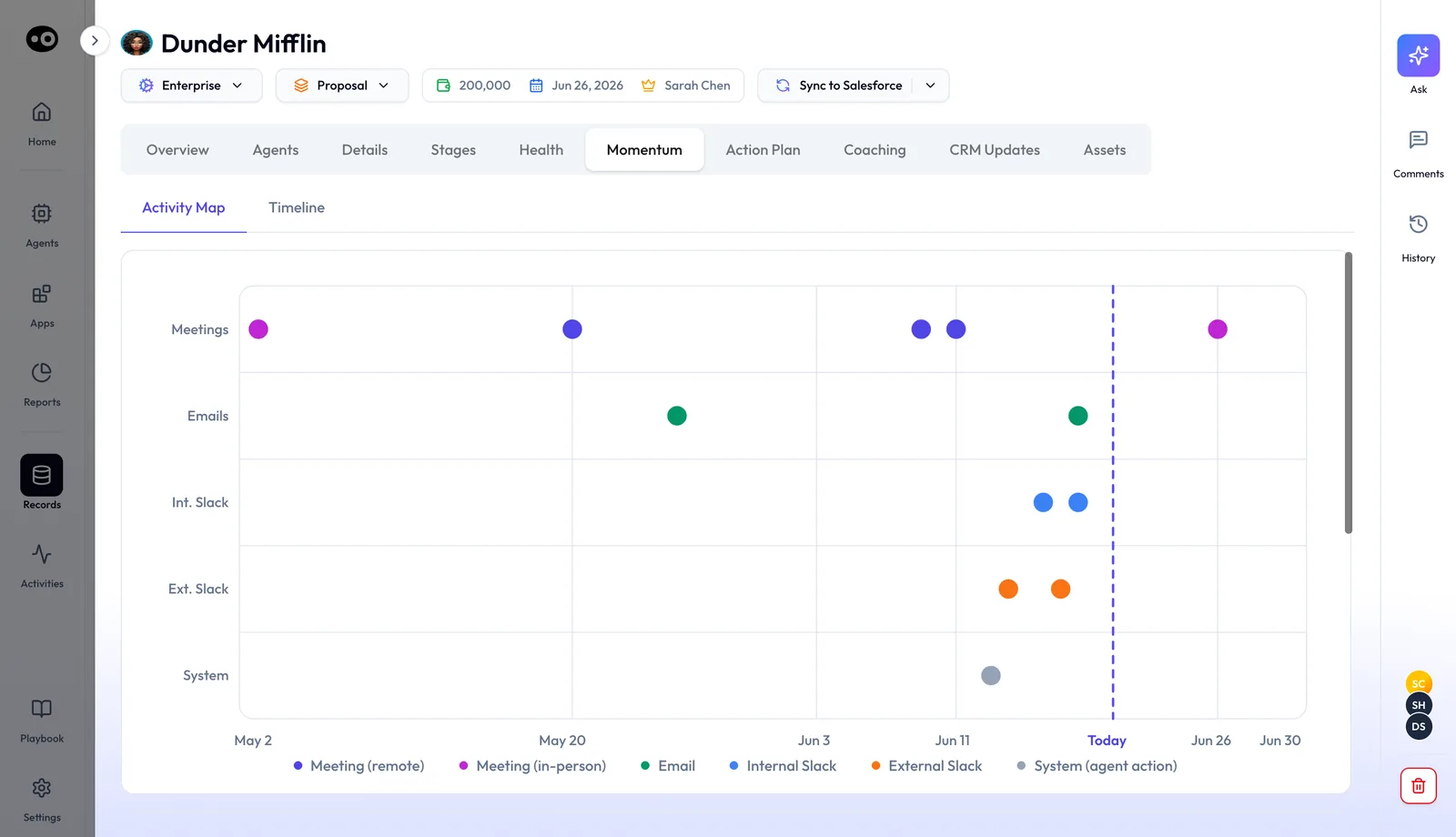
Once your connections are in, open a deal and check its Momentum tab. The Activity Map has a row each for meetings, emails, internal Slack, external Slack and agent actions. If a channel you connected shows nothing on an active deal, check that connection first.
Connect your calendar first, then your recorder
Your calendar is the one connection you can't skip. If you set up everything else without it, Oliv AI can't take notes during your meetings. Log in to the web app to connect a Gmail or Outlook calendar, and do this before anything else.
Next, follow the path for the tool your team meets on or records with:
- Microsoft Teams or Google Meet. You have nothing more to set up. Recording works on these calls once your calendar is connected.
- Zoom. Install the Oliv AI Zoom app. The Zoom guide covers both Zoom apps, including CRM fields inside the meeting window.
- Webex. Install the app from the Webex App Hub, then follow the Webex guide.
- Gong, Salesloft or Chorus. You can use one of these as your recording tool instead of the built-in recorder. They have no guide here, so ask the sales team how to connect yours.
Before your first customer call, check what attendees will see. When someone at your company organizes the meeting, Oliv AI can record botlessly through the meeting platform. When an external organizer owns it, a note taker joins under your company's name. If a customer's IT team asks about this, send them to bot and botless recording.
The note taker joins external calls automatically. To change that for a call, use the web app or your calendar, with the Chrome extension for Google or the add-in for Outlook.
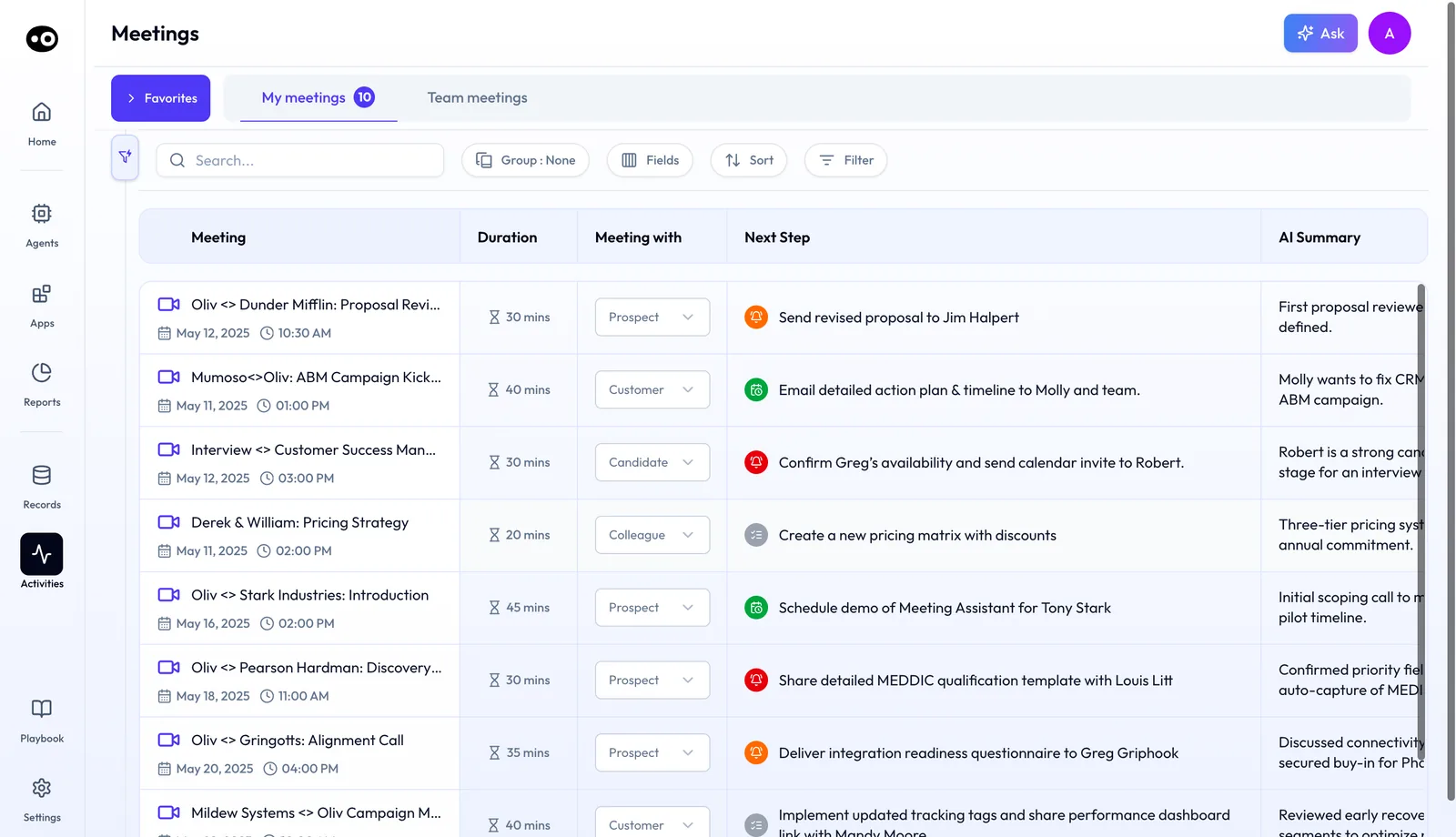
To check the connection, record a meeting and look for it in the meetings list under Activities › Meetings, on the My meetings or Team meetings tab. Everything recorded lands in the Converse app.
Connect your CRM so agents can read and write records
A CRM connection pulls in your accounts, contacts and opportunities, then fills them back with what customers said. Without it, Oliv AI's CRM Manager agent has no CRM to write to, so plan it alongside the recorder. If you want the full picture first, read how the layer sits on top of your CRM.
Salesforce, HubSpot and Zoho work out of the box. Additional CRMs are available on request, so contact the sales team if yours isn't listed.
- Salesforce. Get your Salesforce admin to install the package for all users. The Salesforce setup guide covers the install, review settings and cleaning up existing data.
- HubSpot. Connect from the HubSpot integration in the web app, then share your HubSpot URL. The HubSpot setup guide also shows Oliv AI fields on deal records.
- Zoho. There's no guide here, so ask the onboarding team for the steps when you connect.
Standard fields are mapped when you connect, and the Oliv AI team configures your custom fields during onboarding. Read CRM field mapping before that session, so you know which field each update should land in.
Then check the first updates yourself. By default, each update waits for review before it reaches the CRM. Open a deal and go to the CRM Updates tab, where each change sits under AI Suggestions next to the current CRM value, with Accept and Reject. The deal header also has a Sync to Salesforce button that pushes the deal to the CRM. When you're ready to move past review, the CRM Manager agent page covers approvals and auto mode. To understand how two-way sync enriches records without replacing them, read about the context graph and CRM sync.
Connect Slack or your chat tool last
Slack can come last because its meeting messages also go to your email by default, so nobody misses them while you finish the other connections. Once Slack is connected, three messages start on their own: a summary of tomorrow's meetings, a prep summary before each meeting and a meeting summary after it. If your team finds them noisy, turn them off in Profile Settings. The Slack guide covers setup.
If your managers live in chat, check where each agent posts before you choose a channel. Oliv AI's Deal Driver agent sends managers its alerts, briefs and summaries through Slack, email or the platform. Oliv AI's Olivia agent works through Slack, Teams or the product itself, as the Olivia agent page shows.
On Microsoft Teams, accept the invitation you receive to a shared channel. Teams and Google Chat have no guide here, so ask the onboarding team if you need steps for either.
Add more context once the core is running
If your deals also run over email and phone, add those next, because they widen coverage beyond meetings. The capture covers email from Gmail and Outlook, phone calls, and in-person meetings recorded with Plaud, a wearable recorder.
If your account teams need more than conversations, connect a data warehouse. Snowflake, Databricks, Redshift and BigQuery all connect, which adds product usage, support tickets, billing history and onboarding completion to each account. Oliv AI's CRM Manager agent also enriches new accounts and contacts from integrated data providers.
None of these has a setup guide in these docs. For the other categories, or a tool you can't find, use the request option on Oliv AI's integrations page. Context capture shows each channel captured.
How agents use the connected tools
Before you switch on an agent, check that it has what it needs. Oliv AI's Meeting Assistant agent needs your calendar, a call recording tool and your CRM. Most teams are connected within a week. The agent then briefs reps on meetings linked to active opportunities, as the meeting preparation guide explains. To see writes reaching the CRM after a call, follow the CRM upkeep guide.
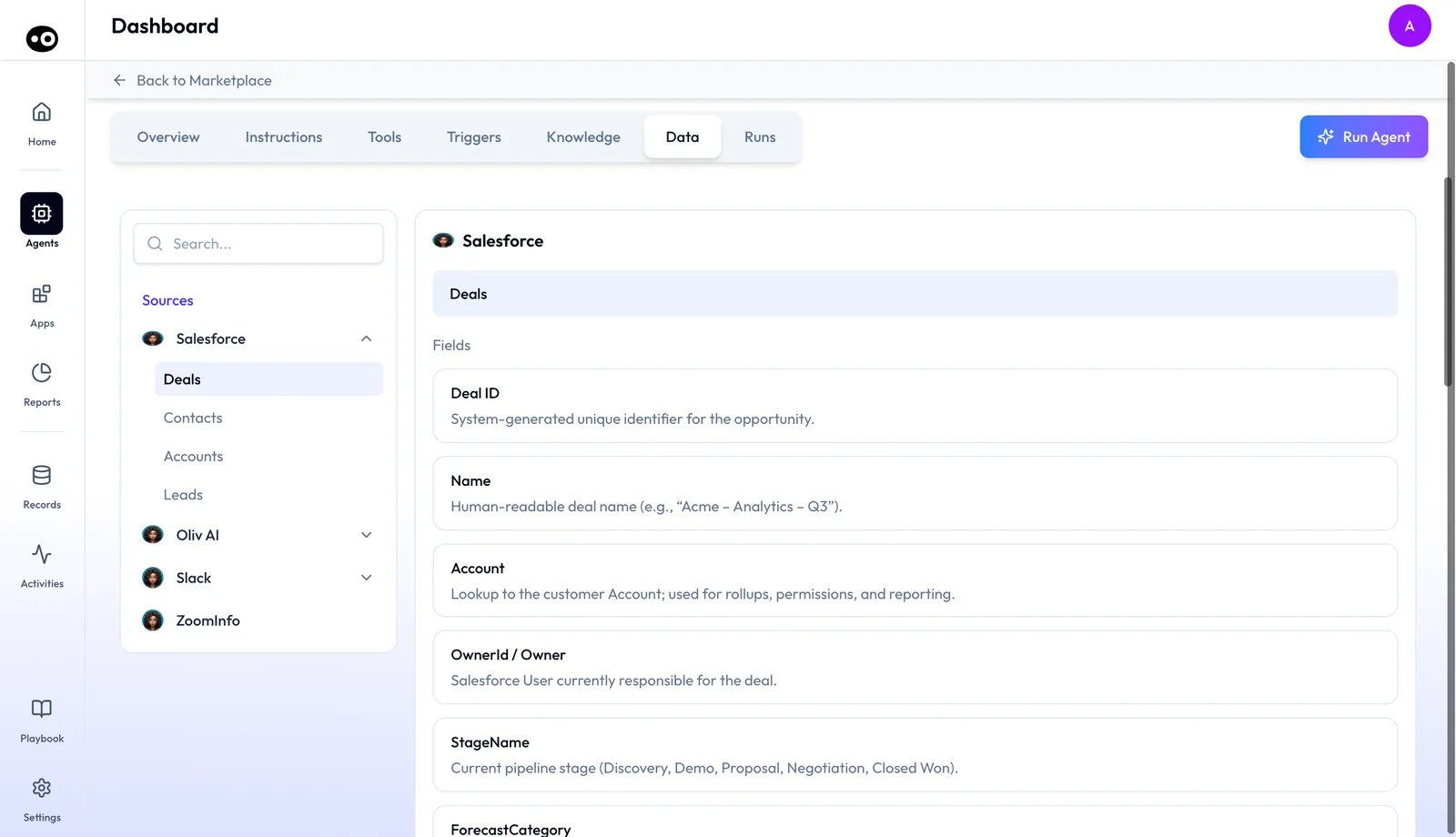
If you're building your own agent, it uses the same connections. Each tool an agent holds is one action in a connected system, and its run mode decides whether the agent asks first. The Add Tool catalogue lists seven systems: HubSpot, Salesforce, Gmail, Google Calendar, Outlook, LinkedIn and Slack. Open the agent's Data tab to check which sources it reads, such as Salesforce Deals, Contacts, Accounts and Leads.
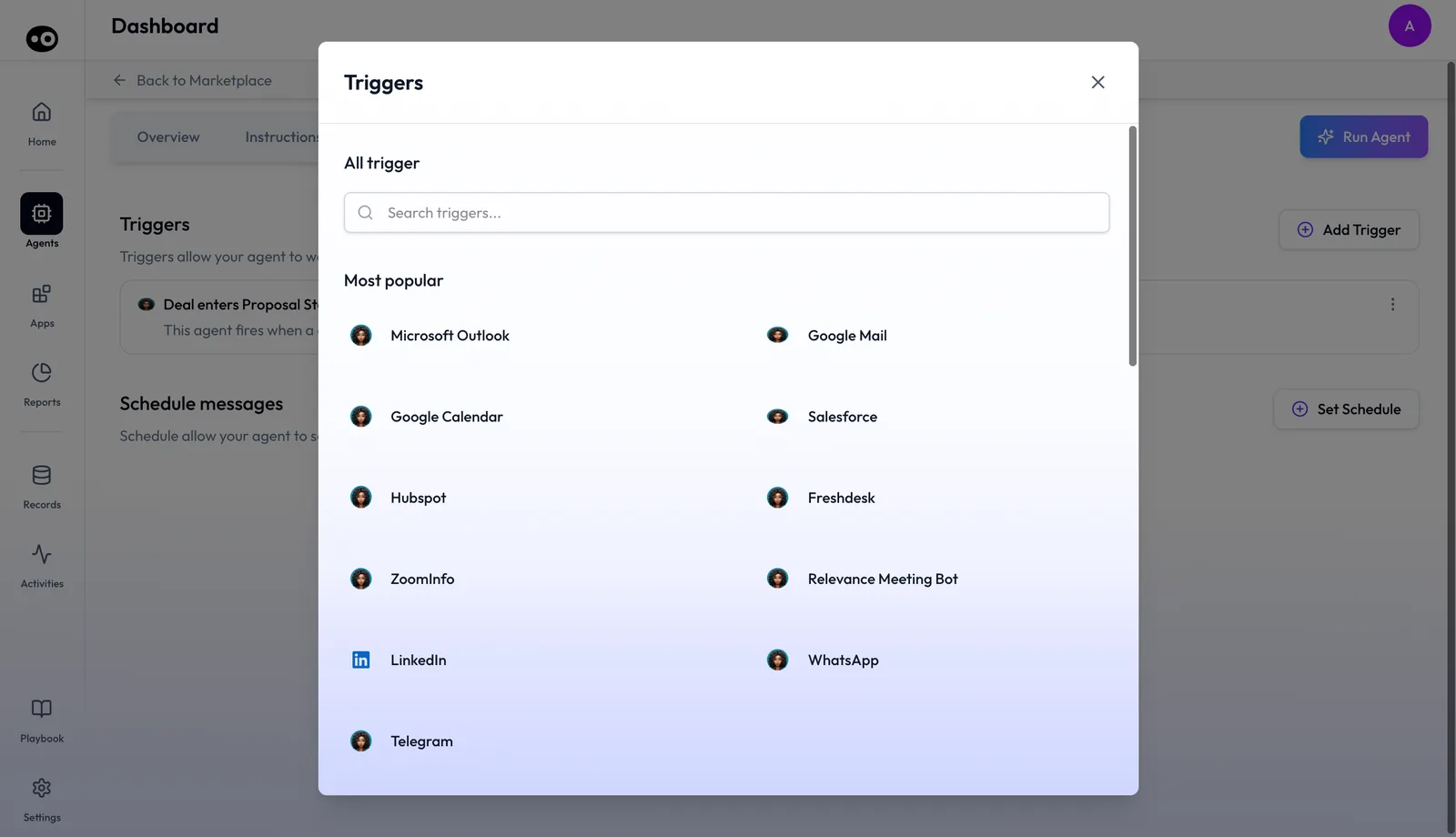
Set the approval level for each action in agent tools and run modes. To start an agent when a CRM deal changes, use agent triggers. Add Trigger opens a picker whose Most popular group lists 11 systems, among them Microsoft Outlook, Google Mail, Google Calendar, Salesforce and HubSpot, with a longer All triggers list below.
Before you connect a whole team, check plans and seat roles, because seat roles decide which apps each person uses. Then sequence the rollout with the 30-day deployment plan. For a wider view, the RevOps integration blueprint covers calls, email, Slack and the CRM together.