
Use cases Live
AI for account executives: prepare for calls, follow up and catch stalled deals
AI for account executives' admin: how a rep uses Oliv AI's agents to prepare for deal meetings, follow up after calls, keep the CRM current and catch stalled deals, and how that compares with other deal tools.
On this page
- At a glance
- Where Oliv AI fits for account executives
- The Oliv AI approach to running deals
- Before a meeting
- After a call
- Keep the CRM current without typing
- When a deal goes quiet
- How to spot a deal going quiet
- How to measure your deal admin
- How to run a week of deal admin by hand
- How Oliv AI compares as AI for account executives
- Limits and things to know
- Common questions
- Further reading
- Related
Your week as an account executive fills up around the deals, not just in them. AI for account executives helps in four places: prep before a meeting, the follow-up after it, CRM upkeep in between and spotting deals that have gone quiet, while you still decide what reaches the buyer and the record.
Oliv AI gives an account executive a set of agents that handle the work around each deal: the prep before a meeting, the follow-up after it and the CRM upkeep in between. You walk into calls prepared, review drafted emails and proposed field updates instead of writing them, and get a nudge when a deal starts to stall.
At a glance
| Who it's for | Account executives working active opportunities |
| Before a meeting | A brief about 30 minutes before every meeting on an active opportunity |
| After a call | A drafted follow-up email, proposed CRM field updates and qualification gap flags |
| In the CRM | Accounts, contacts, activities and tasks kept current from your conversations |
| When a deal stalls | Nudges when next steps go overdue or activity drops |
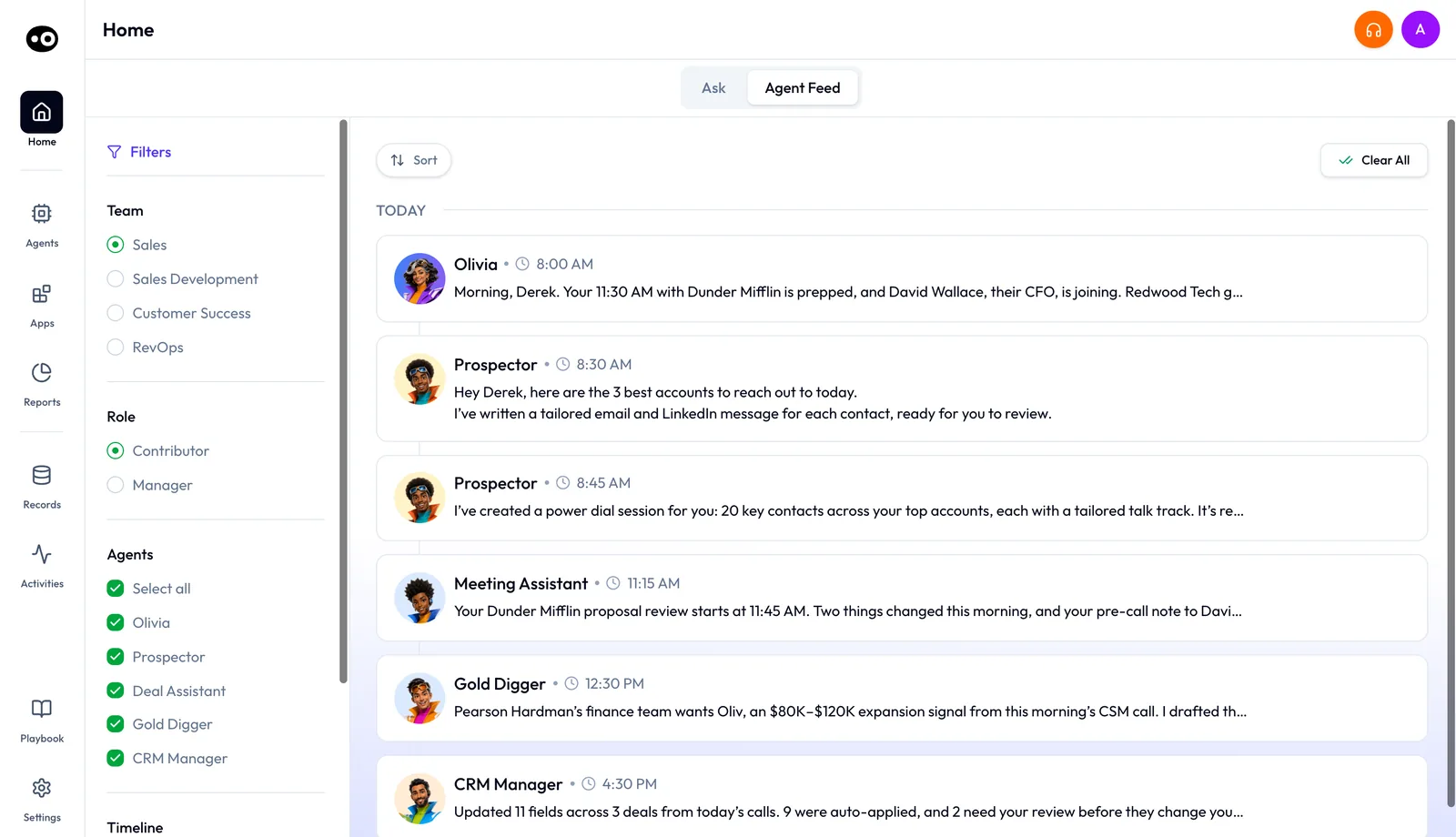
| Your day in one feed | The Agent Feed on Home, with your morning brief, call prep and CRM update summaries |
| Agents involved | Meeting Assistant, CRM Manager, Deal Driver, Olivia |
Where Oliv AI fits for account executives
What it's for
Oliv AI takes the admin around each deal off the account executive. The time between calls goes to selling, not to rebuilding context or typing notes into the CRM.
How it helps
- Briefed before you join. A one-screen brief lands about 30 minutes before each deal meeting.
- Follow-up written from the call. The email draft comes from the actual transcript, not a template.
- Fields proposed, not typed. You accept or reject each suggested CRM update.
- Stalls flagged early. You get a nudge when next steps go overdue or activity drops.
What happens without it
Each call can cost 15 to 20 minutes of digging for context beforehand and about 15 minutes of email writing afterward. CRM updates depend on what the rep remembers. Qualification gaps then surface at the forecast review, when it's too late to act on them.
Why they care
The account executive is the champion, because the time savings show up before and after every call. VPs of Sales and sales managers usually make the purchase. It matters most for reps with a full calendar of meetings on open deals. For the wider picture, see AI agents for account executives.
The Oliv AI approach to running deals
Imagine an account executive with four customer calls on a Tuesday, booked almost back to back. Two are with deals in late-stage evaluation. One is a first call with a new stakeholder, and one is a pricing follow-up.
The usual routine is to skim old notes in the few minutes between calls. Each follow-up then gets written from memory at the end of the day, and CRM fields wait until Friday. By then some details have probably faded, so the record shows less than the calls did. The next meeting on each deal may start from a thinner picture as a result.
Everything the rep needs is already on record: the recordings, the CRM history and the email thread. The real gap is timing. Prep is most useful in the half hour before a call. The follow-up is easiest to write while the conversation is still fresh in everyone's mind.
Oliv AI moves that work to the right moment. Oliv AI's Meeting Assistant agent sends a brief before each meeting on an active deal and drafts the follow-up after it. Oliv AI's CRM Manager agent turns what was said into field updates for the rep to approve.
The brief fits on one screen and takes about 60 seconds to read, so it works even when calls run back to back.
Before a meeting
Oliv AI's Meeting Assistant agent sends a brief about 30 minutes before every meeting linked to an active opportunity. If the deal exists and the meeting is on your calendar, it runs automatically. The brief covers:
- Deal summary. Stage, amount, close date, last activity and next steps.
- Qualification status. Where the deal stands against your active qualification framework, with gaps and open questions highlighted. Settings › Qualification Framework offers MEDDPICC, MEDDIC, SPICED, BANT and DRIVE.
- Stakeholders. Who is in the meeting, what roles they play and what they care about, based on prior conversations.
- Recommended agenda. Tailored to the deal stage and the qualification gaps.
Shortly before the call, Meeting Assistant also posts a call prep note to your Agent Feed on Home. For a first meeting with a new contact, Oliv AI's Olivia agent does the research instead. Olivia also surfaces the right context before every meeting, such as deal status, stakeholder intel, qualification gaps and what was agreed last time. Read more on getting the most from an AI meeting assistant.
After a call
Once the meeting recording is processed, Meeting Assistant prepares three things:
- A follow-up email draft. It covers what was discussed, what was agreed and the next steps, with dates where possible. You review, adjust and send. See what makes a strong sales follow-up.
- Proposed deal field updates. Stage, amount, close date, qualification fields and next steps, based on what was said.
- Qualification gap flags. New information, or notable absences, that change the deal's qualification status.
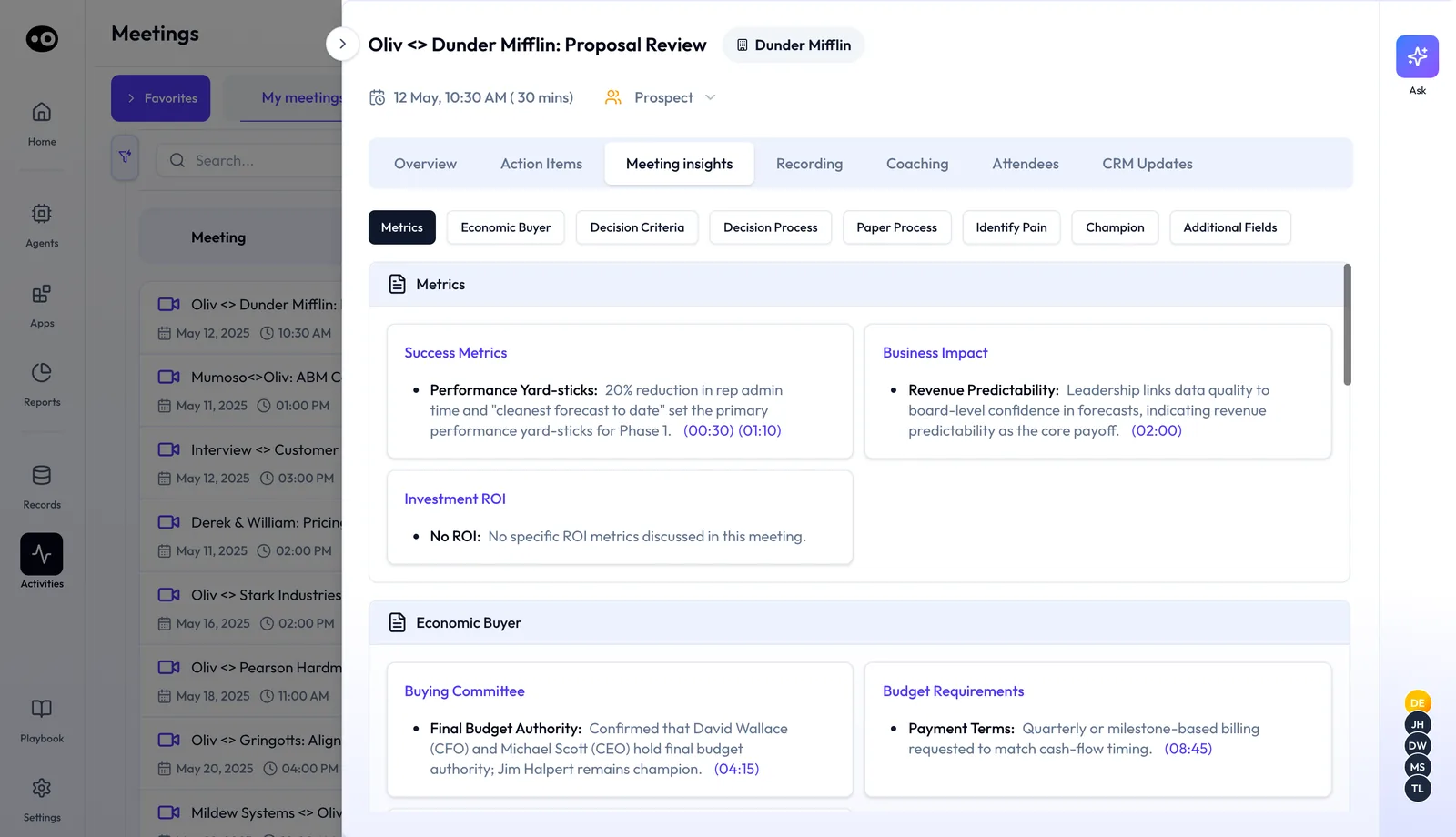
Each meeting's record in Activities › Meetings holds the results in seven tabs: Overview, Action Items, Meeting insights, Recording, Coaching, Attendees and CRM Updates. Meeting insights files what was said under each criterion of your framework, with timestamps into the call. It also says plainly when a criterion wasn't discussed, which is where the gaps show.
Review the proposed CRM updates
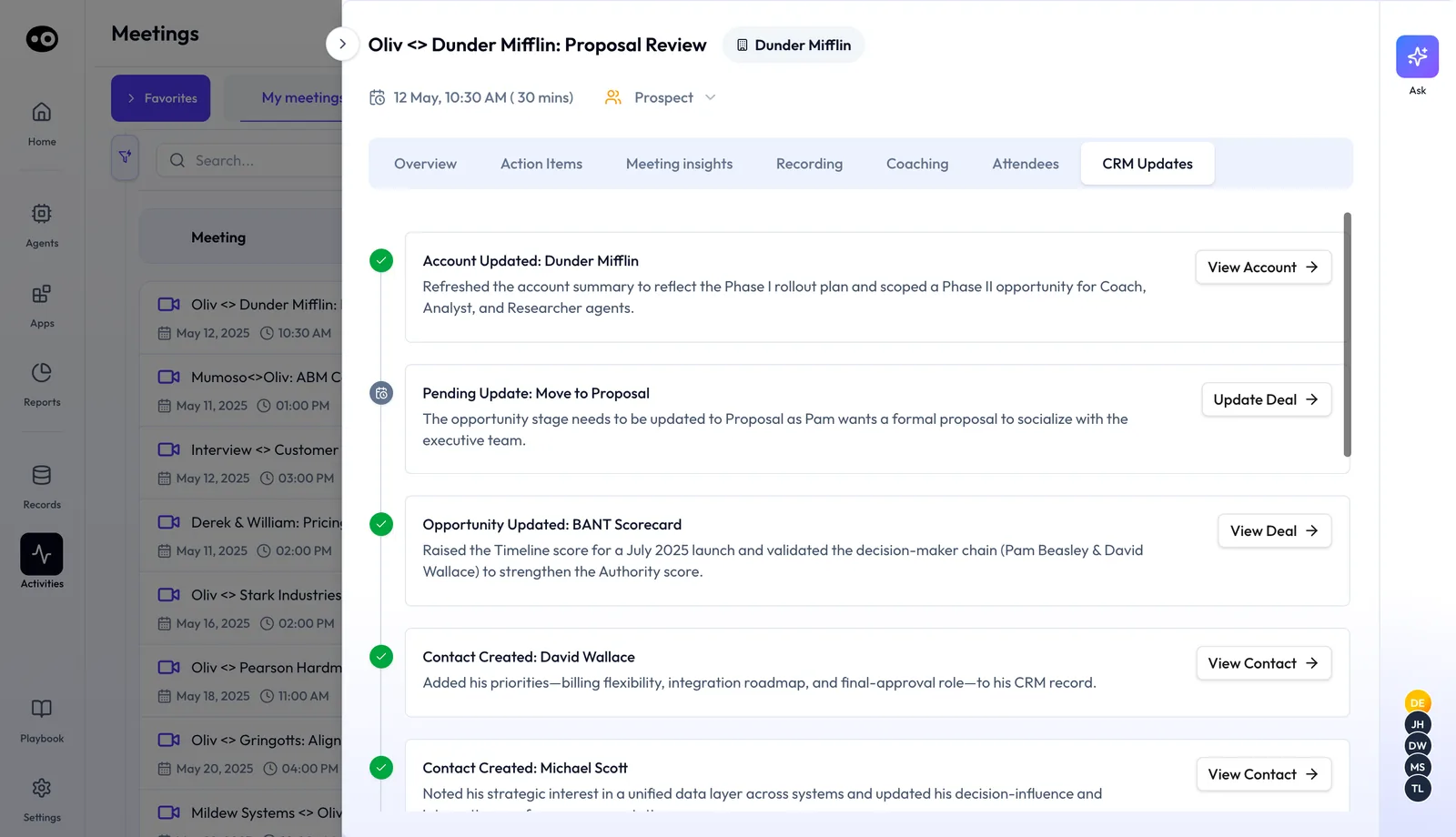
After every activity, you get a Slack or preferred-channel message saying how many fields have updates. The meeting's CRM Updates tab lists what changed after the call: completed updates, such as a refreshed account or a new contact, and pending ones with a button such as Update Deal.
On the deal itself, the CRM Updates tab splits AI Suggestions from AI Updates and keeps an Updates History. Each suggestion shows the proposed value above the Current Value. Choose Accept or Reject.
CRM Manager applies some updates and holds others for your review, and its post in the Agent Feed says how many of each. Once accuracy thresholds are met, RevOps can confirm the switch to auto mode.
Keep the CRM current without typing
Oliv AI's CRM Manager agent keeps accounts, contacts, opportunities, activities and tasks current from your conversations.
- New people and companies. When a meeting, call or email involves a company or person not yet in the CRM, it creates the record and enriches it.
- The right deal. It maps each activity to the right account and opportunity, including multi-threaded deals. If it can't resolve one, it asks you.
- Tasks from next steps. It creates tasks from the next steps in meetings, calls and emails, and assigns them to the right owner.
- Buying committee roles. It tracks each contact's role on the opportunity, such as economic buyer, champion or blocker.
- Meetings that weren't recorded. It can prompt you for a quick voice summary and use that as a data source.
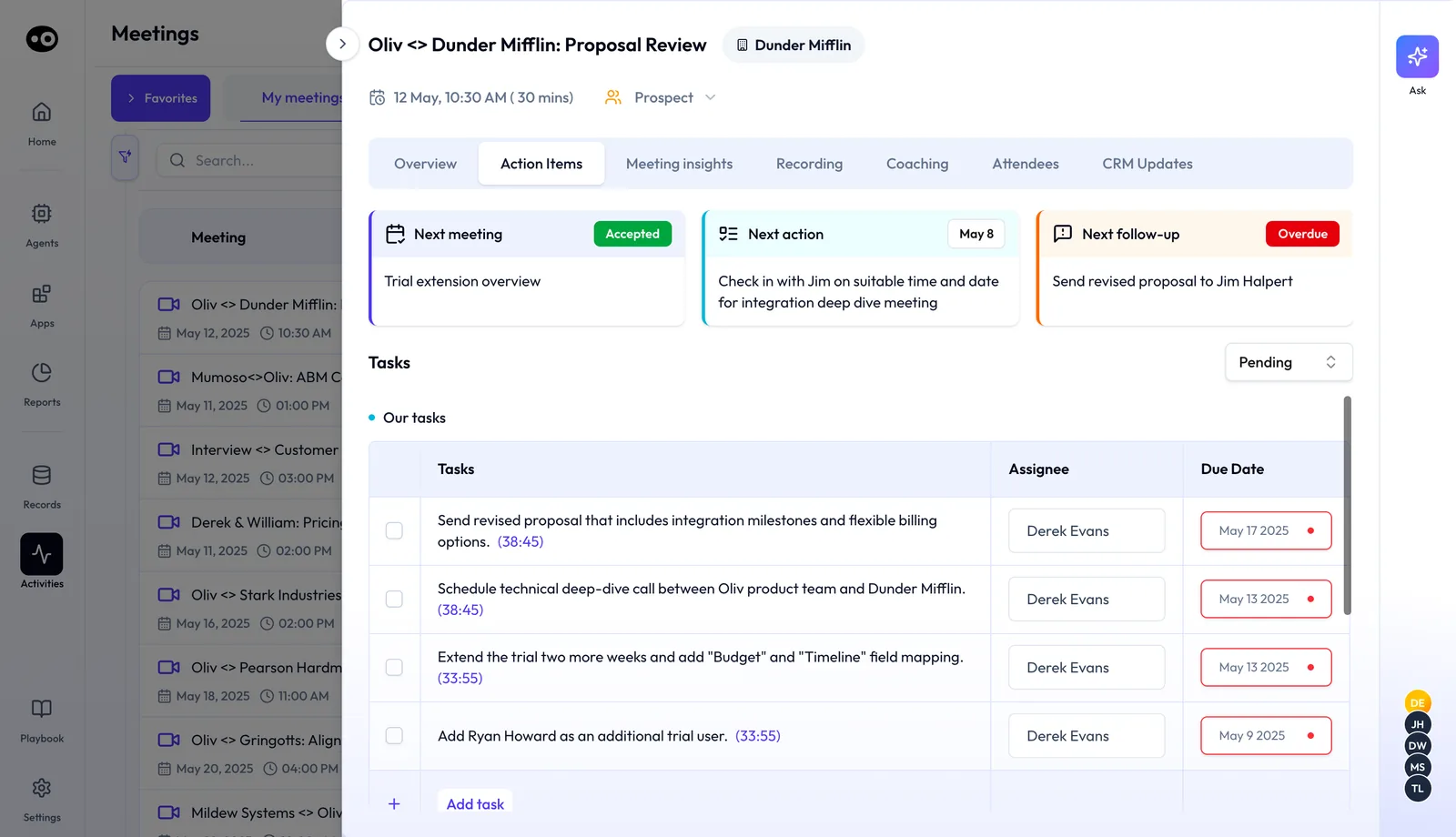
A meeting's Action Items tab shows the Next meeting, Next action and Next follow-up, then the tasks from the call with an assignee and a due date. Each task links to the moment in the recording it came from.
CRM Manager works with Salesforce, HubSpot and Zoho, as a layer on top of the CRM you already use. Read more on how Oliv AI handles CRM automation.
When a deal goes quiet
Oliv AI's Deal Driver agent nudges you directly when a deal stalls, a next step goes overdue or activity drops. That catches the gap before your manager needs to step in. CRM Manager also sends end-of-day reminders for open CRM tasks or unverified deal updates.
On the deal's Action Plan tab, the Next follow-up card shows how many days a follow-up is overdue, beside the next meeting, the next action and your task list.
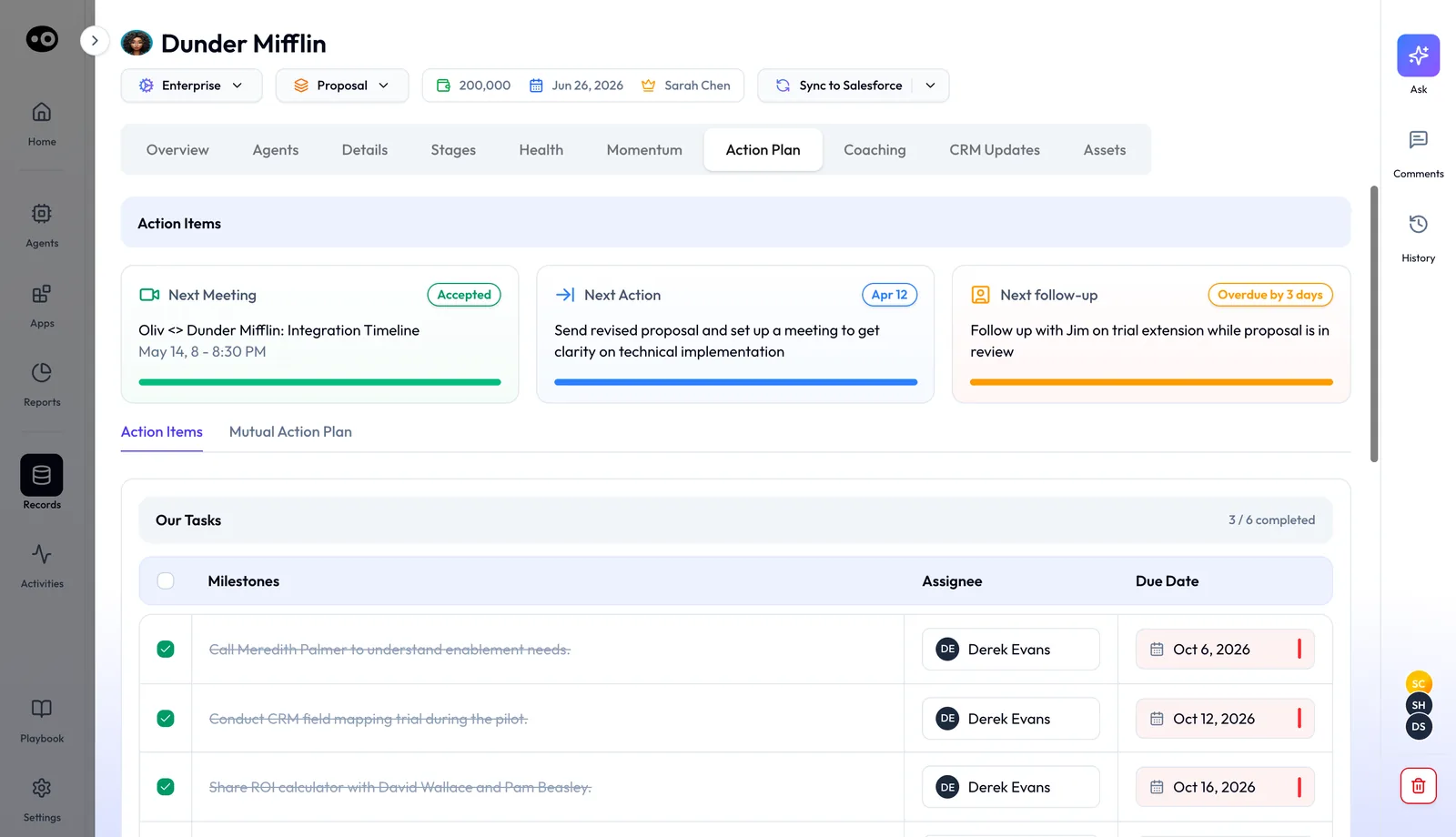
To work a stuck deal, tell Oliv AI's Olivia agent something like "This deal has been stuck for three weeks." She engages Oliv AI's Re-Activator agent and surfaces a re-engagement strategy, as covered in the things you can hand Olivia. For how deals slip in the first place, read why deal views miss half the picture.
How to spot a deal going quiet
A deal rarely announces that it has stalled. The buyer stops replying, the next step date passes and the stage stays put. There are three ways to catch it, and each one sees a different part of the problem.
Time in stage
Compare how long a deal has sat in its stage with how long your won deals usually took. HubSpot, for example, marks a deal stalled once its time in stage runs 20% longer than the owner's closed-won average for that stage. This catches slow deals. It misses deals that look on pace while the buyer has gone cold, and Gartner notes that buyers repeat buying steps in parallel rather than moving through stages in order.
Activity dates
Check the last and next activity on each deal. A HubSpot deal record carries a last activity date and a next activity date, set from logged calls, emails and meetings. A deal with no next activity booked is the plainest warning you get. This method misses anything that never got logged, so it is only as good as your CRM entry.
Overdue next steps
Track the next step agreed on the last call and its due date. When that date passes with nothing done, the deal is drifting, whatever its stage says. This catches a stall earliest, but only if someone wrote the next step down with a date.
Which of these Oliv AI watches
Oliv AI's Deal Driver agent nudges you when a next step goes overdue or activity drops. The deal's Action Plan tab counts the days a follow-up is overdue. CRM Manager creates the dated tasks from each call's next steps, so the overdue check has something to work from.
How to measure your deal admin
Two measures tell you whether the admin around your deals is under control. The first is minutes of admin per customer call: prep before it, plus follow-up and CRM entry after it. The second is the lag between a call and the CRM showing what was said.
Both have weak spots. Minutes per call hides the calls you skipped prepping for. Lag is hard to see unless the CRM keeps a record of when each field changed.
Where Oliv AI shows them
The deal's CRM Updates tab keeps an Updates History, so you can see when each field moved after a call. CRM Manager also sends the RevOps owner a weekly digest with an estimated time saved on manual CRM work. Ask your RevOps lead for it if you want the team view.
How to run a week of deal admin by hand
Without AI help, this is the routine that keeps deals moving. Run it in this order each week.
- Before each call, open the CRM record, the last call notes and the email thread. Write down the stage, the open qualification gaps and two or three agenda points.
- Within the hour after each call, write the follow-up: what was discussed, what was agreed and the next steps with dates.
- The same day, update stage, amount, close date, next step and qualification fields in the CRM. Add any new contacts from the call.
- Turn each agreed next step into a task with an owner and a due date.
- Once a week, sort your open deals by next activity date. Any deal with no next activity, or an overdue task, gets an email or call that day.
Step 3 is the one that slips first. If it waits until Friday, step 5 sorts your deals on stale dates.
The same week with Oliv AI
Step 1 becomes reading the one-screen brief that Meeting Assistant sends about 30 minutes before each deal meeting. Step 2 becomes reviewing and sending its drafted follow-up. Steps 3 and 4 become accepting or rejecting the field updates CRM Manager proposes, while it creates the tasks from the call. The check in step 5 runs on its own, because Deal Driver nudges you when a next step goes overdue or activity drops.
What stays with you is judgment: what to change in the draft, which updates to reject and what to do about a quiet deal.
Worked example: a week of admin for one account executive
This is an illustrative calculation with sample figures, not an Oliv AI output. Take a rep with 12 customer calls on open deals in one week and 20 open deals to check. Prep and follow-up use 15 minutes each per call, the low end of the manual times in Oliv AI's own materials. CRM entry and the weekly stalled-deal check use round sample figures.
| Admin task | Sample basis | Minutes in the week |
|---|---|---|
| Prep before each call | 12 calls × 15 min | 180 |
| Follow-up email after each call | 12 calls × 15 min | 180 |
| CRM entry after each call | 12 calls × 10 min | 120 |
| Stalled-deal check | 20 deals × 1.5 min | 30 |
| Total | 180 + 180 + 120 + 30 | 510 (8.5 hours) |
On these sample figures, prep and follow-up make up 360 of the 510 minutes, about 71% of the week's admin. Those are the two steps to hand off first. Run the same sums with your own call count before you decide.
How Oliv AI compares as AI for account executives
Several deal tools now prepare reps for meetings. Oliv AI also proposes the CRM updates from each call for you to review, and nudges you directly when a next step goes overdue. Oliv AI is the only platform in this table that does all three.
Deal workflow features for account executives, from each platform's public documentation:
| Platform | Pre-meeting brief for deal meetings | CRM updates proposed for review after each call | Rep nudges when next steps go overdue |
|---|---|---|---|
| Oliv AI | Yes | Yes | Yes |
| Gong | Yes (AI meeting prep) | Partly (one text field on deal boards) | Partly (overdue to-dos list) |
| Outreach | Yes (Meeting Prep Agent) | Yes (Deal Agent) | Partly (overdue tasks in reports) |
| Fireflies | Yes (Meeting Prep briefs) | Yes (Autofill CRM) | Not in docs |
| Avoma | Partly (meeting prep templates) | Automated field updates | Not in docs |
| Fathom | Not in docs | Writes summaries and tasks to CRM | Not in docs |
Yes: documented and built in. Partly: documented with a limit, shown in brackets. Not in docs: not found in the vendor's public documentation.
Why Oliv AI is the stronger choice as AI for account executives
- Every core deal field, proposed after each call. Oliv AI proposes stage, amount, close date, qualification fields and next steps from the conversation. Gong's deal boards fill one text-only CRM field with AI-suggested updates. Compare Oliv AI vs Gong.
- A brief built around the deal. Oliv AI's brief shows qualification status against your methodology and a recommended agenda. Avoma documents templates that standardize meeting prep by meeting purpose. Compare Oliv AI vs Avoma.
- A nudge, not a list to check. Oliv AI nudges the rep directly when next steps go overdue. Gong's to-do filter lets you show to-dos that are due or overdue. See Oliv AI as a Gong alternative.
Competitor details checked against each vendor's public documentation on 21 October 2026. Features and plans change, so confirm with the vendor before you decide.
Limits and things to know
- Active opportunities only. Meeting Assistant works on meetings linked to an active opportunity. Olivia's research covers first-time contacts.
- It needs a recording. Meeting Assistant relies on Oliv Notetaker recordings and transcripts and a Deal Insights subscription.
- Not a CRM. CRM Manager works on top of Salesforce, HubSpot or Zoho. It doesn't replace them.
- Pending updates have a deadline. If a rep doesn't complete updates within a defined window, deals can be deferred or flagged as closed-lost. Each org configures this.
- One framework at a time. Briefs and meeting insights follow the framework marked Active in Settings, so switching it changes what every deal is scored against.
Common questions
When does the pre-meeting brief arrive?
About 30 minutes before every meeting linked to an active opportunity in your CRM.
How long is the brief?
One screen, about 60 seconds to read. It covers the deal summary, qualification status, stakeholder context and a recommended agenda.
Which sales methodologies does it support?
Settings › Qualification Framework offers MEDDPICC, MEDDIC, SPICED, BANT and DRIVE. One is marked Active, and each shows its criteria and scoring before you switch with Activate.
Is the follow-up email a template?
No. Meeting Assistant reads the transcript and drafts from the actual conversation. You review, adjust and send.
Do CRM updates go in without me seeing them?
Some do. CRM Manager applies some updates, listed under AI Updates on the deal, and holds the rest under AI Suggestions for you to accept or reject. RevOps can switch to auto mode once accuracy thresholds are met.
What if our CRM data is incomplete?
CRM Manager fills in missing or stale data from call history as it goes, so you don't need a clean CRM to start.
Does it create contacts I haven't added?
Yes. When an activity involves a person or company not yet in the CRM, CRM Manager creates and enriches the record.
What happens if a meeting wasn't recorded?
CRM Manager can prompt you for a quick voice summary and use that as the data source.
Will I get reminders about my deals?
Yes. Deal Driver nudges you when deals stall, next steps go overdue or activity drops. CRM Manager sends end-of-day reminders for open CRM tasks.
How long does setup take?
Connect your calendar, your call recording tool or Oliv's native recorder, and your CRM. Most teams are connected within a week.
What can AI for account executives take over?
The repeatable admin around each deal: the pre-call brief, the follow-up draft, proposed CRM field updates, tasks from next steps and flags on overdue ones. The conversations, the edits to each draft and the call on a quiet deal stay with you.
What should I do when a deal goes quiet?
Check the last agreed next step and whether its date has passed, then reach the buyer that day. In Oliv AI, tell Olivia the deal is stuck, and she engages the Re-Activator agent for a re-engagement strategy.
How can an account executive spend less time on admin?
Time your admin by task for one week, then hand off the biggest pieces first. In the worked example above, that is prep and follow-up, which Meeting Assistant drafts around each deal meeting.
Further reading
Related
Updated 2 November 2026: added how to spot a deal going quiet, how to measure deal admin, a manual weekly routine and a worked example.