
Integrations Live
Slack sales alerts: which messages Oliv AI sends, when they arrive and who gets each one
Which sales alerts in Slack Oliv AI sends, when each one arrives, who gets it, how to connect Slack, how to count your weekly messages and how to turn them off.
On this page
- At a glance
- What the Slack integration is
- Why the Slack integration matters
- The Oliv AI approach to the Slack integration
- Set up the Slack integration
- How sales alerts reach a team in Slack
- Meeting messages in Slack
- Work from a Slack message
- Who gets each sales alert in Slack, and when
- How to measure your Slack message load
- How to keep a sales team up to date in Slack by hand
- How Slack works with Oliv AI's agents
- Who uses the Slack integration, and how
- How Oliv AI compares for sales alerts in Slack
- Limits and things to know
- Common questions
- Further reading
- Related
Your sales team lives in Slack, so you want sales alerts in Slack: meeting prep before a call and a summary after it, without opening another tool. Oliv AI sends both once Slack is connected, plus a list of tomorrow's meetings at 4 PM local time. Agents add their own messages on top, such as an expansion signal for the account executive or a new clip for the team.
At a glance
| What it does | Sends meeting messages and agent alerts to Slack |
| Who it's for | CSMs, account managers, account executives, sales managers and enablement |
| Built-in messages | Tomorrow's meetings, prep summary, meeting summary |
| When they arrive | 4 PM local time, 10 minutes before the meeting, and as soon as it ends |
| Who gets what | Meeting messages come to you; each agent alert goes to the person or channel that agent serves |
| How to connect | Install the Oliv Slack app, or accept a Slack Connect request |
| Setup after connecting | None: messages start automatically |
| Also sent to | Your email, by default |
| How to stop them | Turn them off from your Profile Settings page |
What the Slack integration is
Say your day starts in Slack and your other tools stay closed until something forces them open. Do three things in order: pick how to connect, learn what to look for, and know when to leave Slack for the deal itself. Slack is one of three collaboration tools listed, next to Microsoft Teams and Google Chat.
Two ways to connect
Pick the route that matches your setup, then use only that one:
- Use the Oliv Slack app if you can install it in your workspace. Install it at web.oliv.ai/slack/direct-install.
- Use Slack Connect if Oliv has sent you a request. Accept it, and you start receiving meeting preparation summaries and meeting summaries. Until you accept, nothing arrives.
What to look for in Slack
Look for the three built-in meeting messages first, because they start as soon as Slack is connected and come at fixed times. Then watch for alerts and reports from Oliv AI's agents, which come only when an agent has something to tell you. If a fixed-time message doesn't come, go to What to check in your first week, below.
When to check a deal's Momentum tab
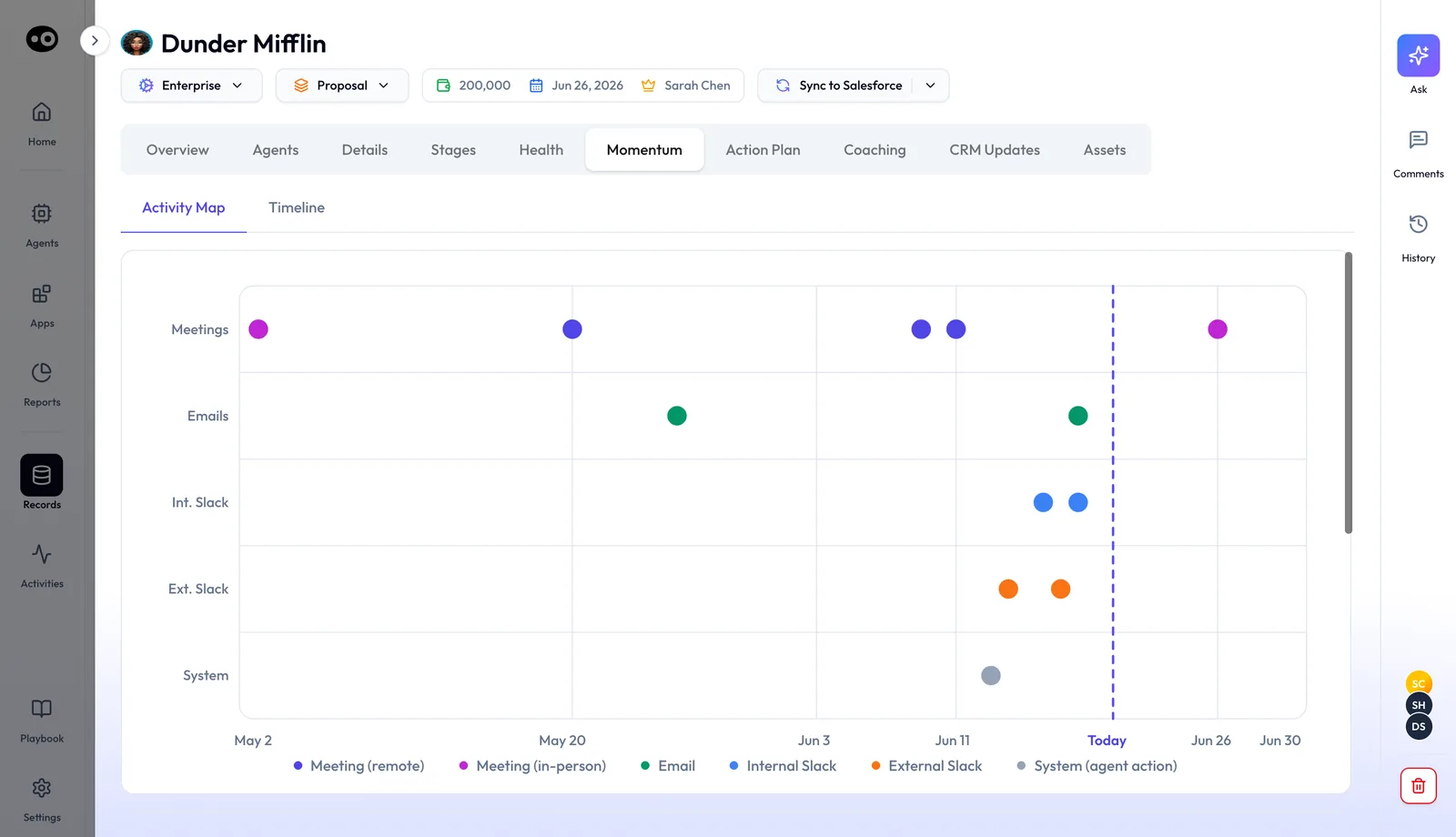
Open a deal's Momentum tab when the deal has gone quiet in your messages. Slack messages are captured as context, and the tab plots Internal Slack and External Slack on the same timeline as meetings and email. If those rows have gone quiet as well, follow up. If you run RevOps and are planning how these sources fit together, the blueprint for unifying calls, email and Slack walks through it.
Why the Slack integration matters
What it's for
Sales alerts in Slack put meeting prep and call news where your team already reads. Before you connect anything, run the short test below against last week's calls.
How it helps
- Connect if reps read Slack first. The prep summary and the meeting summary then reach them without another tool to open.
- Connect if prep gets skipped. The prep summary arrives 10 minutes before each meeting, whether or not anyone remembered to look.
- Connect if call news stops with the caller. Ask your account executives when they last heard about expansion from a CSM's call.
- Count first if your team is already flooded. Use the worked example below to see what a week would add.
What happens without it
The news from each call stays where it was recorded, and someone has to go looking. If that's your team today, list last week's calls and ask who needed to hear each one. Where nobody heard, connect Slack for that person first, then check that the next meeting summary reaches them.
Why buyers care
Run the test with whoever owns the gap. For a CS leader, that's expansion hints that never reach sales. For an account executive, it's a signal from a CSM's call. For enablement, it's a good moment the team never hears.
The Oliv AI approach to the Slack integration
Think of a customer success team of six that runs its day from one shared Slack channel. Each CSM looks after around thirty accounts. When a customer hints at growth on a call, the team wants the account executive to hear about it the same day.
The usual way is a habit. After a call, the CSM types a short update into the channel, if there's time. Updates can get shorter as the week fills up, and some are skipped. The account executive may learn about an expansion hint weeks later, from a renewal note.
The call already holds the signal. It was said out loud, by a named person, at a known minute in the recording. What's missing is something that hears it and tells the account executive, without waiting for the CSM to write it up.
Oliv AI handles this with its Gold Digger agent, which monitors calls where a CSM or account manager is present. The team connects calendars first, because Oliv needs them to work. Then the CSMs and the account executive connect Slack, by the app or by accepting the Slack Connect request. After that, the account executive watches for a notification when each CSM call ends.
When one arrives, the account executive confirms it names the account and quotes what was said. The CSM reviews the drafted handoff email, then sends it or passes it over. A routine call sends nothing, because the agent doesn't flag routine conversation, so judge it over several calls. How the Slack messages line up with other tools is covered in How Oliv AI compares for sales alerts in Slack, below.
Set up the Slack integration
- Connect your calendar. Calendar integration is required for Oliv to work, so connect it first.
- Connect Slack. Install the Oliv Slack app at web.oliv.ai/slack/direct-install, or accept the Slack Connect request Oliv sends you.
- Let the messages start. The three meeting messages begin automatically. There's no manual setup.
- Add the Sales Companion app, if you want it. The Help Center suggests installing the Oliv Slack Sales Companion app to make the most of Slack.
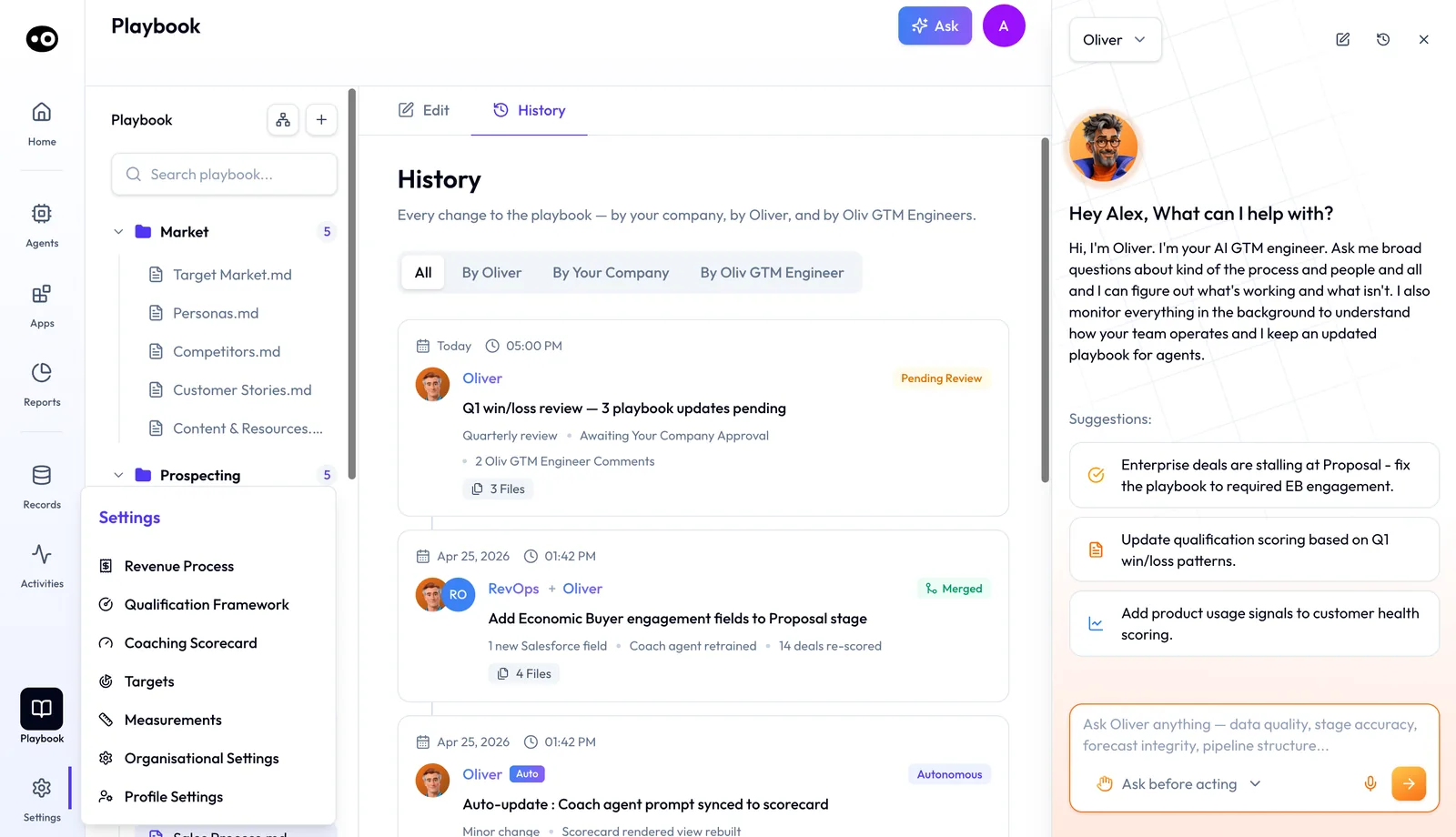
- Turn messages off if you prefer. You can disable the automated messages from your Profile Settings page, the last item in the Settings menu.
What to check in your first week
- At 4 PM local time, look for the list of tomorrow's meetings.
- Ten minutes before your next meeting, look for the prep summary.
- When that meeting ends, open the meeting summary and click Open Meeting to confirm it takes you to the call.
If nothing arrives, check two things first. With Slack Connect, nothing comes until you accept Oliv's request. Your calendar must be connected too, because calendar integration is required for Oliv to work.
How sales alerts reach a team in Slack
Before you rely on any message, decide how each kind of news should reach you. Teams usually use one of four routes, and each one misses something different.
A teammate posts an update
Someone finishes a call and types what happened into a channel or a direct message. You get a person's judgment about what matters. You also get gaps, because the post depends on the writer having time and remembering.
A CRM workflow posts when a record changes
A CRM rule can post for you. HubSpot's workflows, for example, include an action to send a Slack notification to your integrated workspace. This route catches a change on the record, such as a new stage. It misses anything said on a call until someone types it into the CRM.
A message goes out on a schedule
A scheduled message follows the calendar, so it arrives whether or not anyone remembers. You can plan around it and check that it came. The weak spot is attention: NN/G notes that passive notifications can easily be missed because they ask nothing of the reader.
An agent listens to the call and sends the signal
Here the trigger is what the customer said, not a date or a field. This route catches a hint nobody thought to pass on, such as a new team showing interest. It covers only the calls the agent hears, so news from anywhere else still depends on a person.
Which of these Oliv AI does
Oliv AI runs the last two for you. The three meeting messages follow your calendar on a fixed schedule. Oliv AI's Gold Digger agent works from the call itself and notifies the account executive when it detects an expansion signal.
Meeting messages in Slack
| Message | What it contains | When it's sent |
|---|---|---|
| Summary of tomorrow's meetings | Every meeting the next day that Oliv will summarize | 4 PM local time |
| Prep summary | Meeting details, plus research on the account and contact | 10 minutes before the meeting |
| Meeting summary | Meeting details, next steps, talk time and a scorecard | As soon as the meeting ends |
Summary of tomorrow's meetings
This message lists all the meetings for the following day that Oliv will summarize. It gives you an overview of the day ahead while there's still time to prepare. Read it as a check as well. If a meeting you care about isn't on the list, it isn't one Oliv plans to summarize, and 4 PM is the time to look into that.
Prep summary
The prep summary gives you the meeting's title, date, time, participants and the account it belongs to. It adds research on the account and the contact you're meeting. The timing suits a busy day, because NN/G describes working memory as having limited capacity, so a note read just before the call is easier to use. For the full brief an agent builds before a deal meeting, see how to prepare for a meeting.
Meeting summary
Straight after the meeting, the summary repeats the meeting details and adds the key takeaways. That means the next steps, the talk time and a scorecard. If you want to change how summaries read, Oliv AI's guide to AI meeting summaries covers what makes one useful.
Work from a Slack message
- Open the call. Click Open Meeting in a Slack message about a meeting. You go straight to that meeting in Oliv, with its recording.
- Skip the note taker. The meeting preparation summary includes a link to stop the note taker from joining that call. The same link appears in the email version.
- Reach it by email too. The meeting messages also go to your email by default, so nothing is lost if you're away from Slack.
Who gets each sales alert in Slack, and when
Meeting messages come to you. Agent alerts go to the person or channel each agent serves, so two people on one deal can see different things. Use this table to check who should expect what before you tell the team to watch for a message.
| Message | Who gets it | Where it lands | When |
|---|---|---|---|
| Tomorrow's meetings | You | Slack, with an email copy by default | 4 PM local time |
| Prep summary | You | Slack, with an email copy by default | 10 minutes before the meeting |
| Meeting summary | You | Slack, with an email copy by default | As soon as the meeting ends |
| Expansion signal from Oliv AI's Gold Digger agent | The account executive | Slack | Immediately after the call ends |
| New clip from Oliv AI's Content Curator agent | The channel you configure | Slack or Teams | In real time by default, or as a daily digest |
| Field updates to review from Oliv AI's CRM Manager agent | You | Slack or your preferred channel | After every activity with updates |
| Time-saved digest from the CRM Manager agent | The RevOps owner | Slack or email | Weekly |
| Alerts, briefs and summaries from Oliv AI's Deal Driver agent | Managers | Slack, email or the Oliv platform | A brief each morning, a summary at end of day |
| Progress update from Oliv AI's Coach agent | Reps | Slack, email or the Oliv platform | Weekly |
| Forecast summary from Oliv AI's Forecaster agent | Managers | Slack or email | Weekly |
Personal messages and shared channels
Plan on the three meeting messages reaching each person. They're described as sent to you, so don't build a team routine that depends on them appearing in a shared channel. If you want a channel to see something, Oliv AI's Content Curator agent posts new clips to the channel you configure, and a custom agent can send messages with its Slack tool.
How to measure your Slack message load
Two numbers tell you whether the messages help you or just add noise. NN/G's 2018 review of mobile push notifications puts the risk plainly: any notification amounts to an interruption, and too many in a short interval can push people to turn them off. That review covers phone apps rather than Slack, but a rep's week raises the same question.
Messages per week
Add one list per working day to two messages per meeting, then double the total while email copies are on. The weak spot is that a count says nothing about value. One unusually heavy week can also mislead you, so count a typical one.
Messages you acted on
For one week, mark each message you used: a list that changed your plan, a prep summary you read before the call, a summary you followed up from. Divide that by the total. It's your own judgment, and a message you read but didn't act on can still help, so treat the figure as a guide.
Where to find the numbers
Start with the 4 PM list, which names the meetings Oliv will summarize the next day. Add up a week of those lists to get your meeting count. Your Slack history and your inbox then show what actually arrived.
How to keep a sales team up to date in Slack by hand
Without an agent, the routine looks like this, in this order:
- List tomorrow's meetings. Each afternoon, open your calendar and write out the next day's meetings.
- Build the prep note. Before each meeting, pull the title, time, participants and account, then add what you know about the account and contact.
- Write the recap. After the call, note the next steps and send them to whoever needs them.
- Pass on expansion hints. If you're a CSM and a customer mentions growth, message the account executive with the account, the speaker and the words used.
- Check what slipped. At the end of the week, look for updates that never got written.
These steps tend to slip on back-to-back days, which is when you need them most.
The same job with Oliv AI
Connect your calendar and Slack, and the first three steps arrive as messages: the list at 4 PM, the prep summary 10 minutes before and the summary when the meeting ends. Oliv AI's Gold Digger agent covers step 4. It notifies the account executive after the call and drafts the handoff email from the CSM. Your job moves to step 5: check that the messages arrive, read them and decide how many to keep.
Worked example: counting one rep's Slack messages in a week
Take a rep with 15 meetings Oliv AI will summarize in a week, across 5 working days. This is an illustrative calculation with sample figures, not an Oliv AI output, and it claims no saving.
| What arrives | How the count works | Messages |
|---|---|---|
| Lists of tomorrow's meetings | 1 list x 5 working days | 5 |
| Prep summaries | 1 summary x 15 meetings | 15 |
| Meeting summaries | 1 summary x 15 meetings | 15 |
| Total in Slack | 5 + 15 + 15 | 35 |
| Email copies, on by default | 1 copy x 35 messages | 35 |
| Total across Slack and email | 35 + 35 | 70 |
The rep gets 35 messages in Slack and 70 in all, and half of those are copies. Now there's a number to weigh. If most of the 35 get used, leave the messages on. If most go unread, open Profile Settings and turn them off.
Before you do, remember what goes with them. The prep summary carries the link that stops the note taker joining a call. You can still manage the note taker from the My schedule page or the Meetings page.
How Slack works with Oliv AI's agents
Each entry says when to use the agent and what to check afterward. Don't assume a message landed until you've checked.
Gold Digger
When you need the account executive to hear about expansion on a CSM's call, use Oliv AI's Gold Digger agent. Right after the call ends, check that the account executive has a Slack notification naming the account, who was on the call and the quote from the transcript.
Portfolio Manager
When you need at-risk accounts flagged with evidence, use Oliv AI's Portfolio Manager agent. It connects to your CRM, email, call recording and Slack. Check that each flag reached the person who owns the account, with the evidence and a dated next step.
Content Curator
When you need a new clip to reach a whole team, use Oliv AI's Content Curator agent. Configure the Slack or Teams channel, then choose real-time posts, the default, or a daily digest. Check that the channel shows the intent name, a one-line summary, the source call and a direct link to the clip.
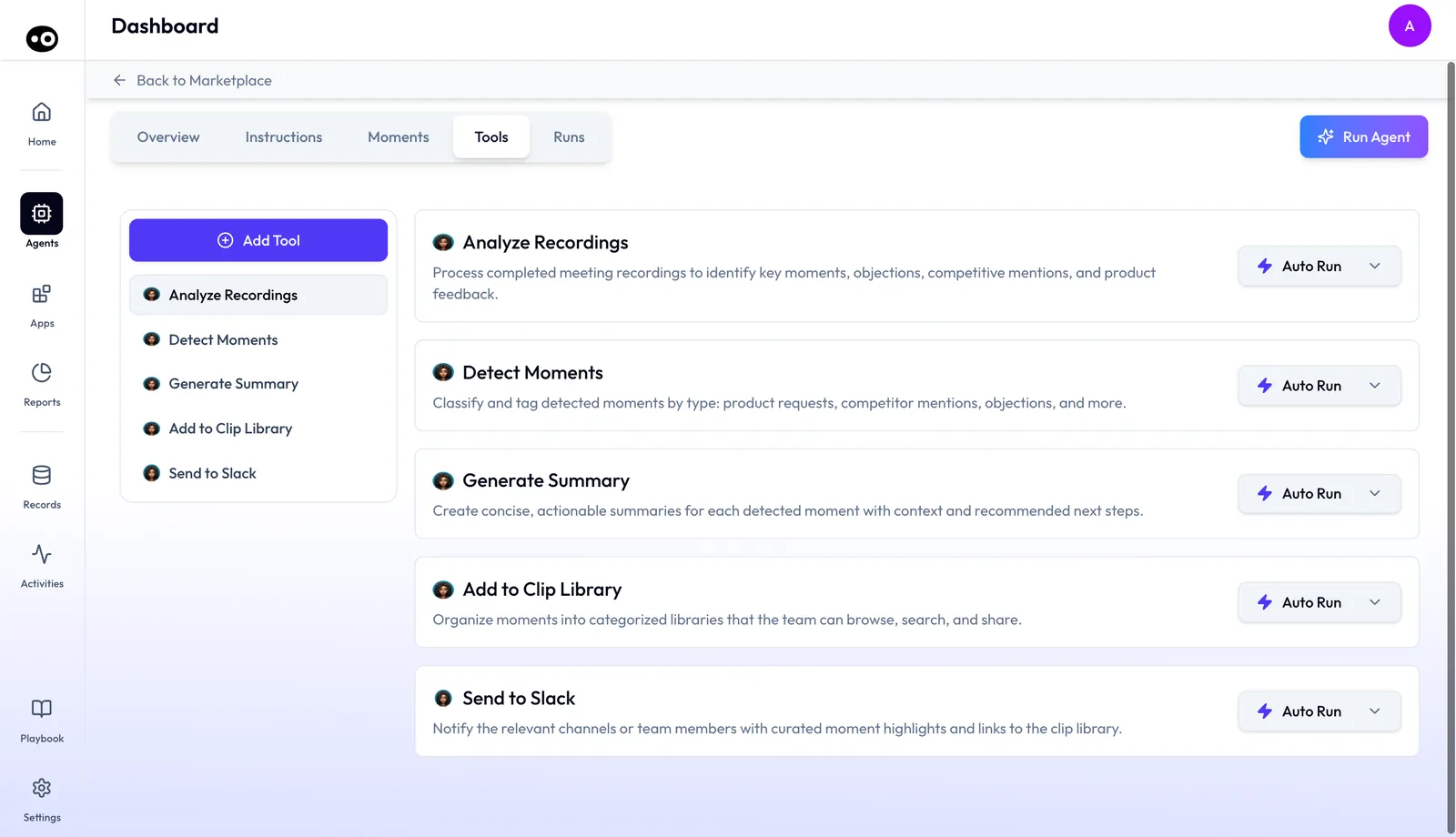
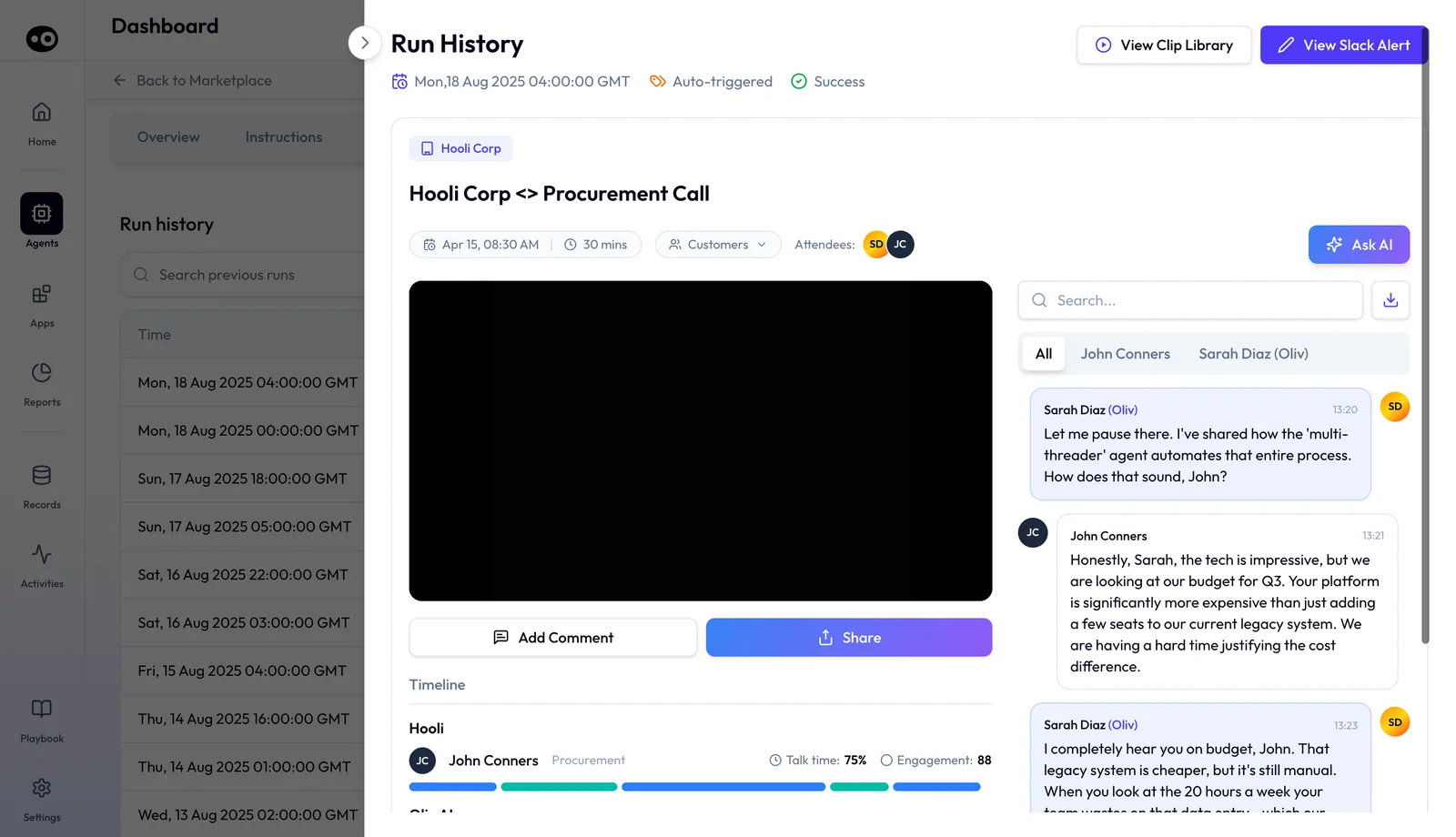
If someone says they never saw a post, open the run's Run History drawer and use View Slack Alert to jump to the alert it sent. View Clip Library takes you to the filed clip.
CRM Manager
When you need field updates reviewed after each activity, use Oliv AI's CRM Manager agent. Check that the notification reached you in Slack or your preferred channel. Then check that the RevOps owner gets the weekly digest by Slack or email.
Deal Driver, Coach and Forecaster
When a manager needs alerts, briefs and summaries, use Oliv AI's Deal Driver agent. Then check they reach that manager by Slack, email or the Oliv platform. When a rep needs weekly progress updates, use Oliv AI's Coach agent, and check with the rep on the same three routes. When a manager needs a weekly forecast summary with flagged deals, use Oliv AI's Forecaster agent, and check it reached them by Slack or email.
Olivia and custom agents
When you need alerts and follow-through in the channel a person prefers, use Oliv AI's Olivia agent. Check that they reached that person by Slack, Teams or the Oliv product. When you need your own agent to post, give it the Slack tool, with Send Message to Slack, Get Slack Messages, Create Slack Channel, Invite Users to Channel and Upload File to Slack. If nothing posts, check the action's run mode, which controls approval.
Agents that start from Slack
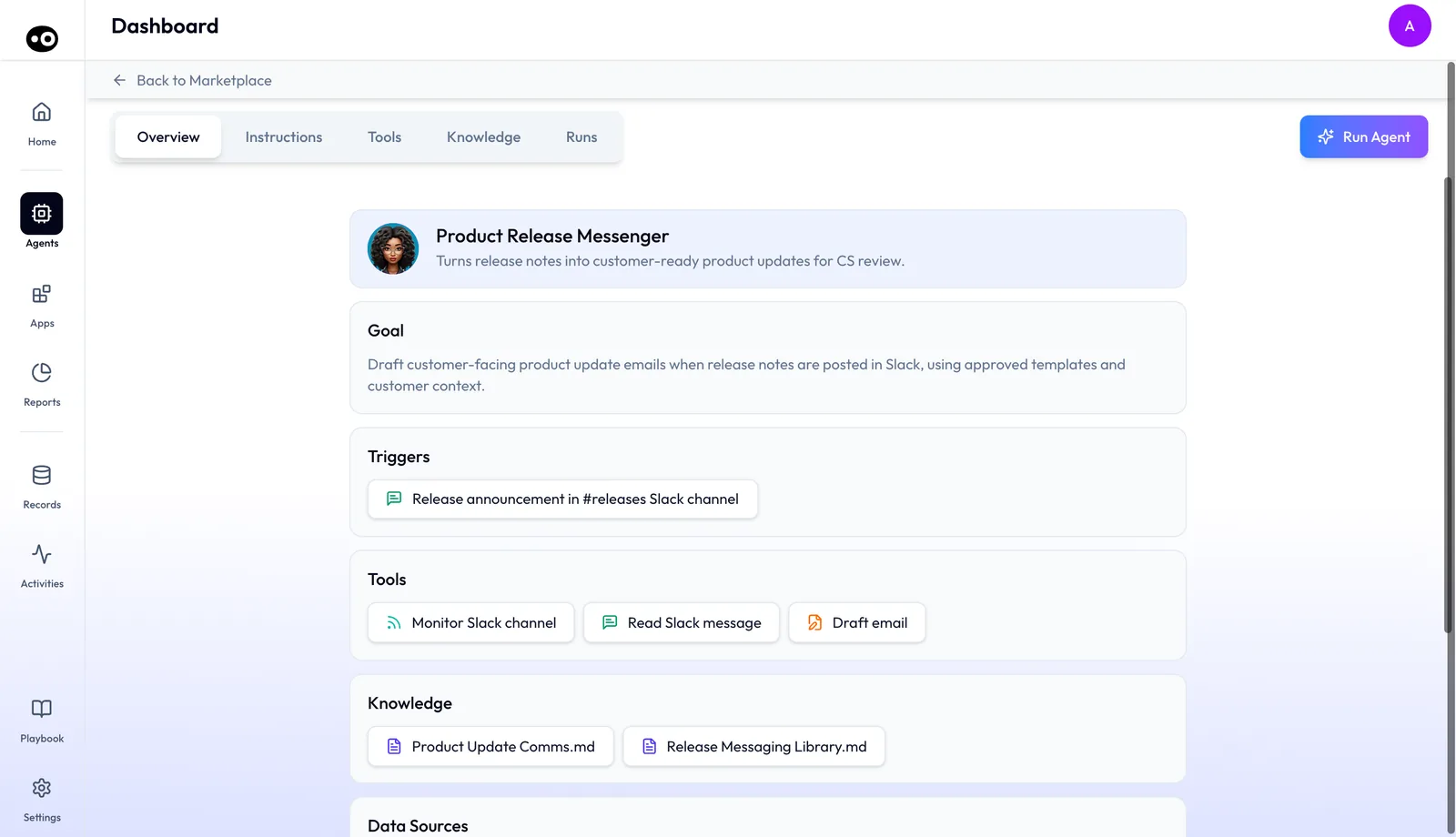
When you need a release post to become a customer update, use Oliv AI's Product Release Messenger agent. It fires on a Release announcement in #releases Slack channel. Check that the draft reached the success team for review.
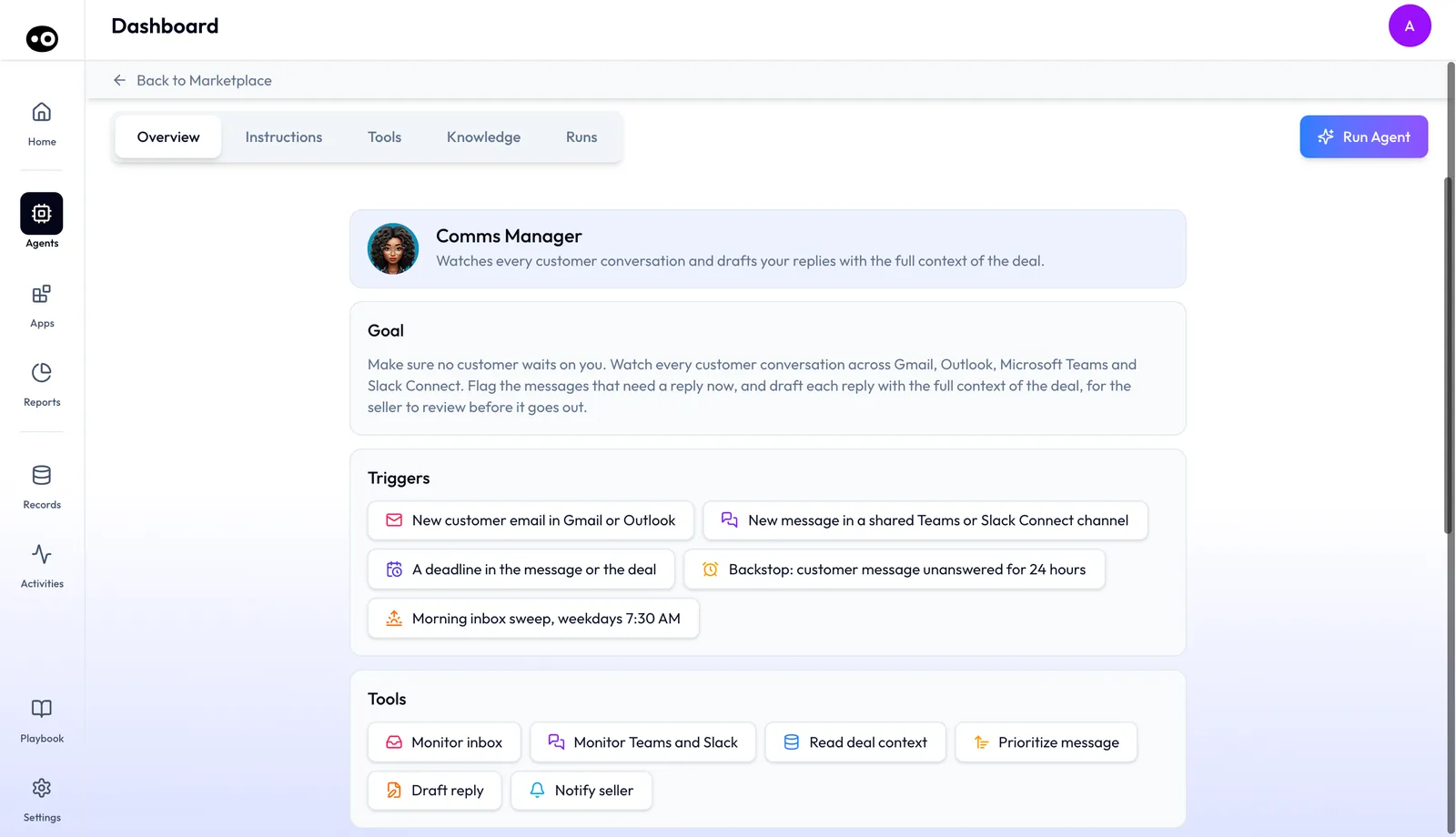
When you need a reply drafted for a customer's shared-channel message, use Oliv AI's Comms Manager agent. It fires on a New message in a shared Teams or Slack Connect channel. Check that the draft reached the seller before anything goes out.
Who uses the Slack integration, and how
Customer success and account management
Start by connecting Slack before your next customer call. Then act on the meeting summary, working from its next steps. When an expansion signal comes up, review the handoff email the Gold Digger agent drafted, then send it or pass it to the account executive. More on Oliv AI for customer success and account management.
Account executives
Start with today's 4 PM list and check that tomorrow's deal meetings are on it. Then act on the expansion notification first: read the quote, open the moment in the recording and agree the handoff with the CSM. The whole selling day is set out in running deals as an account executive.
Sales managers
Start by checking where the Deal Driver agent's messages reach you: Slack, email or the Oliv platform. Then act on the morning brief before the day starts, and use its alerts in your pipeline review. The full set is on the Deal Driver agent page.
Enablement
Start by pointing the Content Curator agent at a team channel and choosing real-time posts or a daily digest. Then act on each notification: open the clip and decide whether reps should hear it. Read more on Content Curator.
How Oliv AI compares for sales alerts in Slack
Oliv AI posts three meeting messages in Slack on its own: tomorrow's meetings the afternoon before, a prep summary just ahead of each call and a summary right after it. Oliv AI is the only platform in this table that does all three.
Slack meeting messages, from each platform's public documentation:
| Platform | Meeting summary in Slack after each call | Prep summary in Slack before each meeting | Tomorrow's meetings sent the afternoon before |
|---|---|---|---|
| Oliv AI | Yes | Yes | Yes |
| Gong | Partly (call brief in stream notifications) | Partly (AI meeting prep, in app and mobile) | Partly (daily digest email) |
| Outreach | Yes (Kaia meeting summary notifications) | Partly (briefs from the Prep button) | Partly (daily digest email of tasks) |
| Fireflies | Yes (summaries posted to a channel) | Partly (prep email before recurring meetings) | Partly (daily digest of action items) |
| Avoma | Partly (meetings or snippets shared to Slack) | Not in docs | Not in docs |
| Fathom | Partly (summaries to Slack via Zapier) | Not in docs | Not in docs |
Yes: documented and built in. Partly: documented with a limit, shown in brackets. Not in docs: not found in the vendor's public documentation.
Why Oliv AI is the stronger choice for sales alerts in Slack
- Tomorrow's plan, in Slack. Oliv posts the next day's meetings at 4 PM local time. Gong's daily digest is an email that may include a personalized schedule of upcoming calls. Compare Oliv AI vs Gong. If your team plans tomorrow in Slack rather than from an email, choose Oliv AI.
- A summary nobody has to share. Oliv sends the meeting summary as soon as the meeting ends, with next steps, talk time and a scorecard. Avoma's Slack integration lets you share entire meetings or select snippets to any Slack channel. Compare Oliv AI vs Avoma. If you want each summary delivered without anyone having to share it, choose Oliv AI.
- Prep that arrives on its own. Oliv's prep summary reaches Slack 10 minutes before each meeting. Gong describes its AI meeting prep as being in one place, now on mobile. Fireflies documents a prep email before recurring meetings. See Oliv AI as a Gong alternative. If your team needs prep in Slack rather than by email or in another app, choose Oliv AI.
Competitor details checked against each vendor's public documentation on 21 October 2026. Features and plans change, so confirm with the vendor before you decide.
Limits and things to know
- Meeting messages are personal. The three meeting messages are described as sent to you, so don't plan on them appearing in a shared channel.
- Tomorrow's list has a scope. It lists the meetings Oliv will summarize the next day, so read it as that list rather than as your whole calendar.
- Each agent picks its own path. Content Curator posts to a configured channel. Gold Digger notifies the account executive. Check where each agent posts when you set it up.
- Email copies are on by default. The meeting messages go to your email as well as Slack.
- Turning them off is one place. Disable the automated messages from your Profile Settings page.
- Slack Connect needs a yes. If you connect through Slack Connect, nothing arrives until you accept Oliv's request.
- Your calendar must be connected. Calendar integration is required for Oliv to work.
Common questions
What sales alerts can you get in Slack?
Oliv AI sends three meeting messages: tomorrow's meetings, a prep summary and a meeting summary. Its agents add their own alerts, such as an expansion signal for the account executive, new clips for a channel and CRM updates to review.
How many Slack messages should I expect in a week?
Expect one list of tomorrow's meetings per working day, plus two messages for each meeting Oliv AI will summarize. In a sample week with 15 such meetings, that's 35 in Slack, and 35 more by email while the copies stay on.
Do I need to set anything up after connecting Slack?
No. Once Oliv is connected to Slack, the three meeting messages start automatically, with no manual setup.
When do meeting summaries arrive in Slack?
The meeting summary comes as soon as the meeting ends. Tomorrow's meetings arrive at 4 PM local time. The prep summary comes 10 minutes before each meeting.
What's in the meeting summary?
The meeting's title, date, time, participants and account, plus key takeaways: the next steps, talk time and a scorecard.
Can sales alerts go to a shared Slack channel?
Some can. Oliv AI's Content Curator agent posts to the channel you configure, and a custom agent can send messages to Slack with its Slack tool. The three meeting messages are described as sent to each person, so don't plan on them appearing in a shared channel.
How does an account executive hear about expansion on a CSM's call?
Oliv AI's Gold Digger agent sends the account executive a Slack notification right after the call ends. It includes the account, the quote and a recommended next step.
Can I turn the Slack messages off?
Yes. Go to your Profile Settings page and disable the automated messages.
Why am I not getting any Slack messages?
Check two things first. If you connected through Slack Connect, nothing arrives until you accept Oliv's request. Your calendar must be connected too, because calendar integration is required for Oliv to work.
Will I still get the messages by email?
Yes, by default. The meeting messages are also sent to your email.
What's the difference between the Slack app and Slack Connect?
With the app, you install Oliv in your workspace. With Slack Connect, Oliv sends you a request, and the messages start once you accept it.
Can I open the recording from Slack?
Yes. Click Open Meeting in the Slack message, and you go straight to that meeting in Oliv.
Can I stop the note taker joining from Slack?
Yes. The meeting preparation summary in Slack includes a link that removes the note taker from that meeting.
Does it work with Microsoft Teams instead?
Microsoft Teams and Google Chat are listed as collaboration tools alongside Slack. For Teams, Oliv sends an invitation to a Teams shared channel.
Further reading
Related
Updated 3 November 2026: added who gets each message, the routes sales alerts take, a way to count your messages and a worked example.