
Integrations Live
Webex
How Oliv AI joins your Webex meetings from the Webex App Hub, sends meeting prep before each call, and shares a summary with action items and next steps afterward.
On this page
- At a glance
- What the Webex integration is
- Why the Webex integration matters
- The Oliv AI approach to the Webex integration
- Set up the Webex integration
- Manage the note taker on Webex calls
- Find a Webex meeting afterward
- How Webex works with Oliv AI's agents
- Who uses the Webex integration, and how
- How Oliv AI compares for Webex meeting notes for sales
- Limits and things to know
- Common questions
- Related
Oliv AI's Webex integration brings Oliv into the meetings you run on Webex. You install the Oliv.ai app from the Webex App Hub and connect your Oliv account. From then on, Oliv joins your Webex calls, sends you prep before each one and shares a summary when it ends.
At a glance
| What it does | Joins your Webex calls and summarizes them for Oliv AI's agents |
| Who it's for | Account managers, CSMs and account executives whose meetings run on Webex |
| Where you install it | The Webex App Hub, by searching for Oliv.ai |
| Before the call | AI meeting prep on participants, agenda and related documents, plus reminders |
| After the call | A summary with key discussion points, action items and next steps |
| Needs | A connected calendar and an Oliv account at web.oliv.ai |
What the Webex integration is
The Webex integration is an app called Oliv.ai in the Webex App Hub. The App Hub is Webex's own place to find and install apps. Once the app is installed and your Oliv account is connected, Oliv starts joining your Webex calls and summarizing them. Each captured call then appears under Activities › Meetings, next to calls from every other platform.
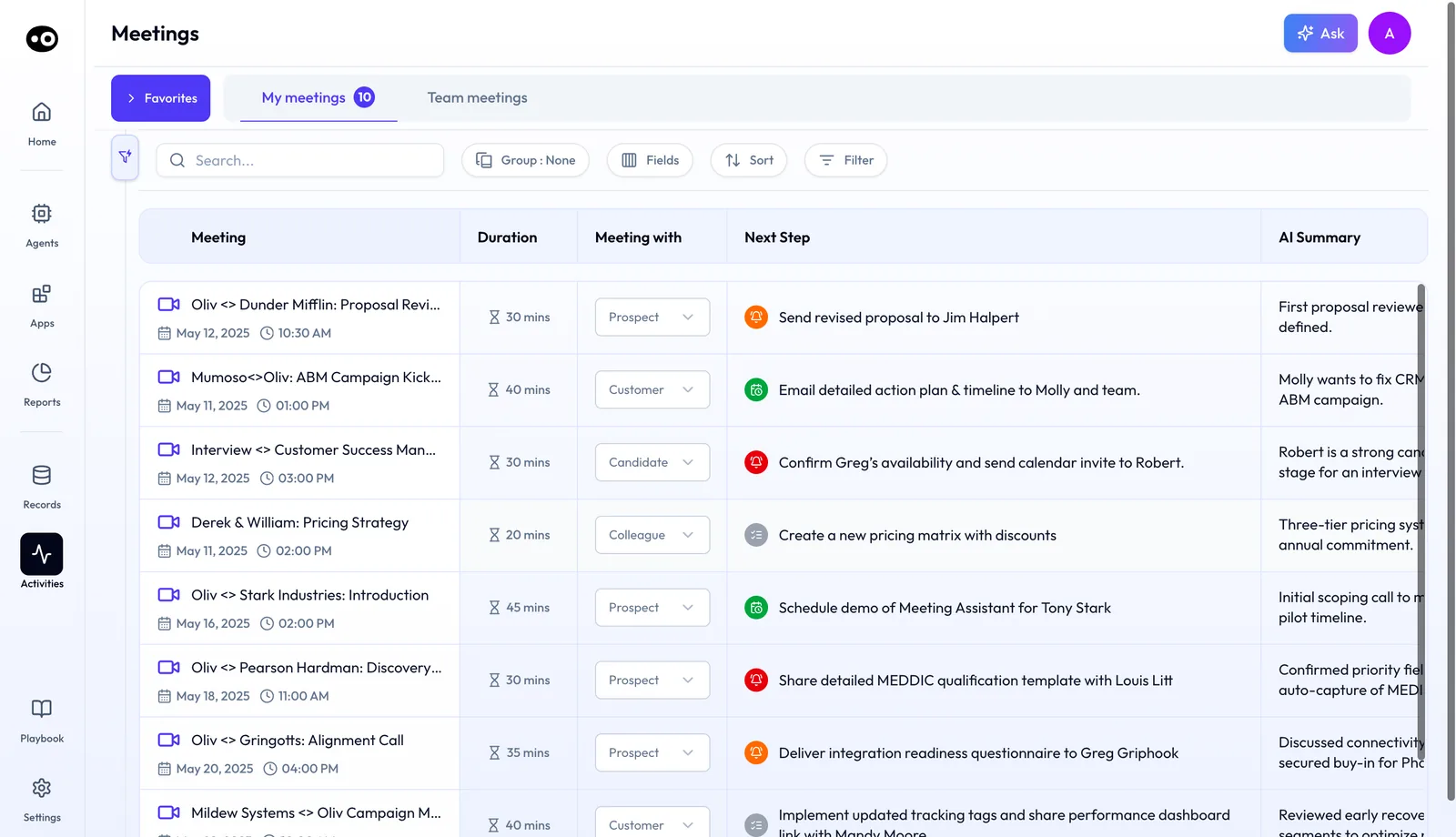
The integration covers the whole meeting. Before it, Oliv gives you AI-powered meeting prep. After it, Oliv writes and shares a summary of the call, so nobody has to take notes by hand.
What you get around each Webex meeting
- Meeting prep. Concise information about the participants, the agenda and related documents, ready before you join.
- Reminders. Timely meeting reminders, so the next call doesn't slip.
- A summary. Key discussion points, action items and next steps, generated and shared once the meeting ends.
- Follow-through. A place to discuss outcomes, assign action items and work on them with your team.
- A record over time. Past summaries and action items you can look back on, to track how next steps are moving.
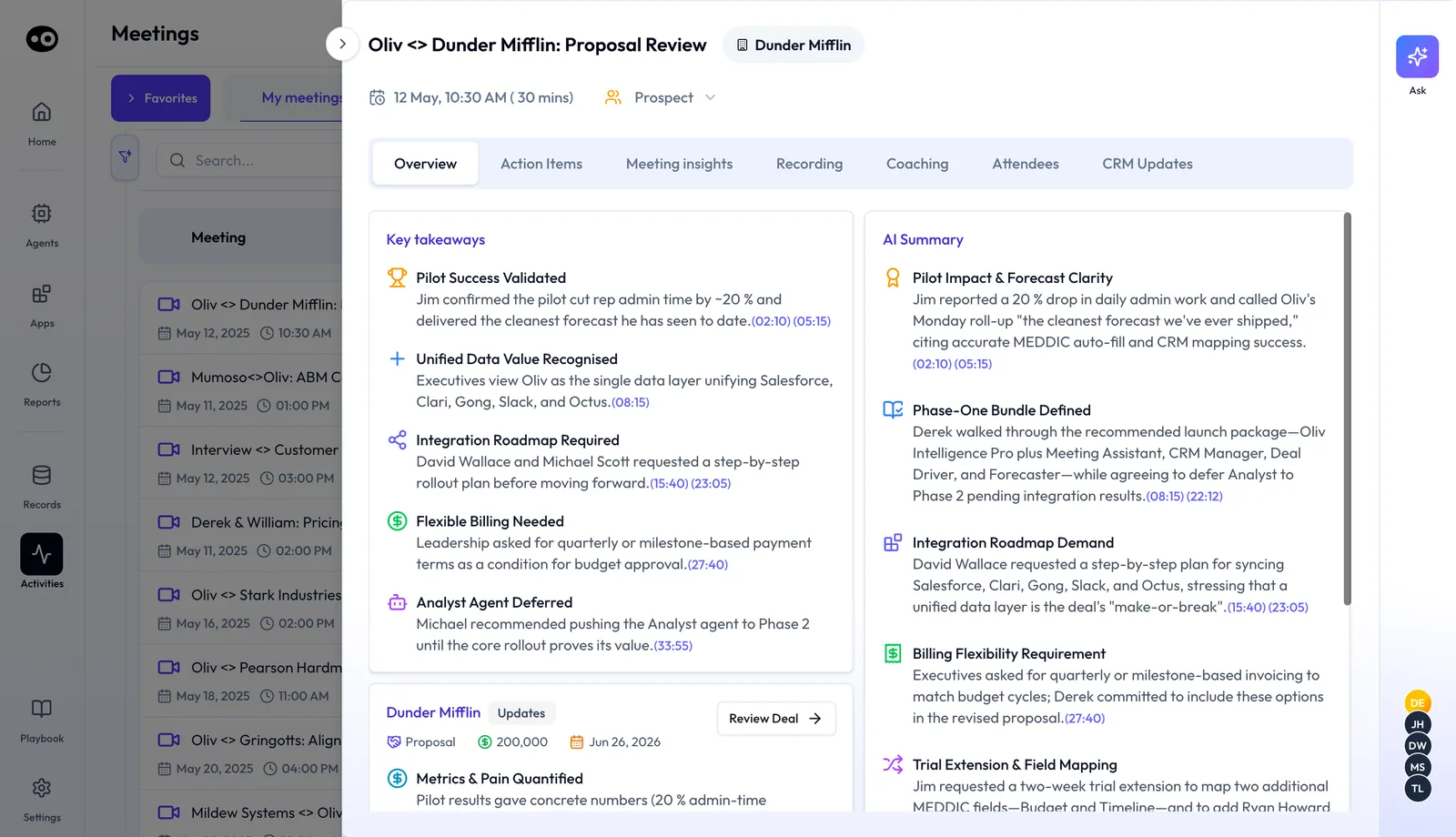
In Oliv AI, each meeting opens to an Overview tab with Key takeaways and an AI Summary. Each takeaway carries timestamps that jump back into the recording.
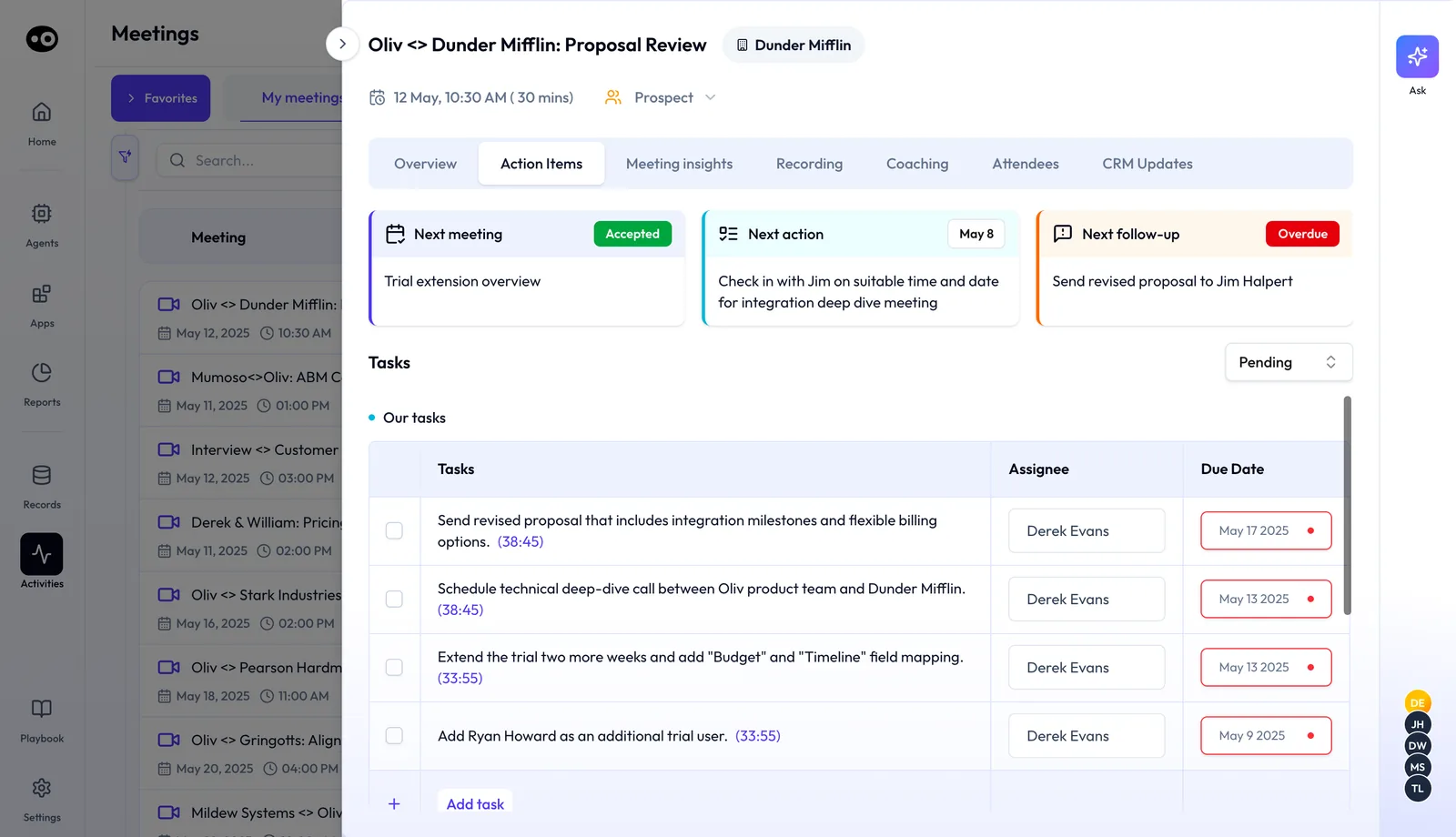
The Action Items tab is where the team works on what was agreed. It shows the Next meeting, Next action and Next follow-up, then a task table with an Assignee and Due Date for each item, and Add task for anything missed.
Why the Webex integration matters
What it's for
The Webex integration is for revenue teams whose meetings happen on Webex, often because a customer or their own IT team has standardized on it. It puts those calls in front of Oliv AI's agents, the same way calls on other platforms are.
How it helps
- No separate tool to approve. Oliv installs from the Webex App Hub, where Webex users already find their apps.
- Prep arrives before the call. You get the participants, agenda and documents without opening five tabs.
- Notes write themselves. The summary covers discussion points, action items and next steps.
- Next steps stay visible. Past summaries and action items sit in one place for the whole team.
What happens without it
Webex calls stay outside what Oliv AI knows about the account. The prep for the next meeting misses what was said in the last one. Action items live in one person's notebook, and the rest of the team learns about them late or not at all.
Why buyers care
Account managers and customer success leaders care most, because their large accounts often set the meeting platform. They need every check-in and review captured, whatever tool the customer insists on. Revenue leaders care when a book of enterprise accounts would otherwise fall out of their reporting.
The Oliv AI approach to the Webex integration
Imagine an account manager who looks after one large enterprise customer. The customer's IT team has made Webex the standard, and staff can only join meetings on approved tools. So every weekly check-in, steering call and quarterly review with that account runs on Webex.
The common fallback is to keep notes by hand on those calls, or to record them and promise to review the recording later. Both tend to slip when the week fills up. The account's history then lives in scattered notes, and the next meeting starts with recalling what was agreed.
The meeting tool is the only thing that is different here. The calls still sit on a calendar, with the same people and the same need for prep and follow-up. So the fix is to meet Webex where it already is, rather than asking the customer to change platforms.
Oliv AI does this with its app in the Webex App Hub. Oliv AI joins the account manager's Webex calls, sends meeting prep before each one and shares a summary with action items and next steps afterward. Those summaries then sit alongside the calls from every other platform the team uses.
The setup is short enough to follow in one sitting: five steps, all listed under Set up the Webex integration. What the app offers next to other Webex options is covered in How Oliv AI compares for Webex meeting notes for sales, below.
Set up the Webex integration
- Open the Webex App Hub. Go to the App Hub from your Webex account.
- Search for Oliv.ai. Type "Oliv.ai" in the App Hub search bar and open the app from the results.
- Install the app. Click Install to start the installation.
- Connect your Oliv account. Visit web.oliv.ai and follow the on-screen instructions. If you don't have an Oliv account yet, you can create one through onboarding.
- Finish setup. Oliv starts joining your Webex calls and summarizing your meetings.
Connect your calendar first
Calendar integration is required for Oliv to work. Without it, Oliv can't take notes during your meetings. Connect your calendar by logging in at web.oliv.ai.
Manage the note taker on Webex calls
Oliv joins external calls automatically. You can manage that from your calendar or from Oliv itself. To keep the note taker out of a particular call, use one of these:
- The Oliv AI Chrome extension or the Oliv AI Outlook add-in.
- The Meetings page in Oliv AI, under Activities.
- The link to remove it in your meeting preparation summary, by email or in Slack.
To remove the Webex integration, send Oliv a message through Intercom in the Oliv app.
Find a Webex meeting afterward
If Oliv sends you a Slack message about a meeting, click Open Meeting to go straight to it. You can also open Activities › Meetings and search the list for the call. My meetings holds your own calls, and Team meetings widens it to your team.
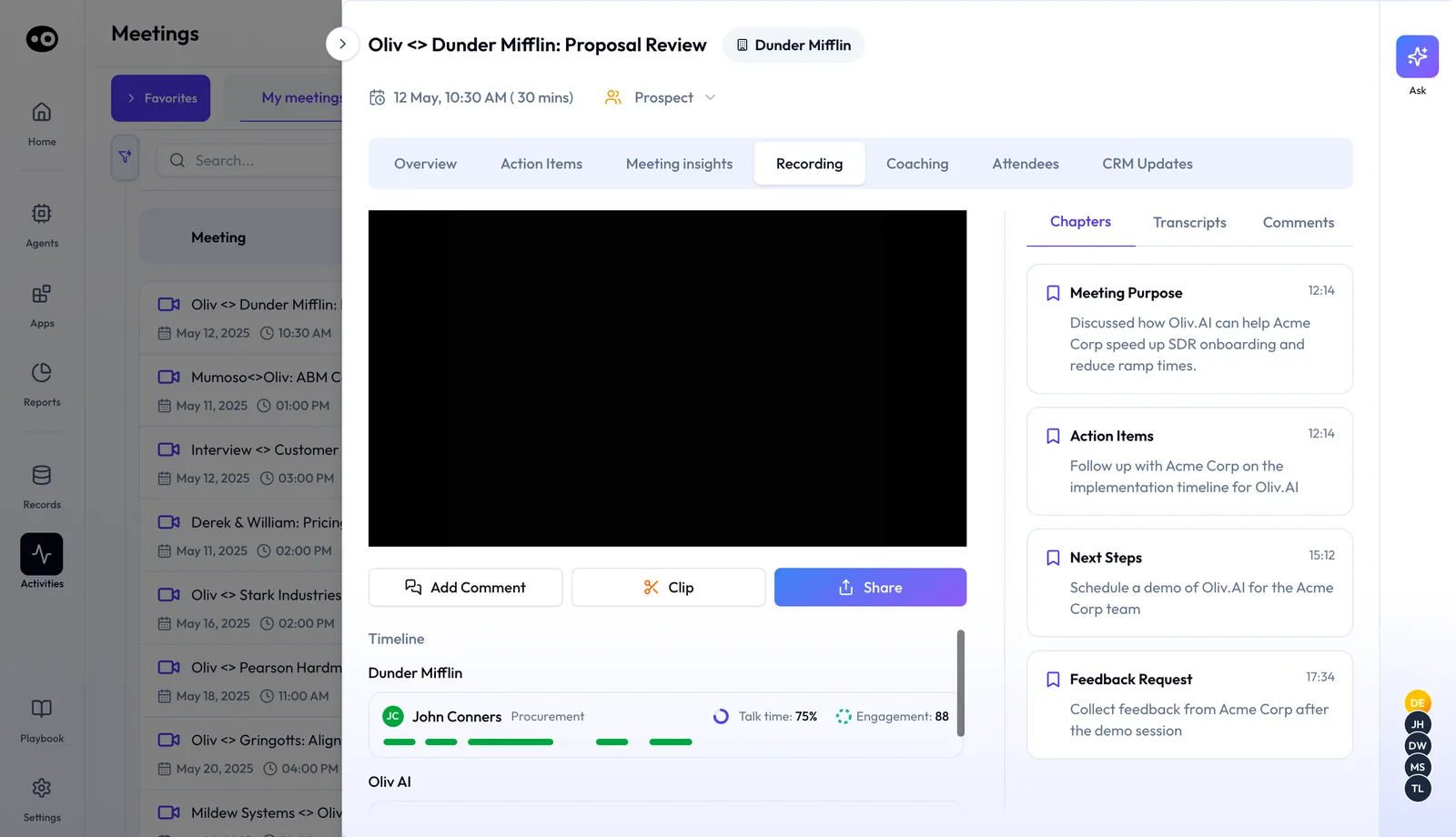
To share part of a call, open the meeting's Recording tab. Find the moment in Chapters or Transcripts, then use Clip to cut it or Share to send the meeting.
For ideas on how to lay out what you send, look through these meeting summary templates.
How Webex works with Oliv AI's agents
Meeting Assistant
Oliv AI's Meeting Assistant agent runs on recordings and transcripts from the Oliv Notetaker. When a Webex meeting is on your calendar and linked to an active deal, it runs automatically. It sends a brief thirty minutes before the call, then drafts the follow-up email and flags CRM field updates after it.
Olivia
Oliv AI's Olivia agent holds the context of every deal, account and conversation. Your Webex calls become part of what she reads when you ask her about an account. She can also pull from a meeting transcript to draft a follow-up.
Portfolio Manager
Oliv AI's Portfolio Manager agent works from customer-facing interactions such as QBRs, check-ins and onboarding calls. Webex reviews with an enterprise account feed that picture, so renewal risk and expansion potential reflect what customers said.
CRM Manager
Oliv AI's CRM Manager agent handles the field updates that come out of a call. Olivia surfaces proposed updates after each meeting, and CRM Manager carries them out once you approve. The full flow is in keeping the CRM updated.
Deal Driver, Coach and Content Curator
Oliv AI's Deal Driver agent includes Meeting Assistant for reps, so each summarized call feeds the manager's view. Oliv AI's Coach agent can score recorded calls for coaching. Oliv AI's Content Curator agent needs the Oliv Notetaker recording, because it clips moments from those calls.
Who uses the Webex integration, and how
Account management
Account managers on enterprise accounts install the app once and stop worrying about the platform. Every check-in on Webex ends with a summary and a clear list of next steps. More on Oliv AI for account management.
Customer success
CSMs run onboarding and review calls on whatever the customer uses. The prep before each call pulls in participants and documents, so a handover or a renewal call starts informed. See Oliv AI for customer success.
Account executives
Account executives selling into Webex-standard companies get the same prep and follow-up as on any other platform. The full selling day is described in running deals as an account executive.
Webex admins and revenue operations
Webex admins see a familiar install path, because the app comes from the App Hub. RevOps can check which Oliv seats each team needs in plans and seat roles.
How Oliv AI compares for Webex meeting notes for sales
Oliv AI installs from the Webex App Hub, joins your Webex calls and sends meeting prep before each one without a click. Oliv AI is the only platform in this table that does all three.
Webex meeting features, from each platform's public documentation:
| Platform | Joins and summarizes Webex calls | Prep sent before each meeting | Installed from the Webex App Hub |
|---|---|---|---|
| Oliv AI | Yes | Yes | Yes |
| Avoma | Yes (records and transcribes Webex) | Partly (prep view opened per meeting) | Connected in Avoma settings |
| Fireflies | Yes (joins when it finds a Webex link) | Yes (Meeting Prep from your calendar) | Invited from your calendar |
| Gong | Yes (connects to Webex as a provider) | Partly (prep page opened from the calendar) | Turned on by a Gong admin |
| Outreach | Yes (Kaia set up for Webex) | Yes (briefs ahead of scheduled meetings) | Admin connects the Webex tile |
| Fathom | Not in docs | Not in docs | Not in docs |
Yes: documented and built in. Partly: documented with a limit, shown in brackets. Not in docs: not found in the vendor's public documentation.
Why Oliv AI is the stronger choice for Webex meeting notes for sales
- Prep that arrives on its own. Oliv AI provides meeting prep before your Webex meetings without being asked. In Avoma, you click the Prepare for Meeting button on each upcoming meeting. Compare Oliv AI vs Avoma.
- Installed where Webex users look. You add Oliv from the Webex App Hub in your own Webex account. Gong's Webex recording is switched on in the Gong admin center, under Web conferencing. Compare Oliv AI vs Gong.
- Set up by the person who runs the meetings. Oliv starts joining your Webex calls once you install the app and connect your account. Outreach requires that the administrator first connect Webex before users set up Kaia. See how Gong and Outreach compare.
Competitor details checked against each vendor's public documentation on 22 October 2026. Features and plans change, so confirm with the vendor before you decide.
Limits and things to know
- Your calendar must be connected. Without calendar integration, Oliv can't take notes in your meetings.
- You need an Oliv account. The App Hub install connects to an account at web.oliv.ai, which you can create through onboarding.
- The note taker joins external calls automatically. If a call shouldn't be captured, remove the note taker for that call ahead of time.
- Removal goes through Oliv. To remove the integration, message Oliv through Intercom in the Oliv app.
Common questions
Where do I find the Oliv app for Webex?
In the Webex App Hub. Open it from your Webex account, search for "Oliv.ai" and open the app from the results.
Do I need an Oliv account first?
You connect one during setup. Visit web.oliv.ai and follow the on-screen steps. If you don't have an account, you can create one through onboarding.
What happens after I install it?
Once your account is connected, Oliv starts joining your Webex calls and summarizing them. Prep arrives before each meeting and a summary follows each one.
What does the meeting prep include?
Concise information about the participants, the agenda and related documents. For calls on active deals, Meeting Assistant also sends a brief thirty minutes before.
What is in the summary after a Webex call?
Key discussion points, action items and next steps. Oliv generates and shares it automatically once the meeting ends.
Does Oliv send reminders for Webex meetings?
Yes. Oliv sends timely meeting reminders, so you stay on schedule across your day.
How do I stop Oliv joining one Webex call?
Use the Meetings page under Activities, or the removal link in your meeting preparation summary. The Chrome extension and Outlook add-in work too.
Can my team work on the action items together?
Yes. You can discuss meeting outcomes, assign action items and work on them with your team. Past summaries stay available to track progress.
Where do I find a Webex call later?
Click Open Meeting in the Slack message about the call, or search the list under Activities › Meetings.
Does it work for Zoom, Teams and Google Meet as well?
Yes. Zoom has its own Zoom integration. For Teams and Google Meet, no separate integration is needed once your calendar is connected.
How do I remove the Webex integration?
Send Oliv a message through Intercom in the Oliv app, and the team removes it for you.