
Workflows Live
AI follow-up email: how to review the draft after a recorded call and approve CRM updates
How to get a sales call recorded in Oliv AI and send the follow-up, from the meeting summary to the drafted email, the proposed CRM updates and the qualification gaps to check.
On this page
- At a glance
- Before you begin
- Step 1: Get the call recorded
- Step 2: Read the meeting summary
- Step 3: Review the follow-up draft
- Step 4: Approve the CRM updates
- Step 5: Check the qualification gaps
- Step 6: Share the moment that matters
- What post-call follow-up in Oliv AI is
- Why post-call follow-up matters
- The Oliv AI approach to post-call follow-up
- How a follow-up email gets written after a sales call
- What to check before you send or approve
- How to measure follow-up speed after a call
- How to write a follow-up email after a sales call by hand
- How post-call follow-up works with other features
- Who records and follows up with Oliv AI, and how
- How Oliv AI compares for AI follow-up emails
- Limits and things to know
- Common questions
- Further reading
- Related
You've just finished a customer call and want an accurate AI follow-up email and the CRM updates to check within minutes, before your next meeting. Oliv AI's Meeting Assistant agent drafts that email from the transcript, with the recap, commitments, owners and next steps already written. It also proposes CRM updates and flags qualification gaps for you to review, and you send the email yourself. This guide covers getting the call recorded, then reviewing and sending everything that comes back.
At a glance
| What you get after a call | A meeting summary, a follow-up email draft, proposed CRM updates and qualification gap flags |
| When | The summary as soon as the meeting ends; the follow-up within minutes |
| Drafted by | Oliv AI's Meeting Assistant agent, from the call transcript |
| The draft covers | The recap, commitments, owners and next steps |
| CRM updates proposed | Stage, amount, close date, qualification fields and next steps |
| Where you review it | Activities › Meetings or Activities › Calls, in a drawer with tabs for the summary, tasks, insights, recording and CRM changes |
| Before anything goes out | You review, adjust and send |
| Works on | Meetings linked to an active opportunity |
Before you begin
- Connect your calendar. Oliv AI needs calendar access to know which meetings to join and record.
- Connect your CRM. Proposed updates are written against your deals in Salesforce, HubSpot or Zoho.
- Have the deal in your CRM. Oliv AI's Meeting Assistant agent works on meetings linked to an active opportunity.
- Connect Slack if you use it. The meeting summary arrives in Slack as soon as the meeting ends, and by email too.
Step 1: Get the call recorded
Oliv AI joins Zoom, Google Meet and Microsoft Teams meetings automatically once your calendar is connected, with the Oliv AI Zoom app installed for Zoom. If you or someone from your company organized the meeting, Oliv AI records botlessly through the meeting app, with no extra participant. If the customer organized it, a note taker joins with your company's name, and the host may need to admit it from the lobby. Either way, every speaker is transcribed and labeled.
Step 2: Read the meeting summary
The meeting summary is sent immediately after the meeting ends, to Slack and to your email by default. It holds the meeting details: title, date, time, participants and the account. It also covers key takeaways, next steps, talk time and a scorecard.
To open the full recording from Slack, click Open Meeting in the message. You can also find any meeting later in Activities › Meetings. The Meetings list has My meetings and Team meetings tabs, with Search, Group, Fields, Sort and Filter.
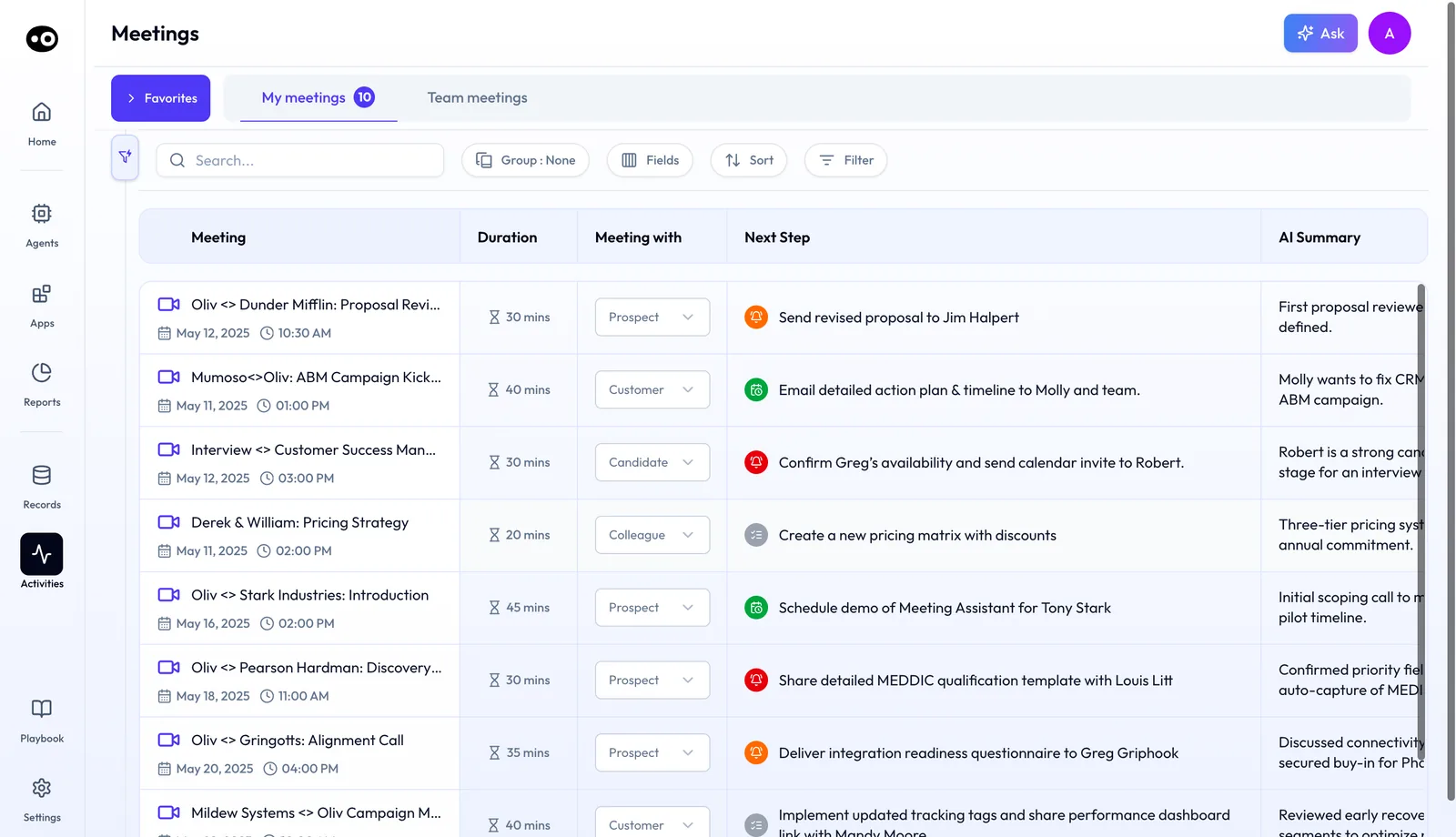
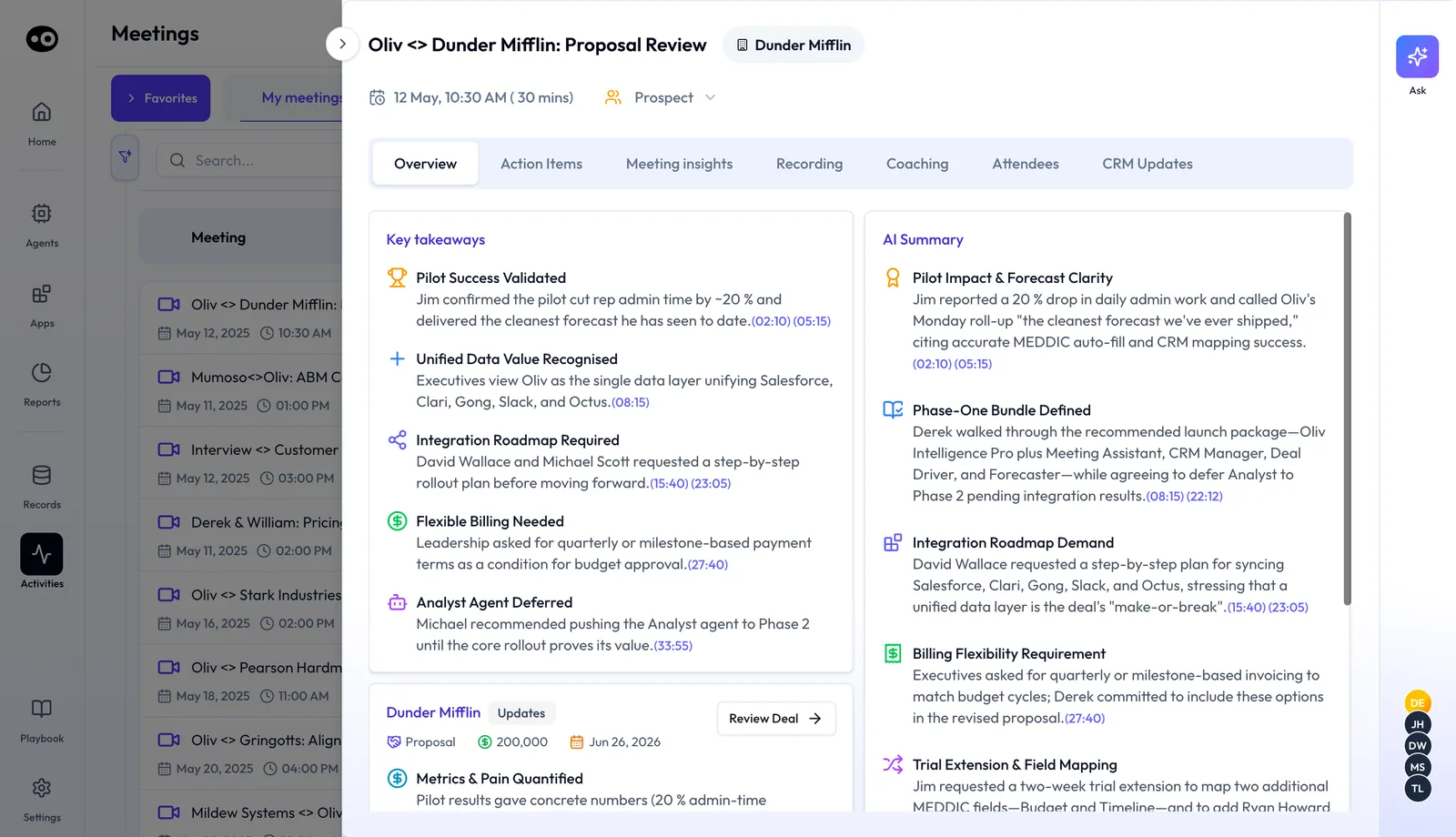
Each row shows the meeting's Next Step and AI Summary, and a Meeting with dropdown that classes it as Prospect, Customer, Candidate or Colleague. Click a row to open the meeting. Its Overview tab holds:
- Key takeaways, each with timestamps that jump to that moment in the recording;
- an AI Summary, in headed sections with their own timestamps;
- an updates card for the account, with the deal's stage, amount and close date and a Review Deal button.
Check the action items
The Action Items tab turns the call's commitments into tasks. Three cards at the top show the Next meeting, the Next action and the Next follow-up, each with a status such as Accepted or Overdue. Below them, a Tasks table lists each task with an Assignee, a Due Date and a timestamp back to the moment it was agreed.
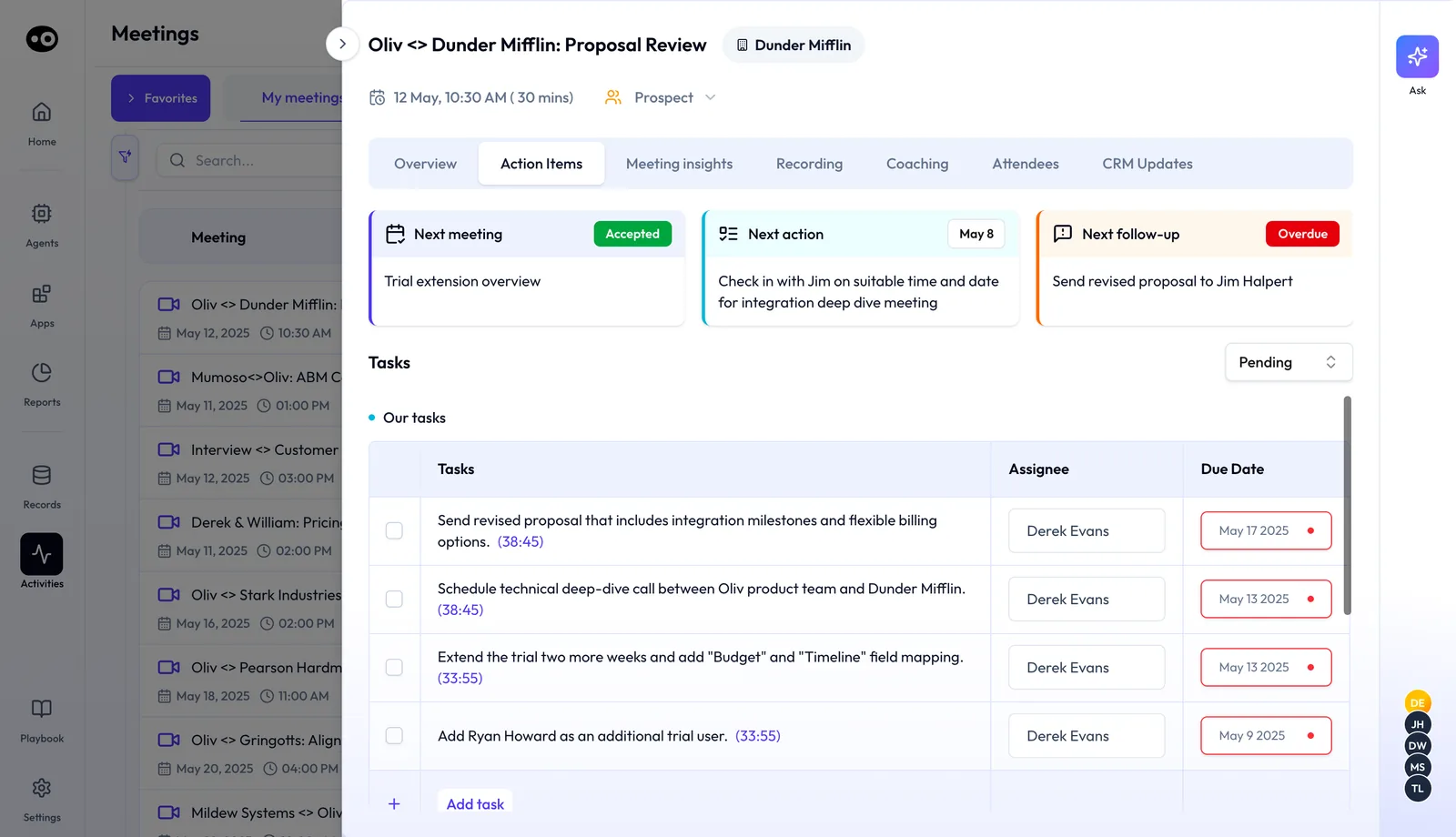
Tick a task when it's done, switch the status filter from Pending, or Add task by hand. Phone calls in Activities › Calls get the same tab, split into Our tasks and Their tasks, so you can see what the buyer owes as well.
Step 3: Review the follow-up draft
Within minutes of the call ending, Oliv AI's Meeting Assistant agent drafts your follow-up. It isn't a template. The agent reads the transcript and writes from the actual conversation:
| Part | What it covers |
|---|---|
| Recap | What was discussed on the call |
| Commitments | What was agreed, and by whom |
| Owners | Who is doing each next step |
| Next steps | What happens next, with specific dates where possible |
Read it through against the checks further down this page, change anything that needs changing, and send it. Nothing reaches your buyer until you've reviewed it. If you'd rather ask, tell Oliv AI's Olivia agent "Draft the follow-up from my call this afternoon" and she drafts it from the transcript.
Step 4: Approve the CRM updates
From what was said on the call, Oliv AI proposes deal field updates and records them on the meeting's CRM Updates tab:
- Open CRM Updates. A timeline lists every change made after the call, such as a refreshed account summary, a scorecard update or a new contact. A green check marks the ones already done.
- Find any Pending Update, such as a move to a new stage. Check it against what the buyer told you, then click Update Deal to confirm it.
- Open the changed records with View Account, View Deal or View Contact. On the deal itself, the CRM Updates tab lists AI Suggestions to Accept or Reject, with the current CRM value beside each one.
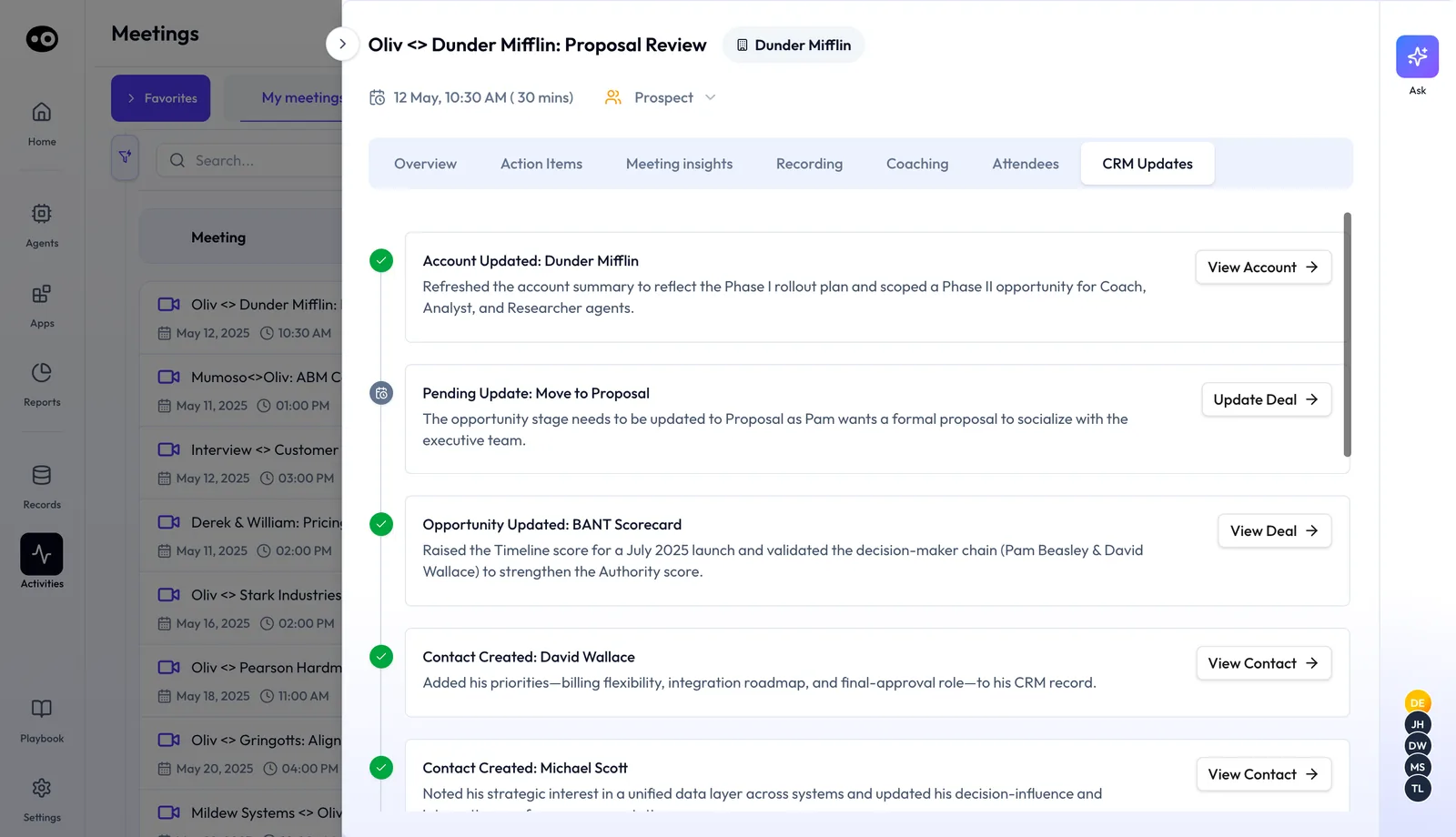
Oliv AI's CRM Manager agent writes the updates, so your pipeline stays current without manual cleanup.
How freely agents act in your CRM is set per action. Agent tools and run modes explains which actions wait for your approval.
Step 5: Check the qualification gaps
After every deal call, Oliv AI flags new information, or notable absences, that affect the deal's qualification status.
Open the meeting's Meeting insights tab to see them. A row of chips, from Metrics and Economic Buyer to Champion and Additional Fields, follows your qualification framework. Click a chip to jump to its section, where each card holds what was said, with timestamps. Where nothing was said, the card says so instead of guessing.
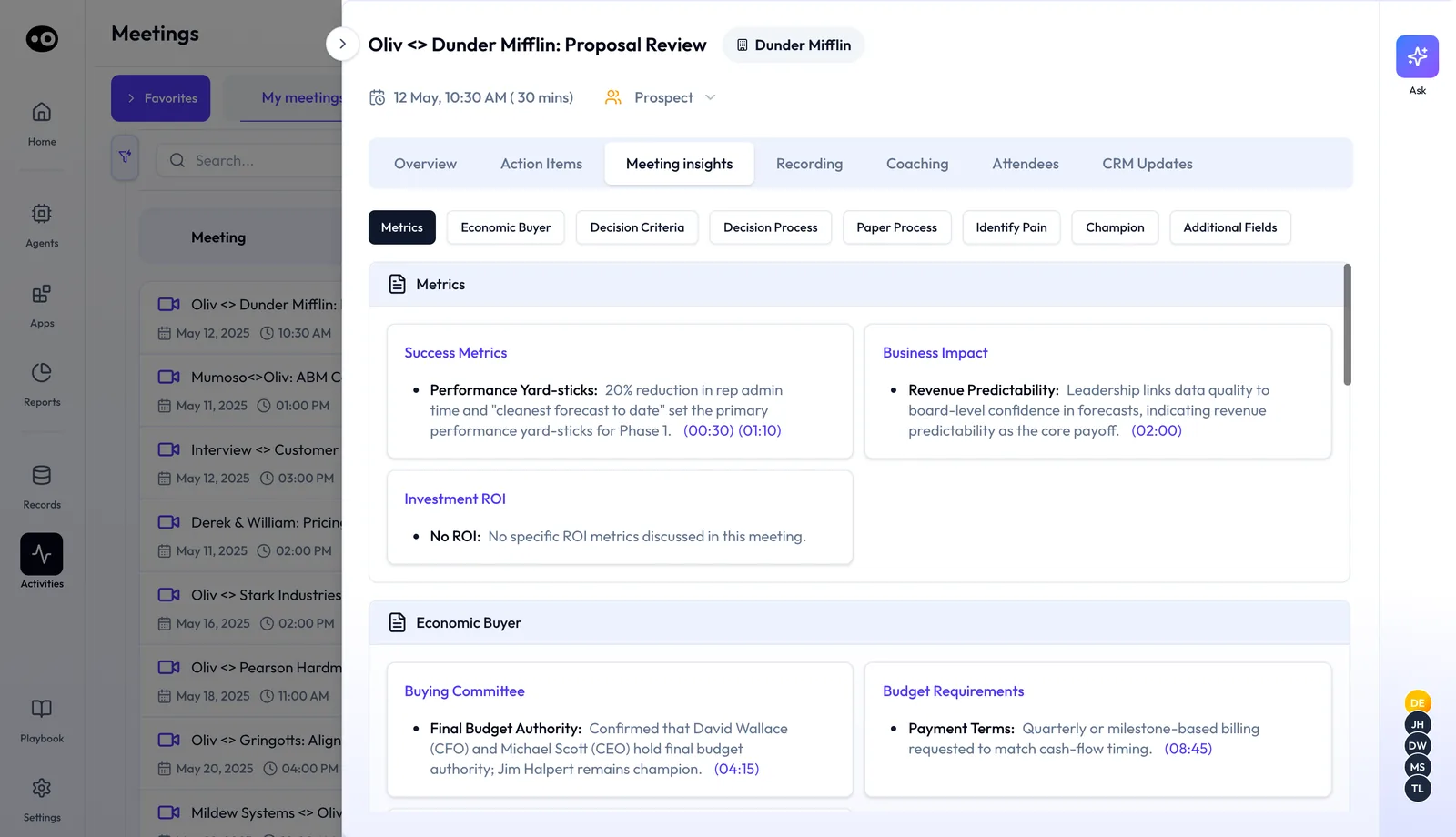
Turn each gap into a question, and raise it when you prepare for the next meeting.
Step 6: Share the moment that matters
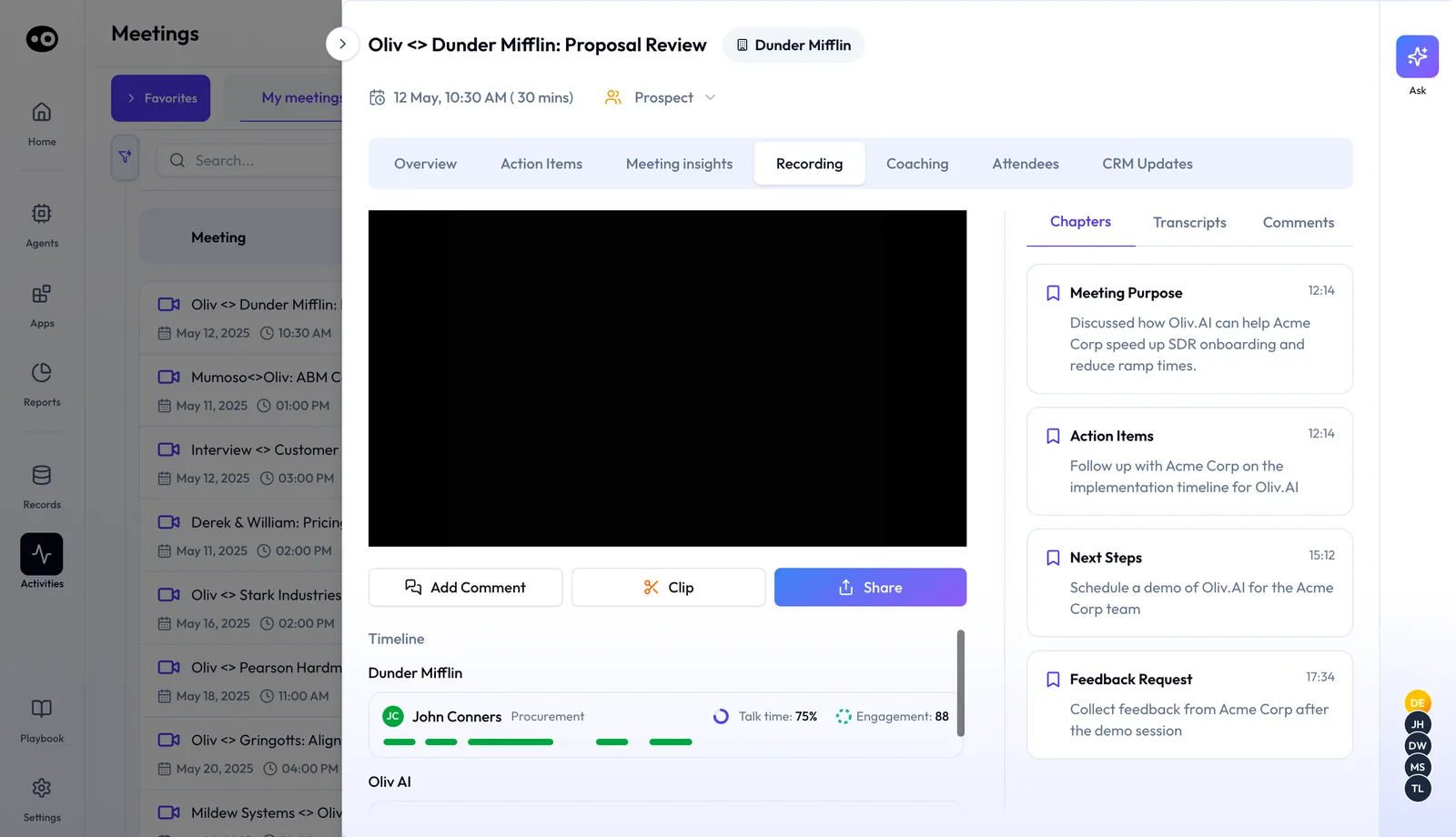
Sometimes a colleague needs one part of the call, not all of it. Open the meeting's Recording tab, find the moment in Chapters or Transcripts, then use the buttons under the player:
- Clip cuts the key moment, which then sits in your clip libraries.
- Share sends the meeting to a colleague.
- Add Comment pins a note to that point in the call, and Comments shows your team's notes.
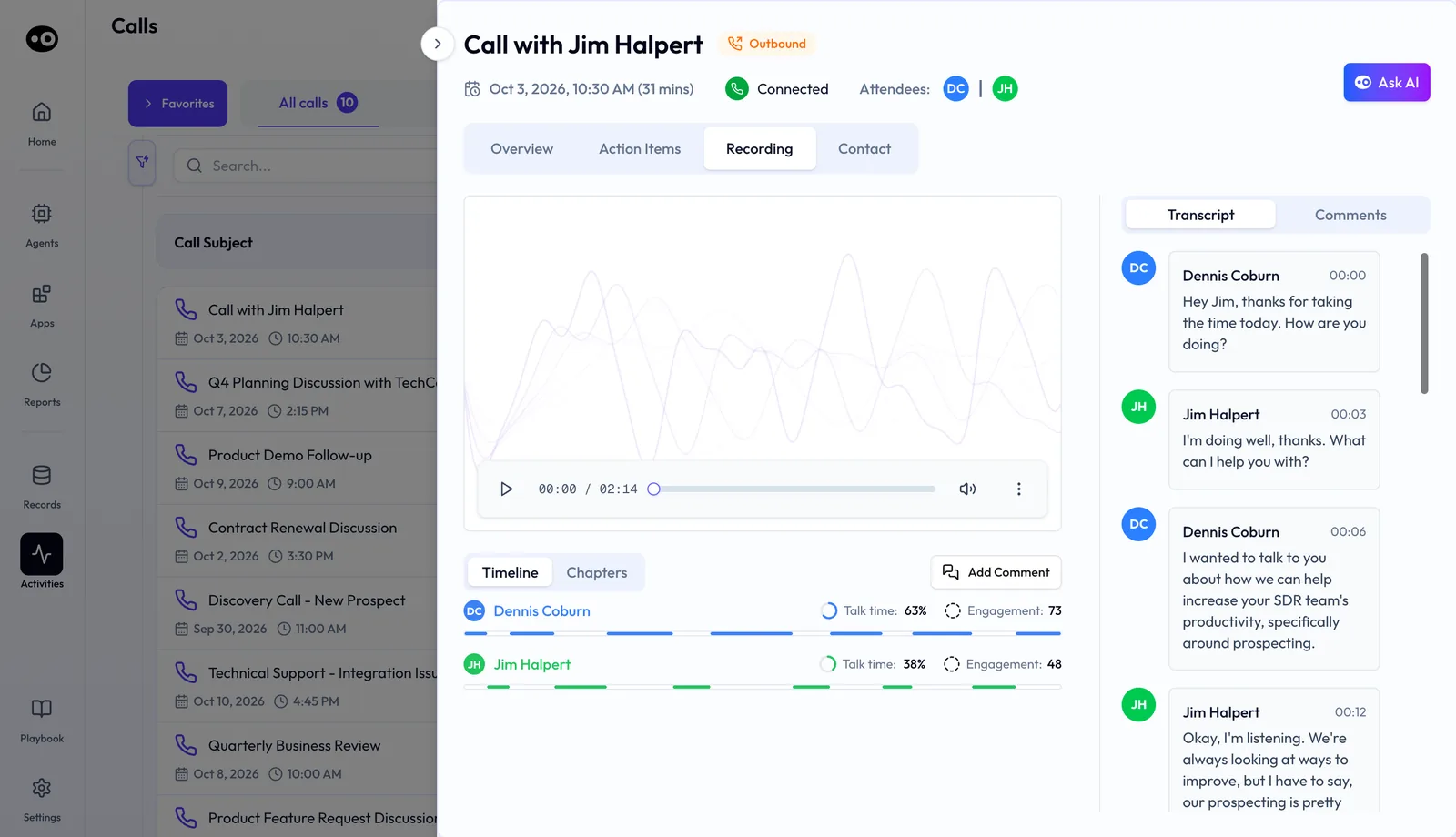
A phone call's Recording tab plays the audio with a Transcript and Comments beside it, a Timeline of talk time and engagement, and Add Comment. The meeting details page covers every tab in depth.
What post-call follow-up in Oliv AI is
Post-call follow-up is the work Oliv AI does once a recorded meeting ends, so you don't write the recap or update the CRM from memory. It has five outputs.
| Output | Comes from | When |
|---|---|---|
| Meeting summary | Oliv AI, to Slack and email | Immediately after the meeting ends |
| Takeaways, summary and tasks | Oliv AI, on the meeting's Overview and Action Items tabs | Once the recording is processed |
| Follow-up email draft | Oliv AI's Meeting Assistant agent | Within minutes of the call ending |
| Proposed CRM updates | Oliv AI's Meeting Assistant agent, written by Oliv AI's CRM Manager agent | After the recording is processed |
| Qualification gap flags | Oliv AI's Meeting Assistant agent | After every deal call |
Oliv AI's Olivia agent drives the post-meeting workflow: follow-up drafted, CRM updates flagged for review and next steps identified. Together, these outputs are the after-call half of an AI meeting assistant for sales.
Why post-call follow-up matters
What it's for
Post-call follow-up gets the recap to your buyer while the call is still fresh. It also keeps the CRM in step with what was actually said. You spend the minutes after a call reviewing, not writing.
How it helps
- The draft is waiting. The follow-up is written within minutes of the call ending.
- It comes from the call. The transcript, not a template, supplies the recap and next steps.
- The CRM keeps up. Field updates are proposed from what was said, ready to approve.
- Gaps surface early. Missing qualification details show up after every deal call, not at the forecast review.
What happens without it
Without it, the follow-up email takes about 15 minutes after every call. CRM updates depend on what the rep remembers. Qualification gaps come to light at the forecast review, when it's too late to act.
Why buyers care
This matters to account executives with calls booked back to back, because the follow-up is the first thing to slip. It matters to sales managers who need deal fields they can trust. It counts most late in a deal, when a slow recap costs momentum.
The Oliv AI approach to post-call follow-up
Imagine an account executive who has just finished a product demo with a buying committee of four. The next meeting starts in twenty minutes. Before then, the AE wants the recap in the champion's inbox, with the pricing question and the security review written down.
The usual fix is a quick email typed from memory, or a note to write it properly that evening. A rushed recap tends to miss who owns what. An evening recap arrives after the buyer has moved on to other things. Meanwhile the CRM still shows last week's stage and close date.
Everything the recap needs was said on the call. Who asked about pricing, what was agreed, and when the security review happens are all in the transcript. Writing the email is mostly a job of finding those lines and putting them in order.
Oliv AI does that job with its Meeting Assistant agent. Within minutes of the demo ending, the draft is written from the transcript, with the recap, commitments, owners and next steps. Proposed CRM updates and qualification gap flags come back alongside it for the AE to review. The AE reads it on the way to the next call.
The draft is never a template, and nothing reaches the buyer until the AE has read it and sent it. The comparison table below shows how other platforms handle the draft and the CRM after a call.
How a follow-up email gets written after a sales call
There are four common ways to get this email written. Each one fails in its own way, so knowing them tells you what to look for when a draft lands in front of you.
From memory
You type the recap straight after the call, from what you recall. It's quick and captures whatever struck you most, but it tends to miss who owns what, especially with the next meeting already on your mind. Nielsen Norman Group explains that working memory has limited capacity, and that overloading it can slow a task or cause mistakes.
From a template
You paste a saved email and fill in the blanks. The structure means you won't forget to ask for the next meeting. Everything specific to this buyer still comes from your memory or your notes.
From your own notes
You work from what you typed during the call, so you have the commitments you wrote down at the time. You lose whatever was said while you were talking, and the note often doesn't say who agreed to what.
From the transcript
You work from the words actually spoken, with each speaker labeled, so you can see who said what, including the small promises you'd otherwise lose. A transcript can't hold anything outside the call, such as a hallway chat or a decision you made afterwards. That part is still yours to add.
Which of these Oliv AI does
Oliv AI's Meeting Assistant agent uses the transcript. It writes the draft from the actual conversation, so no template sits underneath. You then add what the call didn't cover before you send.
What to check before you send or approve
Read the draft as your buyer would, then test it against the call. These are the errors to catch, because the buyer will act on what you send.
| What goes wrong | What to check | Where to check it |
|---|---|---|
| A date doesn't match what was said | Every date in the next steps | The timestamp on the task in Action Items |
| A task sits with the wrong person | Each owner against who agreed to it | Assignee in the Tasks table |
| A commitment is missing | The draft against the list of takeaways | Key takeaways on the Overview tab |
| The recap overstates what was agreed | Any line that sounds firmer than the buyer did | Transcripts on the Recording tab |
| Something meant for your team only is in the recap | Anything said before the buyer joined, or about your own side | Your own read of the draft |
The subject line
Check the subject line last. Nielsen Norman Group's guidance, written for email newsletters, says people often read only the first few words of a subject line. So start with the deal or the next step, not with "Following up on our call".
The CRM updates
Approve against what the buyer said, not what you hoped they meant. Three fields deserve a second look on every call:
- Close date. In HubSpot, this is the day the deal is expected to close. Approve a new date only if the buyer gave you a reason for it.
- Stage. HubSpot updates a deal's probability when a user moves it to a new stage, and weighted amount in board view depends on stage probability. A stage move you wave through can therefore change the number your manager reads.
- Next step. Make sure the field matches the next step in your email, so the record and the buyer see the same plan.
For field rules and hygiene across the rest of the record, see Oliv AI's CRM Manager agent.
How to measure follow-up speed after a call
Two measures tell you how fast your follow-up really goes out. Log the hours between the call ending and the email leaving your outbox, then work out:
- Same-day share: the calls whose follow-up went out the same day, divided by all calls.
- Median hours: the middle value when you sort the gaps from shortest to longest.
Both have weak spots. Same-day share counts a 10-minute reply and an end-of-day reply as equal. The median ignores how late your worst emails were, so read the mean beside it, because a large gap between the two means a few calls ran very late. Neither one tells you whether the email was right, which is why the checks above come first.
Where to find the timings
The meeting's drawer shows its date, start time and length, and your sent folder shows when the email left. On the Action Items tab, the Next follow-up card carries a status such as Overdue, which gives you a quick flag between logging sessions.
How to write a follow-up email after a sales call by hand
If a call wasn't recorded, or you just want to know what the draft is replacing, this is the manual job:
- Block the 15 minutes the email usually takes, right after the call and before your next meeting.
- Go through your notes and write down what was agreed, by whom and by when.
- Write the recap in two or three sentences, using the buyer's words for the problem.
- List each commitment with one owner and one date. Where no date was set, propose one and say it's a proposal.
- Write a subject line that starts with the deal or the next step.
- Send the email, then log the hours since the call ended.
- Open your CRM and update the stage, amount, close date, qualification fields and next steps from the same notes.
- Write down anything the buyer didn't answer, because that's your agenda for the next call.
What a sales follow-up email should include
Keep it to four things: a short recap, what each side committed to, who owns each item, and the next steps with dates. If the buyer could forward it to a colleague who missed the call and that person would know what happens next, it's done. For more on what a strong follow-up does for the deal, read about perfecting the sales follow-up.
The same job with an AI follow-up email in Oliv AI
Oliv AI takes over the writing and leaves you the judgment. Steps 2 to 4 become a read-through of a draft written from the transcript within minutes of the call ending. Step 7 becomes approving the proposed updates on the CRM Updates tab, and step 8 becomes reading the Meeting insights tab. Steps 5 and 6 stay with you: you check the subject line and you send the email.
Worked example: hours from call end to follow-up sent on 10 calls
This is an illustrative calculation with sample figures, not an Oliv AI output, and it claims no time saving from Oliv AI. A rep logs the hours between each call ending and the follow-up going out.
| Call | Hours from call end to email sent | Sent |
|---|---|---|
| 1 | 0.5 | Same day |
| 2 | 1 | Same day |
| 3 | 1 | Same day |
| 4 | 2 | Same day |
| 5 | 3 | Same day |
| 6 | 4 | Same day |
| 7 | 6 | Same day |
| 8 | 20 | Late |
| 9 | 24 | Late |
| 10 | 48 | Late |
| Total | 109.5 | 7 of 10 same day |
| Measure | Arithmetic | Result |
|---|---|---|
| Same-day share | 7 ÷ 10 | 70% |
| Median | The middle two values are 3 and 4, so (3 + 4) ÷ 2 | 3.5 hours |
| Mean | 109.5 ÷ 10 | 10.95, about 11 hours |
| Hours in the three late calls | 20 + 24 + 48 | 92 of the 109.5 hours |
The median says a typical email goes out in 3.5 hours, which looks healthy. The mean of about 11 hours is roughly three times that, because three calls carry 92 of the 109.5 hours. So don't try to speed up every email. Look at calls 8, 9 and 10, find what they have in common, and fix that.
How post-call follow-up works with other features
Meeting prep
Oliv AI's Meeting Assistant agent sends a brief before every meeting on an active opportunity, with the deal summary, qualification status and a recommended agenda. Check it against the gaps you noted after the last call.
Recording modes
Who organizes the meeting decides how a call is recorded, as Step 1 explains. Converse also captures phone calls and in-person meetings.
Manager 1:1s
Oliv AI's Deal Driver agent pairs the per-call summaries with pipeline context before each manager 1:1.
Clips
Oliv AI's Content Curator agent reviews every new recording and clips the moments your team asked for, such as a well-handled pricing objection.
Your CRM
Updates are written to your deals in Salesforce, HubSpot or Zoho. See every connection on Oliv AI integrations.
Who records and follows up with Oliv AI, and how
These are typical patterns, shown to illustrate how teams use the follow-up.
Account executives
An account executive reviews the draft between back-to-back calls, fixes one date and sends it. The CRM updates get approved in the same sitting. For the rest of an AE's day, see how AEs run their deals in Oliv AI.
Sales development
A sales development rep finishes a discovery call that turns into an opportunity. The follow-up and the first CRM fields come back ready, so the handoff to the account executive starts with a clean record.
Account managers
An account manager closes a renewal call with three commitments from the customer. The recap lists each one with an owner, so both sides know who owes what before the next check-in.
Sales managers
A sales manager reads the qualification gap flags across the team's calls. Gaps on late-stage deals become the agenda for that week's 1:1s.
How Oliv AI compares for AI follow-up emails
Oliv AI's follow-up is drafted from the transcript within minutes, without anyone clicking a button. The proposed CRM updates and qualification gaps come back in the same pass, ready to approve. Oliv AI is the only platform in this table that does all three.
Post-call follow-up, from each platform's public documentation:
| Platform | Follow-up drafted without a click | CRM updates proposed for approval | Qualification gaps flagged after the call |
|---|---|---|---|
| Oliv AI | Yes | Yes | Yes |
| Gong | Partly (button on the call page) | Partly (one text field on deal boards) | Partly (separate MEDDICC agent) |
| Avoma | Partly (click Generate Follow-up Email) | Automated field updates | Yes (gaps in the deal dashboard) |
| Fireflies.ai | Yes (drafted after every sales call) | Yes (Autofill CRM review) | BANT and MEDDIC scorecards (AI templates) |
| Fathom | Yes (AI follow-up email drafts) | Writes summaries and tasks to CRM | Scorecard templates by methodology (AI Scorecards) |
| Outreach | Partly (Compose email from the summary) | Yes (Deal Agent field recommendations) | Partly (separate Deal Agent) |
Yes: documented and built in. Partly: documented with a limit, shown in brackets. Not in docs: not found in the vendor's public documentation.
Why Oliv AI is the stronger choice for AI follow-up emails
- Drafted before you ask. Oliv AI's Meeting Assistant agent writes the follow-up once the recording is processed. Avoma documents a Generate Follow-up Email button you click in the meeting. See Oliv AI vs Avoma.
- Every deal field in one review. Oliv AI proposes stage, amount, close date, qualification fields and next steps for approval. Gong fills one text-only CRM field with AI suggested updates on a deal board. See Gong vs Oliv AI.
- Gaps flagged with the draft. Oliv AI flags qualification gaps after every deal call, next to the follow-up. Fathom offers scorecard templates you adapt to a methodology like SPICED.
Competitor details checked against each vendor's public documentation on 21 October 2026. Features and plans change, so confirm with the vendor before you decide.
Limits and things to know
- Active opportunities only. The follow-up draft, CRM updates and gap flags cover meetings linked to an active opportunity in your CRM.
- No recording, no draft. The draft is built after the recording is processed, so the call has to be recorded first.
- Emails wait for you. Nothing is sent to your buyer until you review the draft and send it.
- Stage moves wait for you. A change of deal stage stays a Pending Update until you confirm it. Other updates, such as a refreshed account summary or a new contact, show on the CRM Updates tab once written.
- Lobbies can delay recording. On a meeting the customer hosts, the note taker may need admitting before it can record.
- Summary messages can be turned off. If you'd rather not get the Slack and email summaries, disable them on your Profile Settings page.
Common questions
How soon is the follow-up ready?
Within minutes of the call ending. The meeting summary arrives sooner, immediately after the meeting ends.
Is the follow-up email a template?
No. Oliv AI's Meeting Assistant agent reads the transcript and writes the draft from the actual conversation: what was discussed, what was agreed and what happens next.
What does the draft include?
The recap, the commitments, the owners and the next steps, with specific dates where possible.
Is anything sent without me?
No email is. You review the draft, adjust anything that needs changing and send it yourself. The meeting's CRM Updates tab shows each CRM change, and holds stage moves until you confirm them.
Which CRM fields does it propose?
Stage, amount, close date, qualification fields and next steps, based on what was said on the call. A stage move waits for you to click Update Deal, and deal suggestions wait for Accept or Reject.
What's in the meeting summary?
The title, date, time, participants and account, plus key takeaways, next steps, talk time and a scorecard. It goes to Slack and email.
Can I ask for a follow-up instead of waiting?
Yes. Tell Oliv AI's Olivia agent to draft the follow-up from your call, and she pulls from the meeting transcript to write it.
Does it work if the customer hosted the meeting?
Yes. A note taker joins with your company's name, so the call is recorded and the follow-up still comes back to you.
Which meetings get a follow-up draft?
Meetings linked to an active opportunity in your CRM. If the deal exists and the meeting is on your calendar, the agent runs automatically.
Can I share part of a call?
Yes. On the meeting's Recording tab, find the moment in Chapters or Transcripts, then use Clip to cut it or Share to send the meeting.
How do you write a follow-up email after a sales call?
Write it right after the call. Recap the conversation in a few sentences, list each commitment with an owner and a date, then state the next step. Check every date against what was said before you send it.
What should a sales follow-up email include?
A short recap, what each side committed to, who owns each item, and the next steps with dates. A colleague who missed the call should be able to read it and know what happens next.
Can AI send follow-up emails automatically?
Not in this workflow. Oliv AI's Meeting Assistant agent drafts the follow-up email from the transcript, and you review it, adjust it and send it yourself.
What if the draft gets something wrong?
Change it before you send it. If you aren't sure what was said, use the timestamps on the meeting's Action Items tab or find the moment in Transcripts on its Recording tab, then correct the draft to match.
Further reading
Related
Updated 3 November 2026: added the ways a follow-up gets written, what to check before you send or approve, how to measure follow-up speed, the manual method and a worked example.