
Apps Live
AI meeting recorder: how Oliv AI records with or without a bot, and what attendees see
How an AI meeting recorder can capture customer meetings with or without a bot: Oliv AI chooses by who organized the meeting, and this page covers what attendees see, how to prepare meetings and how it compares with other recorders.
On this page
- At a glance
- What recording modes are
- Why recording modes matter
- The Oliv AI approach to recording modes
- Prepare your meetings for recording
- Turn on botless recording
- Set up Zoom recording
- How a meeting gets recorded, with or without a bot
- Tell attendees a meeting is being recorded
- Stop the note taker joining a meeting
- How to measure how many of your meetings show a bot
- How to choose bot or botless for your meetings by hand
- How recording modes work with other features
- Who uses recording modes, and how
- How Oliv AI compares as an AI meeting recorder
- Limits and things to know
- Common questions
- Further reading
- Related
Recording a customer meeting raises two questions: will a bot appear, and what will attendees see? As your AI meeting recorder, Oliv AI settles both from one fact: who organized the meeting. When someone from your company is the organizer, Oliv AI records botlessly, through Zoom or Microsoft Teams itself. When someone outside your company is the organizer, a visible note taker joins the call, named after your company.
At a glance
| The two modes | Botless recording through the meeting app, or a visible note taker |
| Who decides | Oliv AI, from who organized the meeting |
| Your company organizes | Botless: no Oliv participant on the call |
| Someone outside organizes | A note taker joins, shown with your company's name |
| What attendees see | The meeting app's own recording indicator, or the named note taker |
| Needs | A connected calendar, and botless recording enabled for your organization |
| Platforms named | Zoom and Microsoft Teams |
| Phone calls | A Record call toggle and a Recording method of One-way or Two-way in the Power Dialer |
What recording modes are
When native or botless recording is enabled for your organization, Oliv AI chooses how to capture each meeting from who organized it. You don't pick a mode per call.
| Botless recording | Note taker | |
|---|---|---|
| Used when | You or someone from your company organized the meeting | Someone outside your company organized the meeting |
| How it records | Directly through the video conferencing platform | The note taker joins as a participant |
| What attendees see | The meeting app's recording indication, and no separate Oliv participant | A participant shown with your company's name |
| Before it starts | Nothing to admit | May need admitting from a waiting room or lobby |
What attendees see
Before a sensitive call, check who sent the invite, because that tells you what the room will see. If your company sent it, attendees see the recording indication in Zoom or Microsoft Teams, and nobody extra in the participant list. If someone outside your company sent it, they see the note taker with your company's name, so they can tell who is recording.
What you see
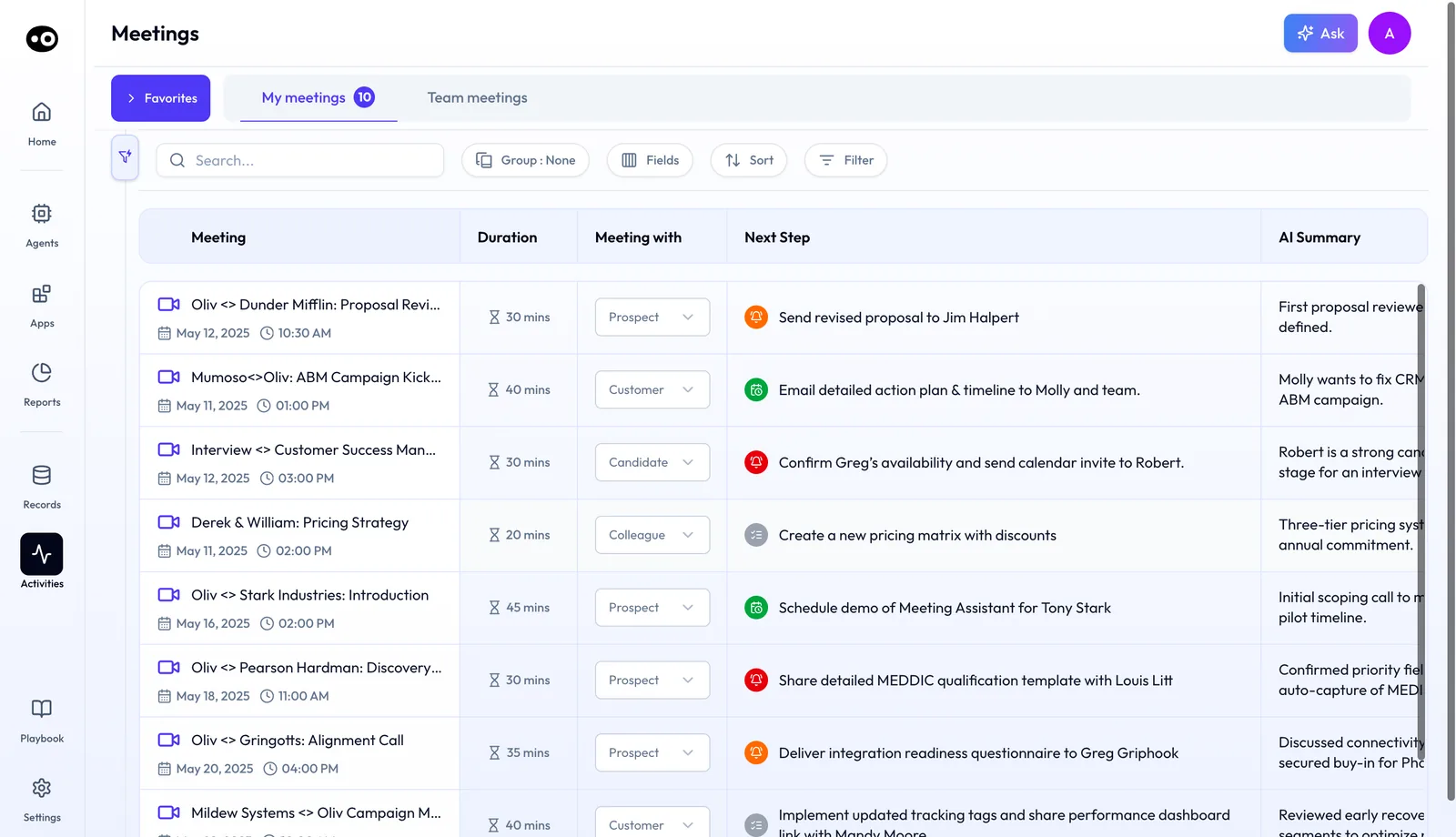
Whichever mode records it, the meeting lands in Activities › Meetings with its duration, type, next step and AI summary.
Recording phone calls
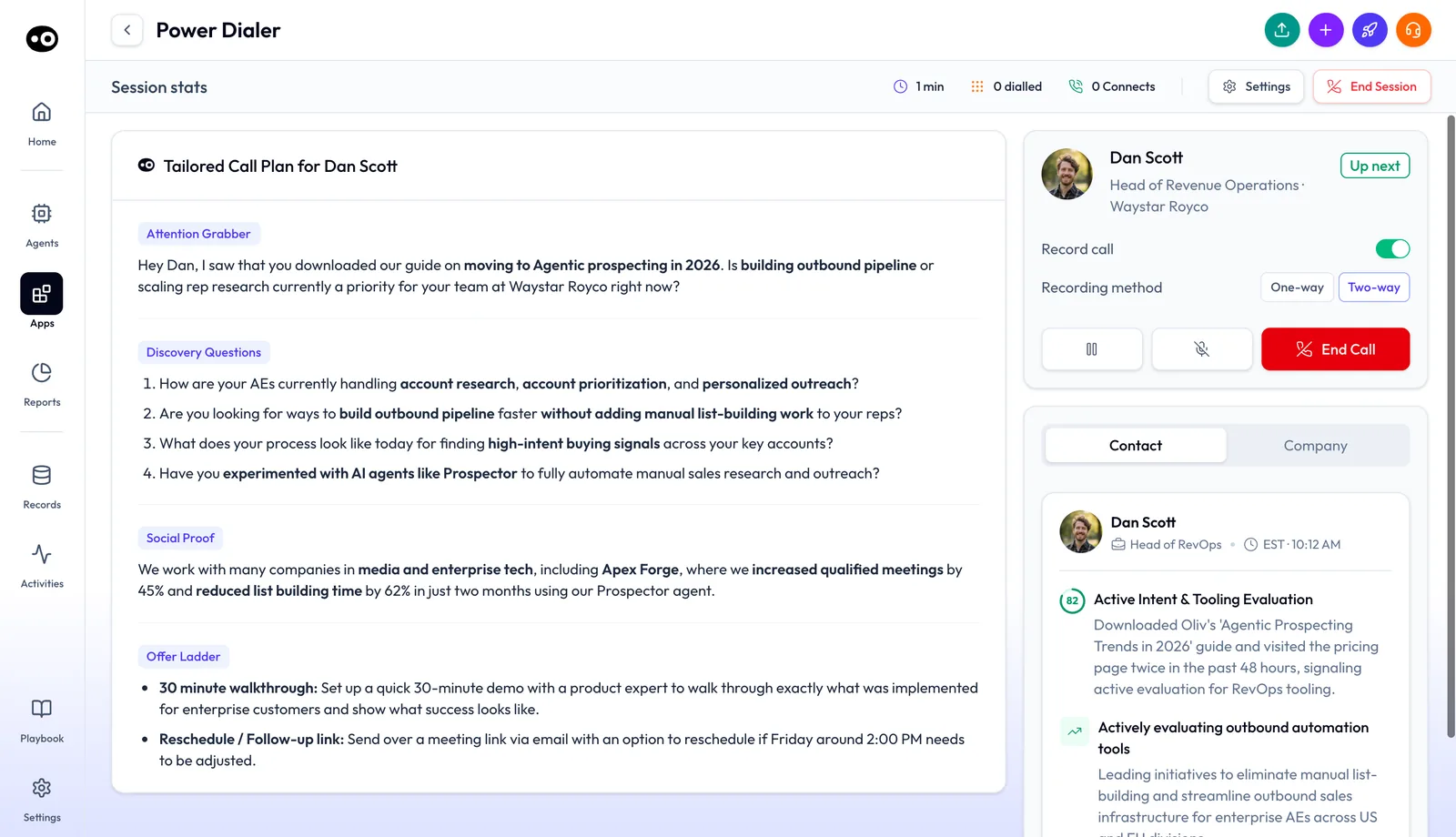
Phone calls placed from the Power Dialer in Engage have their own recording controls. Once a call connects, the contact card shows a Record call toggle and a Recording method choice of One-way or Two-way. Pause, mute and End Call sit beside them.
Why recording modes matter
What it's for
Recording modes let you keep a record of customer meetings whichever side hosts. When you host, nothing extra sits in the participant list. When a customer hosts, attendees can see clearly who is recording.
How it helps
- No bot on calls you host. The meeting app records, so no Oliv participant appears.
- No setting to remember. The organizer decides the mode, so there's nothing to switch per call.
- Clear when you're a guest. On someone else's meeting, the note taker carries your company's name.
- Recorded either way. Whoever organized it, Oliv AI has a route into the meeting, as long as the host admits the note taker on external calls.
What happens without it
Without a choice of mode, every recorded call gets a bot in the participant list. Some customers ask for it to leave, and the call goes unrecorded. The cost is gaps in the record of your most important accounts.
Why buyers care
Account managers and customer success teams need this because their customers often set the tone on calls. Revenue operations answers the IT and security questions about recorders. Enterprise customers with strict meeting policies are where this counts most.
The Oliv AI approach to recording modes
Picture an account manager with a renewal review on the calendar next week. The customer's IT lead has asked, politely, that no meeting bot join their calls. The account manager still wants a recording, because an expansion conversation will follow. Notes from this call will shape that proposal.
The usual answer is to switch the recorder off and take notes by hand, or to ask the customer for an exception. Either way, you risk losing the record of the call or a little goodwill. Hand-written notes also miss the exact words a customer used about budget or scope.
What the customer objects to is an extra participant, not a record of the meeting. The host already controls how a meeting app records. So the real question is who sends the invite. If your company hosts, the meeting app can do the recording itself.
Oliv AI answers it from the invite. When the account manager organizes the meeting, Oliv AI records through Zoom or Microsoft Teams directly, with no Oliv participant on the call. When the customer organizes, the note taker joins visibly, named after the account manager's company. Nobody has to change a setting before the call.
Attendees on a botless call still see the meeting app's own recording indicator. How that organizer rule stacks up against other recorders is covered in How Oliv AI compares as an AI meeting recorder, below.
Prepare your meetings for recording
Whichever mode applies, a few things need to be in place before Oliv AI can record.
- Connect your calendar. Calendar integration is required for Oliv AI to work. Without it, the note taker can't take notes during your meetings.
- Connect your video platform. For Microsoft Teams and Google Meet, no extra integration is needed: Oliv AI joins automatically once your calendar is connected. For Zoom, install the Oliv AI Zoom app, as set out under Set up Zoom recording.
- Decide who sends the invite. If a customer would rather not see a bot, send the meeting invite from your own calendar. Your company is then the organizer, and the call records botlessly.
- Plan for the lobby. On meetings someone outside your company hosts, the note taker may wait in a waiting room or lobby. Ask the host to admit it, or recording can't begin.
Turn on botless recording
Botless recording is enabled per organization. If it isn't set up for yours, reach out to Oliv AI Support and connect your video conferencing admin with them. They'll help enable it for your team.
Set up Zoom recording
Oliv AI has two Zoom apps on the Zoom marketplace:
| App | What it does |
|---|---|
| Oliv - Meeting bot | Adds the note taker to your meetings, records with your consent, and surfaces the meeting details afterward |
| Oliv.ai (meeting app) | Adds a richer set of features: fewer steps for recording consent, and Oliv AI's view inside Zoom during the call to update CRM fields |
By default, Oliv AI asks the host's permission to record a Zoom meeting. Without that permission, Oliv AI can't summarize the meeting.
Record Zoom meetings without the host
A Zoom admin can grant permissions so that Zoom meetings are recorded even when the host isn't present.
- Go to the Zoom meeting bot settings at web.oliv.ai/apps/zoom-meeting-bot.
- Check the Permissions box. This grants the admin-level permission that lets Zoom meetings record automatically without the host.
- Click Allow to enable the Shared Access Permission.
- Let the Oliv AI team know. They finish the setup on their side.
How a meeting gets recorded, with or without a bot
Any recorder you shortlist takes one of three routes into a call, and each route fails in its own way. If you're still comparing tools, our meeting recorder picks cover the wider market.
A bot joins as a participant
The bot needs only a way into the meeting, so this route catches calls a customer hosts. It misses when nobody admits the bot from the lobby, or when the customer objects to an extra name in the participant list.
The meeting app records the call
No extra participant appears, and attendees see the app's own recording indicator. This route works for customers who refuse a bot. It depends on the host's account and settings, though. HubSpot's Zoom integration, for example, syncs recordings and transcripts only when cloud recording and audio transcripts are turned on in Zoom. The recording must also stay available there.
A desktop app captures your device's audio
Some recorders skip the call and capture your computer's audio. Nothing joins the meeting, and the meeting app has no recording of its own to flag, so telling attendees falls entirely to you. It also covers only the device running the app.
Which of these Oliv AI uses
The first two routes are the ones Oliv AI documents, and the organizer settles which one applies. Your company's meetings go through the meeting app, and everyone else's get the visible note taker.
Tell attendees a meeting is being recorded
The app's indicator and the named note taker show that a recording is happening. Neither one asks for permission, so handle that yourself, in this order.
- Say it in the invite. Add a line saying the call will be recorded. If a customer is hosting, add that a note taker with your company's name will ask to join.
- Ask before you start. Nielsen Norman Group's script for remote sessions asks whether it's OK to begin recording, then waits for a yes. That research habit carries over well to a customer call.
- Agree what happens if someone says no. The same group's guidance on research consent lets people take part while opting out of the recording. On a customer-hosted call, that means stopping the note taker in one of the ways listed next.
- Check the rules with your legal team. HubSpot's article on its own calling tool puts consent on the users who record, and it says plainly that it isn't legal advice. Ask your legal team which rules cover the people on your calls.
Stop the note taker joining a meeting
Oliv AI joins external calls automatically, but you can manage that from Oliv AI or from your Google or Outlook calendar. There are five ways to stop the note taker joining:
- The Oliv AI Chrome extension or the Oliv AI Outlook add-in.
- The Meetings page in Oliv AI, under Activities.
- The remove link in your meeting preparation summary, by email or Slack.
- The remove link in the Zoom chat.
- Removing the note taker directly in Zoom.
How to measure how many of your meetings show a bot
Two numbers tell you whether your recording setup is doing its job. Work them out before a conversation with IT about recorders, or after a customer complains about a bot.
Bot share
Divide customer meetings organized outside your company by all customer meetings in the period. That gives you the share of calls where attendees see the note taker. Leave internal calls out, or they will flatter the number.
Its weak spot is that it counts meetings, not objections. One strict enterprise customer can matter more than a long list of customers who never mention the bot.
Recorded share
Divide recorded customer meetings by customer meetings held. A low number points to the failures on this page: a note taker left in the lobby, a missing calendar connection, or a Zoom host who didn't give permission.
Watch for removals. A note taker you stopped on purpose looks like a miss, so take those meetings out first.
Where to read these in Oliv AI
Start bot share from your calendar, because the organizer sits on the invite. For recorded share, use the Meetings list, which holds every recorded meeting whichever mode captured it. Its Meeting with column marks types such as Prospect or Customer, and Team meetings widens the view beyond your own calls.
How to choose bot or botless for your meetings by hand
Run this check when a customer raises the bot question, or before a run of renewal calls. You need your team's calendars and a list of the customers who have raised a concern.
- List the customer meetings. Take the next two weeks from your team's calendars and leave out internal calls.
- Mark the organizer. Note whether each invite came from your company or from outside it.
- Flag the sensitive accounts. Mark customers who have asked for no bot, or whose IT team restricts meeting tools.
- Move the flagged invites. Offer to send those invites from your side. Ask the customer to cancel the original, or someone may join the old link.
- Warn the host on the rest. Tell the host that a note taker with your company's name will wait in the lobby and needs admitting.
- Check the result. After the meetings, confirm that each one recorded, and find out why for any that didn't.
The same job in Oliv AI
Oliv AI takes over step 2 and the choice that follows it. It goes by who organized the meeting and picks the mode, so nobody sets anything per call. You keep steps 3, 4 and 5, because only your team knows which customers object and who should send the invite. Step 6 gets shorter, since every recorded meeting lands in one list.
Worked example: 40 customer meetings and the share that show a bot
A team tallies 40 customer meetings. Its own people organized 26, which record botlessly, and customers organized 14, which bring the note taker. This is an illustrative calculation with sample figures, not an Oliv AI output.
| Step | Arithmetic | Result |
|---|---|---|
| Meetings in the tally | 26 + 14 | 40 |
| Share showing a bot today | 14 / 40 | 35% |
| Customer-organized meetings left after reps send 6 invites from their own calendars | 14 - 6 | 8 |
| Share showing a bot afterward | 8 / 40 | 20% |
| Share recording botlessly afterward | (26 + 6) / 40 | 80% |
Six invites moved the bot share by 15 percentage points, with no change to any setting. Start with the accounts that have objected, because the average matters less than the customers who actually care.
How recording modes work with other features
Meeting prep and follow-up
Recordings feed what happens before and after your calls. Oliv AI's Meeting Assistant agent drafts the follow-up from the transcript once a recording is processed. It also sends the brief that helps you prepare for a meeting next time.
Conversation capture
Converse captures online meetings, bot-free calls, phone calls and email the same way. In-person meetings are captured with Plaud, a wearable recorder that travels with your reps, and the rep decides when and what to record.
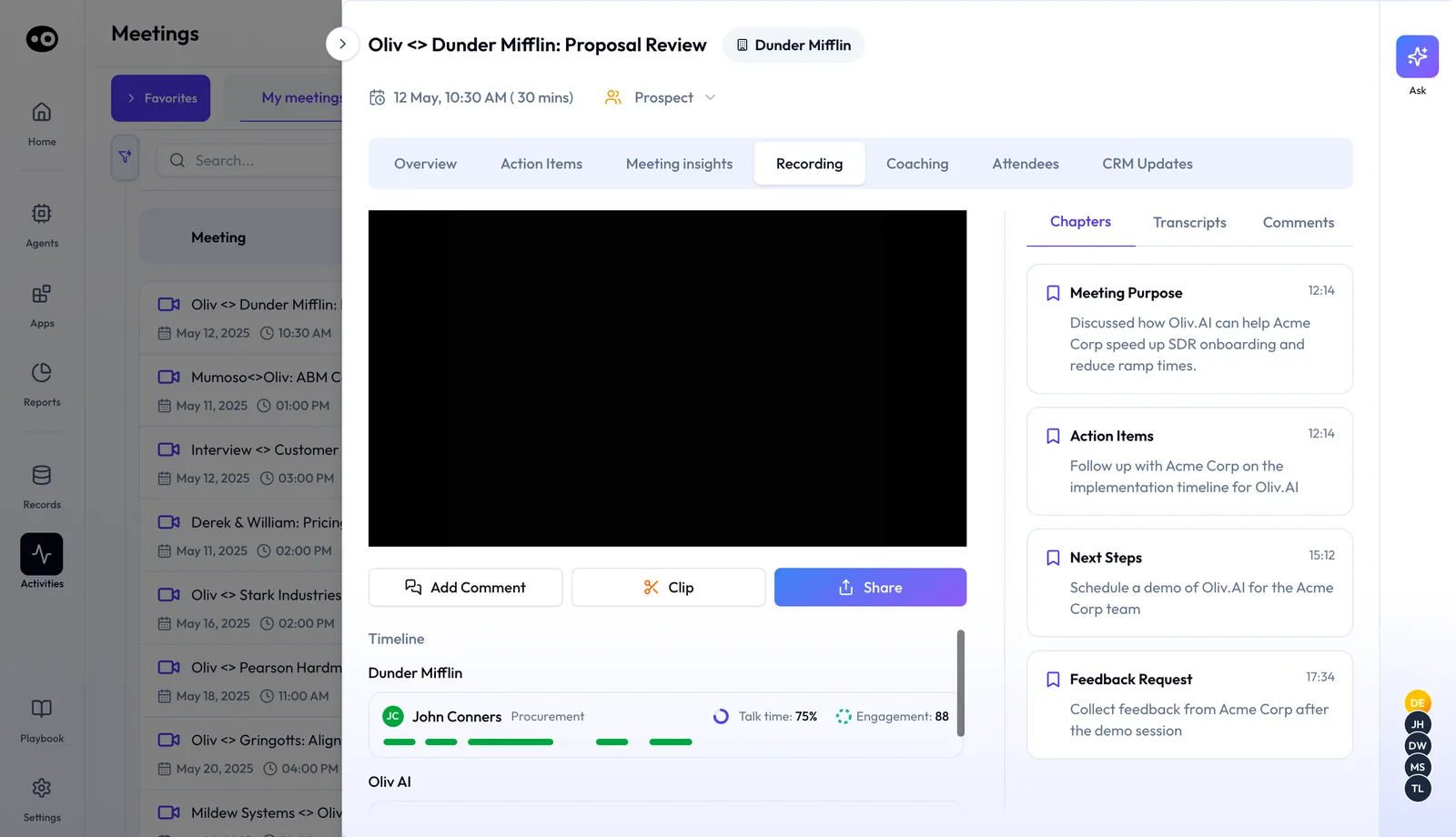
A recorded meeting opens with a Recording tab: the player with Add Comment, Clip and Share, a speaker Timeline with talk time and engagement, and Chapters, Transcripts and Comments. The meeting details page covers each tab.
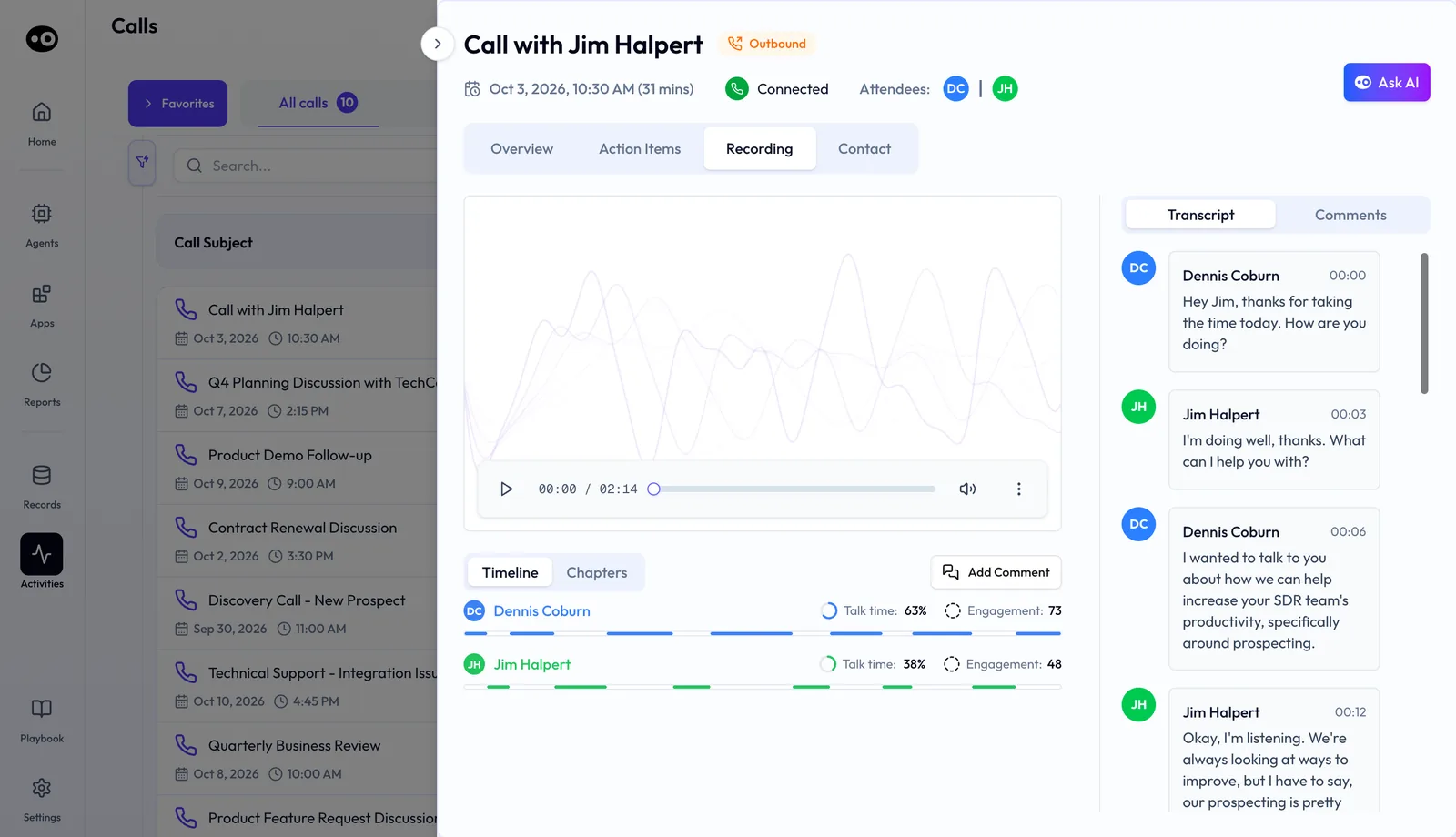
A recorded phone call gets an audio player instead, with a Timeline of talk time per speaker, Chapters, Add Comment and a timestamped Transcript.
Inside Zoom
With the Oliv.ai meeting app, you can open Oliv AI inside Zoom during the call, update deal data in place and see the moments you highlighted.
Clips
Once a recording is processed, Oliv AI's Content Curator agent can clip the moments your team cares about and post them to your team's channel.
Your revenue team's agents
Oliv AI's Olivia agent draws on meeting data as the primary source of her live context. Oliv AI's Deal Driver agent tells managers which meetings happened and their key outcomes in its end-of-day summary.
Who uses recording modes, and how
These are typical patterns, not customer stories.
Account management
An account manager sends renewal and QBR invites from their own calendar. Calls with customers who dislike bots record botlessly, so those accounts still get a recording.
Account executives
An account executive joins a prospect's own meeting link for a demo. The note taker asks to be admitted from the lobby with the AE's company name, and the follow-up still arrives after the call. It's part of how AEs run their deals in Oliv AI.
Customer success
A customer success manager runs onboarding calls on Microsoft Teams. Because the CSM organizes them, no Oliv participant appears, and the customer sees only Teams' own recording indicator.
Revenue operations
A revenue operations lead works with the Zoom admin to grant admin-level permissions. Meetings then record even when the host is late or absent.
How Oliv AI compares as an AI meeting recorder
Oliv AI switches between botless recording and a visible note taker by itself, based on who organized the meeting. Calls you host record through Zoom or Microsoft Teams with no bot, and calls a customer hosts get a note taker with your company's name. Oliv AI is the only platform in this table that does all three.
Recording modes, from each platform's public documentation:
| Platform | Bot-free recording in Zoom and Teams | Recording method follows the meeting organizer | Note taker shows your company's name |
|---|---|---|---|
| Oliv AI | Yes | Yes | Yes |
| Gong | Partly (native recording, Zoom only) | Set by company setup (two methods by setup) | Not in docs |
| Avoma | Partly (Teams needs a cloud recording license) | Chosen during setup (pick cloud or bot) | Yes (custom bot name) |
| Fathom | Partly (Teams still uses the notetaker) | User preference, admin can block (org-wide bot override) | Yes (custom notetaker name) |
| Fireflies.ai | Partly (Google Meet SDK and desktop app) | Your choice per meeting (bot or Take Notes) | Partly (custom name on paid plans) |
Yes: documented and built in. Partly: documented with a limit, shown in brackets. Not in docs: not found in the vendor's public documentation.
Why Oliv AI is the stronger choice as an AI meeting recorder
- Bot-free on Teams as well as Zoom. Oliv AI records botlessly in both Zoom and Microsoft Teams when your company organizes. Fathom records Microsoft Teams meetings by having its notetaker join the call.
- Nothing to choose per call. Oliv AI reads the organizer and picks the mode for you. Avoma has you choose between cloud recording and its bot during setup. See Oliv AI vs Avoma.
- Customer-hosted calls covered. When someone outside your company organizes, Oliv AI joins with a visible note taker. Gong lists calls hosted by someone outside your company among those not picked up automatically. See Gong vs Oliv AI.
Competitor details checked against each vendor's public documentation on 21 October 2026. Features and plans change, so confirm with the vendor before you decide.
Limits and things to know
- Botless needs enabling. Botless recording works once it's enabled for your organization, with help from Oliv AI Support and your video conferencing admin.
- The organizer decides, not you. You can't force botless recording on a meeting someone outside your company organized. Send the invite yourself if it matters.
- Lobbies can block the note taker. If an external meeting has a waiting room, someone has to admit the note taker before recording begins.
- Zoom asks the host first. By default, Oliv AI needs the host's permission to record a Zoom meeting. Admin-level permissions remove that step, and a Zoom admin has to grant them.
- No calendar, no recording. Oliv AI relies on your calendar to know which meetings to join.
- The indicator doesn't ask permission. Botless calls show the meeting app's recording indication, but getting consent stays with you.
Common questions
How does Oliv AI choose between bot and botless?
By who organized the meeting. If you or someone from your company organized it, Oliv AI records botlessly. If someone outside your company did, the note taker joins.
How do I record a meeting without a bot?
Organize it from your company, with botless recording enabled for your organization. Oliv AI then records through Zoom or Microsoft Teams, and no Oliv participant joins the call.
Will attendees know the meeting is being recorded?
Yes. On a botless call they see the meeting app's own recording indication. On other calls they see the note taker, shown with your company's name.
Which meeting apps support botless recording?
Zoom and Microsoft Teams are both supported. Recording happens inside the meeting app itself, with no separate Oliv participant on the call.
My customer doesn't want a bot. What should I do?
Send the meeting invite from your own calendar. With your company as the organizer, Oliv AI records botlessly and no note taker joins.
Can a meeting a customer organized record without a bot?
No. When someone outside your company organizes a meeting, the note taker joins as a visible participant. To avoid that, send the invite from your own calendar instead.
Why didn't the note taker start recording?
If the meeting had a waiting room or lobby, the note taker may have needed admitting first. Ask the host to let it in.
How do I turn on botless recording?
Reach out to Oliv AI Support and connect your video conferencing admin with them. They'll help enable botless recording for your team.
Do I need an integration for Teams or Google Meet?
No. Once your calendar is connected, Oliv AI joins Microsoft Teams and Google Meet meetings automatically. Zoom uses the Oliv AI Zoom app.
Can Zoom meetings record when the host isn't there?
Yes, once a Zoom admin grants admin-level permissions through the Zoom meeting bot settings and tells the Oliv AI team.
How do I stop the note taker joining one meeting?
Use the Chrome extension or Outlook add-in, the Meetings page under Activities, the remove link in your prep summary or the Zoom chat, or remove it in Zoom.
How can I work out what share of my meetings will show a bot?
Count your customer meetings for a period, then divide those organized outside your company by the total. With 14 of 40 in a sample tally, 35% would show the note taker.
Can I record phone calls?
Yes. In the Power Dialer, turn on Record call and pick a Recording method of One-way or Two-way.
Can Oliv AI capture in-person meetings?
Yes, through Plaud, a wearable recorder that travels with your reps. The rep decides when and what to record.
Further reading
Related
Updated 3 November 2026: added how a meeting gets recorded, how to tell attendees, how to measure bot share, the by-hand method with a worked example, three more questions and further reading.