
Apps Live
AI meeting notes: read one meeting across seven tabs, from takeaways to CRM updates
AI meeting notes for one customer meeting: how to read the takeaways, tasks, qualification evidence, coaching, attendees and CRM updates across seven tabs, check them against the recording, share a moment, and how Oliv AI compares.
On this page
- At a glance
- What you get when you open a meeting
- Why AI meeting notes matter
- The Oliv AI approach to AI meeting notes
- How a customer meeting turns into usable notes
- Read a meeting
- What each tab shows
- Ask questions about a meeting
- Share part of a meeting
- How to measure what one meeting's notes cover
- How to write up a customer meeting by hand
- How AI meeting notes work with Oliv AI's agents
- Who uses AI meeting notes, and how
- How Oliv AI compares for AI meeting notes
- Limits and things to know
- Common questions
- Further reading
- Related
AI meeting notes are worth having when the summary, tasks, qualification evidence and CRM updates from one customer meeting sit in one place. Oliv AI does that in a single drawer over your Meetings list, with seven tabs and timestamps back to the recording. You read the takeaways, work the tasks, check qualification against what was said, then see what reached the CRM and what still waits for you. From here you can also replay a moment, clip it, ask questions about the meeting and share it.
At a glance
| What it shows | One captured meeting, split across seven tabs |
| The tabs | Overview, Action Items, Meeting insights, Recording, Coaching, Attendees, CRM Updates |
| How you get there | Activities › Meetings, then a meeting, or Open Meeting in Slack |
| What's ready after the call | Key takeaways, an AI summary, tasks and next steps |
| Recording | Player, chapters, transcript, comments and per-speaker talk time |
| CRM changes | Completed changes with a green check, and any Pending Update waiting for Update Deal |
| Sharing | Clip, Share, a transcript segment, or a link-accessible view |
What you get when you open a meeting
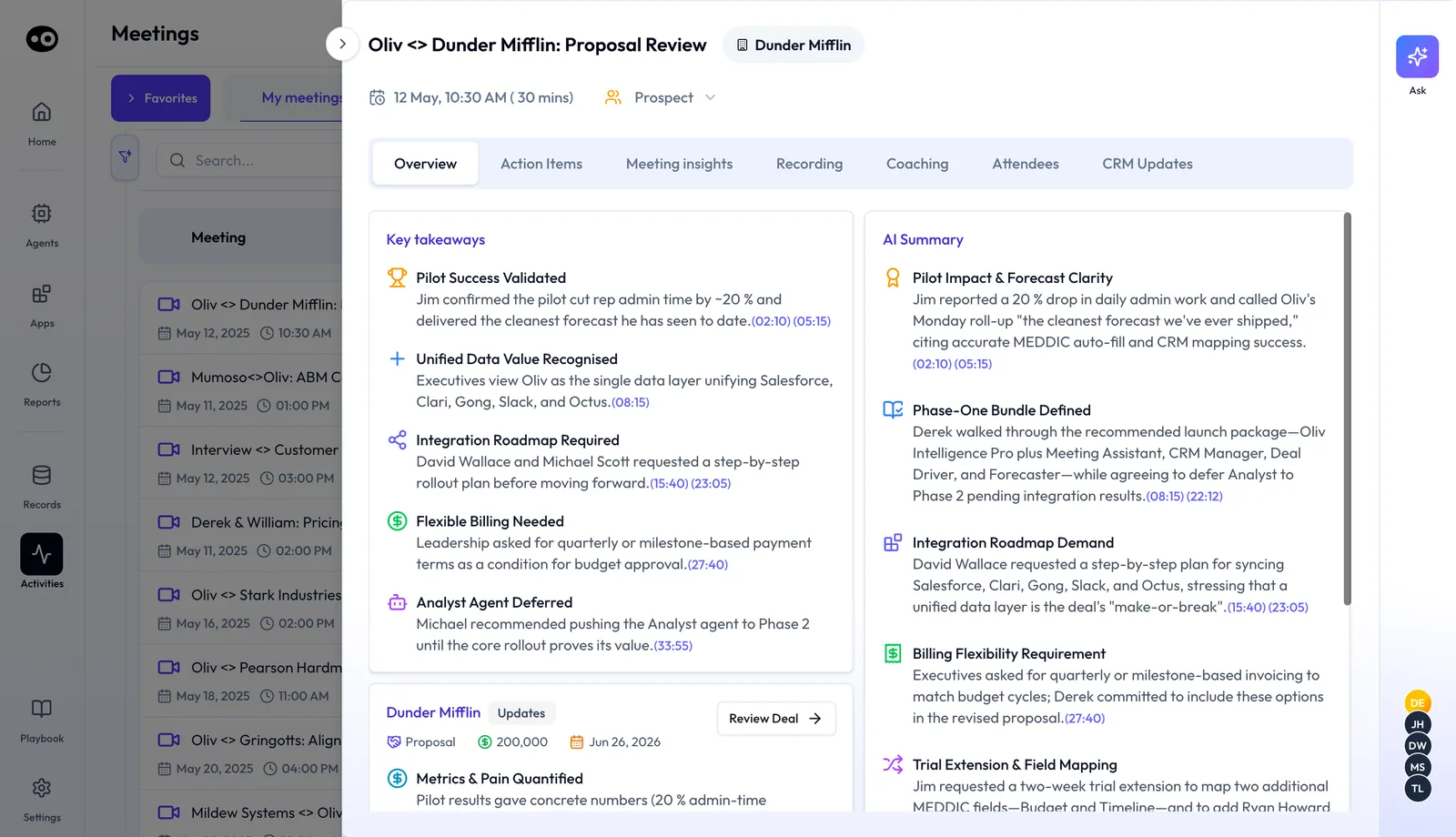
You've just clicked a meeting in the Meetings list, or pressed Open Meeting in Slack. It opens as a drawer over the list, on Overview. Check that you have the right call, then go to the tab that matches what you need.
What you see first
Check the title, the account chip, the date and the duration in the header. A wrong account chip means you're reading the wrong call. The attendee initials on the right show who was there, and Ask takes a question about this meeting.
The seven tabs
Pick the tab by what you have to do next, and make the check beside it before you rely on what you read.
| What you need to do | Open | Check first |
|---|---|---|
| Get the gist before a call | Overview | The timestamp on any point you plan to repeat |
| Send the follow-up or chase what was agreed | Action Items | Each task's Assignee and Due Date |
| Judge qualification without replaying the call | Meeting insights | Which cards say nothing was said |
| Hear the buyer's exact words | Recording | That you have the right speaker on the Timeline |
| Prepare a 1:1 with the rep | Coaching | The evidence behind a score, by clicking the skill |
| Work out who decides and who is on your side | Attendees | The timestamps under Key Attendee Insights |
| Rely on the CRM record | CRM Updates | Any Pending Update still waiting |
A shared view for people outside the workspace
Someone outside your Oliv AI workspace needs this meeting. Send them its shared view, which opens by link. Open the link yourself first and check what it shows. If they only need one moment, share a transcript segment instead.
Why AI meeting notes matter
What it's for
AI meeting notes earn their place when you have to act on a call you didn't join, or can't recall in detail. Oliv AI keeps the summary, tasks, qualification evidence and CRM updates from that call in one drawer. Start from the case below that matches your day.
How it helps
- You're taking over an account on Tuesday. Read Overview, then Attendees. Click the timestamp on every promise before you repeat it to the customer.
- You have a 1:1 with a rep tomorrow. Note the Meeting insights cards that say nothing was said. Then click a skill on Coaching and read the evidence behind its score.
- You owe a follow-up today. Work Action Items. Check that every task has an assignee and a due date, and add what's missing.
- A deal goes into your pipeline review this afternoon. Open CRM Updates and check that the stage move isn't still a Pending Update.
What happens without it
Without notes you can check, what was said lives in one person's memory. A promise gets lost when the account moves to a new owner. The customer then repeats themselves to a team that should already know.
Why buyers care
Customer success leaders feel this at handover, when onboarding has to start from what sales promised. Sales managers feel it when they coach from calls they didn't attend. Product teams feel it when they need a feature request in the customer's own words.
The Oliv AI approach to AI meeting notes
Consider a customer success manager picking up an account that closed on Friday. The kickoff with the customer is on Tuesday. Last week the account executive ran a handover call with the champion to agree what goes live first and who signs off. The CSM wasn't on it.
The usual route is a short recap message from the AE and a skim of the CRM notes. Some CSMs block an hour to watch the full recording. Each path likely costs time, and a recap written from memory can drop the one integration the champion called a must-have.
The details already exist on the recording. What the CSM needs is the champion's priorities and open concerns, in their own words, before Tuesday. Reading a whole transcript to find two or three moments is the slow part.
Oliv AI turns the handover call into a record the CSM can scan. The takeaways sit on the first tab, each with a timestamp into the recording. The Attendees tab shows where the champion stands. Then the CSM shares the right transcript segment with the onboarding lead, starting at the right minute.
The same summary and full call transcript also land on the opportunity record in the CRM. The CSM can find them there without opening Oliv AI. That CRM record is one of the points covered in How Oliv AI compares for AI meeting notes, below.
How a customer meeting turns into usable notes
Say you missed a call, and the next one with that account is tomorrow. There are four ways to find out what happened, and each one fails differently. Knowing how it fails tells you what to check before you act on the notes.
Notes typed during the call
Live notes catch what the person typing noticed and thought mattered. They miss what the rep was too busy talking to write down. Working memory has limited capacity, and a rep on a discovery call is already using it to listen and reply. So check live notes hardest on exact numbers, dates and who promised what.
A recap written after the call
A recap catches the writer's judgment about what the call meant, which a recording can't give you. It misses whatever they forgot, and it reads just as firmly when they heard the customer wrong. If a decision rests on one line of a recap, go back to the words behind it.
Replaying the recording or searching the transcript
The recording catches everything, in the customer's own words, but a full replay costs you the length of the call. Keyword search is faster and narrower. In HubSpot, for example, a transcript search returns the parts where that keyword was used. A buyer who raises budget without saying "budget" won't appear, so try more than one phrase.
An AI-written summary
An AI summary is ready straight away and works from the whole call, not just the parts one person noticed. Its weak spot is that it can be wrong and still read well. Nielsen Norman Group warns that AI errors are often stated confidently, which makes them hard to spot. It also warns that source links can lead readers to check less. So don't treat a timestamp as proof: click it before you repeat a point to a customer or your manager.
Which of these Oliv AI does
Oliv AI records the meeting, transcribes it and labels every speaker, then has the summary and next steps ready as soon as the call ends. Takeaways, summary entries and tasks carry timestamps into the recording, so the check above takes one click. It reads context, sentiment and intent rather than matching words. Your own notes still have a place, through Add Comment on the Recording tab. The AI quality and accuracy page shows how Oliv AI keeps agent output reviewable.
Read a meeting
- Open Activities › Meetings and click the meeting, or press Open Meeting in the Slack message about it.
- Read Key takeaways and the AI Summary on Overview. Click a blue timestamp to hear that moment.
- Open Action Items to see what was agreed, who owns it and when it's due.
- Open Meeting insights to check qualification, or Recording to replay and read along.
- Click Review Deal on the deal card to go to the linked deal.
If you'd rather get the summary without opening the drawer, the Slack meeting summary arrives as soon as the meeting ends. It carries the meeting details, key takeaways and next steps. For ways to structure what you capture, use these meeting summary templates.
What each tab shows
Each tab below starts with the moment you need it, then what to do there and what to check.
Overview: takeaways, summary and the deal
You have five minutes before a call with this account. Read Key takeaways first, then the longer headed entries in the AI Summary. Click the blue timestamp on anything you plan to repeat.
Then compare the deal card's stage, amount and close date with what you just read. If they disagree, press Review Deal to go to the linked deal.
After a call on an active opportunity, Oliv AI's Meeting Assistant agent also drafts the follow-up email from the transcript. Our guide to AI meeting summaries covers using them across a sales cycle.
Action Items: next steps and tasks
The call has ended and you owe the customer a follow-up. Start with the three cards: Next meeting, Next action and Next follow-up. Check the next meeting's RSVP status, such as Accepted, and deal first with any follow-up marked Overdue.
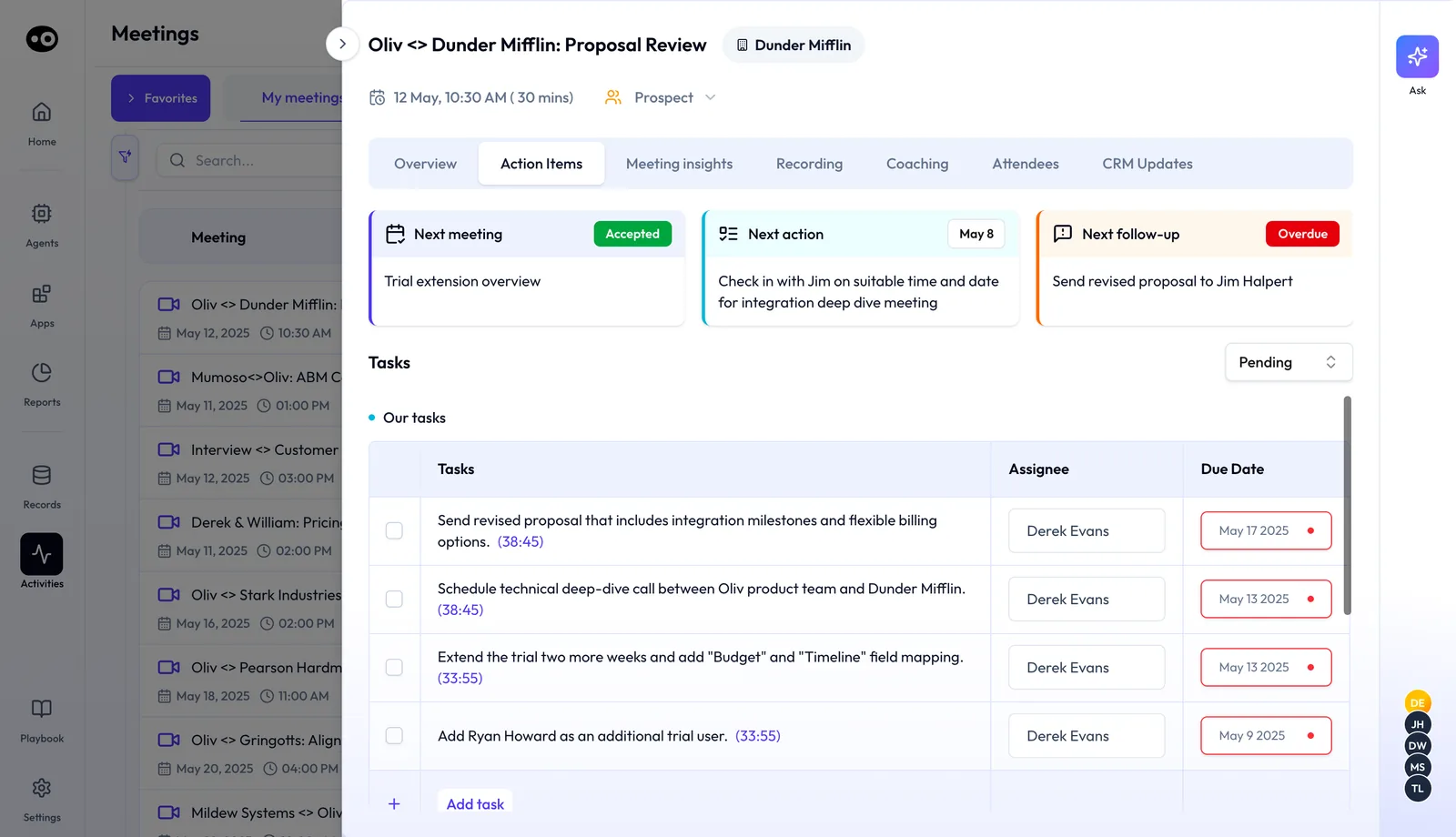
Then work the Tasks table. Check that each task has an Assignee and a Due Date, and click its timestamp if the wording is unclear. Press Add task for anything the next steps mention that the table doesn't, and tick tasks off as they're done. If the list looks short, check the Pending status filter before you assume something is missing.
Meeting insights: qualification evidence
You have to say whether a deal is qualified, and you weren't on the call. Use the chips to jump through Metrics, Economic Buyer, Decision Criteria, Decision Process, Paper Process, Identify Pain, Champion and Additional Fields. Click the timestamp on any evidence card you plan to rely on.
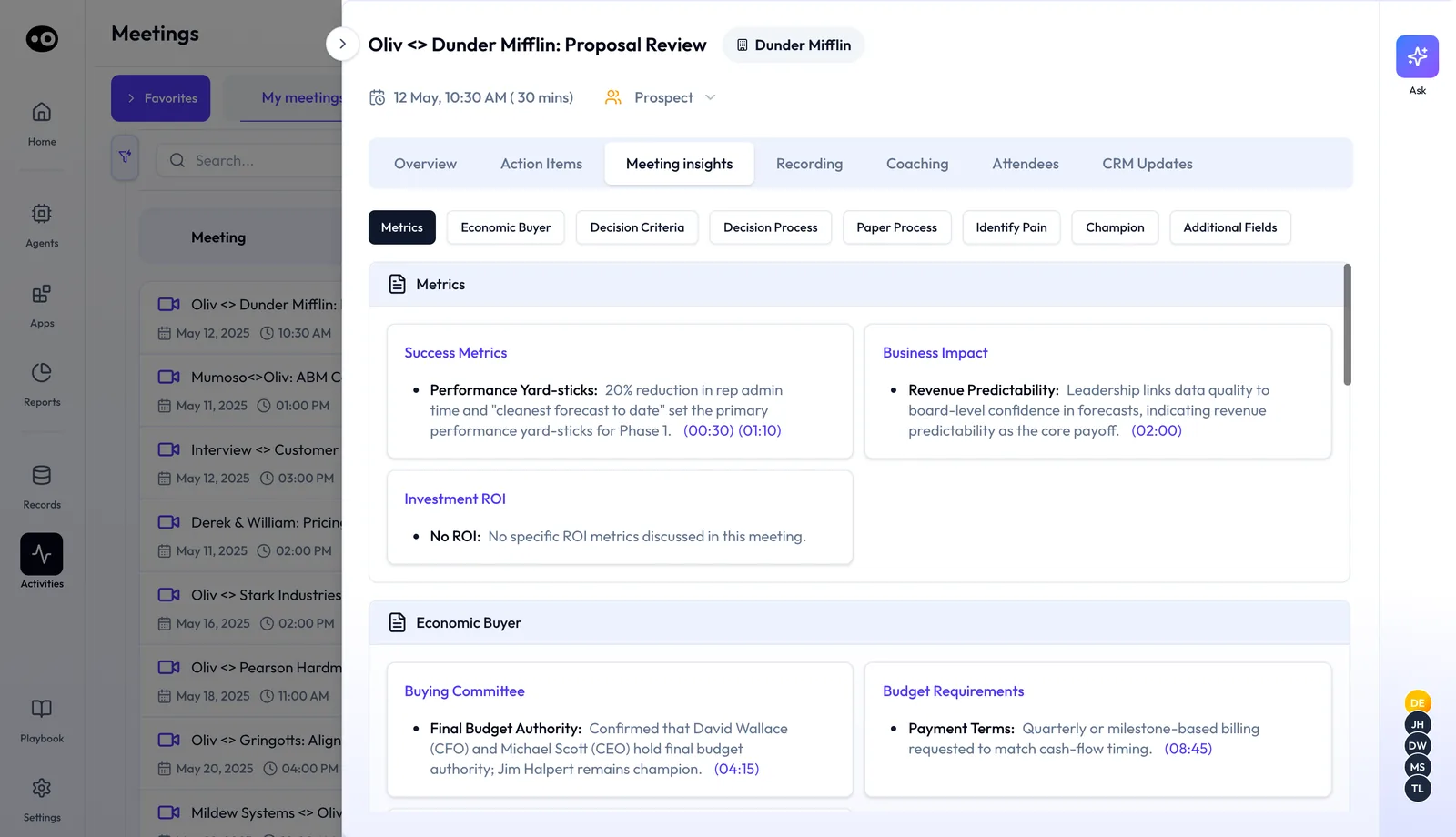
A card that says nothing was said is a gap, not a no, so take it into the next call. If the criteria look unfamiliar, check Settings › Qualification Framework. The tab follows the methodology active there, so a team on another framework sees its own criteria.
Recording: player, chapters and transcript
A buyer's exact words matter, or a summary point doesn't look right. Use Chapters to jump to a section, Transcripts to read along and Comments to see your team's notes. Under the player, Add Comment notes a point in the call, Clip cuts a moment and Share shares the meeting.
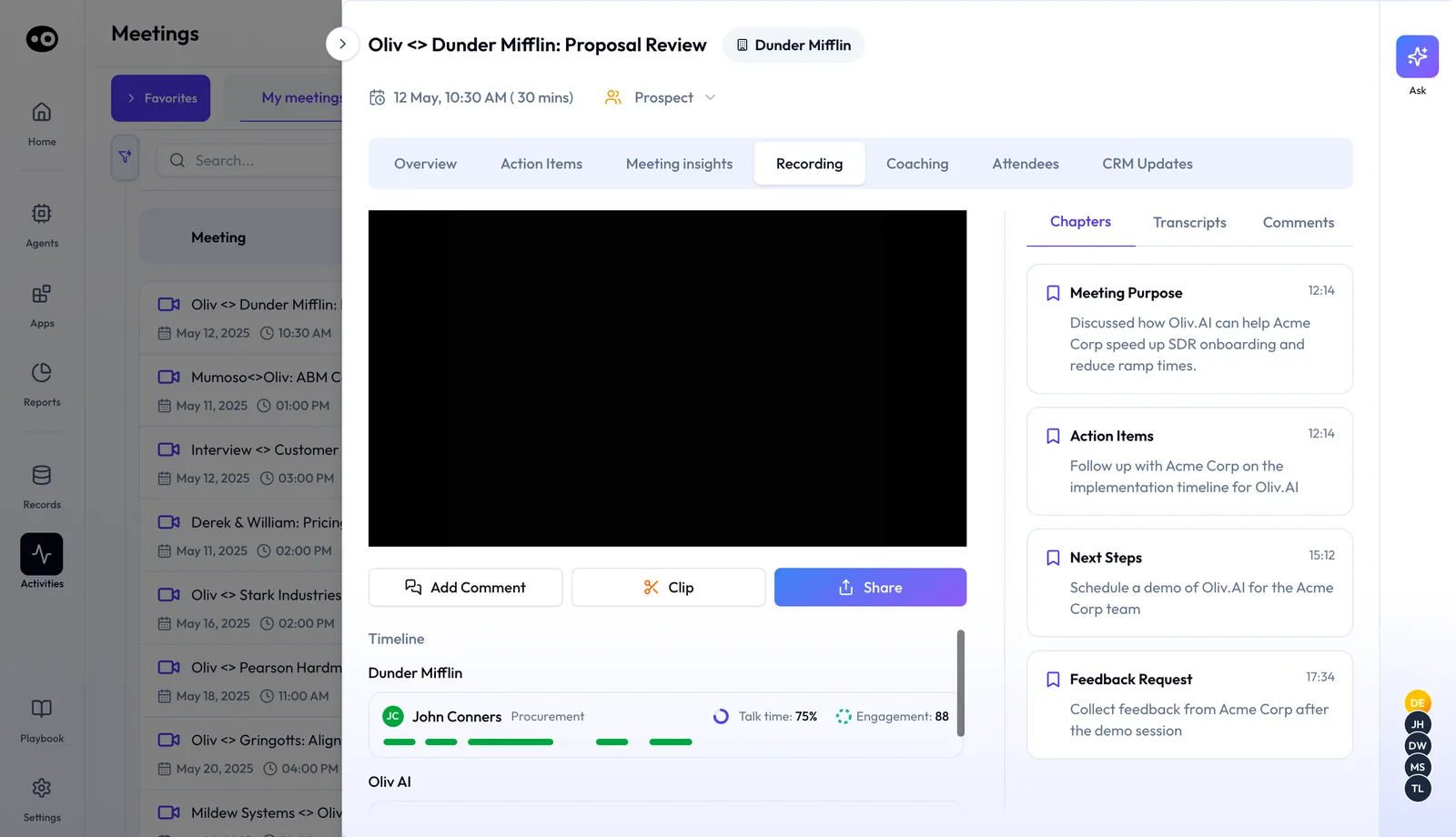
Before you quote someone, check the speaker on the Timeline, which groups people by company. Treat Talk time and Engagement as a prompt to listen to that person, not as a verdict.
Coaching: a grade for the call
You have a 1:1 tomorrow and didn't hear the call. Start with the Summary card, which names one Improvement Required and one Strength. Then pick a skill group, such as Objection Handling or Driving Action, and look at its score out of 5 and its sub-skills.
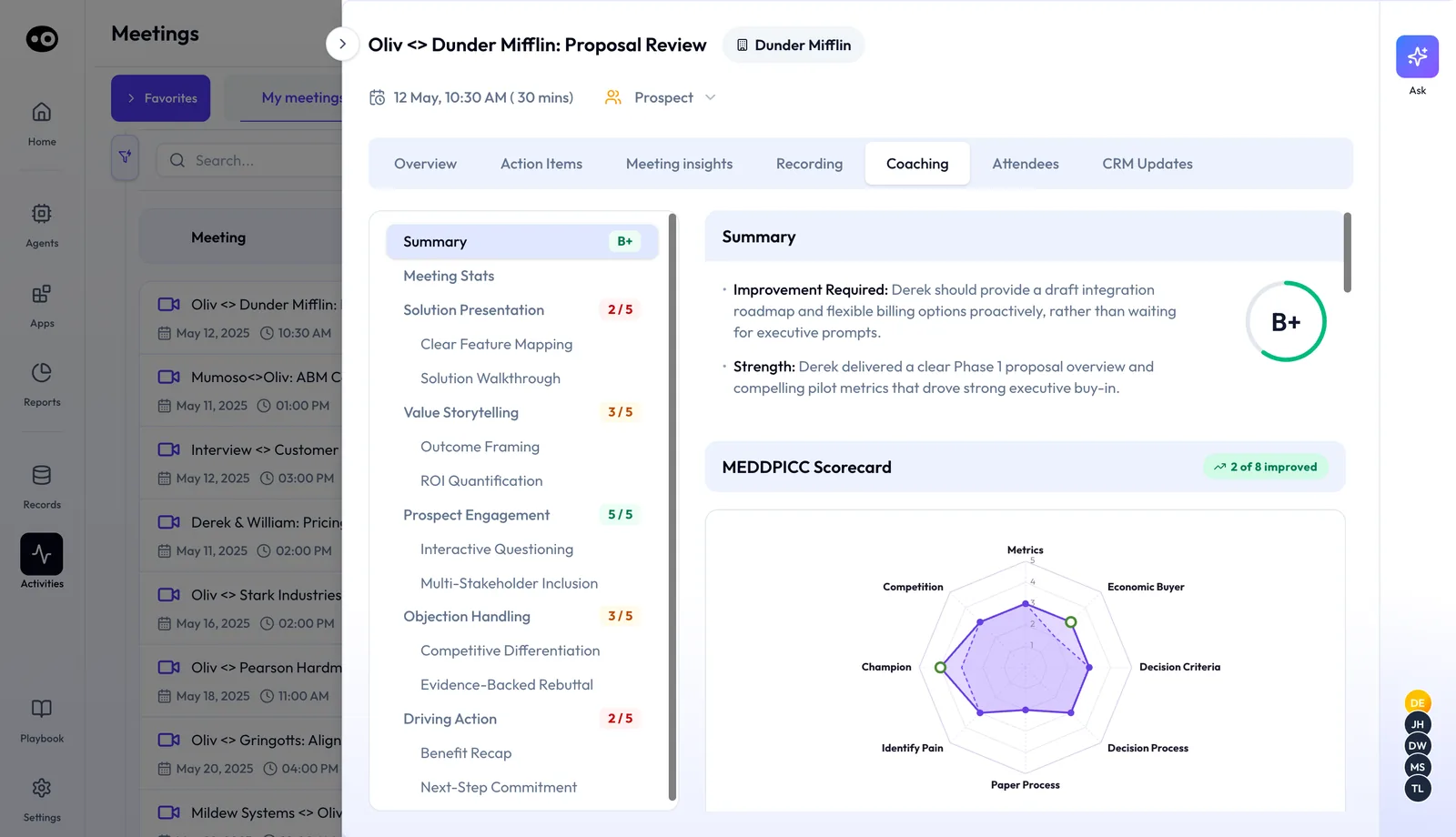
Click the skill and read the evidence before you raise a score with the rep. The scorecard radar shows coverage of each qualification criterion, with a badge counting how many improved. If a score looks wrong, check Settings › Coaching Scorecard, because Oliv AI's Coach agent scores against the scorecards set there.
Attendees: the buying committee
You're meeting this account again and need to know who matters. Look through Buying Committee and Other Contacts, or use the search box. On each card, read the sentiment, such as Ally or Neutral, the Decision Maker tag and the access level, such as In-Depth Access or Limited Access.
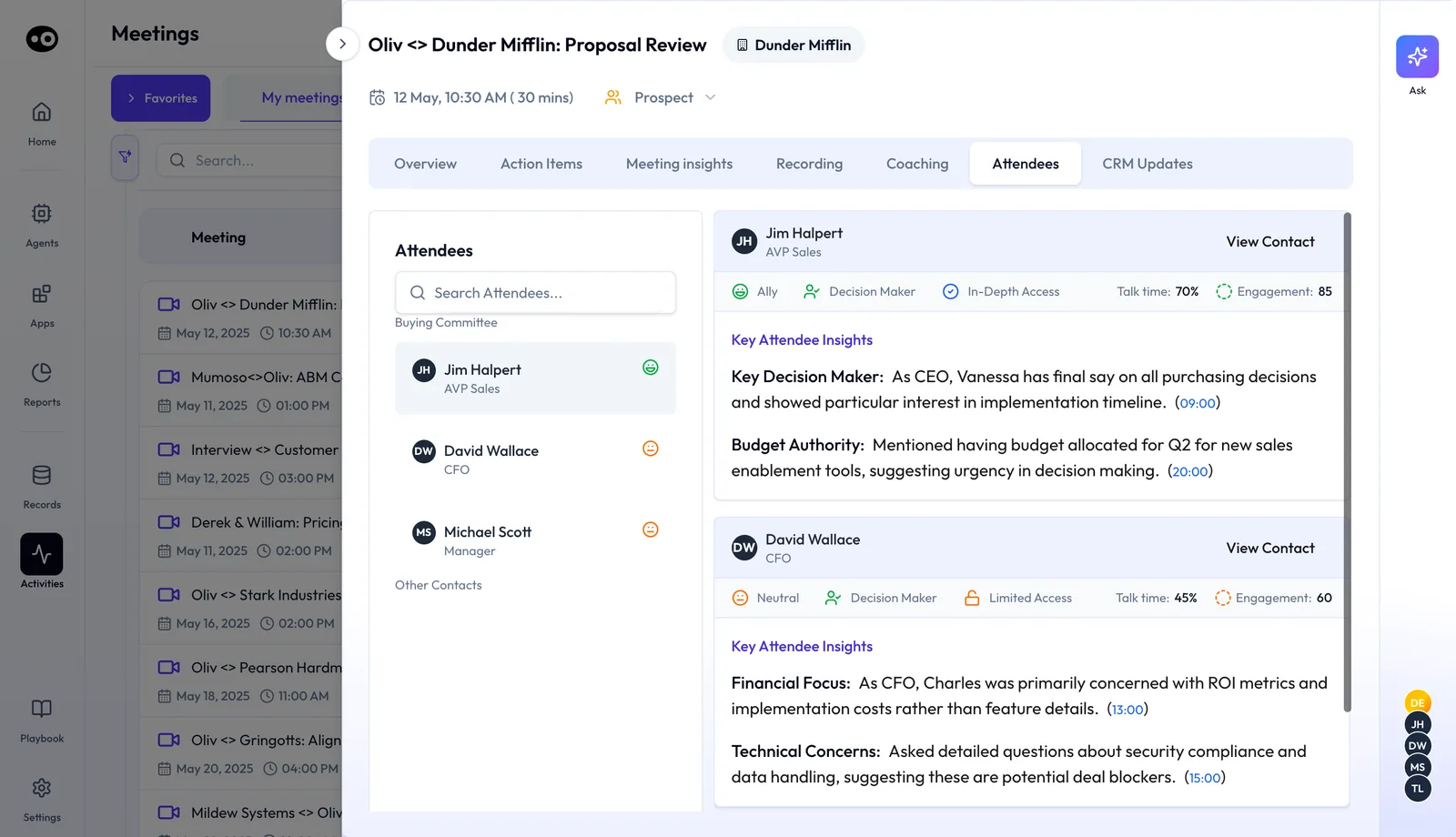
Before you plan around someone, read their Key Attendee Insights and click a timestamp. Low talk time from a decision maker is worth a question on the next call. View Contact opens the person's full contact record.
CRM Updates: what reached the CRM
You're about to rely on this deal's CRM record in a review. Open the timeline of changes made after the meeting. A green check marks a completed change, such as an account summary refresh, a scorecard update or a new contact. A grey clock marks a Pending Update that waits for you, such as a stage move.
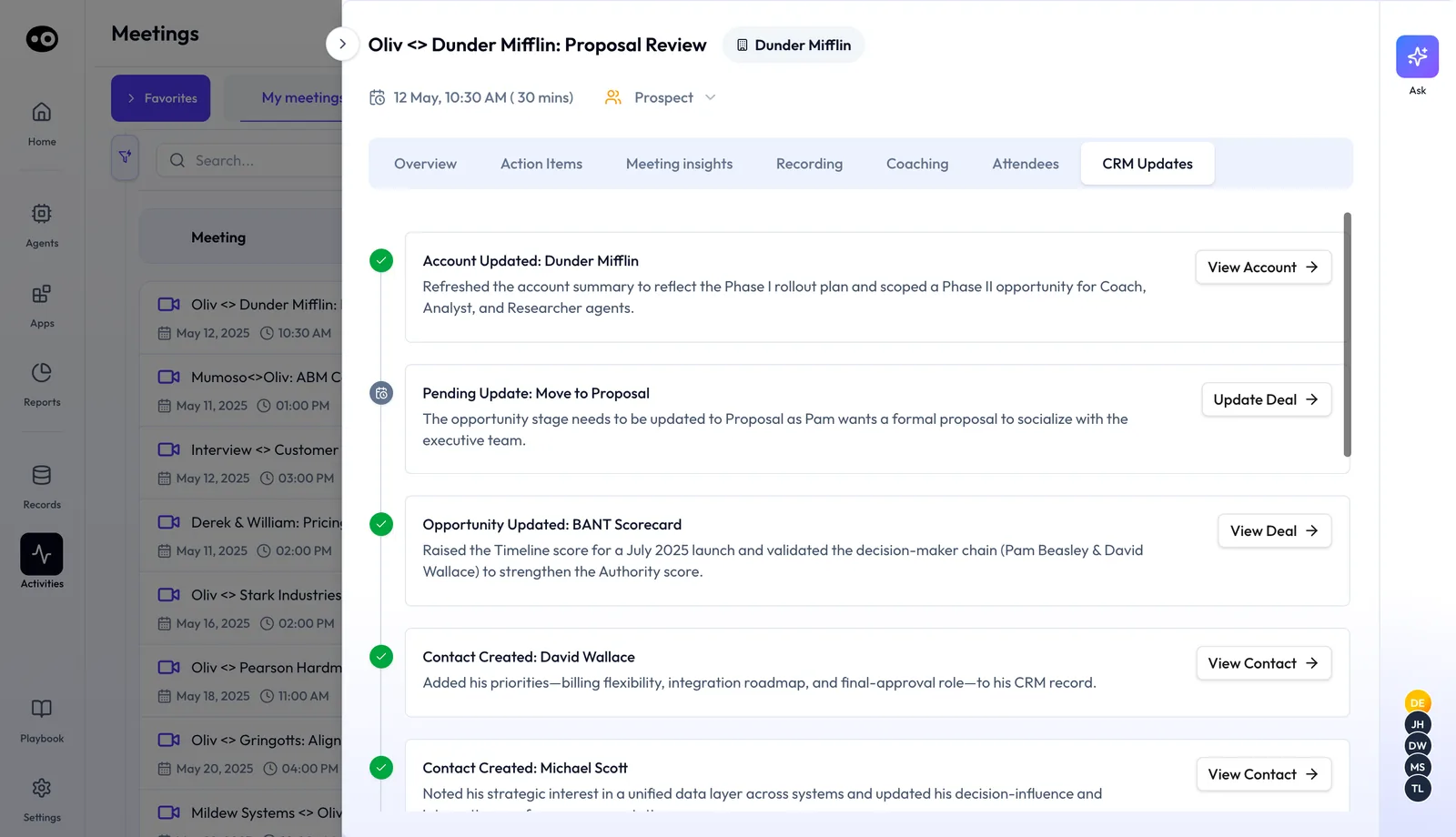
Press Update Deal to act on a pending change. View Account, View Deal and View Contact open the record that changed. The keep the CRM updated guide covers the wider flow.
Don't assume a change has landed until you've checked it. To check from the CRM side, open the record itself. In HubSpot, a property's history shows its Changed to, Date and Source values. In Salesforce, a change to a tracked field adds an entry to the History related list. Connection details are in the HubSpot and Salesforce guides.
Objections and pricing concerns
A buyer pushed back on price, and you want the exact words before the next call. Search the meeting for the objection or pricing concern. If your team uses Oliv AI's Content Curator agent, its Objections moment type and Detect Moments tool also tag these moments. Play the moment before you rely on it, because the words around it may change what it means.
Competitor mentions
A customer says they're looking at another vendor, and you need to know how it came up. Search for the vendor's name, or look for Content Curator's Competitor Mentions moments, which cover mentions and feature by feature comparisons. Listen to the moment first, because a passing name and a real comparison call for different replies.
Product requests and feedback
Your product team asks what customers actually said about a feature. Look for Product Requests moments, the third moment type, and send the clips to a clip library for the team. Check each clip's participants and call date first, so product knows who asked and when.
Sentiment
A buyer seemed cool on the call, and you want to test that impression. Open Attendees and read that person's sentiment, such as Ally or Neutral. Converse reads sentiment and intent instead of matching words, and Content Curator also reads the meeting's sentiment and flow. Play one of the person's timestamped insights before you change your plan.
Voice of the customer
You want to know what customers are saying beyond this one call. Ask AI · Voice of the customer is listed among the customer context features on every plan. For this one meeting, use Ask in the drawer, and check the answer against the transcript before you repeat it.
Ask questions about a meeting
The Ask button sits at the right of the meeting drawer. You can also ask Oliv AI's Olivia agent about a call in plain language. Ask her to draft the follow-up from your call this afternoon, and she pulls from the meeting transcript and drafts it.
Every plan includes asking questions and reviewing conversations, opportunities and accounts.
Share part of a meeting
On the Recording tab, Clip cuts a moment, Add Comment notes a point in the call and Share shares the meeting. To share part of the transcript instead:
- In the transcript, find the minute marker where the moment starts.
- Check the box beside the segment you want to share.
- Copy the selected portion.
- Open it in a new tab. Playback begins from that minute.
To share the whole meeting with someone outside your workspace, use its shared view, which opens by link. To keep a moment for your own team, clip it into a clip library instead. The guide to taking notes during sales calls covers what to capture by hand.
How to measure what one meeting's notes cover
Picture reading a meeting's notes before a 1:1, and needing to say how much of the deal that call pinned down. Two counts answer that for a single meeting.
Qualification coverage
Divide the criteria with evidence by the number of criteria in your framework. Its weak spot is that it counts presence, not quality. A section can hold several cards, as Metrics holds Success Metrics, Business Impact and Investment ROI, so one good card can make a criterion look settled. An early call also won't cover everything, so read the figure against the deal's stage.
Task ownership
Divide the tasks that have both an assignee and a due date by all the tasks from the call. Its weak spot is that it only sees what was written down. A commitment nobody captured won't count against it, so compare the tasks with the next steps in the summary.
Where to read these in Oliv AI
Meeting insights gives you the first count: read each section's cards and note which ones say nothing was said. Action Items gives you the second, because the Tasks table shows the Assignee and Due Date beside each task. On the Coaching tab, the scorecard radar shows coverage of each criterion for the same call.
How to write up a customer meeting by hand
Use this when a meeting wasn't captured, or when you want to test the AI notes against your own. Block the time straight after the call, because the next meeting is what usually breaks this routine.
- Capture the basics. Write down the date, the attendees and the deal the meeting belongs to.
- Replay the key moments. Note each main point with its minute marker, so anyone can find it again.
- List the commitments. Give each one an owner and a due date, on your side and the customer's.
- Go through your framework. Take each qualification criterion in turn and write what was said, or "not discussed".
- Map the people. Note who decides, who is on your side and who barely spoke.
- Update the CRM. Change the stage, amount, close date and next step, and add any new contacts.
- Send the recap. Share your notes and the moments that matter with whoever needs them.
Steps 4 and 6 are the ones most likely to slip when the next call starts. A skipped step 4 is also hard to spot later, because the notes still look complete.
The same job in Oliv AI
Oliv AI does the writing, so your job moves from writing to checking. Each step above maps to one place in the drawer.
| Step by hand | Where it is in Oliv AI | What you still check |
|---|---|---|
| 1. Capture the basics | The drawer header | The account chip names the right account |
| 2. Replay the key moments | Key takeaways and AI Summary on Overview | The timestamp on any point you plan to repeat |
| 3. List the commitments | The Tasks table on Action Items | Each Assignee and Due Date, then Add task for anything missing |
| 4. Go through your framework | Meeting insights | Which cards say nothing was said |
| 5. Map the people | Attendees | Each person's sentiment and Decision Maker tag |
| 6. Update the CRM | CRM Updates | Completed changes, then any Pending Update waiting for Update Deal |
| 7. Send the recap | Clip, Share or a transcript segment | Who receives it, and whether they sit outside your workspace |
Worked example: qualification coverage on one call
A manager opens one meeting's Meeting insights tab before a 1:1. The team uses the seven criteria this page lists, from Metrics to Champion, so Additional Fields stays out of the count. This is an illustrative calculation with sample figures, not an Oliv AI output.
| Criterion | What the card shows | Counts as covered |
|---|---|---|
| Metrics | Evidence with a timestamp | 1 |
| Economic Buyer | Evidence with a timestamp | 1 |
| Decision Criteria | Evidence with a timestamp | 1 |
| Decision Process | Nothing was said | 0 |
| Paper Process | Nothing was said | 0 |
| Identify Pain | Evidence with a timestamp | 1 |
| Champion | Nothing was said | 0 |
| Coverage | 4 with evidence, 3 with nothing said | 4 / 7 = 57% |
The manager can click the four timestamps instead of replaying the call. The three gaps become the rep's questions for the next call:
- Decision Process: "Who else has to approve this, and in what order?"
- Paper Process: "What does your legal or procurement team need before signing?"
- Champion: "Who on your side will push for this when we're not in the room?"
After that call, open the new meeting's Meeting insights tab and count again.
How AI meeting notes work with Oliv AI's agents
Meeting Assistant
You meet Oliv AI's Meeting Assistant agent after a call linked to an active opportunity, when it drafts the follow-up and flags what needs updating in the CRM. Read the draft against Action Items before you send it. If nothing appears, check that the meeting is linked to an active opportunity and was captured by the Oliv Notetaker. The prepare for a meeting guide covers its brief before the next call.
CRM Manager
You meet Oliv AI's CRM Manager agent on the CRM Updates tab and on the opportunity record, where it attaches the AI-generated summary and the full call transcript. It writes the field updates Meeting Assistant proposes, as a layer on top of your CRM. Check that the record holds both the summary and the transcript, then act on anything still pending.
Coach
You meet Oliv AI's Coach agent on the Coaching tab before a 1:1. Use its grade to choose which skill to discuss, then read the evidence before you raise it.
Content Curator
You meet Oliv AI's Content Curator agent as a notification with a link to a clip, after a meeting is completed. Read the short explanation of why the clip was captured. Check its participants, timestamp and call date, and open the recording link before you pass it on.
Gold Digger and Portfolio Manager
You meet these two around renewals and expansion. When Oliv AI's Gold Digger agent spots an expansion signal, it quotes the transcript with a timestamp link, so hear the quote in context before you raise it. When Oliv AI's Portfolio Manager agent flags a risk signal such as a sentiment shift, open the meeting's Attendees tab to see who it concerns.
Who uses AI meeting notes, and how
Customer success managers
A CSM reads the handover call before kickoff, so onboarding starts from what the customer was promised. More on Oliv AI for customer success teams.
Account managers
An account manager checks the last QBR before a renewal conversation, including any competitor the customer mentioned. See Oliv AI for account management.
Account executives
An AE works the Action Items tab before sending the follow-up, so every agreed task has an owner and a date. See how AEs run deals with Oliv AI.
Sales managers and enablement
A manager reads Meeting insights and Coaching before a 1:1. An enablement lead clips a strong objection handle for onboarding. Read about sales enablement software.
How Oliv AI compares for AI meeting notes
Most meeting tools write an AI summary and send notes to the CRM. Oliv AI also turns a plain-language description of a moment into clips that are cut, filed and shared for you. Oliv AI is the only platform in this table that does all three.
AI meeting notes features, from each platform's public documentation:
| Platform | AI summary with next steps | Clips cut from a description you write | Meeting notes written to the CRM record |
|---|---|---|---|
| Oliv AI | Yes | Yes | Yes |
| Gong | Yes (Highlights recap and next steps) | Partly (AI trackers mark matching moments) | Yes (Highlights and Transcript tabs in Salesforce) |
| Avoma | Yes (Key Takeaways with next steps) | Partly (custom categories for notes) | Yes (notes and action items pushed to CRM) |
| Fireflies | Yes (summary and action items) | Partly (AI picks the key moments) | Yes (notes and transcript link in HubSpot) |
| Fathom | Yes (summaries and action items) | Partly (highlight button pressed on the call) | Yes (summaries written to Salesforce) |
Yes: documented and built in. Partly: documented with a limit, shown in brackets. Not in docs: not found in the vendor's public documentation.
Why Oliv AI is the stronger choice for AI meeting notes
- Moments become clips, filed and posted. Content Curator cuts each match into a clip, files it in a library and posts it to a chat channel. Gong's tracker results appear as timestamps in the Points of interest tab. Compare Oliv AI vs Gong. To test this, run one real call and check whether a finished clip reaches your library and channel without anyone cutting it.
- You describe the moment, not the category. You tell Content Curator what belongs in plain language, with no keyword lists. Avoma lets you create custom categories to organize meeting notes. Compare Oliv AI vs Avoma. To test this, describe one moment your team cares about in a sentence, then check whether the matches fit with no keyword setup.
- The full transcript travels with the summary. Oliv AI attaches the AI summary and the full call transcript to the opportunity record. Avoma documents pushing meeting notes, action items, and insights to the CRM. See Gong vs Avoma for where Oliv AI fits. To test this, open the opportunity record after a call and look for both the summary and the full transcript.
Competitor details checked against each vendor's public documentation on 21 October 2026. Features and plans change, so confirm with the vendor before you decide.
Limits and things to know
- Insights follow one framework. Meeting insights and the scorecard radar use the methodology active in Settings › Qualification Framework.
- Some CRM changes wait for you. A Pending Update, such as a stage move, stays pending until someone confirms it with Update Deal.
- Clips live in Enable. The clips route opens the Library tab of the Enable app.
- Transcript sharing starts at a minute marker. A shared segment plays from the minute marker you picked.
- Meeting Assistant needs an active opportunity. Its follow-up and field updates cover meetings linked to an active opportunity in your CRM.
Common questions
What should AI meeting notes include?
For one customer meeting, they should give you the takeaways, the agreed tasks with owners and dates, what was said against your qualification criteria, and what changed in the CRM. Oliv AI splits these across seven tabs, with timestamps back to the recording.
How do I open a meeting's details?
Open Activities › Meetings and click the meeting. Or press Open Meeting in the Slack message Oliv AI sent about it.
What tabs does a meeting have?
Seven: Overview, Action Items, Meeting insights, Recording, Coaching, Attendees and CRM Updates.
When is the summary ready?
The AI summary and next steps are ready as soon as the call ends. The Slack meeting summary is sent immediately after the meeting ends.
Does the transcript show who said what?
Yes. Oliv AI transcribes the conversation and labels every speaker. The Recording tab also shows each speaker's talk time.
Can I check qualification without replaying the call?
Yes. Meeting insights files what was said under each criterion, with timestamps, and says so when a criterion wasn't discussed. Treat that card as a question for the next call, not as the customer's answer.
How do I check an AI summary is right?
Click the blue timestamp beside the point in Key takeaways or the AI Summary, and listen to that moment. Do this before you repeat a point to a customer or a manager.
Can I find a specific objection in a call?
Yes. Search for the exact objection, competitor mention or pricing concern, then clip it into a clip library.
Does Oliv AI detect competitor mentions?
Oliv AI's Content Curator agent has a Competitor Mentions moment type for mentions of competitors or feature by feature comparisons.
Can product teams get feature requests from calls?
Yes. Content Curator's moment types include Product Requests, and clips can go into a library for product.
How do I share part of a call?
Find the minute marker, check the box for the segment and copy it. Opened in a new tab, it plays from that minute.
Can someone outside my workspace see a meeting?
Yes. Each meeting has a shared, link-accessible view for someone opening it outside the workspace.
Do AI meeting notes reach my CRM?
Yes. The AI-generated summary and the full call transcript are attached to the opportunity record. Other changes may wait as a Pending Update until someone presses Update Deal, and the CRM Updates tab shows both kinds.
Can I ask questions about a meeting?
Yes. Use Ask in the drawer, or ask Olivia, for example to draft the follow-up from a call, and she works from the transcript.
Further reading
Related
Updated 3 November 2026: added how meeting notes get made and where each way fails, how to measure one meeting's coverage, the manual write-up, a worked example and further reading.