
Apps Live
Engage app
What Oliv AI's Engage app does for outbound teams, from the multichannel Inbox and signal-driven plays to the power dialer with a call plan for every contact, and how it compares with other sales engagement tools.
On this page
Engage is Oliv AI's sales engagement app. It gathers prospect replies from email, LinkedIn and WhatsApp in one Inbox, runs plays that enrol contacts on a signal or around the clock, and adds a power dialer with a call plan for every contact. Every account in a play carries its ICP fit and the signal behind it, so reps know who to work and why.
At a glance
| What it does | Triages replies, runs plays and flows, ranks accounts and dials contacts |
| Who it's for | SDRs and BDRs, their managers, and anyone who connects with prospects and customers |
| Tabs | Inbox, Dialer, Plays, Flows, Signals, Experiments |
| Included channels | One connected primary mailbox and LinkedIn automation |
| Added channels | Dialer, WhatsApp, Telegram, Instagram and extra mailboxes |
| Where you find it | Apps › Engage in the main navigation |
| How you get it | An add-on to the Converse, Sell or Grow plan |
What the Engage app is
Engage is where your reps prioritize, sequence, multi-thread, call and follow up, with the full account context attached. The product page puts its job plainly: it turns the context your team already creates into a ranked, executable workflow.
That context comes from the same record the rest of Oliv AI uses. Calls, emails, CRM data, Slack and meetings form one account context that Engage and every agent can read. So a rank in Engage can reflect what a buyer said on a call last week, not only what sits in a sequence tool.
Where Engage lives in the product
- Apps › Engage opens the Engage home on the Inbox tab.
- Six tabs run along the top: Inbox, Dialer, Plays, Flows, Signals and Experiments.
- Each play opens on its own detail page, with its own tabs and an Edit Play button.
- Dialer sessions start from a Power Dialer setup page and run in an active-session view.
Engage the add-on
Engage is an add-on, not a plan. You add it to Converse, Sell or Grow for the team members who connect with prospects and customers. Each Engage seat includes one connected primary mailbox and LinkedIn automation. For current prices, see Oliv AI pricing.
Why the Engage app matters
What it's for
Engage is for outbound teams that need to work the right accounts each day, with a reason to reach out. It gives SDRs, BDRs and their managers one workspace for ranking, outreach and calls.
How it helps
- A ranked list with reasons. Every account carries its rank and the reason for it.
- A next move, not only a task. Each account comes with a recommended next step for the rep.
- Context from the whole account. Ranks draw on CRM, calls and Slack, not only activity inside one tool.
- A list that keeps up. The list re-ranks the moment a signal changes.
What happens without it
Signals sit scattered across calls, email, the CRM and meetings. The next step still comes down to rep judgment, and personalization starts with a rep researching and guessing. Activity gets logged, but nothing learns what moves deals forward.
Why buyers care
Sales development leaders care when a rep's book of named accounts grows past what one person can research. Oliv AI's sales development page puts it as 500 named accounts, of which a rep reaches maybe 50. Managers care when they can't tell whether reps are working the right accounts.
The Oliv AI approach to the Engage app
Picture an SDR manager who runs a call block every morning for a team of eight. Each rep carries a few hundred named accounts and two or three outbound plays at once. Before the block starts, the manager wants every rep dialing the accounts that matter this week, with a reason to call each one.
The usual answer is a sequence tool, a dialer and a spreadsheet. Reps spend the first part of the morning researching, and the list they work from may have been sorted days ago. A good part of the call block can go to preparation rather than conversation.
Buyers now leave signals in many places. They show up on calls, in email threads, in CRM updates and in Slack. A list that ranks accounts only from activity inside one tool will miss most of them, and it goes stale as soon as something changes.
Oliv AI ranks every account by ICP fit, engagement and call activity, and shows the reason for each rank. The list re-ranks the moment a signal changes, so the manager sees whether reps are on the right accounts. Oliv AI's Prospector agent writes the outreach, and the dialer puts a tailored call plan beside each contact.
The Engage add-on names its channels on the pricing page: email, LinkedIn, the dialer, and WhatsApp, Telegram or Instagram. Those channels, with the ranked list, are the columns in How Oliv AI compares for sales engagement, below.
What Engage does
The Inbox
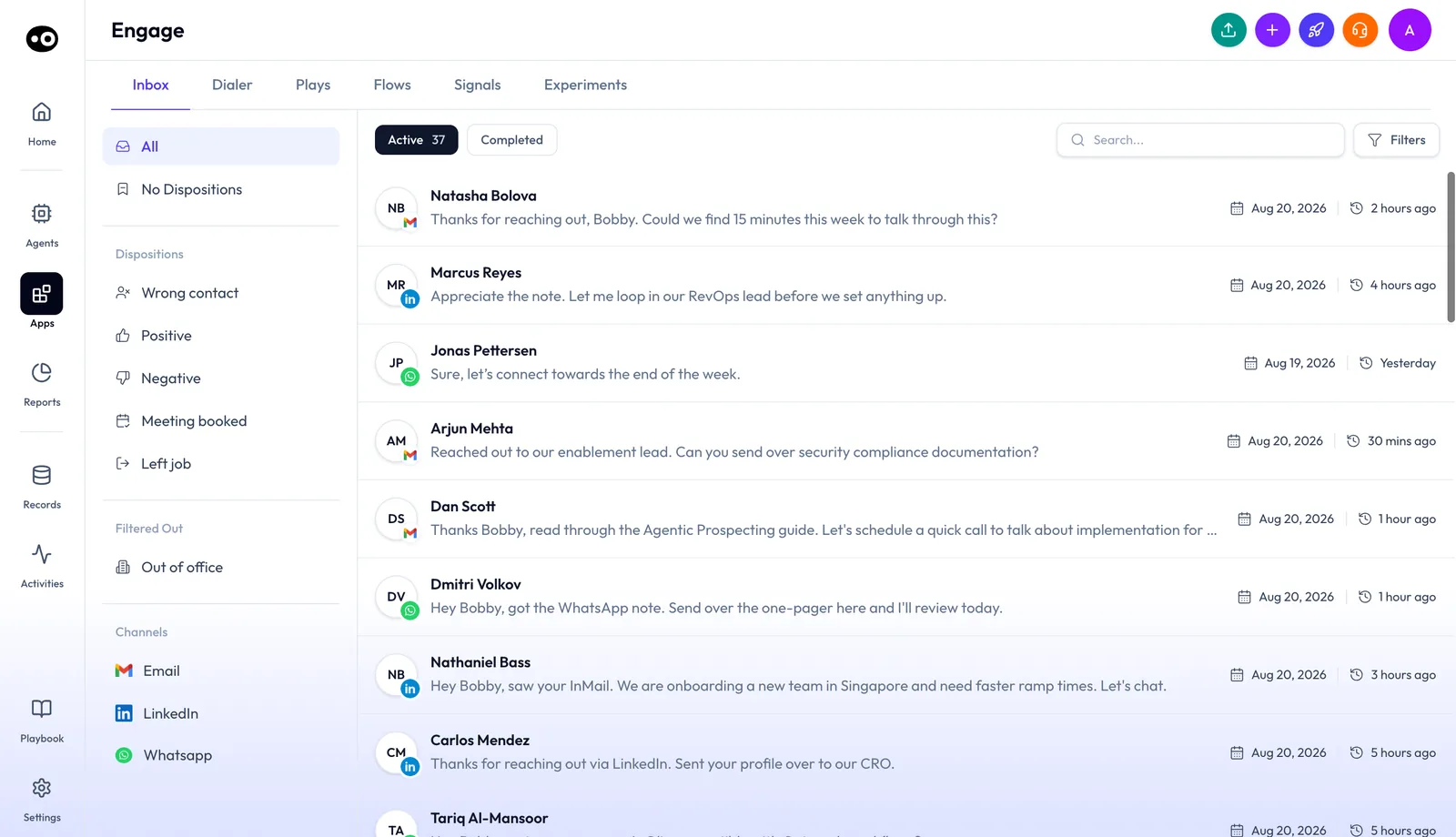
The Inbox collects prospect replies from email, LinkedIn and WhatsApp in one list. Each row shows a channel badge, the sender, a one-line preview and when it arrived.
- Filter the list. Choose All or No Dispositions, one of five dispositions, Out of office, or a channel: Email, LinkedIn or Whatsapp.
- Switch views. Active shows open conversations with a count, and Completed holds finished ones. Search and Filters narrow either view.
- Open a conversation. The thread opens in a drawer, with earlier messages collapsed and the latest reply expanded.
- Label the reply. Select Disposition offers Wrong contact, Positive, Negative, Meeting booked and Left job, the same five the Inbox filters by.
- Act on it. Icon buttons flag, assign, forward or delete the conversation.
- Reply. Reply opens a composer with the recipient and a "Re:" subject filled in from the thread, an attachments row and Send.
Account prioritization
Engage ranks the accounts in each play by what matters now. A play's Companies tab lists every account with its ICP Fit grade and score, its Engagement (High, Medium or Low) and its Point of View: Validated, Contextual, Hypotheses or Generic.
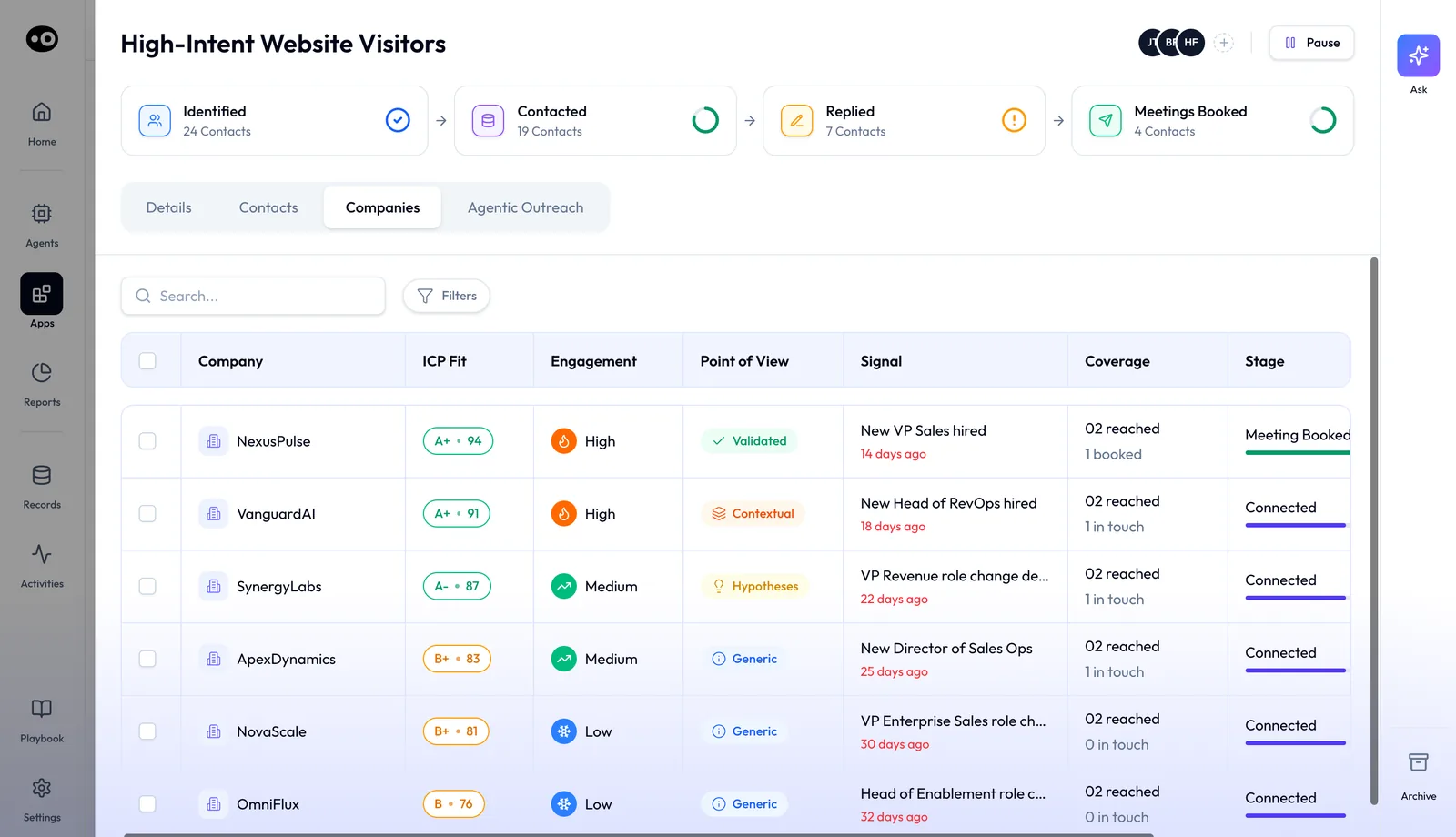
- Ranked by ICP fit, engagement and call activity. The rank uses the whole account, CRM, calls and Slack included.
- The reason, shown. Every account shows why it sits where it does. The Signal column names the trigger and how many days ago it happened.
- Coverage and stage. Each row counts the people reached and booked, and shows a Stage such as Meeting Booked or Connected.
- A recommended next move. Reps get a next step that's ready to act on, not just an assignment.
- A manager view. It flags whether reps are working the right accounts.
- Live re-ranking. The list updates the moment a signal changes.
Plays
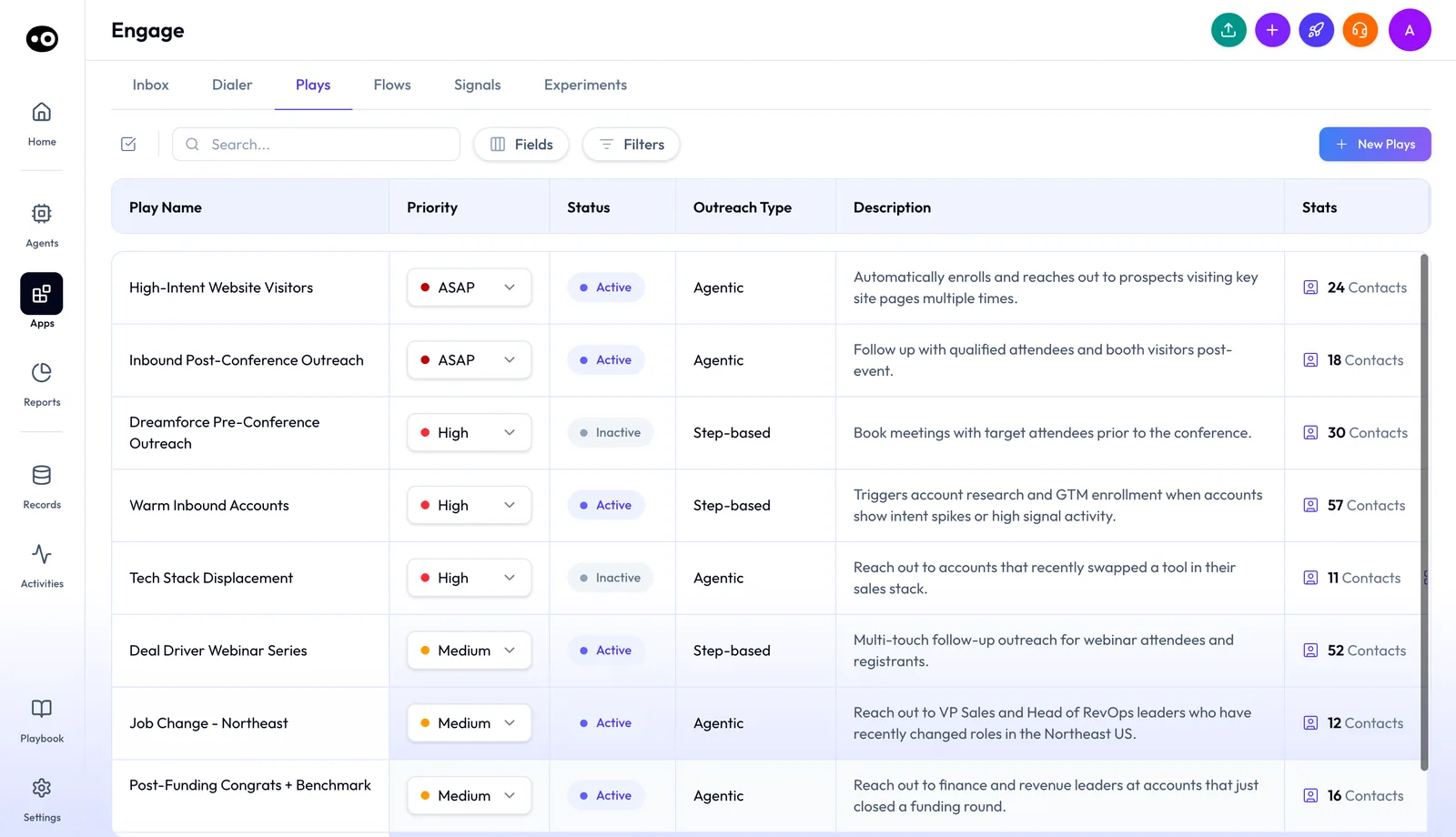
A play finds the right people and enrols them in outreach. The Plays tab lists every play with its Priority, Status (Active or Inactive), Outreach Type (Agentic or Step-based), a description and a contact count. You change a play's priority inline: ASAP, High, Medium or Low.
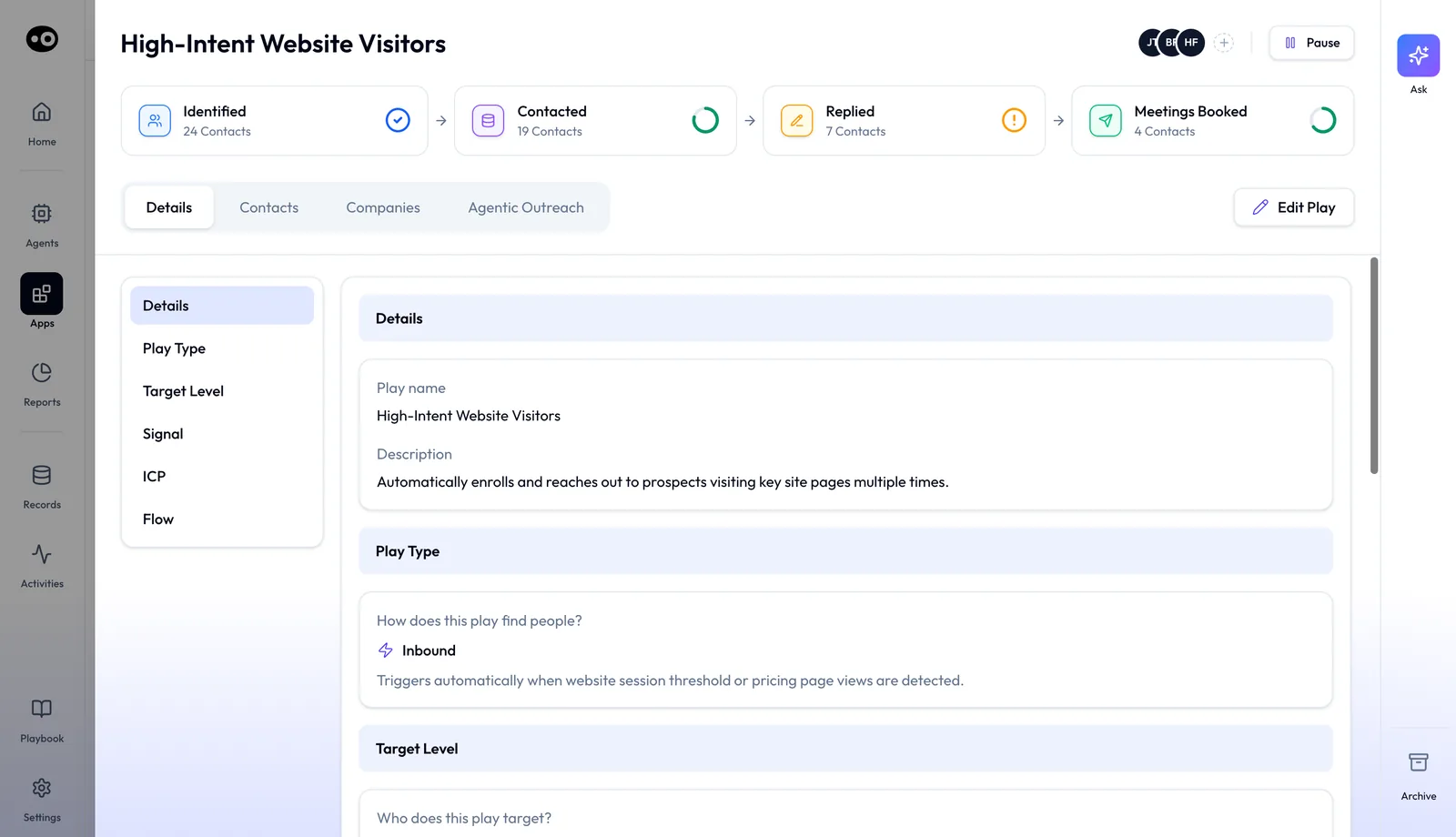
Click a play to open its detail page. Four stage cards track its contacts: Identified, Contacted, Replied and Meetings Booked. The header holds the play's owners, a Pause button, Ask and Archive.
- Details shows the whole set-up in six read-only sections: Details, Play Type, Target Level, Signal, ICP and Flow, including which persona maps to which flow.
- Contacts lists everyone enrolled, with a status from Booked to Not Contacted and a Next Step for each. Chips filter by All, Engaged, Hot and Stalled.
- Companies ranks the play's accounts, as described in Account prioritization, above.
- Agentic Outreach holds the written directives an agentic play follows, from Overview and Week 1 through Post-Call Protocol and Voice & Rules.
Set up a play with Edit Play
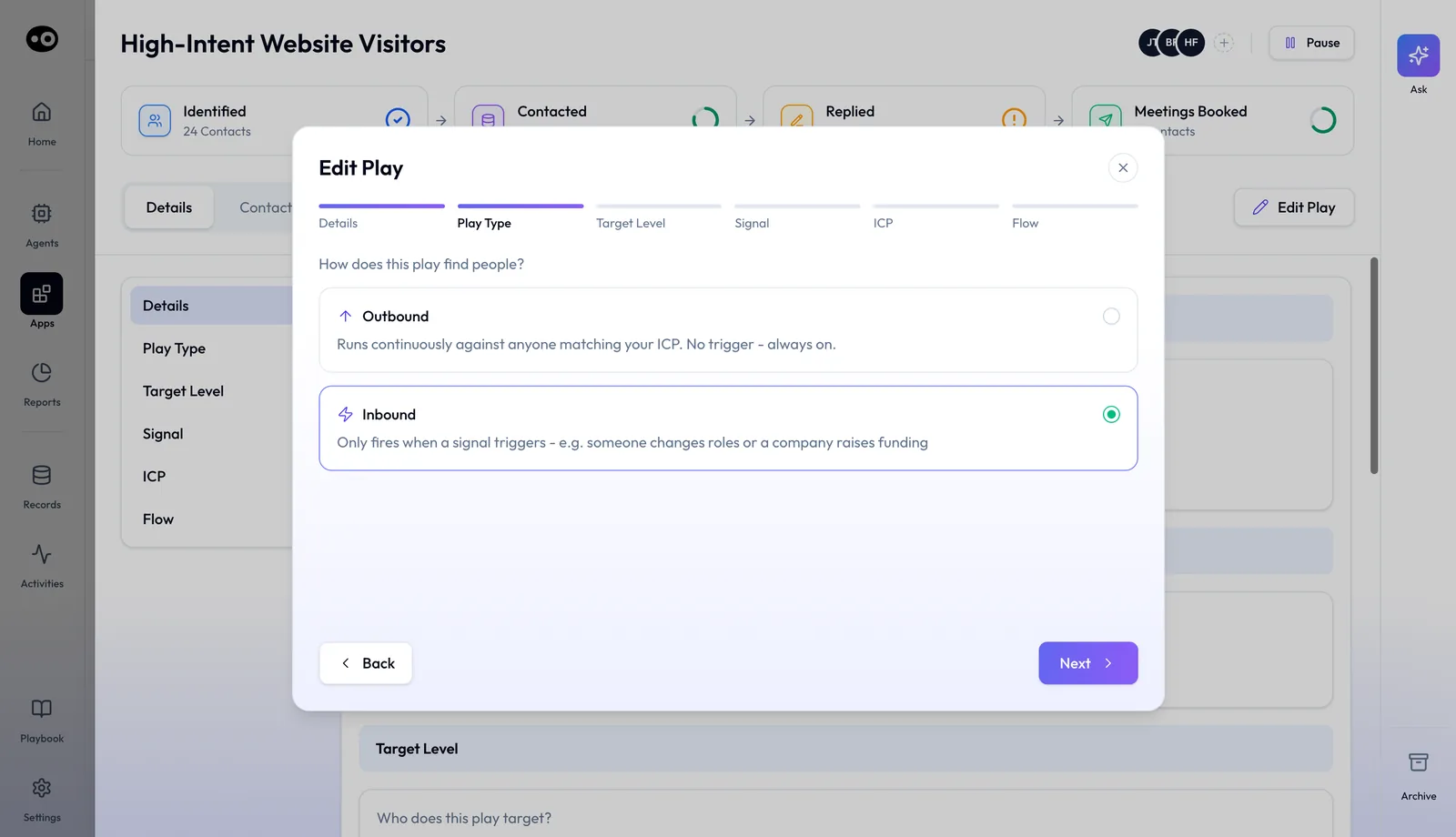
Edit Play opens a six-step wizard with a progress bar across the top.
- Details. Name the play and describe it.
- Play Type. Choose Outbound, which runs continuously against anyone matching your ICP, or Inbound, which only fires when a signal triggers.
- Target Level. Choose Company, where messaging varies by persona and a play can use several flows, or Contact, which targets one person with a single flow.
- Signal. Search the signal library and tick one or more signals.
- ICP. Write the Target ICP in plain language, not structured fields, then add or remove personas.
- Flow. Choose Structured Flow, where you pick a flow, map it to personas and approve each step, or Assign Outreach Agent, where one agent handles every persona from a written Prompt.
Flows, signals and experiments
Three tabs hold the building blocks that plays draw on.
- Flows lists each outreach flow with its Status (Active or Draft), senders, progress, contact counts, Reply Rate and Positive Replies. Add Flow creates a new one.
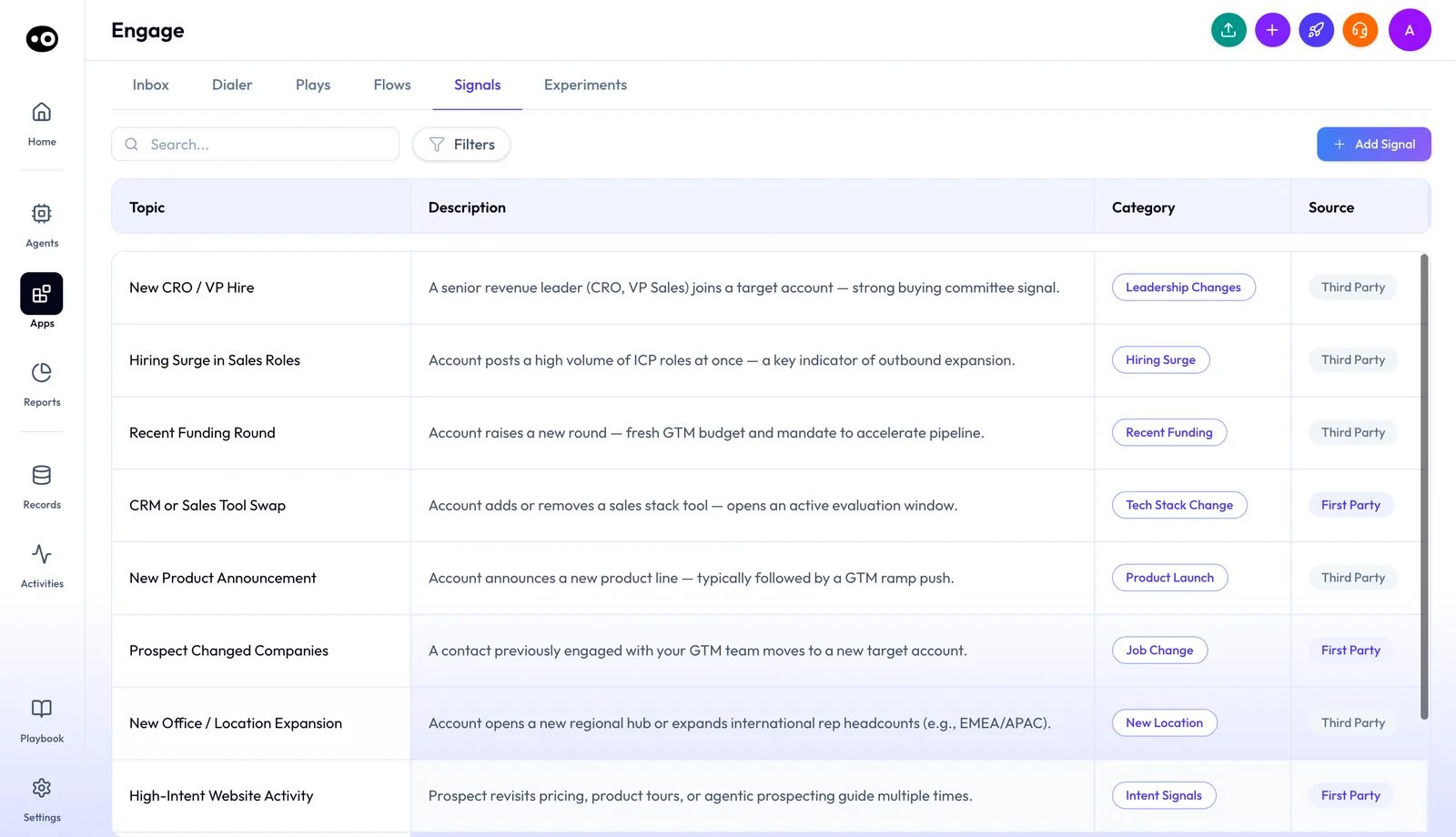
- Signals is the library of buying signals. Each has a topic, a description, a category and a Source of First Party or Third Party. Add Signal creates a custom one.
- Experiments tracks small outreach tests with a status of Running, Promoted or Stopped, a start date, a sample size and early replies and meetings.
Email and LinkedIn outreach
Each Engage seat includes one connected primary mailbox and LinkedIn automation. You manage your sending setup from the same workspace as your sequences and follow-ups. When a team needs more volume, you add more warm email mailboxes. For outreach strategy, see the guide to outbound sales software.
The dialer
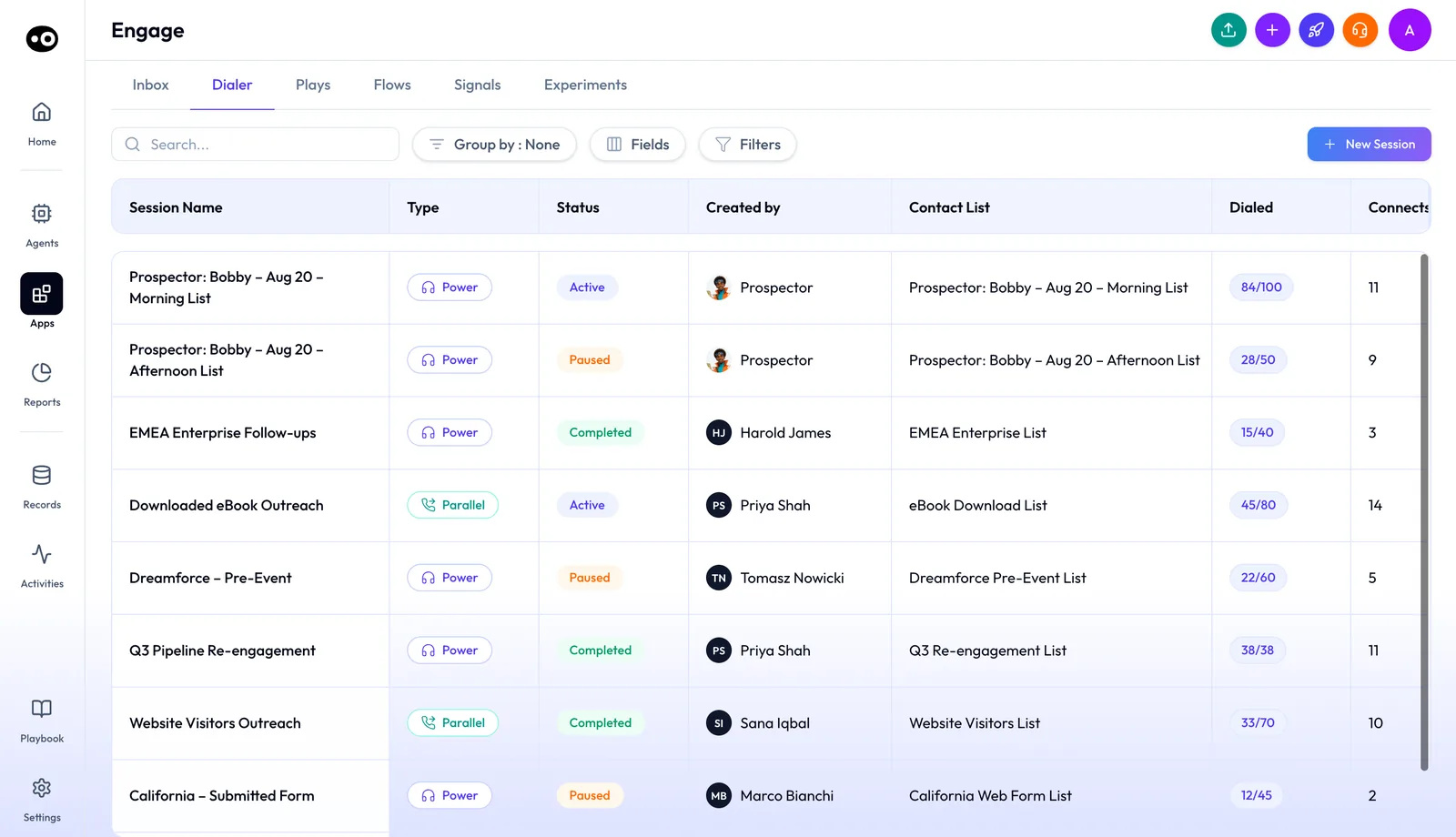
The dialer is an add-on to Engage. It gives a rep one US phone number, with calling minutes to the US and Canada. The Dialer tab lists every session with its type, status, creator, contact list, numbers dialed and connects.
- Start a session. Click New Session. On the Power Dialer page, pick a List, which shows its prospect count, and a Call using number, then click Start a Session.
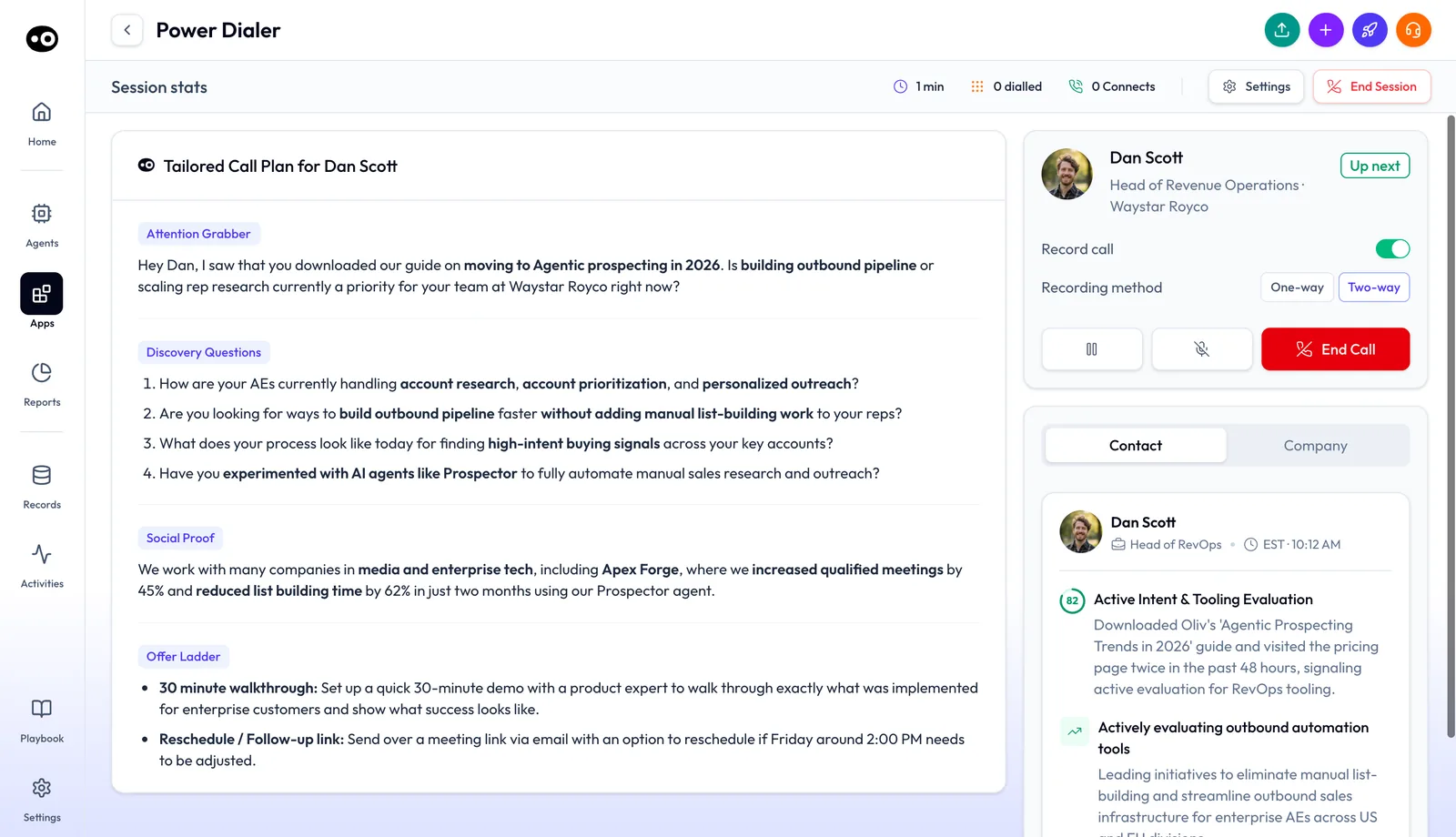
- Prep each call. Each contact comes with a Tailored Call Plan: an Attention Grabber, Discovery Questions, Social Proof and an Offer Ladder.
- Dial. A prep countdown runs on the Up next card, and the dial starts automatically when it ends. Dial now skips the wait.
- Check the context. The Contact tab ranks the person's intent signals with a score. The Company tab shows the account's ICP grade with a one-line reason.
- Run the call. Once connected, the card switches to Record call, a Recording method of One-way or Two-way, pause, mute and End Call.
- Close the session. End Session opens Session Complete, with tiles for dialled, connects, connect rate, average talk, voicemails dropped, DNC hits and bad numbers.
Oliv AI's sales development page describes reps starting a volume session at the parallel dialer, talking rather than waiting between dials.
More channels
You choose WhatsApp, Telegram or Instagram one at a time, and each is added per person. Teams pay only for the channels they use. The Oliv AI pricing page lists each channel.
How Engage works with Oliv AI's agents
Prospector
Oliv AI's Prospector agent gives reps prioritized briefs, a point of view for each account and tailored outreach ready to send. It also builds morning and afternoon dial lists for a rep and creates dial sessions from them. The first email is always reviewed and sent by the rep. Follow-ups after no response are handled automatically by Prospector.
Researcher
Oliv AI's Researcher agent does the digging before every dial. Your BDR opens the contact list with briefs already in place. Before a first meeting, Researcher sends a three-bullet summary of the company, the person and an icebreaker. The prepare for a meeting guide covers research on new contacts.
Quick Qualifier
Oliv AI's Quick Qualifier agent watches for inbound leads from your website. It checks each one against territory and company-size criteria. It then routes qualified leads to the right rep, with a call script written before they pick up the phone.
Olivia
Oliv AI's Olivia agent coordinates tasks across your team. On the Engage page, Olivia builds the day's outreach queue by pulling in Prospector. Each play's detail page also has an Ask button, and the agents' work lands back in the same queue your reps already use.
CRM Manager and Forecaster
Engage reads the same account context as Oliv AI's CRM Manager agent and Oliv AI's Forecaster agent. Outreach and the deals it creates sit on one record. Keeping the CRM updated covers how activity reaches your CRM.
Who uses Engage, and how
SDRs and BDRs
An SDR starts the day in the Inbox, labels each reply with a disposition, then runs a power-dial session with a call plan for every contact. Research and outreach drafts are already done, so the morning goes to calls. More on Oliv AI for sales development teams.
Sales development managers
A manager sets each play's priority, watches its stage cards and checks which experiments to promote. Each account shows its signal and fit, so a coaching conversation starts from the account, not from activity counts. For the call side of coaching, see Oliv AI's Coach agent.
Account executives
An AE uses the same workspace to multi-thread and follow up on deals. For expansion, Prospector watches existing customer conversations and alerts the right rep when a signal surfaces. See how AEs run deals with Oliv AI.
Revenue operations
RevOps defines the ICP and the territory structure, and Prospector runs the build from there. In Engage, that means a plain-language Target ICP and personas in each play, and a shared signal library. The account data comes from your CRM, such as Salesforce or HubSpot.
How Oliv AI compares for sales engagement
Most sales engagement tools sort accounts from data inside their own product. Engage ranks from the whole account and shows the reason for every rank, with LinkedIn automation, a dialer and messaging channels in one workspace. Oliv AI is the only platform in this table that does all four.
Sales engagement features, from each platform's public documentation:
| Platform | Accounts ranked, reason shown | Built-in dialer | LinkedIn automation | WhatsApp, Telegram or Instagram |
|---|---|---|---|---|
| Oliv AI | Yes | Yes | Yes | Yes |
| Gong | Partly (sort by CRM values such as fit score) | Yes (Gong Dialer for calls from Gong) | Partly (LinkedIn steps become to-dos) | Not in docs |
| Outreach | Partly (third-party Buyer Intent Score) | Yes (dialer in the mobile app) | Partly (AI message pasted in by hand) | Not in docs |
| Avoma | Partly (filters to prioritize accounts) | Partly (works with your existing dialer) | Not in docs | Not in docs |
| Fireflies | Not in docs | Partly (dialer integrations) | Not in docs | Not in docs |
Yes: documented and built in. Partly: documented with a limit, shown in brackets. Not in docs: not found in the vendor's public documentation.
Why Oliv AI is the stronger choice for sales engagement
- A reason with every rank. Engage shows why each account sits where it does, using CRM, calls and Slack. Gong's help center describes how to sort by CRM values such as fit score to decide where to focus. Compare Oliv AI vs Gong.
- LinkedIn automation in every seat. Each Engage seat includes LinkedIn automation next to the primary mailbox. Outreach's help center says reps must manually copy and paste the AI-generated message into LinkedIn. Read Gong vs Outreach for how Oliv AI fits that choice.
- A dialer in the same workspace. The Engage dialer gives each rep a US number inside the app, beside the ranked list. Avoma's dialer setup is built to work with your existing dialer. Compare Oliv AI vs Avoma.
Competitor details checked against each vendor's public documentation on 22 October 2026. Features and plans change, so confirm with the vendor before you decide.
Limits and things to know
- Engage is an add-on. It sits on top of the Converse, Sell or Grow plan and is priced separately.
- Calling is its own add-on. The dialer comes with one US phone number and calling minutes to the US and Canada.
- Channels are chosen one by one. WhatsApp, Telegram and Instagram are each added per person.
- One mailbox is included. Extra warm email mailboxes are added separately.
- Reps send the first email. Prospector's first email is always reviewed and sent by the rep.
- A play works at one level. Each play targets either a company or a single contact, and a contact-level play uses a single flow.
- Inbound plays wait for a signal. An Inbound play only fires when one of its signals triggers; an Outbound play runs all the time.
Common questions
What is the Engage app?
Engage is Oliv AI's sales engagement app. It brings replies into one Inbox, runs plays and flows, ranks accounts with a reason for each rank, and adds a power dialer.
Is Engage a plan or an add-on?
An add-on. You add it to Converse, Sell or Grow for each team member who connects with prospects and customers.
What does an Engage seat include?
One connected primary mailbox and LinkedIn automation. The dialer, WhatsApp, Telegram, Instagram and extra mailboxes are added separately.
Which channels does the Inbox show?
Email, LinkedIn and WhatsApp, each marked with a badge on the conversation. You can filter the Inbox by any one channel.
How does Engage rank accounts?
By ICP fit, engagement and call activity, using the whole account, CRM, calls and Slack included. Each account in a play shows its fit grade, engagement and the signal behind it.
Does the list update on its own?
Yes. The list re-ranks the moment a signal changes.
What's the difference between an Outbound and an Inbound play?
An Outbound play runs continuously against anyone matching your ICP. An Inbound play only fires when a signal triggers, such as a role change or a funding round.
Do I approve outreach before it goes out?
With a Structured Flow, yes: you review and approve each step. With Assign Outreach Agent, one agent works every persona from the prompt you write.
Does Engage include a dialer?
The dialer is an add-on to Engage. It comes with one US phone number and calling minutes to the US and Canada, and runs Power and Parallel sessions.
Does Prospector send emails without the rep?
Not the first one. The rep always reviews and sends the first email. Prospector handles follow-ups automatically when there's no response.
Where do I find Engage?
Open Apps › Engage in the main navigation. It opens on the Inbox, with tabs for Dialer, Plays, Flows, Signals and Experiments.
Does Engage replace my CRM?
No. Oliv AI works with your existing CRM. It brings the context together and keeps your systems updated.
Can managers see whether reps work the right accounts?
Yes. A manager view flags whether reps are working the right accounts, and each play's stage cards show how far its contacts have moved.