# Salesforce AI integration: how to connect Oliv AI and control what it writes to your org
How to connect Oliv AI to Salesforce, choose how CRM updates are reviewed, clean up existing data, and see what Oliv AI writes to your org.
- Applies to: Revenue operations and Salesforce admins
- Status: Live
- Verified: 2026-11-03
- Canonical page: https://www.oliv.ai/product-docs/integrations/salesforce/
You're adding AI for Salesforce, so you need to install it, choose how updates are reviewed and see exactly what gets written to your org. Oliv AI connects to Salesforce as a layer on top of your org, and Salesforce stays your system of record. Oliv AI pulls in your accounts, contacts and opportunities, then writes insights from meetings, calls and emails back to them. This page covers the install, the review settings and what changes in Salesforce once the connection is live.
## At a glance {#at-a-glance}
| | |
|---|---|
| **What it does** | Reads Salesforce records and writes conversation insights back to them |
| **Who installs it** | A Salesforce admin, with the package installed for all users |
| **What it writes** | Activities, new accounts and contacts, opportunity fields and contact roles |
| **How updates land** | **Ask First** (review each one) or **Auto-Pilot** (applied without review) |
| **Other CRMs** | [HubSpot](https://www.oliv.ai/product-docs/integrations/hubspot/) and Zoho out of the box, others on request |
| **What it needs** | A calendar connection, so Oliv AI can take notes in meetings |
## What the Salesforce integration is {#what-it-is}
The Salesforce integration fills records from conversations, so reps don't update them by hand. Oliv AI [keeps Salesforce updated](https://www.oliv.ai/product-docs/workflows/keep-the-crm-updated/) rather than replacing it, so your existing reports and dashboards run on current data.
Once connected, the sync covers pipeline, fields, owners, close dates, stages and forecast categories. [Oliv AI's CRM Manager agent](https://www.oliv.ai/product-docs/agents/crm-manager/) does the writing.
### What Oliv AI writes to Salesforce {#what-it-writes}
- **Activities.** Every meeting, call and email is logged against the right account, contact and opportunity, including activity from meetings Oliv AI didn't join.
- **New records.** When an activity involves a company or person not yet in Salesforce, the record is created and enriched.
- **Standard fields.** Close date, deal amount, stage, next steps and last activity date are pre-mapped when you connect, and populate from day one.
- **Methodology fields.** MEDDPICC, MEDDIC, BANT or your own qualification fields stay current from every call.
- **Custom fields.** Any field unique to your process, [mapped by Oliv AI's team during onboarding](https://www.oliv.ai/product-docs/agents/crm-manager/field-mapping/).
- **Contact roles.** Opportunity Contact Roles update from signals across meetings, emails and calls.
## Why the Salesforce integration matters {#why-it-matters}
### What it's for {#what-its-for}
The Salesforce integration is for teams whose records lag behind what customers said. It writes what happened in each call into the records your reports already read.
### How it helps {#how-it-helps}
- **Fields filled from conversations.** Standard, methodology and custom fields update after each activity, without a rep typing them.
- **Records that exist when needed.** A new company or person from a call becomes an account or contact as soon as the activity happens.
- **Cleaner data over time.** Duplicate accounts and contacts are resolved as new activity touches them.
- **A clear before and after.** Each proposed update shows the suggested value beside the current Salesforce value.
### What happens without it {#without-it}
Salesforce reflects what got logged, not what happened. Reps fill fields from memory when they find time, so pipeline reports run on values nobody has touched in weeks. Sales managers then spend 1:1s chasing updates instead of coaching, and customer success managers work from stale account records.
### Why buyers care {#why-buyers-care}
A RevOps lead usually buys it, because RevOps owns data quality and runs the reports. In mid-market teams a VP of Sales or VP of Customer Success often signs off too. Account executives and CSMs benefit without extra work, since their records update after every call.
## The Oliv AI approach to the Salesforce integration {#approach}
{/* 5P */}
Picture a Salesforce admin at a company with three sales pods and a customer success group. Leadership wants Oliv AI connected before the next quarter opens. The org is eight years old, carries duplicate accounts from two old imports, and most qualification fields on open opportunities are blank.
The usual move is a clean-up project before any new tool goes live. Someone exports accounts, merges duplicates by hand and writes validation rules that force reps to fill fields. That probably takes weeks, and the rules tend to need rework each time a field or a sales stage changes.
The blank fields and the duplicates come from the same place. Fields stay empty because nobody types them after a call, and duplicates appear because people create records by hand. A tool that needs a clean org before it starts will be waiting for a long time.
Oliv AI starts from the org as it is. Oliv AI's CRM Manager agent writes to Salesforce after every meeting, call and email, and it resolves duplicates as activity touches them. For the backlog, the admin gives it a direct job. It can find all duplicate accounts from last quarter, or backfill MEDDPICC fields across the pipeline.
Before anything is written, the admin picks how updates land. **Ask First** shows each proposed update beside the current Salesforce value, while **Auto-Pilot** applies updates without review.
## Connect Salesforce {#connect-salesforce}
You need admin access in Salesforce to install the package. Connect a calendar as well, because Oliv AI can't take meeting notes without one.
1. Open the admin install link, `web.oliv.ai/salesforce/connect`.
2. Follow the package install link and select **Install for All Users**.
3. Share your Salesforce URL with Oliv AI's team.
4. In Salesforce, enable the **Assign tasks to multiple objects** feature.
5. Enable the **Advanced notes** feature. Oliv AI's install guide points to Salesforce's enhanced notes for this.
6. Connect your calendar by logging in to `web.oliv.ai` with Gmail or Outlook.
7. In Oliv AI, open **Settings** › **Revenue Process** and press **Import Pipeline from CRM** to pull your existing stages in.
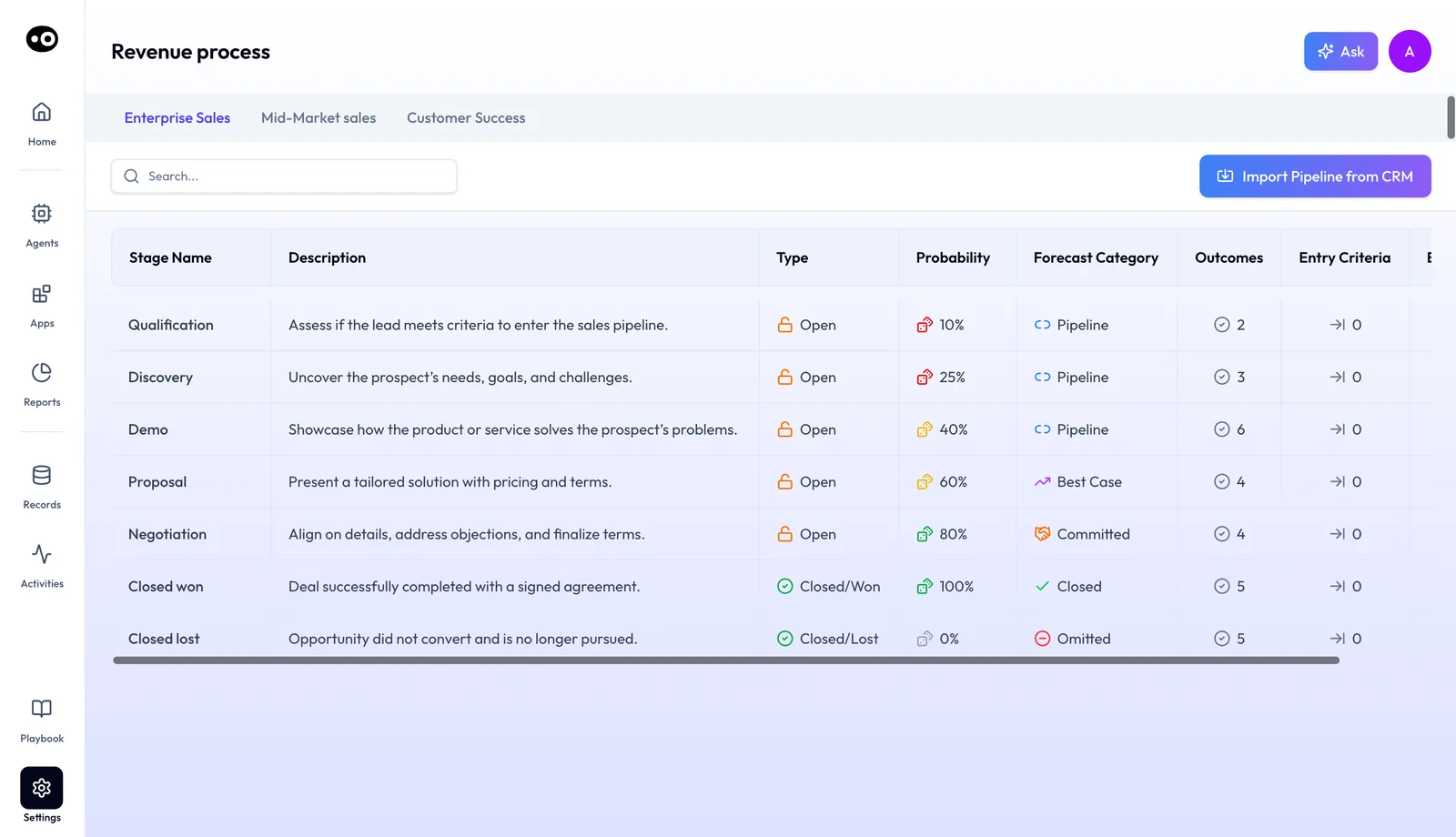
Step 7: Import Pipeline from CRM brings your Salesforce stages into Oliv AI, so each sales motion's stages, probabilities and forecast categories match your org. The stages and percentages shown are sample data.
Standard fields are mapped as soon as the connection is made. Oliv AI's team [configures your custom fields](https://www.oliv.ai/product-docs/agents/crm-manager/field-mapping/) during onboarding as a service, so there's no mapping task for your RevOps team.
### Check these before you press Install {#before-you-install}
Three things are worth checking before step 2, because each one is harder to deal with after go-live.
- **What All Users grants.** Salesforce prompts for [admins only, all users or specific profiles](https://help.salesforce.com/s/articleView?id=xcloud.pkg_subscriber_determine_access.htm&type=5), and its table lists read, create, edit and delete object permissions for all users. Tell whoever reviews access in your org before you select it. The installer also needs the [Download AppExchange Packages permission](https://help.salesforce.com/s/articleView?id=sf.distribution_installing_packages.htm&type=5).
- **Whether step 4 can be undone.** Step 4 may turn on Salesforce's Shared Activities. If it does, [Salesforce says you can't disable it](https://help.salesforce.com/s/articleView?id=sf.activities_shared_considerations.htm&type=5) afterwards, so put it through your usual change process first.
- **Field history on the fields you care about.** Salesforce [starts tracking when you turn it on](https://help.salesforce.com/s/articleView?id=sf.tracking_field_history.htm&type=5) and leaves out earlier changes. Turn it on now for stage, close date, amount and next steps, or you'll have no record of what changed in the first week.
## Choose how updates reach Salesforce {#review-updates}
Oliv AI's CRM Manager agent has two control modes. By default, every suggested update surfaces for review before anything is written to Salesforce.
- **Ask First.** Review each update before it's written to Salesforce.
- **Auto-Pilot.** Unreviewed updates apply automatically, so the pipeline stays current without anyone acting.
After each activity, the rep gets a [notification in Slack](https://www.oliv.ai/product-docs/integrations/slack/) or their preferred channel saying updates were found. On the deal, the **CRM Updates** tab lists each change under **AI Suggestions**: the field, the suggested value and the **Current Value**. They can **Accept** or **Reject** each one. **AI Updates** holds changes already applied, and **Updates History** keeps the record.
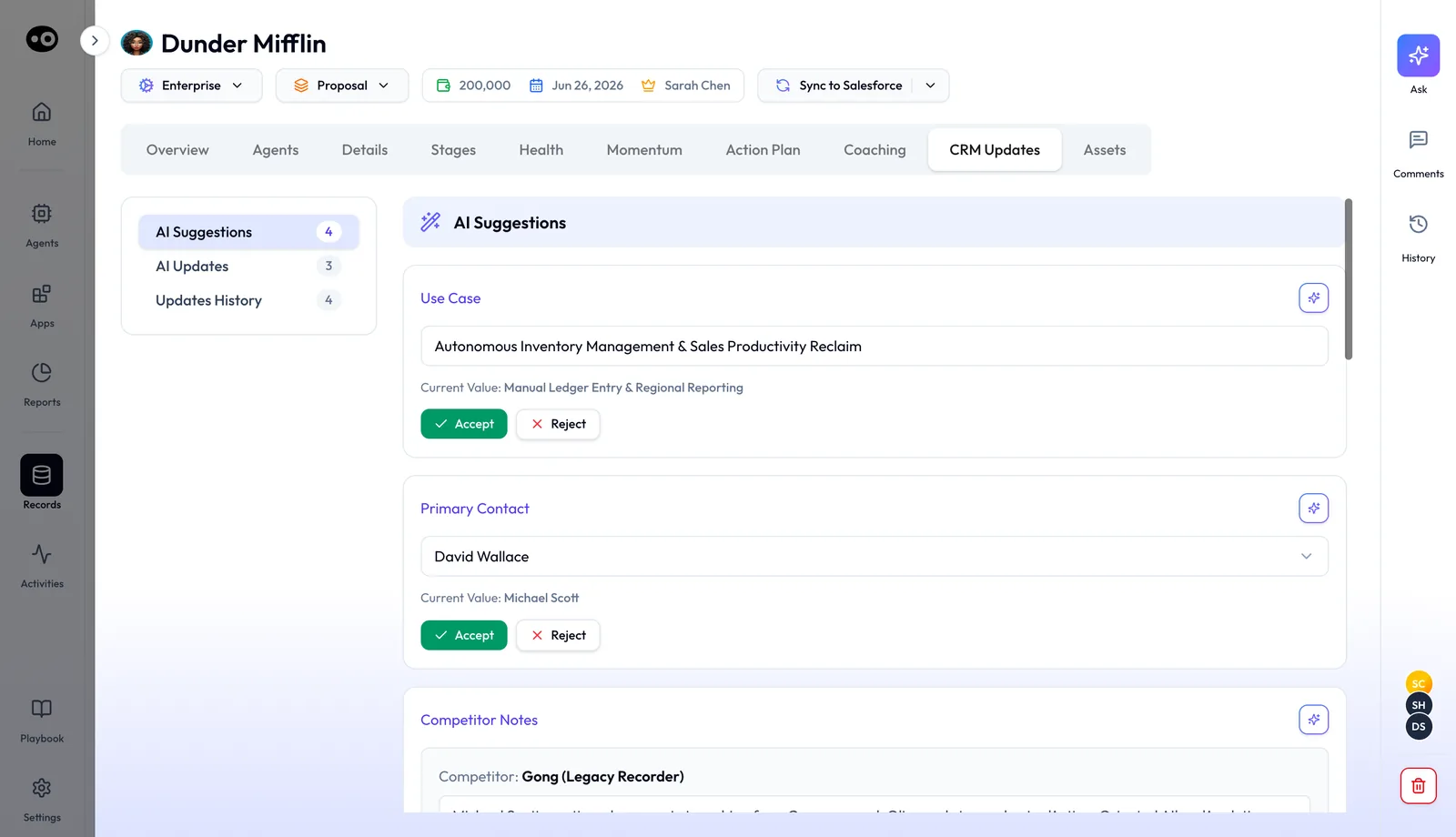
Under Ask First, this is the review step: each suggested Salesforce field change sits beside its current value, and the deal header's Sync to Salesforce button pushes the deal to the CRM. The deal value and contacts are sample data.
Once accuracy thresholds are met, RevOps confirms the switch to **Auto-Pilot**. Until then, reps get end-of-day reminders for unverified deal updates, and managers can see what is waiting from the **AI Suggestions** count on each deal.
Each meeting also has a **CRM Updates** tab. It shows what was written after the call, such as **Account Updated**, **Opportunity Updated** or **Contact Created**, and holds a stage move as a **Pending Update** until someone presses **Update Deal**.
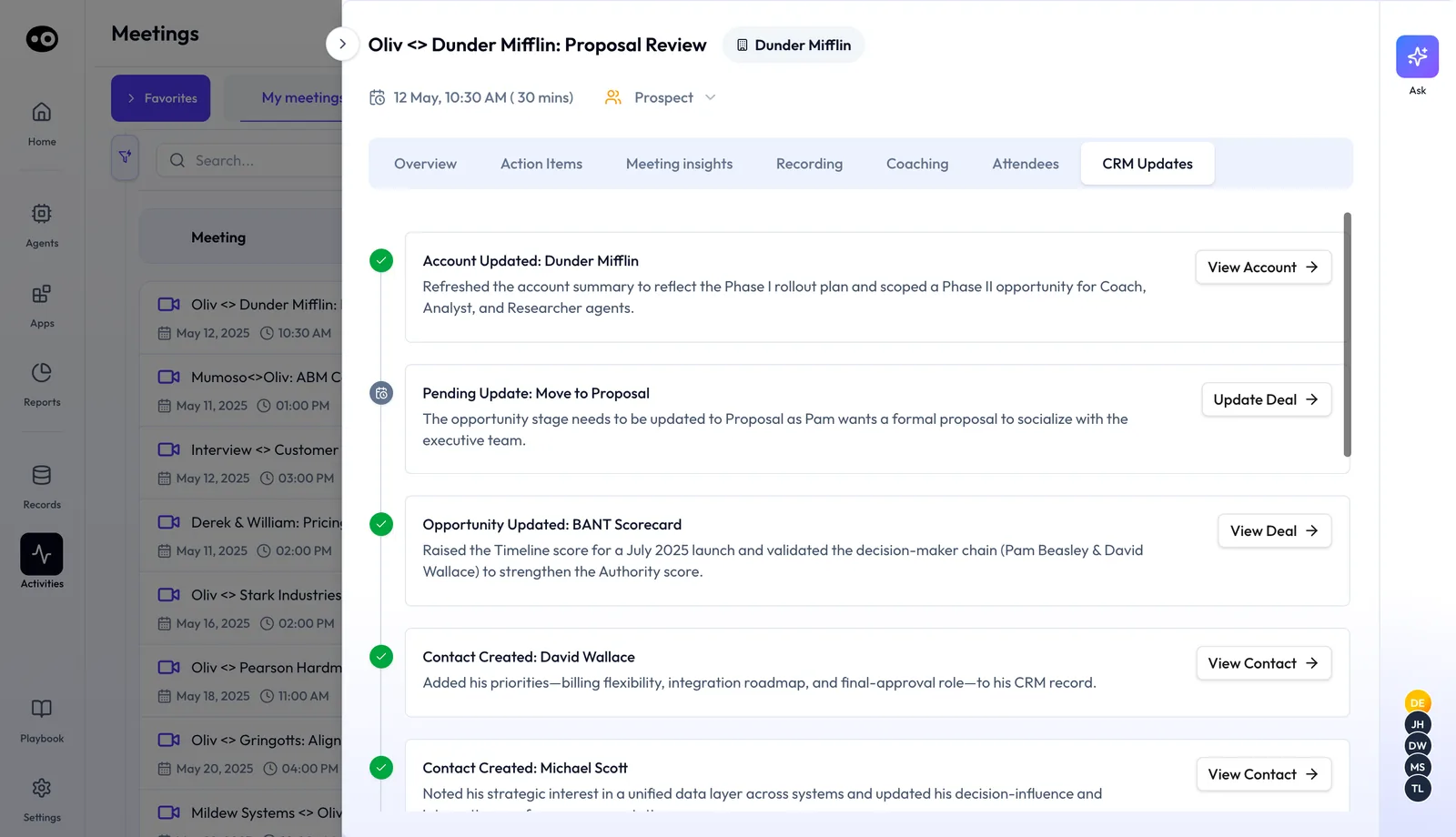
After each call you can check what reached Salesforce: completed writes carry a green check, and a stage move waits as a Pending Update for a person to confirm. The account and dates come from a demo workspace.
### Which review setup to start with {#choose-a-setup}
Start with **Ask First** unless someone has already checked the writes on your own org. It's the default, and it shows you what the agent gets wrong before those values feed your reports. Enterprise teams also have a weekly cadence, which sits between the two modes.
| Setup | What happens to a suggested update | Good fit when | What to watch |
|---|---|---|---|
| **Ask First** | A rep accepts or rejects it before it's written | You're in your first weeks, or the field feeds a forecast | Suggestions pile up if reps skip the review |
| **Weekly review window** | Reps get pending suggestions on Friday morning, and unreviewed ones auto-accept by Sunday night | Your reps prefer to review in one sitting | An unread suggestion still lands |
| **Auto-Pilot** | It applies without review | RevOps has confirmed that accuracy thresholds are met | You find errors afterward, in history and the digest |
Agree one more thing with Oliv AI's team before go-live. If a rep doesn't complete updates within a defined window, deals can be automatically deferred or flagged as closed-lost. That behavior is configurable per org, so decide it on purpose, and tell your reps what you chose.
## Clean up existing Salesforce data {#clean-up}
Real-time mode cleans new data as it arrives. For history, RevOps can give Oliv AI's CRM Manager agent a direct job in plain language:
- "Find all duplicate accounts from last quarter."
- "Rebuild broken account hierarchies."
- "Clean unassigned contacts."
- "Backfill MEDDPICC fields across the pipeline."
Parent and subsidiary account relationships are also maintained as org structures change. Each week the RevOps owner gets a [digest by Slack](https://www.oliv.ai/product-docs/integrations/slack/) or email listing new deals, accounts and contacts, the fields updated and enriched, and the records cleaned or de-duplicated. The RevOps playbook on [autonomous CRM hygiene](https://www.oliv.ai/blog/crm-data-quality-automation-revops) covers the thinking behind this.
## How activity gets matched to the right Salesforce opportunity {#methods}
A correct next step written to the wrong opportunity looks clean in every report, so it's harder to catch than a blank field. There are three common ways to decide where a call or email belongs, and each one fails in a different place.
### A rep picks the record {#match-by-rep}
The rep sets the **Related To** field when logging the activity. This catches what only the rep knows, such as which of two deals a call was really about, but it misses everything nobody logs.
A blank field has a side effect too. With Shared Activities on, Salesforce [bases an account's last activity date](https://help.salesforce.com/s/articleView?id=sf.activities_shared_considerations.htm&type=5) on what rolls up through **Related To**, and falls back to the primary contact's account when the field is empty. So an account can look active while no opportunity shows the call.
### A rule matches by contact or domain {#match-by-rule}
A rule links the activity to an account through the email address or domain, then to an open opportunity. This works when the account has one open opportunity, because there's only one place the activity can go.
It breaks when the account has two or three, since the rule has to guess. It also misses a partner call, or emails from an acquired company when the opportunity lives on the parent. Someone has to update the rules every time the CRM or the business changes.
### An agent reads the conversation {#match-by-context}
An agent reads what was said and who was there, then places the activity the way a seller would. This catches the multi-opportunity account, the partner call and the acquisition that rules miss. It can still get a case wrong, so you need a person checking a sample and a route for cases it can't settle.
### Which of these Oliv AI uses {#match-oliv}
Oliv AI's CRM Manager agent uses the third way. It matches each activity to an account and opportunity by reading full context rather than rules, including when one account has several opportunities. If it can't resolve a match, it asks the seller, so a rep's judgment stays as the fallback.
## How to measure whether Salesforce updates are safe to leave unreviewed {#measure-review}
Before RevOps confirms a move to **Auto-Pilot**, you want evidence from your own org. Two measures are enough, and each one covers the other's weak spot.
### Acceptance rate {#acceptance-rate}
Divide accepted suggestions by all the suggestions reps reviewed. This tells you how often reps agree with the agent, and a falling rate is an early warning.
Its weak spot is that a rep can accept everything without reading it. Nielsen Norman Group's guidance on confirmation dialogs warns that [people stop paying attention](https://www.nngroup.com/articles/confirmation-dialog/) when they're asked to confirm too often. So treat a very high rate for one rep as a reason to check that rep's deals, not as proof of accuracy.
### Correction rate on a spot-check {#correction-rate}
Take a sample of updates already written, and count the ones a person would change: wrong deal, wrong value or wrong field. Divide by the number you checked. This shows real errors, including any a rep waved through.
Its weak spot is the sample. If you only check accounts with one open opportunity, the rate will flatter the tool, so the worked example below shows where to look first.
### Where Oliv AI shows these {#where-measures-show}
The weekly governance digest gives RevOps and managers the suggestions made, fields updated, reverts, acceptance rate by rep and flags requiring review. On a deal, **Updates History** shows how each field has changed. You work out the correction rate yourself from your spot-check, using Salesforce's history as a second record that doesn't depend on Oliv AI.
## How to check what an AI tool writes to Salesforce by hand {#check-by-hand}
You can run this audit with Salesforce reports and field history alone. It works for any tool that writes to your org, and it gives you a baseline to compare against.
1. **Turn on field history.** In Setup, open [Field History Tracking](https://help.salesforce.com/s/articleView?id=sf.tracking_field_history_for_standard_objects.htm&type=5), pick the object and select the fields you care about. Accounts can track 20 fields at most.
2. **Count open opportunities per account.** Run a report that groups open opportunities by account. Separate the accounts with one from the accounts with two or more.
3. **Pull last week's activities on the multi-opportunity accounts.** Read each subject, and check that **Related To** names the deal that was actually discussed.
4. **Read the history on those deals.** The [History related list](https://help.salesforce.com/s/articleView?id=sf.tracking_field_history.htm&type=5) gives the date, the time, the change and who made it. Long text fields record only that an edit happened, so read those on the record itself.
5. **Log each error.** Note whether it's a wrong deal, a wrong value or a wrong field, then divide by the number of records you checked.
6. **Repeat each week and compare.** If the rate is falling, widen the check to single-opportunity accounts. If it isn't, keep updates under review.
### The same job in Oliv AI {#same-job}
Oliv AI's CRM Manager agent shows its work on the record, so steps 3 and 4 get shorter. Open a meeting's **CRM Updates** tab to see what was written after that call, and which stage move still waits as a **Pending Update**. Open a deal's **CRM Updates** tab for its **AI Suggestions**, **AI Updates** and **Updates History**.
The weekly digest gives you the tally of suggestions and the acceptance rate by rep, and the spot-check itself stays with you. Keep Salesforce's field history on as well, because it's your org's own record of each change.
### Worked example: where to spot-check first {#worked-example}
A RevOps lead counts 200 accounts and sorts them by how many open opportunities each one has. This is an illustrative calculation with sample figures, not an Oliv AI output.
| Open opportunities per account | Accounts | Opportunities |
|---|---|---|
| One | 150 | 150 × 1 = 150 |
| Two | 40 | 40 × 2 = 80 |
| Three | 10 | 10 × 3 = 30 |
| **Total** | **200** | **260** |
| **Two or three, so activity needs matching** | 40 + 10 = **50** | 80 + 30 = **110** |
| **Share of the total** | 50 / 200 = **25%** | 110 / 260 = **42%** |
So 25% of accounts and 42% of opportunities need activity matched to the right deal, and those are what the RevOps lead spot-checks first. On the other 150 accounts, an activity has only one open deal to land on, so a quick check is enough.
## How the Salesforce integration works with agents {#works-with}
### CRM Manager {#with-crm-manager}
Oliv AI's CRM Manager agent writes every update to Salesforce, so all changes flow into your existing workflows, reports and dashboards. More on what it does on the [CRM Manager page](https://www.oliv.ai/product-docs/agents/crm-manager/).
### Meeting Assistant {#with-meeting-assistant}
[Oliv AI's Meeting Assistant agent](https://www.oliv.ai/product-docs/agents/meeting-assistant/) [proposes field updates from every call](https://www.oliv.ai/product-docs/workflows/record-and-follow-up/). The CRM Manager agent reviews the same call context and pushes the approved changes to Salesforce.
### Deal Driver and Forecaster {#with-deal-and-forecast}
[Oliv AI's Deal Driver agent](https://www.oliv.ai/product-docs/agents/deal-driver/) reads Salesforce field values and stage history for [pipeline review](https://www.oliv.ai/product-docs/workflows/run-a-pipeline-review/) and risk flags. [Oliv AI's Forecaster agent](https://www.oliv.ai/product-docs/agents/forecaster/) uses stage, close date and amount, and can sync forecast category and adjusted values back to Salesforce if you configure it.
### Olivia and Oliver {#with-super-agents}
[Oliv AI's Olivia agent](https://www.oliv.ai/product-docs/agents/olivia/) reads what's already in Salesforce, messy data included, when she answers questions or preps a meeting. [Oliv AI's Oliver agent](https://www.oliv.ai/product-docs/agents/oliver/) connects to Salesforce for schema alignment, so agents follow your stages and fields.
### Agents you build {#with-custom-agents}
When you add tools to an agent, the **Add Tool** catalogue opens on Salesforce. It offers 34 tools in six groups: **Lookup / Search**, **Create / Update**, **Associations**, **Activities**, **Pipeline / Forecast** and **Utility**. They range from **Find Opportunity** and **Log Call** to **Get Forecast Snapshot** and **Merge Duplicates**. The approval choice for each action is covered in [agent tools and run modes](https://www.oliv.ai/product-docs/agents/builder/tools-and-run-modes/).
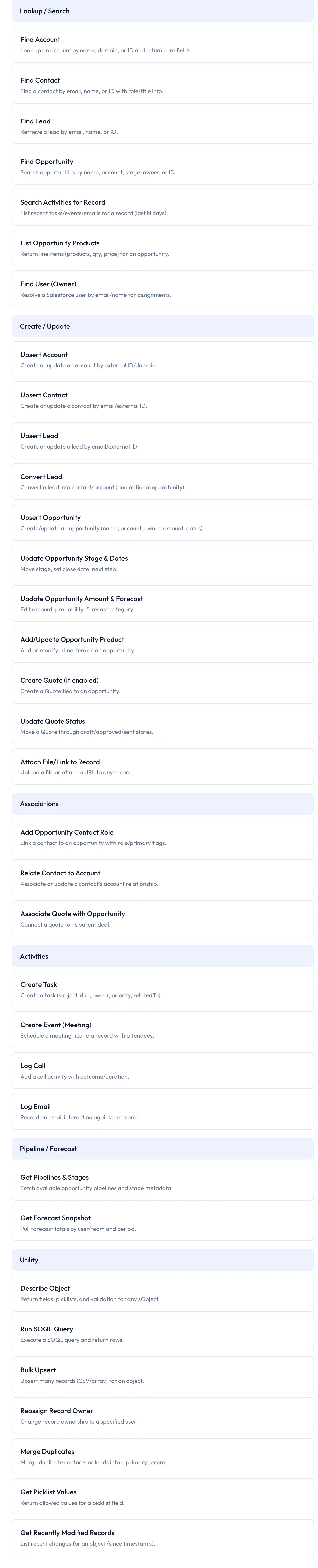
Every Salesforce action an agent you build can take. Write tools such as Bulk Upsert and Merge Duplicates sit beside read tools, so set each one's run mode.
An agent's **Data** tab lists the Salesforce field sets it reads, **Deals**, **Contacts**, **Accounts** and **Leads**, with a description of each field.
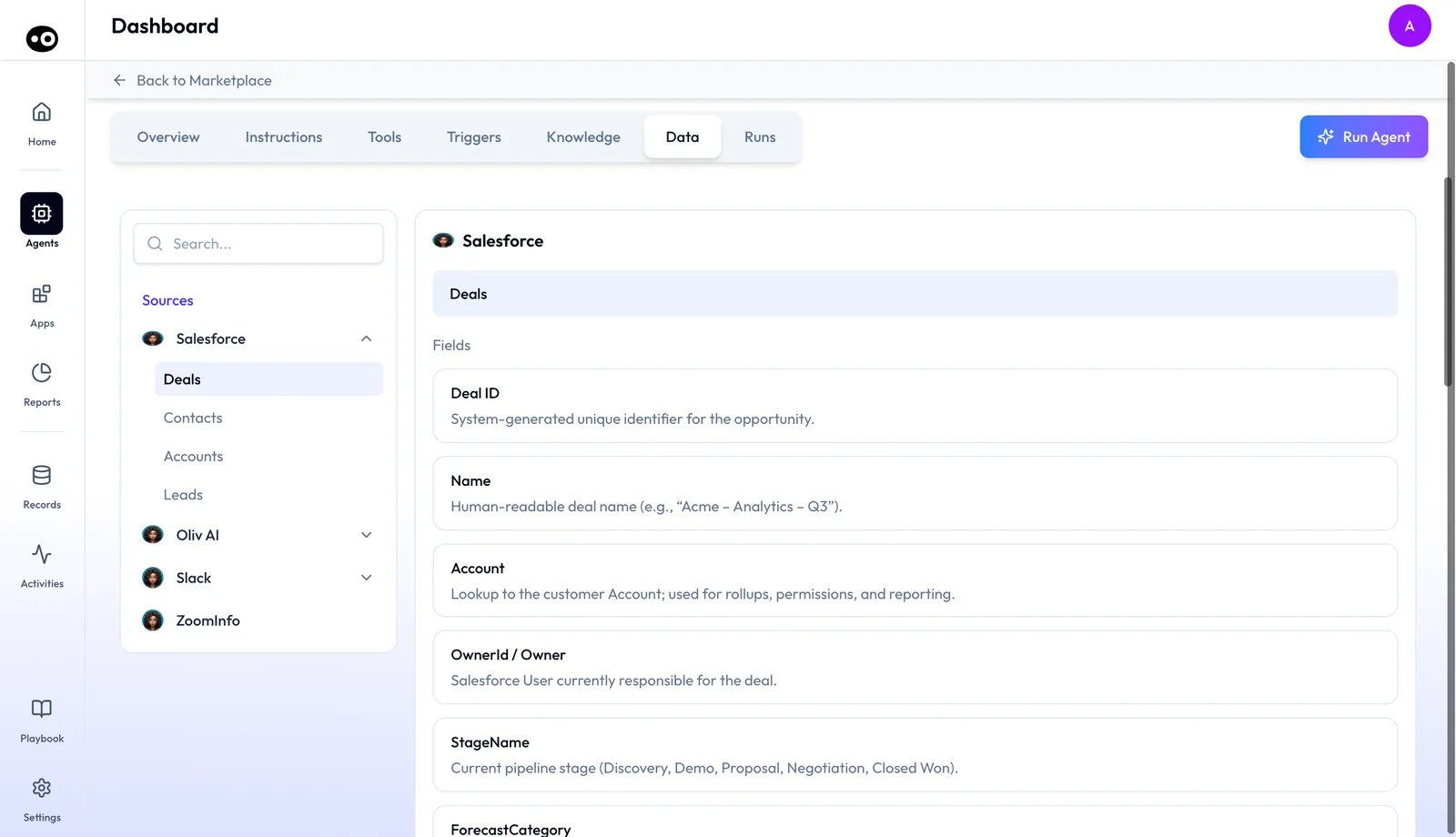
The Data tab shows exactly which Salesforce fields an agent can see, which helps an admin check its access before turning it on.
A Salesforce event can also start an agent. Oliv AI's Multithreader agent carries the trigger **Deal enters Proposal Stage in Salesforce**, and Salesforce is in the **Most popular** group when you press **Add Trigger**.
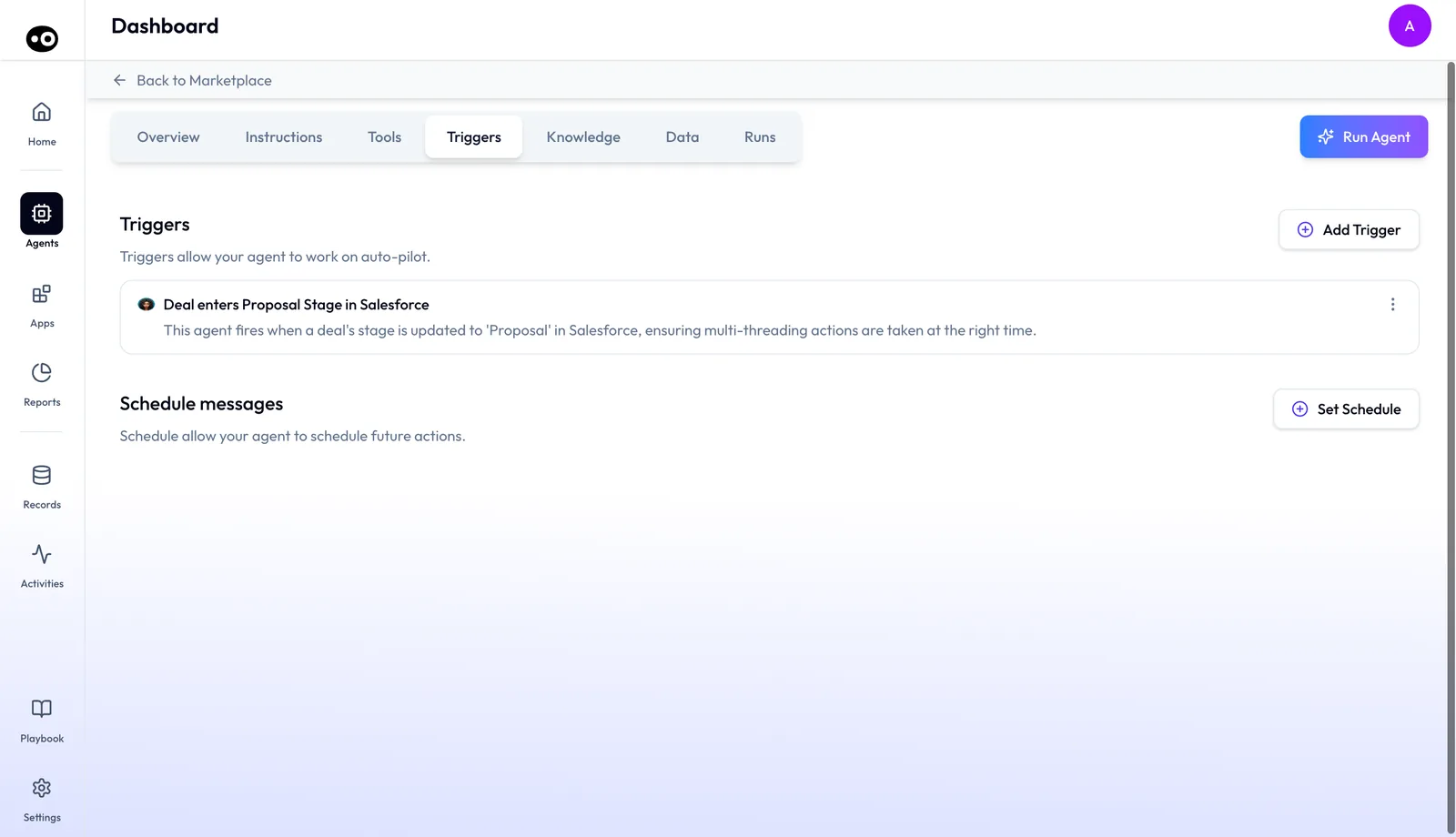
A Salesforce stage change is the event that starts Oliv AI's Multithreader agent, so its outreach begins the moment a deal reaches Proposal.
## Who uses the Salesforce integration, and how {#who-uses-it}
### Revenue operations {#revenue-operations}
RevOps installs the package, picks the control mode and runs clean-up jobs on old data. The weekly governance digest shows suggestions, acceptance rate by rep and records cleaned. See how Oliv AI supports [revenue operations teams](https://www.oliv.ai/revops).
### Sales managers {#sales-managers}
A sales manager opens a deal's **CRM Updates** tab [before a 1:1](https://www.oliv.ai/product-docs/workflows/run-a-pipeline-review/) to see which **AI Suggestions** are still waiting. The 1:1 can then cover the deal itself instead of missing fields. More on Oliv AI for [sales managers](https://www.oliv.ai/sales-managers).
### Account executives {#account-executives}
An AE reviews the proposed updates after a call, accepts most of them and rejects one. New stakeholders from the call are already contacts with roles on the opportunity. The workflow for [running deals as an account executive](https://www.oliv.ai/product-docs/use-cases/ae-run-deals/) shows where this fits in the day.
### Customer success {#customer-success}
Renewals, QBRs and check-in calls are logged against the account like any sales call. A CSM opening the account sees this week's activity, not last month's. More on Oliv AI for [customer success teams](https://www.oliv.ai/customer-success).
## How Oliv AI compares as AI for Salesforce {#compare}
Many conversation tools write call notes or fields into Salesforce. Oliv AI also lets you review each update before it's written, creates missing accounts and contacts, and resolves duplicate accounts as activity arrives. Oliv AI is the only platform in this table that does all four.
Salesforce sync features, from each platform's public documentation:
| Platform | Fields filled from conversations | Review before each write | New accounts and contacts created | Duplicate accounts resolved |
|---|---|---|---|---|
| **Oliv AI** | Yes | Yes | Yes | Yes |
| **Gong** | Yes ([AI data fields mapped to your CRM](https://help.gong.io/docs/monthly-updat)) | Automatic ([fields update without rep action](https://help.gong.io/docs/ai-data-extractor)) | Partly ([contact flows, inactive by default](https://help.gong.io/docs/built-in-flows-to-enrich-your-gong-data-in-salesforce)) | Not in docs |
| **Avoma** | Yes ([CRM properties mapped to Smart categories](https://help.avoma.com/crm-field-mapping-and-pipeline-faqs)) | Not in docs | Partly ([contacts for external participants](https://help.avoma.com/crm-sync-salesforce)) | Not in docs |
| **Fireflies** | Yes ([Autofill CRM for Salesforce](https://guide.fireflies.ai/articles/1729159683-autofill-crm-for-salesforce-automatically-extract-and-sync-meeting-data-to-contacts-accounts-and-opportunities)) | Yes ([nothing sent until you approve](https://guide.fireflies.ai/articles/1729159683-autofill-crm-for-salesforce-automatically-extract-and-sync-meeting-data-to-contacts-accounts-and-opportunities)) | Yes ([leads for new participants](https://guide.fireflies.ai/articles/7197167809-how-to-set-up-salesforce-and-fireflies-integration)) | Not in docs |
| **Fathom** | Yes ([summaries and selected content](https://help.fathom.video/en/articles/448640)) | Not in docs | Matches existing Contacts ([writes nothing if none found](https://help.fathom.video/en/articles/448640)) | Not in docs |
| **Outreach** | Yes ([Deal Agent opportunity fields](https://support.outreach.io/support/solutions/articles/159000425187-deal-agent-overview)) | Yes ([auto-applied or reviewed](https://support.outreach.io/support/solutions/articles/159000429608-slack-and-in-app-notifications-for-ai-insights-for-deals)) | Partly ([created inside Outreach](https://support.outreach.io/support/solutions/articles/159000425629-team-selling-with-salesforce-account-teams)) | Not in docs |
*Yes: documented and built in. Partly: documented with a limit, shown in brackets. Not in docs: not found in the vendor's public documentation.*
### Why Oliv AI is the stronger choice as AI for Salesforce {#compare-stronger}
- **It starts from the org you have.** Oliv AI's CRM Manager agent creates missing accounts and contacts and resolves duplicates as activity arrives. Gong describes [Salesforce flows for new contacts that ship inactive](https://help.gong.io/docs/built-in-flows-to-enrich-your-gong-data-in-salesforce). Compare [Oliv AI vs Gong](https://www.oliv.ai/blog/gong-vs-oliv).
- **Review first, automate later.** Ask First shows each update beside the current value, and RevOps decides when to switch to Auto-Pilot. Gong documents that [AI Data Extractor runs automatically, with no action from reps](https://help.gong.io/docs/ai-data-extractor). See [Oliv AI as a Gong alternative](https://www.oliv.ai/gong-alternative).
- **Accounts as well as contacts.** Oliv AI creates and enriches both accounts and contacts from any activity. Avoma documents that it [creates Salesforce Contacts for external meeting participants](https://help.avoma.com/crm-sync-salesforce). Compare [Oliv AI vs Avoma](https://www.oliv.ai/blog/avoma-vs-oliv-ai).
*Competitor details checked against each vendor's public documentation on 21 October 2026. Features and plans change, so confirm with the vendor before you decide.*
## Limits and things to know {#limits}
- **Admin install.** The package needs a Salesforce admin and the **Install for All Users** option.
- **Calendar first.** Without a calendar connection, Oliv AI can't take notes during meetings.
- **Custom fields go through Oliv AI's team.** They're mapped during onboarding, not from a settings screen.
- **Review is the default.** Auto-Pilot starts only after RevOps confirms the switch.
- **Unclear matches go back to people.** If an activity can't be matched to the right account or opportunity, the rep is asked.
- **Disconnecting is a request.** To remove the integration, send Oliv AI a message through Intercom in the Oliv AI app.
## Common questions {#common-questions}
#### Does Oliv AI replace Salesforce? {#faq-replace}
No. Oliv AI works with your existing CRM. It brings the context together and keeps Salesforce updated, and Salesforce stays the system of record.
#### How do I connect AI to Salesforce? {#faq-connect}
A Salesforce admin opens Oliv AI's admin install link, installs the package for all users, shares the org's URL with Oliv AI's team and enables two Salesforce settings. A calendar connection is also needed for meeting notes.
#### Who has to install it? {#faq-who-installs}
A Salesforce admin, who also needs Salesforce's Download AppExchange Packages permission. Check that you have it before you open the install link.
#### Which Salesforce objects does Oliv AI keep current? {#faq-objects}
Accounts, contacts, opportunities, activities and tasks. It also updates Opportunity Contact Roles and maintains parent and subsidiary account relationships.
#### Will it write to Salesforce without anyone approving? {#faq-approval}
Not by default. Every suggested update surfaces for review first. Once your team has built confidence, RevOps can switch to **Auto-Pilot**, and updates then apply without review.
#### Our Salesforce data is a mess. Can we still connect? {#faq-messy-data}
Yes. Real-time mode resolves issues as new activity comes in, and batch jobs clean what's already there. You don't need a clean org to start.
#### Who maps our custom fields? {#faq-custom-fields}
Oliv AI's team configures custom fields during onboarding as a service. Once mapped, they update the same way as standard and methodology fields.
#### How does it pick the right opportunity when an account has several? {#faq-multiple-opportunities}
Oliv AI's CRM Manager agent reads the full context of meeting, phone, email and Slack activity rather than relying on rules. It then connects the activity to the matching account, contact and opportunity. If it can't resolve a match, it asks the seller.
#### Does it log activity from meetings Oliv AI didn't record? {#faq-other-activity}
Yes. Activity logging applies to any activity that reaches the platform, not only meetings Oliv AI joined.
#### Can I see how a field changed over time? {#faq-field-history}
Yes. Oliv AI keeps a full history of how each field has been updated. On a deal, **Updates History** sits on the **CRM Updates** tab next to **AI Updates**, the changes already applied.
#### How can I check what Oliv AI has written to Salesforce? {#faq-check-writes}
Open a meeting's **CRM Updates** tab for what was written after that call, or a deal's **CRM Updates** tab for suggestions, applied changes and history. Salesforce's own field history also records changes on any field you've chosen to track.
#### How do I watch the load on our Salesforce org? {#faq-usage}
Oliv AI's install guide shows where Salesforce itself reports your org's usage for the last 24 hours and 7 days, and how to see usage by app with Salesforce Workbench. The 7-day report is only visible in Salesforce Classic.
#### Does Oliv AI work with other CRMs? {#faq-other-crms}
Yes. Salesforce, [HubSpot](https://www.oliv.ai/product-docs/integrations/hubspot/) and Zoho are supported out of the box, and additional CRMs are available on request.
#### How do I disconnect Salesforce? {#faq-disconnect}
Send Oliv AI a message through Intercom in the Oliv AI app, and the team removes the integration.
## Further reading {#further-reading}
- [Field History Tracking Overview](https://help.salesforce.com/s/articleView?id=sf.tracking_field_history.htm&type=5): what Salesforce records for each tracked field, and how long it keeps it.
- [Track Object Field History](https://help.salesforce.com/s/articleView?id=sf.tracking_field_history_for_standard_objects.htm&type=5): where to turn tracking on, object by object, in Setup.
- [Determine Which Users Can Access a Package](https://help.salesforce.com/s/articleView?id=xcloud.pkg_subscriber_determine_access.htm&type=5): what each install option grants, in Salesforce's own table.
- [Install a Managed Package](https://help.salesforce.com/s/articleView?id=sf.distribution_installing_packages.htm&type=5): the permission you need and what happens during an install.
- [Considerations for Enabling Shared Activities](https://help.salesforce.com/s/articleView?id=sf.activities_shared_considerations.htm&type=5): how multi-contact activities affect last activity dates, and why the setting stays on.
- [Confirmation Dialogs Can Prevent User Errors](https://www.nngroup.com/articles/confirmation-dialog/): why asking people to confirm too often stops protecting them, from Nielsen Norman Group.
## Related {#related}
- [How the Context Graph enriches your CRM](https://www.oliv.ai/blog/bi-directional-crm-sync-ai): why Oliv AI adds to Salesforce records and never replaces them.
- [Salesforce automation explained](https://www.oliv.ai/blog/salesforce-automation): how agent-led updates differ from Flow and rule-based automation.
- [Agentforce and specialized revenue AI](https://www.oliv.ai/blog/salesforce-agentforce-vs-revenue-ai-b2b-limitations): where Salesforce's own AI fits next to Oliv AI.
- [Context Capture](https://www.oliv.ai/context-capture): how raw activity becomes account, deal and people context before it reaches Salesforce.
- [Oliv AI integrations](https://www.oliv.ai/product-docs/integrations/): every tool Oliv AI connects to alongside Salesforce.
- [Prepare for a meeting](https://www.oliv.ai/product-docs/workflows/prepare-for-a-meeting/): the brief that draws on the Salesforce records this sync keeps current.
- [Sales methodology tracking](https://www.oliv.ai/sales-methodology): the qualification frameworks whose fields Oliv AI fills.
- [Oliv AI product documentation](https://www.oliv.ai/product-docs/): every documented agent and feature.
*Updated 3 November 2026: added install checks, review setups, activity matching, how to measure and check writes by hand, and a worked example.*