# Sales call clips: define the moments, then build libraries from new recordings
How to collect and share sales call clips without scrubbing recordings: define the moments, let Oliv AI clip new recordings into libraries on the Enable add-on, and share them in Slack or by link.
- Applies to: Enablement, sales managers and anyone who learns from recorded calls. Clip libraries sit in the Enable add-on.
- Status: Live
- Verified: 2026-11-03
- Canonical page: https://www.oliv.ai/product-docs/apps/converse/clips/
Sales call clips teach reps what good sounds like, but finding the moments means scrubbing through recordings. Describe the moments once, and Oliv AI's Content Curator agent clips what matches in each new recording and posts each clip to Slack. If a recording has no match, it makes no clip. Clips land in a library on the **Library** tab of Enable, which is an add-on.
## At a glance {#at-a-glance}
| | |
|---|---|
| **What it builds** | Libraries of clips cut from your new recordings |
| **Who builds it** | Oliv AI's Content Curator agent, or you, with **Clip** on a recording |
| **When it runs** | When a meeting is completed |
| **What you set** | The moments to look for, the library for each, and the channel to post to |
| **Each clip carries** | Why it was captured, who was on the call, the timestamp, the call date and a link to the full recording |
| **Clip length** | No fixed length: each clip is cut to be concise and complete |
| **When nothing matches** | No clip is made |
| **Where clips land** | The **Library** tab of Enable, an add-on, plus a Slack message with a direct link |
| **Sharing** | **Public** or **Private** libraries, and **Share** on any single clip |
## What the sales call clip library is {#what-it-is}
A rep asks how to answer a pricing objection, and their manager wants to send a good example before tomorrow's call. Open the **Library** tab of Enable and pull the clip, rather than scrubbing through a recording. Enable is an add-on, so check that it's [on your plan](https://www.oliv.ai/product-docs/plans/plans-and-seat-roles/) first. If the person who needs the clip is outside your workspace, send them its shared view, which opens on its own.
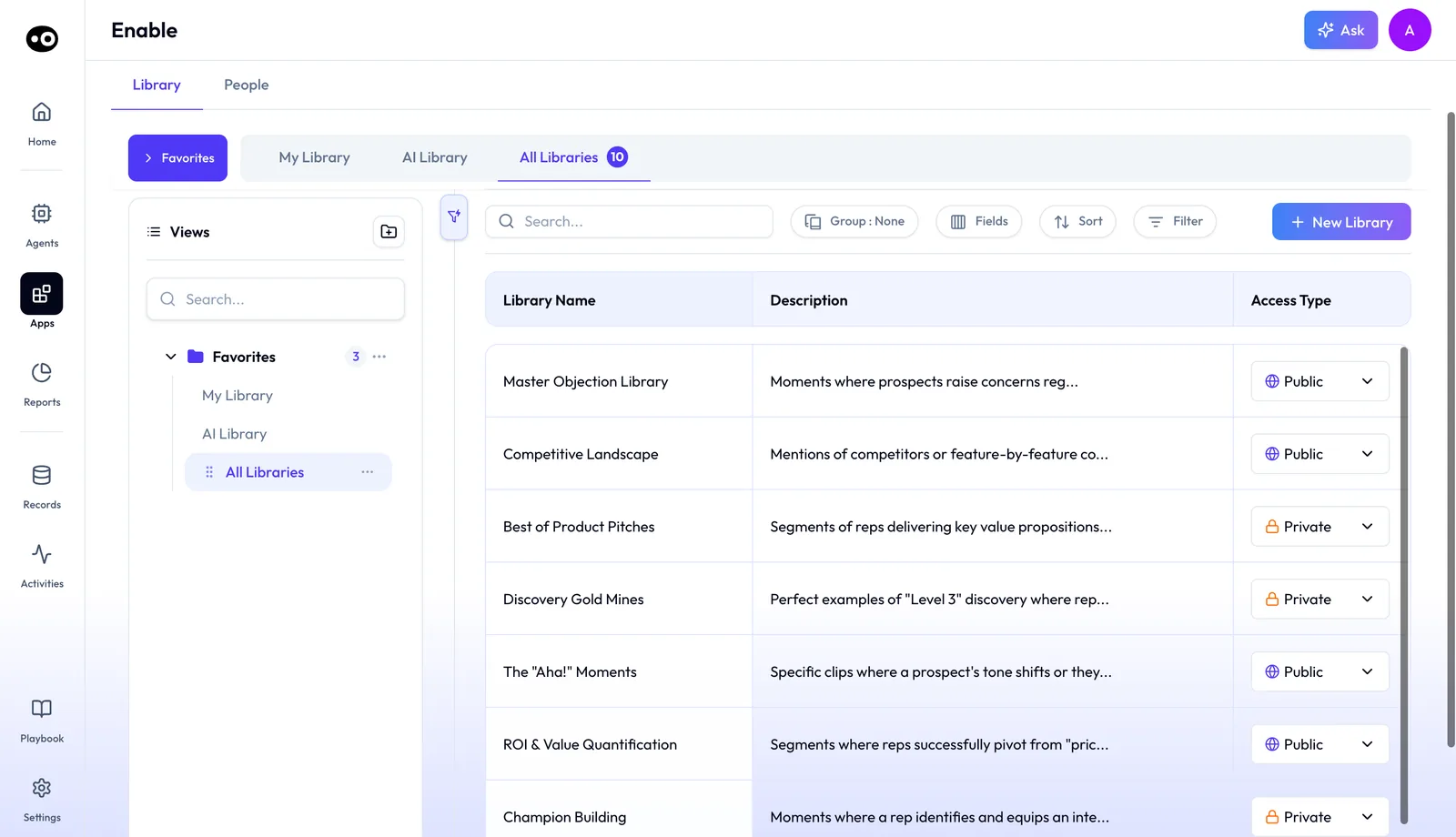
The Library tab is the home of every clip library: each one has a name, a description of the moments it collects and an access type you can change from the row. The count badge and the rows are sample data from a demo workspace.
Expect new clips only after a meeting is completed and its recording is ready for analysis. [Oliv AI's Content Curator agent](https://www.oliv.ai/agents/content-curator) then reads the meeting context, who spoke and how the conversation flowed, and cuts the segments that match your moments. Don't plan around a clip length, because each clip is cut to be concise and complete.
If a library looks quiet, check your descriptions first. The agent works on new recordings and makes no clip when nothing matches.
### Library views and access {#library-views}
To find a library, switch views above the table. Use **My Library** for the libraries you own, **AI Library** for the ones the AI builds, and **All Libraries** when you don't know who made it. **Favorites** has its own view too, and the **Views** tree on the left holds the same views, with a search box and a new-folder button.
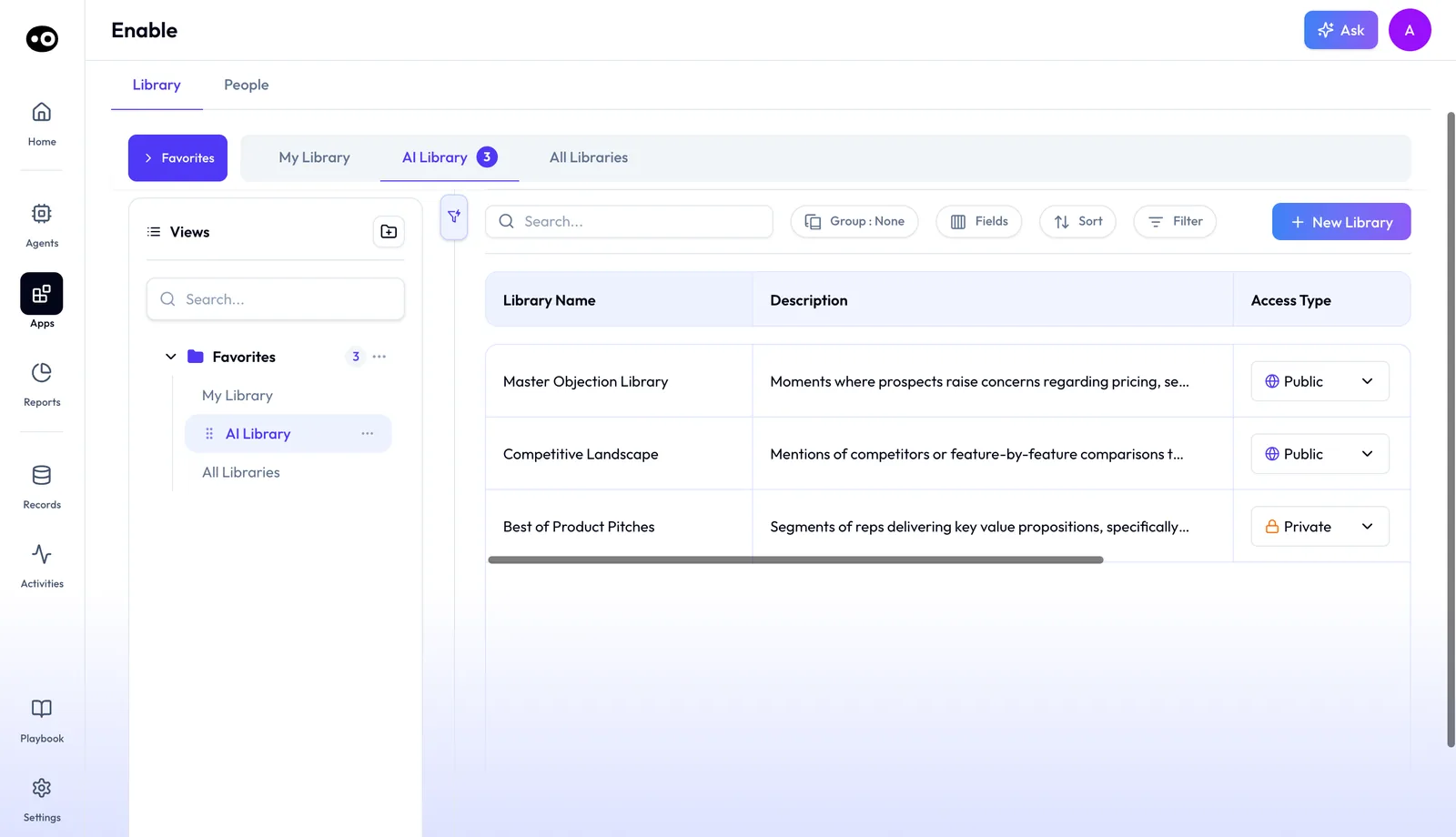
Switch to AI Library to see the libraries the AI builds, next to the ones you own under My Library. Its count badge shows demo data.
To decide who can see a library, set its **Access Type** in the row: **Public**, with a globe icon, or **Private**, with a lock. To start a library, press **+ New Library**. In a long list, use **Search**, **Group**, **Fields**, **Sort** and **Filter** to narrow it down.
### What's attached to every clip {#clip-details}
Before you send a clip to a rep, check what's attached to it:
- **Read the reason note.** It says why the agent captured the moment. If that isn't what you want to teach, pick another clip.
- **Check who was there.** The names of the people on the call travel with the clip.
- **Check the date and timestamp.** Make sure the example still fits what you sell today.
- **Open the full recording.** Follow the link to hear what led up to the moment.
### Watch a clip {#clip-page}
To review clips, open a library, which takes you to **Clip Libraries**. Pick a clip from the list on the left, where each is named by account and topic, or use the **Search library** box. To edit the library, press the pencil. The selected clip fills the centre, with its account, date and length, a **Customers** dropdown, the attendees and **Ask AI**.
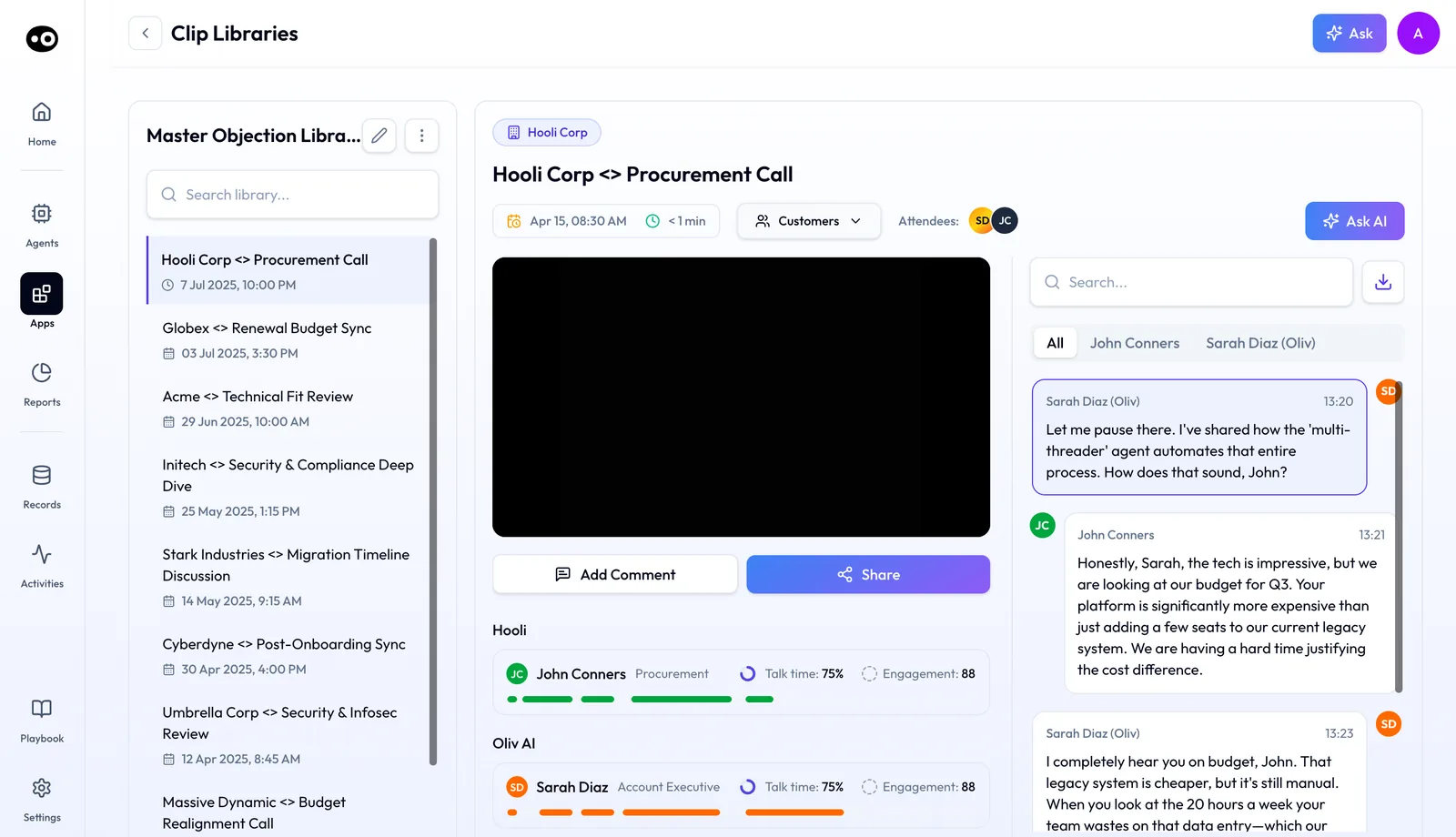
A clip opens with everything a rep needs to learn from it: the video, who spoke and how much, and a transcript you can search, filter by speaker or download. The talk time and engagement percentages shown are sample figures, not results.
To pass a clip on, press **Share** under the video, next to **Add Comment**. To see who carried the moment, read the speaker cards for **Talk time** and **Engagement**. To read only the buyer's turns, open their speaker tab in the transcript, which also has a search box and a download button.
### Moments and libraries {#moments-and-libraries}
Write one moment for each thing you want clipped, and give it one library and one Slack channel. To send the same kind of moment to two libraries, set up two moments. Three moment types come ready: **Product Requests**, **Competitor Mentions** and **Objections**. Add your own for anything else, such as discovery wins, customer pain or strong closes.
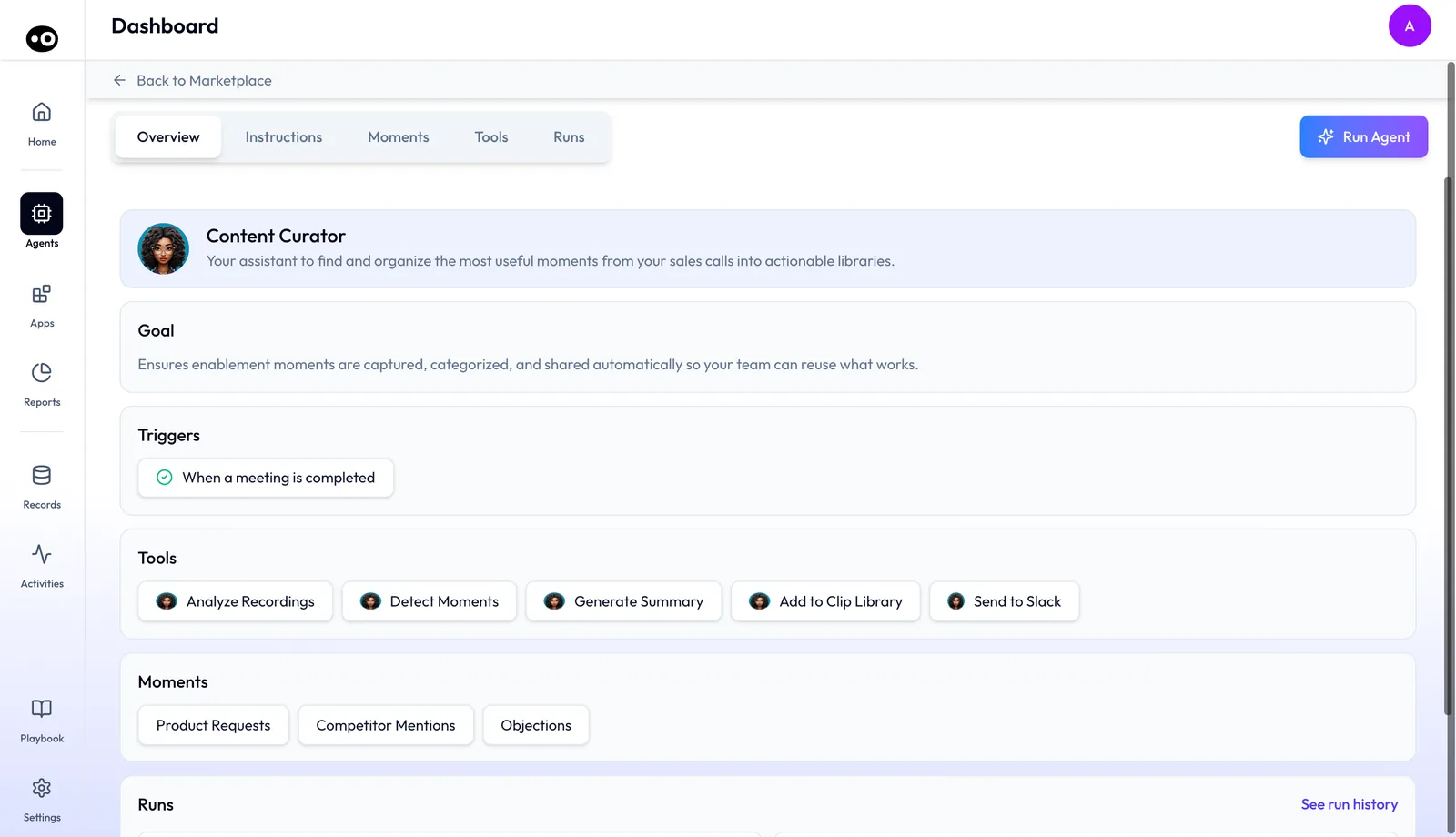
The agent's Overview shows what fills your clip library: it runs when a meeting is completed and looks for the three moment types listed at the bottom.
## Why sales call clips matter {#why-it-matters}
### What it's for {#what-its-for}
Sales call clips let a rep hear a good answer before the next call. To test whether you need them yet, name your most common objection. Then ask a rep to find a recent example of it handled well. If they can't find one without scrubbing through recordings, start now.
### How it helps {#how-it-helps}
Pick the line that sounds like your team, and set that up first:
- **Calls aren't being recorded yet.** Fix recording first, because the agent has nothing to clip until new recordings arrive.
- **New reps can't find a good objection answer.** Start with **Objections**, filed in an onboarding library.
- **Managers coach from memory.** Add a moment for the objection they raise most, filed in a coaching library.
- **Competitor answers vary from rep to rep.** Start with **Competitor Mentions**, posted to the channel your sales team reads.
- **Product keeps asking what customers want.** Start with **Product Requests**, posted to a channel the product team reads.
### What happens without it {#without-it}
If you skip sales call clips, good answers stay in recordings that nobody revisits, and each new rep works out objections alone. If no reps are ramping and nobody is asking for examples, you can wait. Run the test again before your next new hire starts.
### Why buyers care {#why-buyers-care}
Enablement leads usually own this decision, because they own the library and decide what goes in it. Sales managers should weigh in if they coach from real calls. Decide before new hires ramp, because examples are what they ask for first.
## The Oliv AI approach to sales call clips {#approach}
{/* 5P */}
Picture an enablement manager with six new reps starting in two weeks. She wants each of them to hear how experienced reps handle the objections that come up most. Pricing pushback and security questions top her list.
The usual route is to ask managers for good calls, then scrub the recordings and trim clips by hand. That can take days, and the folder tends to stop growing once the cohort ramps. Next quarter, the examples are already a few months old.
Strong objection handling keeps happening on calls every week. So her real job isn't finding one great clip. It's catching new ones as they happen and getting them to the reps who need them.
Oliv AI gives her one place to write that down, on the **Moments** tab of its Content Curator agent. She names the moment "Pricing objection handled". In **Define the moment**, she writes: a rep answers a pricing or security concern and keeps the deal moving. She then picks her onboarding library in **Select Library** and her onboarding channel in **Channel Name**.
After the first calls, she opens the library and reads each clip's note on why it was captured. If clips miss the point, she tightens the description. If none arrive, she checks that calls are being recorded, then whether the description is too narrow. How that compares with other call clipping tools is covered in How Oliv AI compares for sales call clips, below.
## Set up a moment {#set-up}
A moment tells Oliv AI's Content Curator agent what to clip and where to send it. An enablement or sales manager usually sets up the first ones.
1. **Make sure recordings are flowing.** The agent works on recordings from the Oliv AI notetaker, so [meetings need to be recorded](https://www.oliv.ai/product-docs/apps/converse/recording-modes/) first. [Connect Slack](https://www.oliv.ai/product-docs/integrations/slack/) too, so clips have somewhere to go.
2. **Open the agent and its Moments tab.** The **Moments** tab is unique to Content Curator. It lists each moment type, its **Clip Library** and its channel.
3. **Name the moment.** Use **Moment name**, for example "Pricing objection handled".
4. **Describe what to capture.** Use **Define the moment**. Be specific: the agent uses your description to understand intent, not keywords.
5. **Choose the library.** Pick one in **Select Library**, or type a **New Library Name** to start one.
6. **Choose the channel.** Set the **Channel Name** that each new clip is posted to.
The public walkthrough shows the same flow in four steps: **Configure**, **Output**, **Preview results** and **Finish**. Once saved, the moment runs every time a meeting is completed, with [no manual trigger](https://www.oliv.ai/product-docs/agents/builder/triggers/). **Run Agent** starts a run by hand if you want one.
### Write a description the agent can use {#write-description}
The description is the agent's only guidance, because it has no [knowledge files](https://www.oliv.ai/product-docs/agents/builder/knowledge/) to fall back on. A one-word topic leaves it guessing, so say who does what, and what makes the moment worth keeping.
| Instead of | Write |
|---|---|
| Pricing | A rep answers a pricing or security concern and keeps the deal moving. |
| Good discovery | A rep moves past surface-level questions to uncover the prospect's pain, the cost of inaction and the decision criteria. |
### Refine what it captures {#refine}
If a clip doesn't belong, remove it and the agent learns from that feedback. You can also sharpen a moment's description at any time to tighten what it looks for.
### Search before you clip {#search-and-clip}
You don't have to wait for the agent. In [Converse](https://www.oliv.ai/product-docs/apps/converse/), search for the exact objection, competitor mention or pricing concern. Then open the meeting's **Recording** tab and press **Clip** to cut that moment yourself.
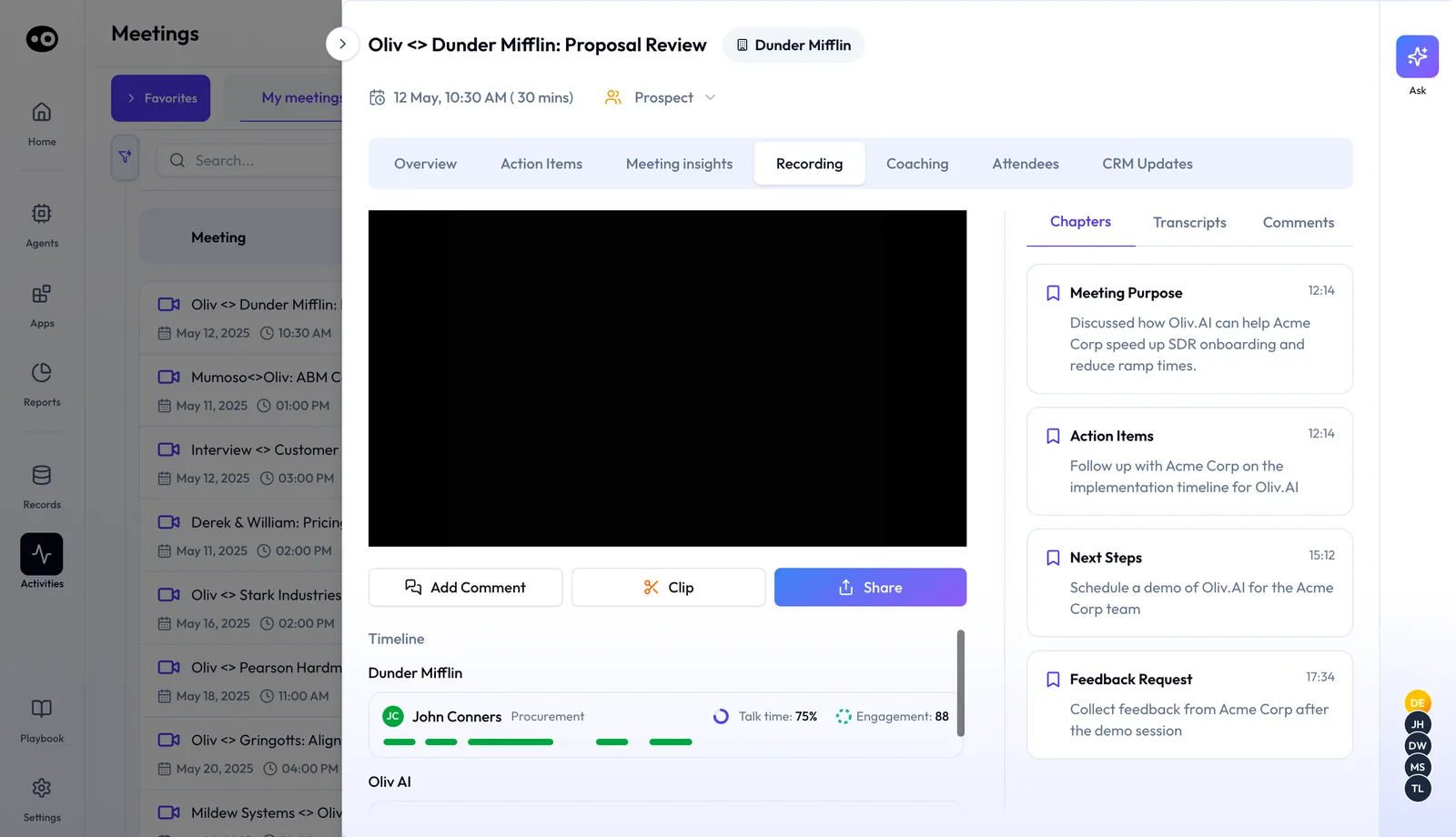
The Clip button on a meeting's Recording tab is the manual way into the library, for a moment you found yourself before the agent's next run.
Find the moment from **Chapters** or **Transcripts** first. The [meeting details page](https://www.oliv.ai/product-docs/apps/converse/meeting-details/) covers the rest of the Recording tab.
## How sales call moments get found and clipped {#methods}
You can get a moment out of a recording in three ways. Each one catches different things, so choose by what you want reps to learn.
### Watching and trimming by hand {#method-by-hand}
Someone watches the call, spots the moment and trims it. A person can judge a subtle moment, such as a rep recovering a call that was going badly. You miss whatever nobody has time to watch, and the folder stops growing when that person moves on.
### Searching for a word or tracked term {#method-keywords}
You search a transcript for a word and jump to where it was said. [HubSpot's tracked terms](https://knowledge.hubspot.com/calling/review-call-recordings-and-transcripts) work this way, taking you to the parts of a transcript that mention the term. This catches named competitors and pricing words. It misses the same concern in other words, and a word being said doesn't mean a rep handled it well.
### Describing the moment in plain language {#method-described}
You write down what the moment is, and software matches segments on meaning. This catches an objection however the buyer phrases it. It misses whatever your description leaves out, so your wording decides the result.
### Which of these Oliv AI does {#what-oliv-ai-does}
Oliv AI's Content Curator agent works from your description and looks for intent rather than keywords. For a moment you already know about, [Converse lets you search and then clip it](https://www.oliv.ai/converse) yourself. So you can use the agent for the moments that keep recurring, and **Clip** for the one-off.
## How to share sales call clips {#share-clips}
A clip only teaches if it reaches the rep before the next call. You have three routes, so match each to who needs the clip.
- **A channel, automatically.** Set **Channel Name** on the moment, and each new clip posts there with a direct link. Use this when a whole team should see what the moment catches.
- **A whole library.** Set **Access Type** to **Public** when a library is ready to share across teams. Keep it **Private** while you curate.
- **One clip, one person.** Press **Share** under the video. A clip's shared view opens from a link, so it also works for someone outside your workspace.
Before you share, remember what travels with the clip: the participants' names and the call date. Point each moment at a channel whose members should be hearing customer calls, and think twice before you send a link outside the company. [NN/g's guidance on research calls](https://www.nngroup.com/articles/informed-consent/) treats sharing a person's information with colleagues as a use they may not have agreed to. It's written for user research, but the check carries over.
## How to measure whether a moment is working {#measure-moments}
Two simple counts tell you whether a moment earns its place. Work them out per moment, because each moment has its own library and channel.
### Keep rate {#keep-rate}
Open a library and count how many of its recent clips you'd really send to a rep. Divide that by the number of clips you checked. A low rate usually means the description is too broad. The weak spot is judgment, so have the same person score each batch, and don't read much into a handful of clips.
### New clips over time {#clips-over-time}
Count the new clips in each library over a set period, such as a month. A count that drops to zero can mean a description is too narrow. It can also mean nothing matched, because a recording with no match makes no clip. Volume says nothing about quality, so read it next to the keep rate.
### Where to check in Oliv AI {#where-to-check}
The library's clip list gives you both counts. On the agent's **Runs** tab, you see run counts and the last run, and each run's record carries **View Clip Library** and **View Slack Alert**. So you can trace one clip to the message it sent. [Agent run history](https://www.oliv.ai/product-docs/agents/builder/run-history/) explains how to read that tab.
## How to build a sales call clip library by hand {#build-by-hand}
If you're doing this without an agent, these are the steps, and the last one is where it usually falls apart.
1. List the moments you want reps to hear, such as pricing objections and competitor mentions.
2. Ask managers which recent calls had good examples.
3. Watch each call and note the timestamp where the moment starts and ends.
4. Trim the clip in your recording tool, and check who can reach the full call. [HubSpot, for one, trims with playback handles and warns that clip viewers can also hear the entire recording](https://knowledge.hubspot.com/calling/review-call-recordings-and-transcripts).
5. Write a short note on why the clip matters, and add who was on the call and the date.
6. File the clip in a shared library that reps can find.
7. Post the link where the team will see it.
8. Repeat all of this for new calls, or the library goes stale.
### The same job with Content Curator {#same-job}
You keep step 1, and you write it down as a moment. Oliv AI's Content Curator agent then covers steps 3 to 7 for each new recording: it isolates the segment, drafts the note, attaches the details, files the clip and posts the link. Step 2 drops out, because the agent checks new recordings without being pointed at them. Your remaining job is to read the clips and sharpen any description that drifts.
### Worked example: five moments from three ready-made ones {#worked-example}
An enablement lead wants objections in two libraries, one for onboarding and one for coaching. Competitor mentions go in the same two, and product requests go in one. Each moment has one library and one channel, so each kind of moment needs one moment per library. This is an illustrative calculation with sample figures, not an Oliv AI output.
| Kind of moment | Libraries it feeds | Moments needed | Ready to use | Descriptions to write |
|---|---|---|---|---|
| Objections | 2 | 2 | 1 | 2 - 1 = 1 |
| Competitor mentions | 2 | 2 | 1 | 2 - 1 = 1 |
| Product requests | 1 | 1 | 1 | 1 - 1 = 0 |
| **Total** | 3 different libraries | 2 + 2 + 1 = 5 | 3 | 5 - 3 = 2 |
So the lead needs 5 moments, and writes 5 - 3 = 2 more descriptions. Both need to be specific, because the description is the agent's only guidance. The second objection moment, for example, should say what makes a clip right for coaching rather than repeat the word "objection".
## How the clip library works with other features {#works-with}
### Coaching {#with-coach}
When a rep keeps missing the same objection, open the 1:1 with clips of it handled well. [Oliv AI's Coach agent](https://www.oliv.ai/product-docs/agents/coach/) surfaces clips from the library for coaching sessions. If nothing useful comes up, check that a moment covers that objection.
### Meeting prep {#with-meeting-prep}
When a competitor comes up in a live opportunity, have the rep look for clips before the next meeting. [Oliv AI's Meeting Assistant agent](https://www.oliv.ai/product-docs/agents/meeting-assistant/) pulls three recent clips from your competitive intel library. Set up **Competitor Mentions** first, so that library has clips to pull. The agent works only on meetings linked to active opportunities, so check that link if the clips don't appear when you [prepare for a meeting](https://www.oliv.ai/product-docs/workflows/prepare-for-a-meeting/).
### Slack notifications {#with-chat}
When your team says it isn't seeing new clips, check the moment's **Channel Name** first. Each new clip posts to that channel with a direct link. To trace a post, open the run's record and use **View Clip Library** or **View Slack Alert**. [Oliv AI integrations](https://www.oliv.ai/product-docs/integrations/) lists the chat tools you can connect.
### Agent tools {#with-tools}
The agent has five tools: **Analyze Recordings**, **Detect Moments**, **Generate Summary**, **Add to Clip Library** and **Send to Slack**. All five start on **Auto Run**, so they act without asking.
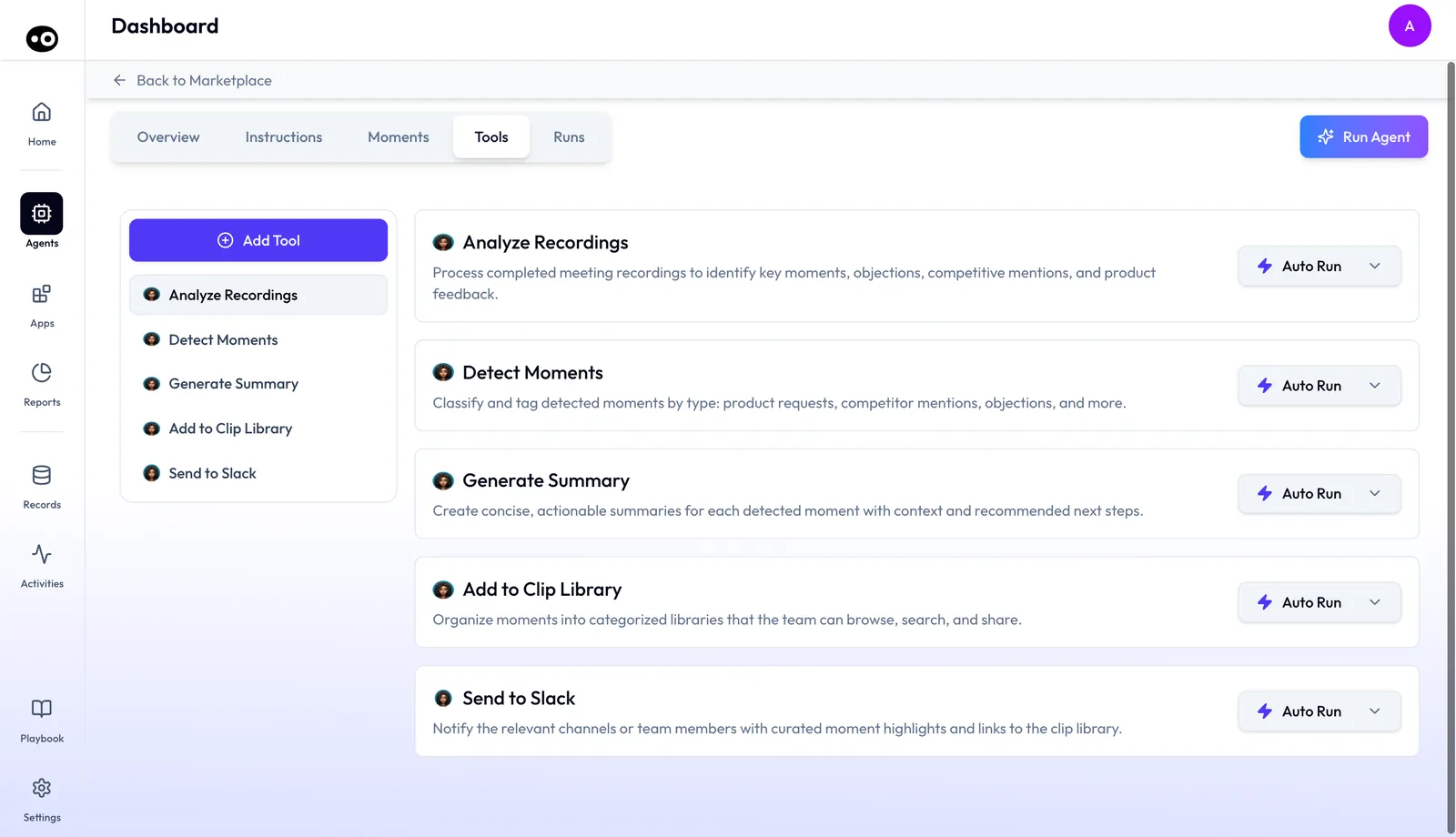
These five tools are the steps behind every clip, from reading the recording to filing it and posting to Slack, and each run mode can be changed from its card.
Change a run mode when you want a person in the loop. While you're still tuning a new description, or when a moment posts to a wide channel, make **Send to Slack** wait for your approval. Switch it back once the clips look right. [Agent tools and run modes](https://www.oliv.ai/product-docs/agents/builder/tools-and-run-modes/) explains how to change it.
## Who uses the clip library, and how {#who-uses-it}
These are typical patterns. Start with what's listed first for your role.
### Enablement {#enablement}
Set up one moment first, for the objection your new hires ask about most, and file it in an onboarding library. Add discovery wins and strong closes once those clips look right. Then [new-hire ramp](https://www.oliv.ai/blog/sales-new-hire-ramp-time-coaching-onboarding) can run on examples from this month's calls rather than last year's.
### Sales managers {#sales-managers}
As a [sales manager](https://www.oliv.ai/sales-managers), set up a moment for pricing objections across your team first. Before each 1:1, pick two clips that show the gap and one that shows the fix.
### Account executives and SDRs {#account-executives}
Ask your enablement lead to turn on **Competitor Mentions** first, then check that your next meeting is linked to an active opportunity. That's how recent clips of colleagues handling a competitor reach you before the meeting. It fits the way AEs [run their deals in Oliv AI](https://www.oliv.ai/product-docs/use-cases/ae-run-deals/).
### Customer success {#customer-success}
Point the **Product Requests** moment at a channel the product team reads first. As a [customer success](https://www.oliv.ai/customer-success) lead, you can rely on new onboarding sessions, QBRs and check-ins being in scope.
## How Oliv AI compares for sales call clips {#compare}
Oliv AI's clip library fills itself from moments you describe in plain words. Oliv AI's Content Curator agent clips each match, files it in that moment's library and posts it to your channel, every time a meeting is completed. Oliv AI is the only platform in this table that does all four.
Call clipping features, from each platform's public documentation:
| Platform | Clips cut from moments you describe | Clips filed into libraries automatically | New clips posted to a chat channel | Share link for a single clip |
|---|---|---|---|---|
| **Oliv AI** | Yes | Yes | Yes | Yes |
| **Gong** | Partly ([AI trackers flag moments](https://help.gong.io/docs/about-trackers)) | Partly ([streams collect whole calls](https://help.gong.io/docs/about-the-call-library)) | Partly ([stream alerts for new calls](https://help.gong.io/docs/about-the-call-library)) | Yes ([snip a moment to share](https://help.gong.io/docs/share-or-embed-a-call)) |
| **Avoma** | Partly ([AI picks the moments](https://help.avoma.com/how-to-create-a-snippet)) | Partly ([Smart Playlists by filter rules](https://help.avoma.com/creating-a-playlist)) | Partly ([keyword and topic alerts](https://help.avoma.com/slack-integration-setup-guide)) | Yes ([public snippet links](https://help.avoma.com/how-to-create-a-snippet)) |
| **Fireflies.ai** | Partly ([Magic Soundbites on request](https://guide.fireflies.ai/articles/1026795385-soundbites-how-to-extract-meeting-clips-and-highlights-from-fireflies-meetings-automatic-and-manual-methods)) | Partly ([playlist picked per soundbite](https://guide.fireflies.ai/articles/2540580393-getting-started-with-playlists-how-to-create-and-view-them)) | Not in docs | Yes ([anyone-with-link access](https://guide.fireflies.ai/articles/1026795385-soundbites-how-to-extract-meeting-clips-and-highlights-from-fireflies-meetings-automatic-and-manual-methods)) |
| **Fathom** | Partly ([Trackers find moments by meaning](https://help.fathom.video/en/articles/11380417)) | Partly ([playlists assembled by hand](https://help.fathom.video/en/articles/11380417)) | Partly ([search and tracker alerts](https://help.fathom.video/en/articles/7374465)) | Yes ([copy a highlight clip link](https://help.fathom.video/en/articles/295680)) |
*Yes: documented and built in. Partly: documented with a limit, shown in brackets. Not in docs: not found in the vendor's public documentation.*
### Why Oliv AI is the stronger choice for sales call clips {#compare-stronger}
- **Moments you describe, clipped for you.** Oliv AI's Content Curator agent cuts the segments that match a moment you wrote in plain words. [Gong documents snippets made by dragging bars across the call timeline](https://help.gong.io/docs/add-calls-and-snippets-to-a-folder). See [Oliv AI vs Gong](https://www.oliv.ai/blog/gong-vs-oliv).
- **Libraries of clips, not whole calls.** Oliv AI files each clip in the library its moment points to. [Avoma's Smart Playlists pull in whole recordings that match your filter rules](https://help.avoma.com/creating-a-playlist). See [Oliv AI vs Avoma](https://www.oliv.ai/blog/avoma-vs-oliv-ai).
- **Filed without a second step.** Oliv AI routes every clip to its library and channel as soon as it's cut. [Fireflies.ai has you choose a playlist for each soundbite](https://guide.fireflies.ai/articles/2540580393-getting-started-with-playlists-how-to-create-and-view-them).
*Competitor details checked against each vendor's public documentation on 21 October 2026. Features and plans change, so confirm with the vendor before you decide.*
## Limits and things to know {#limits}
- **Enable is an add-on.** Clips land on its **Library** tab, so you need it to browse and manage libraries.
- **Recordings come first.** The agent needs recordings flowing from the Oliv AI notetaker before it can clip anything.
- **New recordings only.** It acts on newly completed recordings.
- **One library and one channel per moment.** To send the same kind of moment to two places, set up two moments.
- **Two access types.** A library is either **Public** or **Private**.
- **No fixed clip length.** Clips are cut to be concise and complete, so lengths vary.
- **Moment descriptions are the only guidance.** The agent has no knowledge files, so put everything it needs into the description.
- **No match, no clip.** If a recording has nothing that matches a moment, no clip is made.
## Common questions {#common-questions}
#### How do you share the best moments from sales calls? {#faq-share-best}
Define the moment, and Oliv AI posts each new matching clip to the Slack channel you chose, with a direct link. You can also open a library to other teams, or press **Share** on a single clip.
#### Which sales call moments are worth clipping? {#faq-worth-clipping}
Start with moments that teach or inform someone: pricing objections, competitor mentions, discovery wins, customer pain, product feedback and strong closes. Oliv AI comes with **Product Requests**, **Competitor Mentions** and **Objections** ready to use.
#### Does the agent clip automatically, or do I trigger it? {#faq-automatic}
Automatically. Once a moment is defined, Oliv AI's Content Curator agent runs when a meeting is completed and adds clips as it finds them. **Run Agent** is there if you want to start a run by hand.
#### Can I clip a moment myself? {#faq-manual}
Yes. Open the meeting's **Recording** tab in Oliv AI, find the moment and press **Clip**.
#### Will the agent clip our older recordings? {#faq-older-calls}
Plan on new recordings only. Oliv AI's Content Curator agent acts on newly completed recordings. For a moment in an older call, search for it in Converse and press **Clip** on the meeting's **Recording** tab.
#### How does it know what to clip? {#faq-what-to-clip}
You describe the moment in plain language. Oliv AI's Content Curator agent matches segments against that description, using context and intent rather than keyword lists.
#### What if it clips something irrelevant? {#faq-irrelevant}
Remove the clip and Oliv AI's Content Curator agent learns from it. You can also refine the moment's description at any time to sharpen what it looks for.
#### What does each clip include? {#faq-clip-contents}
A short note on why it was captured, the participants, the timestamp, the call date and a link to the source recording.
#### How long is a sales call clip? {#faq-length}
There's no set length. Each clip is cut to be concise and complete, so it holds the whole moment rather than a fixed number of seconds.
#### Does it work on customer success and onboarding calls? {#faq-cs-calls}
Yes. New recordings in Oliv AI are in scope whatever the call type, including sales calls, demos, onboarding sessions, QBRs and customer success check-ins.
#### Can we share a library across teams? {#faq-share-library}
Yes. Set the library's **Access Type** to **Public**. Keep it **Private** while you curate. Individual clips can also be shared with **Share**.
#### Can someone outside our workspace watch a clip? {#faq-outside-viewer}
Yes. A clip has a shared view that opens from a link, built for someone outside your workspace.
#### Where do new clips show up? {#faq-where}
In the library set for the moment, on the **Library** tab of Enable, which is an add-on. A Slack message with a direct link also goes to that moment's channel.
#### Which moments come ready to use? {#faq-default-moments}
Three come ready: **Product Requests**, **Competitor Mentions** and **Objections**. Add your own for anything else your team wants to learn from.
## Further reading {#further-reading}
- [Review call recordings and transcripts](https://knowledge.hubspot.com/calling/review-call-recordings-and-transcripts): how HubSpot's own call review handles tracked terms, trimming and clip permissions, if you clip there by hand.
- [Obtaining consent for user research](https://www.nngroup.com/articles/informed-consent/): why sharing what someone said on a call needs more thought than recording it.
## Related {#related}
- [Oliv AI product documentation](https://www.oliv.ai/product-docs/): every guide, by agent and feature.
- [Run deals as an account executive](https://www.oliv.ai/product-docs/use-cases/ae-run-deals/): where clips fit in an AE's week.
- [Content Curator agent page](https://www.oliv.ai/agents/content-curator): what the agent watches for and where clips go.
- [Converse](https://www.oliv.ai/product-docs/apps/converse/): conversation capture, search and clipping.
- [Handling objections in sales](https://www.oliv.ai/blog/handling-objections-in-sales): what good objection handling sounds like.
- [Sales enablement software](https://www.oliv.ai/blog/sales-enablement-software): how enablement tools differ.
- [Coaching at scale with AI](https://www.oliv.ai/blog/vp-of-sales-coaching-at-scale-using-ai): building coaching that doesn't rely on hero managers.
- [Plans and pricing](https://www.oliv.ai/pricing): how Oliv AI is priced.
*Updated 3 November 2026: added how moments get clipped, sharing routes, two measures, the manual method, a worked example, further reading and more common questions.*